

What is Upscayl?
Upscayl is a free and open-source desktop application that enlarges and enhances low-resolution images with AI models. It is published for Linux, macOS and Windows, and the README credits Nayam Amarshe and TGS963 as its authors under the Upscayl name. The application guesses plausible detail when it enlarges an image, and the project FAQ states its limit plainly: it can improve low-resolution and pixelated images, but it cannot remove blur or fix focus in an out-of-focus photo. The Upscayl Desktop download page states that all processing happens on the local machine and needs no internet connection.
The desktop app is built with Electron, Next.js and TypeScript. Upscaling is done by upscayl-ncnn, a command-line backend based on Real-ESRGAN and the NCNN framework with Vulkan, which is also the project's answer to whether a CLI exists. Models are stored in NCNN format (.bin and .param files). Because NCNN Vulkan needs a Vulkan-compatible GPU, Upscayl does not run on most integrated GPUs or on CPUs alone; the compatibility list names Ubuntu 20.04+, Windows 10+ and macOS 12+, and says GPUs with Vulkan 1.3 support should generally work.
The latest GitHub release is v2.15.0, titled "2.15 New Year Update" and published on December 25, 2024. A v2.15.1 tag was created the same day without a separate GitHub release, and the full changelog link of v2.15.0 points to it; the package.json on the main branch still reports 2.15.0, with later commits continuing into 2026. Version 2.15 added the High Fidelity model, a redesigned interface, interface translations, a Lens Viewer, pasting images from the clipboard, an onboarding dialog, usage statistics in the sidebar, TTA mode, a System Info section, JFIF input, an option to turn off update checks and opt-in anonymous usage statistics. The release notes also say macOS builds moved to a macOS 13 build image.
Release assets cover Linux (AppImage, DEB, RPM and ZIP), macOS (a universal DMG and ZIP) and Windows (an NSIS installer and ZIP). The README also lists Flathub, Snap, AppImageHub, the AUR, a Gentoo ebuild, Homebrew and the Mac App Store; the download page notes that the Mac App Store version is not free, while the desktop builds from GitHub and the website are. The Windows installer is unsigned, and the README describes accepting the SmartScreen or unknown-publisher prompt during installation.
The desktop application and the upscayl-ncnn backend are licensed under AGPL-3.0. Some bundled models carry other terms: the app labels Remacri, Ultramix and Ultrasharp as Non-Commercial. Alongside the open-source app, the company sells Upscayl Cloud, a browser-based beta service with credit-based plans that runs upscaling on its servers and adds image generation, AI image editing and face enhancement. Cloud features, storage and pricing are separate from the AGPL desktop app. The project accepts donations through Buy Me a Coffee and lists sponsors in the README.
Key capabilities
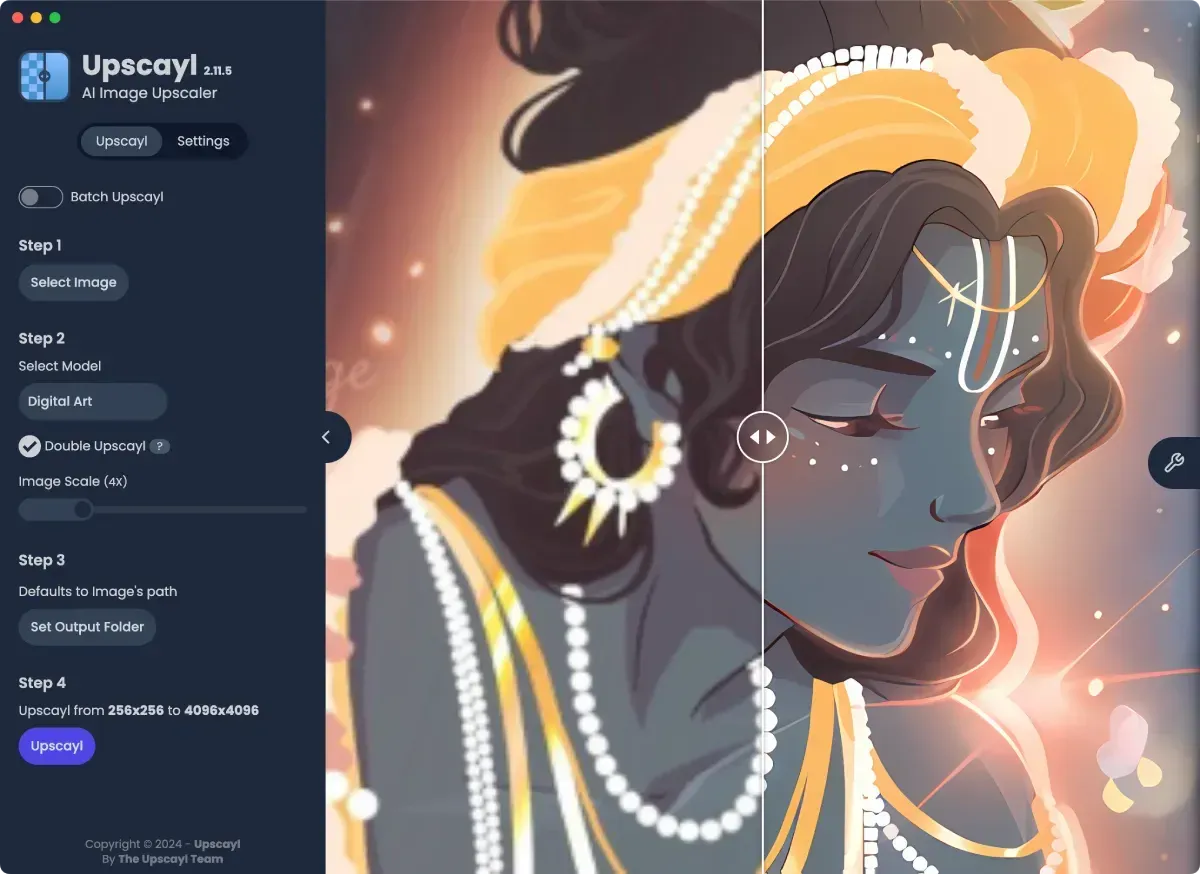
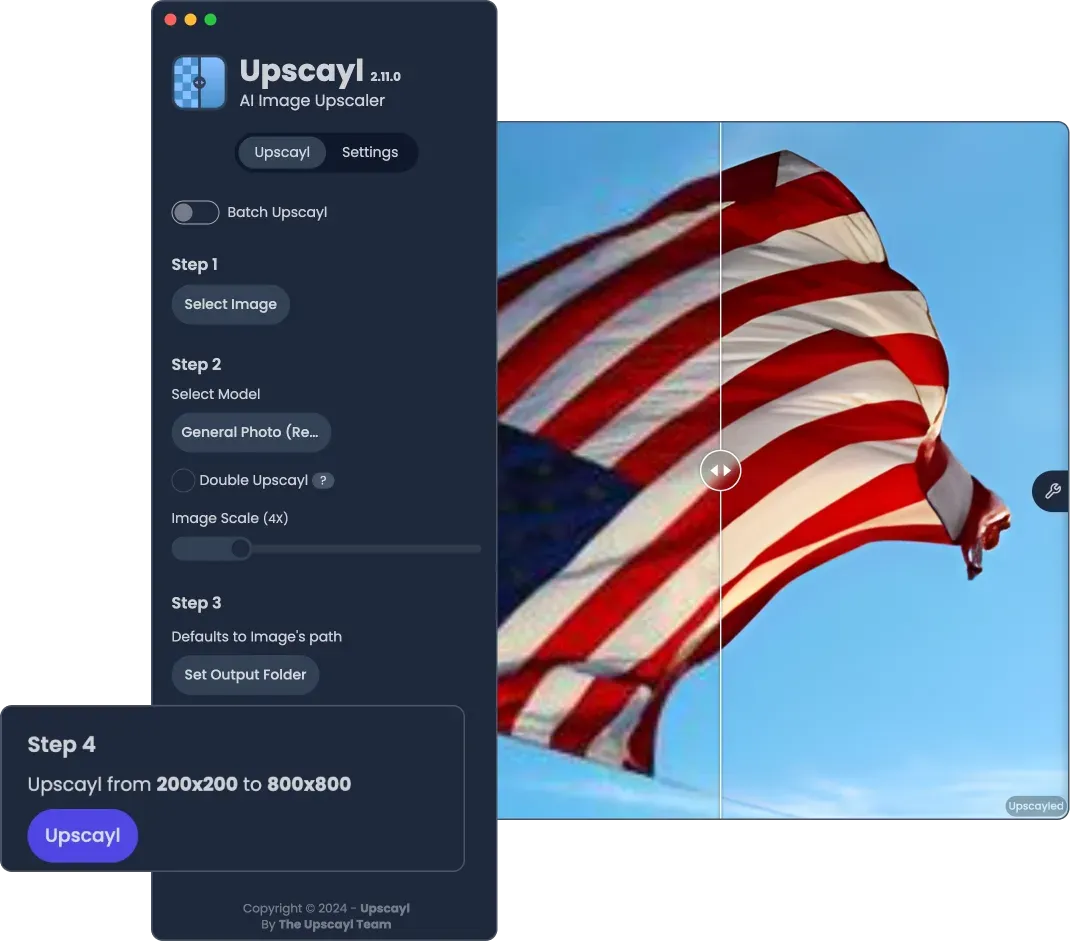
- Local AI upscaling Upscayl Desktop enlarges an image with a Real-ESRGAN based NCNN model and shows the result next to the original with a draggable before/after divider. Processing runs on the local GPU, and the download page states that no internet connection is needed for it. The project says it does not fix blur or focus, only low resolution and pixelation.
- Seven built-in models The model list in the source contains Upscayl Standard, Upscayl Lite, High Fidelity, Remacri, Ultramix Balanced, Ultrasharp and Digital Art, all at 4x. The model picker shows example images and short descriptions, such as Lite for faster upscaling and Digital Art for illustrations. Remacri, Ultramix and Ultrasharp are labelled Non-Commercial in the app.
- Custom NCNN models Since v2.5, users can point Upscayl to a folder of NCNN models in
.binand.paramform, and they appear under Imported Custom Models. The project keeps a custom models repository and a model conversion guide for turning ESRGAN PyTorch models into NCNN with chaiNNer v0.21.0. The guide says only ESRGAN PyTorch models are guaranteed to work. - Scale, custom width and Double Upscayl The built-in models produce 4x output; other scales are emulated by downscaling the 4x result, and the app says anything above 4x only resizes without AI, except 16x through Double Upscayl. Double Upscayl runs the model twice on one image, with a warning about longer processing time. A custom output width can replace the scale setting, with the height adjusted automatically.
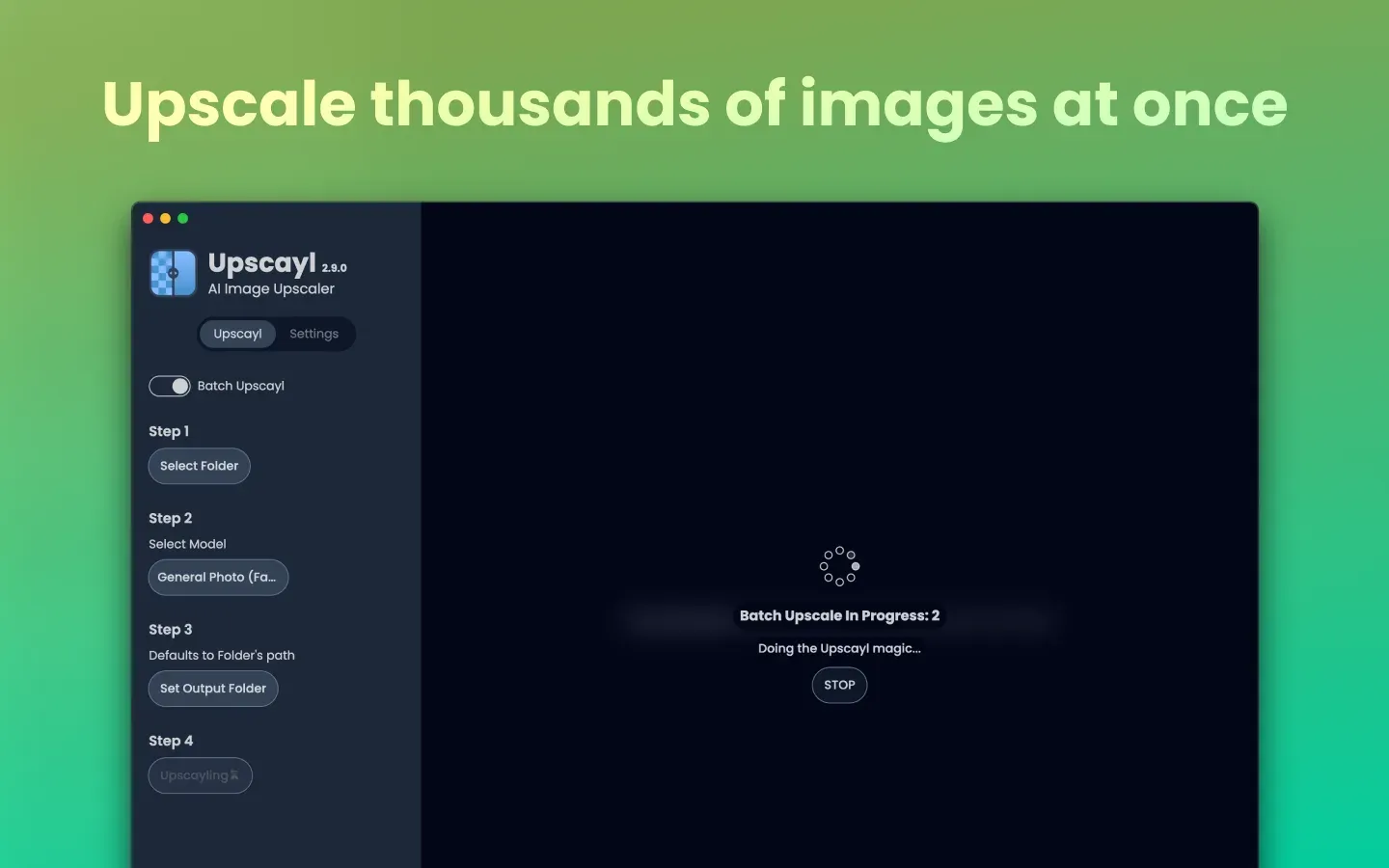
- Batch Upscayl Batch mode processes every image in a selected folder in one run and writes the results to an output folder. When a model does not support a requested action, Upscayl finishes upscaling all images before post-processing them, so a stopped batch can leave unprocessed or unscaled files. The right sidebar counts total batch and double upscayls.
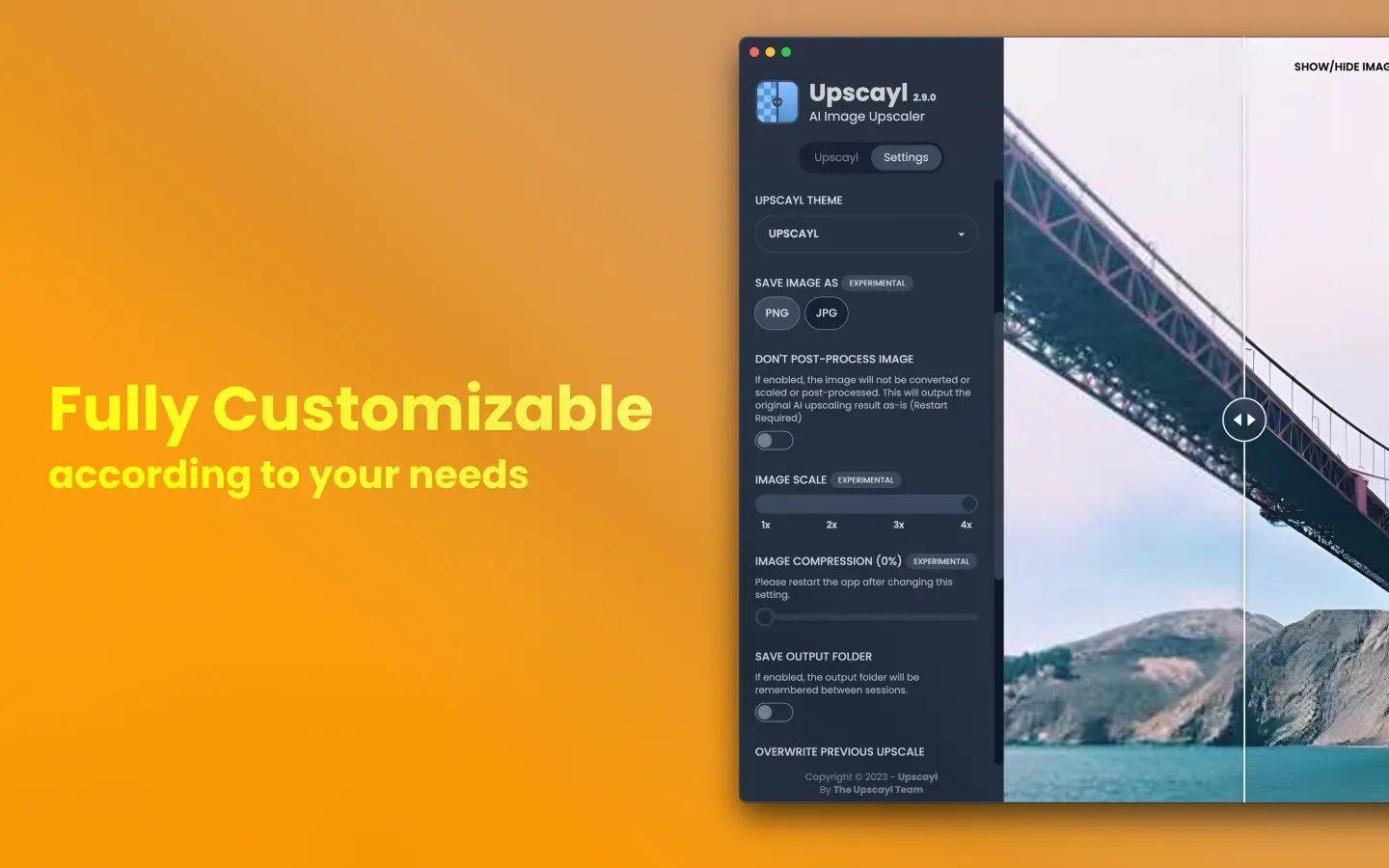
- Input and output formats The app accepts PNG, JPG, JPEG, JFIF and WebP files, and can save as PNG, JPG or WebP. A compression setting applies to the output; the app notes that PNG compression is lossless and higher values can slow processing. Transparent PNGs can be upscaled, as shown in the project's Flathub screenshots.
- Metadata, overwrite and output options Copy Image Metadata keeps the original EXIF data in the upscaled file, and the app suggests JPG for better metadata compatibility. Overwrite Previous Upscale makes Upscayl process an image again instead of loading an earlier result. The output folder defaults to the image's own path.
- GPU selection and tile size The GPU ID setting picks one or more Vulkan GPUs by the IDs shown in the logs, for example
0or0,1,2. The user guide notes that Windows can override this unless the app is set to performance mode, and that load is not split evenly across GPUs. A custom tile size changes how the image is segmented, and 0 restores the default. - TTA mode Test Time Augmentation, added in v2.15, aims to improve results such as artifact removal. The app warns that it multiplies processing time by eight.
- Lens Viewer, clipboard and statistics Version 2.15 added a Lens View with an adjustable zoom amount to inspect details, pasting an image with Ctrl+V or Cmd+V, and statistics such as total images upscaled and average upscale time. A System Info section and logs in Settings support bug reports.
- Interface languages and themes The repository ships interface translations for 20 locales, including English, German, French, Spanish, Portuguese, Russian, Japanese, Chinese, Vietnamese and Indonesian, and the onboarding dialog includes a language switcher. Settings also include an interface theme selector.
- Updates and statistics settings An auto-update check can be turned off in Settings since v2.15. The same release added an option to share usage statistics such as GPU models and daily active users, which the release notes describe as containing no personal data.
- Download for Windows Windows 10 or later: the release provides
upscayl-x.x.x-win.exe(NSIS installer with a choice of installation directory) and a ZIP. The installer is not code-signed, so Windows shows SmartScreen or an unknown-publisher prompt. - Download for macOS MacOS 12 or later: the release provides a universal DMG and ZIP. The README describes opening the app the first time via right-click and Open. A paid Mac App Store version and a Homebrew cask are also listed.
- Download for Linux The release provides an AppImage, DEB, RPM and a ZIP for x86 Linux, and the project lists Flathub (
org.upscayl.Upscayl), Snap, AppImageHub, the AUR and a Gentoo ebuild. The Flatpak manifest and metainfo file are kept in the repository. - CPU-only workaround The FAQ states that a Vulkan GPU is required, but links a community workaround for Windows and Linux without a graphics card in issue #390. No workaround is described for macOS.
- Upscayl Cloud Upscayl Cloud is a browser service, in beta, that runs on the company's servers without local GPU requirements. The Cloud page lists 8x models, more formats, any input resolution, face enhancement, AI image generation, natural-language image editing, storage and commercial use. The pricing page lists a free trial with 10 credits, a Pro plan at $24.99 for 300 credits per month, a Business tier and custom plans, plus one-time credit packs.
Where Upscayl fits
Enlarging a single low-resolution image
The main window follows four steps: select an image, select a model, choose the output folder and start the upscale. Step 4 shows the input and output resolution before processing, for example 256x256 to 4096x4096 with Double Upscayl enabled. The result appears next to the original with a slider and a Lens View for close inspection.
Processing a folder of images
Turning on Batch Upscayl changes Step 1 to Select Folder, and every supported image in that folder is processed with the same model and settings. The progress view shows how many files are done and offers a Stop button, and Open Upscayled Folder opens the results. The FAQ explains that post-processing such as scaling and compression runs after all images are upscaled.
Upscaling digital art and illustrations
The Digital Art model is described for digital art and illustrations, while High Fidelity targets realistic detail and smooth textures and Upscayl Standard is described as suitable for most images. Example images in the model picker show the difference before selection. Comparisons between models are published in the project's comparison page.
Adding a model from the community
A model from the custom models repository, or one converted from an ESRGAN PyTorch file, is placed in a local folder as a .bin and .param pair. After the folder is selected under Add Custom Models in Settings, the model appears in the model list by file name. Models such as realesr-animevideov3-x2 and -x3 provide native 2x and 3x output.
Running on a machine with several GPUs
The logs in the Settings tab list the available Vulkan devices with their IDs, and the GPU ID field selects one or several of them. On Windows, the app has to be set to performance mode in the display settings for the choice to take effect, according to the project guide.
Using Upscayl without a local GPU
Upscayl Cloud runs the same task in a browser on phones, tablets and computers, with credits instead of local hardware, and adds face enhancement, generation and editing. Other image tools listed on iThub, such as GIMP and Krita, are general editors rather than dedicated AI upscalers.
Reviews of Upscayl
Be the first to share your experience with Upscayl.
Write a review
Loading review form…
Found Upscayl useful? Upvote it todayYour vote helps other IT teams find it in the daily ranking.