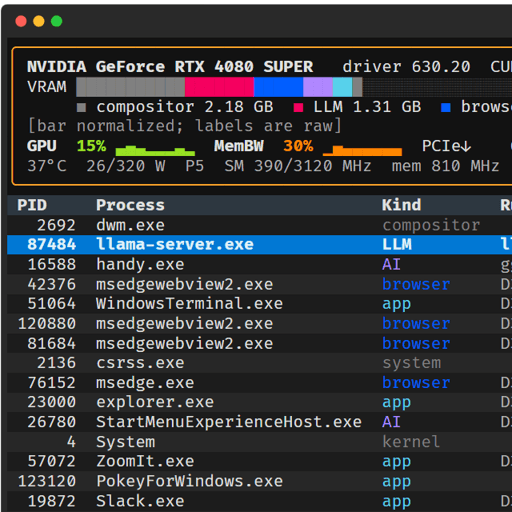

What is PowerBGInfo?
PowerBGInfo is an open-source PowerShell module that draws machine information onto the Windows desktop wallpaper and the lock screen. It is published by Evotec, with Przemyslaw Klys listed as author in the PowerShell Gallery package, and the project website describes it as a way to put a machine's facts, health and charts on its wallpaper, with the layout written in PowerShell or JSON. The README presents it as a PowerShell alternative to Sysinternals BGInfo: the layout is a script, the data can come from any source PowerShell can query (CIM, the registry, Active Directory, a REST API or a monitoring export), and nothing besides the module has to be installed on the machine.
The repository was created in December 2022, and Evotec's introduction post of January 1, 2023 explains that the first version was assembled from two earlier Evotec modules: ImagePlayground for drawing text on images and DesktopManager for reading and setting wallpapers per monitor. Version 0.0.1 reached the PowerShell Gallery on December 30, 2022; the GitHub release of 1.0.0 followed on May 24, 2026 and 2.0.0 on July 21, 2026, when the module dropped its System.Drawing rendering dependency in favour of direct rendering through Evotec's ChartForgeX library. The core is written in C# and wrapped as PowerShell cmdlets; the package ships its rendering and desktop libraries (ChartForgeX, ChartForgeX.Mermaid, CodeGlyphX for QR codes and DesktopManager) inside the module.
The latest release is v2.0.6, published on GitHub and in the PowerShell Gallery on October 19, 2026. It restores NativeAOT facts and automatic contrast for bar labels. The larger update was v2.0.4 from the same day, which added shared visual themes, moved wallpaper charts to the ChartForgeX 3 API, introduced generated backgrounds, themed widgets and safe layout regions, adopted the DesktopManager monitor, session user and lock screen APIs, and added showcase scenarios and production deployment guides. GitHub releases carry a zip of the module with a SHA256 checksum file, and every release is Authenticode-signed by Evotec Services sp. z o.o., according to the security guide.
The released module supports Windows PowerShell 5.1 and PowerShell 7 on Windows. The platforms page lists macOS (current user wallpaper through AppKit, no lock screen), Linux (GNOME through GSettings and KDE Plasma through D-Bus) and headless rendering to a PNG file as previews that ship with the next release; the README on the development branch already documents PowerShell 7.4 or later on those systems, which is not part of 2.0.6. PowerBGInfo is MIT-licensed. It has no refresh schedule of its own: each run renders the image, applies it once and exits, and the production guide covers repeating the run from Task Scheduler, Group Policy, Intune, Configuration Manager or Remote Desktop session hosts.
The module only draws and applies images. Evotec lists InformationBox, a self-service window for end users, and DesktopManager, a tool for monitors, windows and wallpaper control, as separate products on the same site. Other Windows administration tools on iThub include IntuneAutomation, IntunePrepTool and WinTuner, which handle Intune scripting and Win32 app packaging rather than wallpapers.
Key capabilities
- PowerShell Gallery installation The module installs with
Install-Module -Name PowerBGInfo -Scope CurrentUserand updates withUpdate-Module -Name PowerBGInfo. The install guide lists Windows PowerShell 5.1 and PowerShell 7 on Windows as supported, and separate installs of ImagePlayground or DesktopManager are not required. For unattended fleets the documentation describes installing one tested version for all users from aSave-Modulecopy. - New-BGInfo layout block
New-BGInfotakes a script block of PowerBGInfo cmdlets plus a-ConfigurationDirectoryand returns the path of the rendered image.-TargetacceptsWallpaper(default),File,LogonScreenorBoth, and-WallpaperFitaccepts Center (default), Tile, Stretch, Fit, Fill and Span. A base picture comes from-FilePath, fromNew-BGInfoBackgroundor, by default, from the current wallpaper. - 30 built-in values
New-BGInfoValue -BuiltinValuereads machine facts such as HostName, FQDN, Domain, LoggedOnUser, FullUserName, OSName, OSVersion, OSBuild, OSInstallDate, Uptime, IPv4Address, IPv6Address, CpuName, CpuCores, RAMSize, BiosVersion, LastPatch, DefenderStatus, BitLockerStatus and DiskSummary. The tokens resolve at render time, so a saved configuration stays portable across machines. BitLocker state usually reads Unknown without elevation, according to the security guide. - Custom values and time-boxed data sources
New-BGInfoValue -Name -Valueprints any string, so values can come from a variable, a CIM query or an API call.Invoke-BGInfoDataSourceruns a script block in its own runspace with-TimeoutSecondsand a-Default; errors, empty output and timeouts produce a warning and the default instead of blocking sign-in. Caller variables are passed with-ArgumentList. - System snapshot command
Get-BGInfoSystemInforeturns machine, account, signed-in session user, domain, OS, boot time, uptime, IPv4, disks, update, Defender and BitLocker facts as plain data for the layout block. Each WMI probe has a five-second limit, and facts that cannot be read stay unknown rather than failing the run. A later snapshot retries unavailable facts. - Themes and generated backgrounds
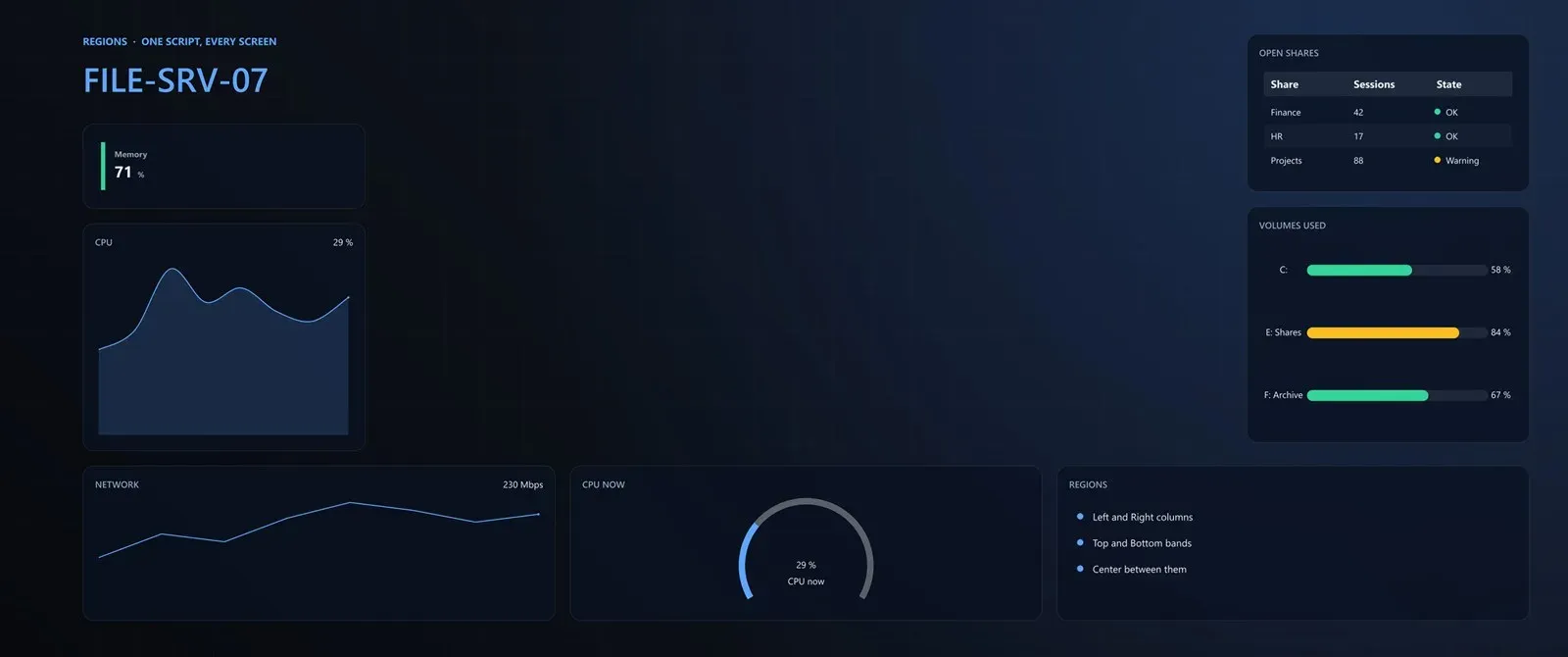
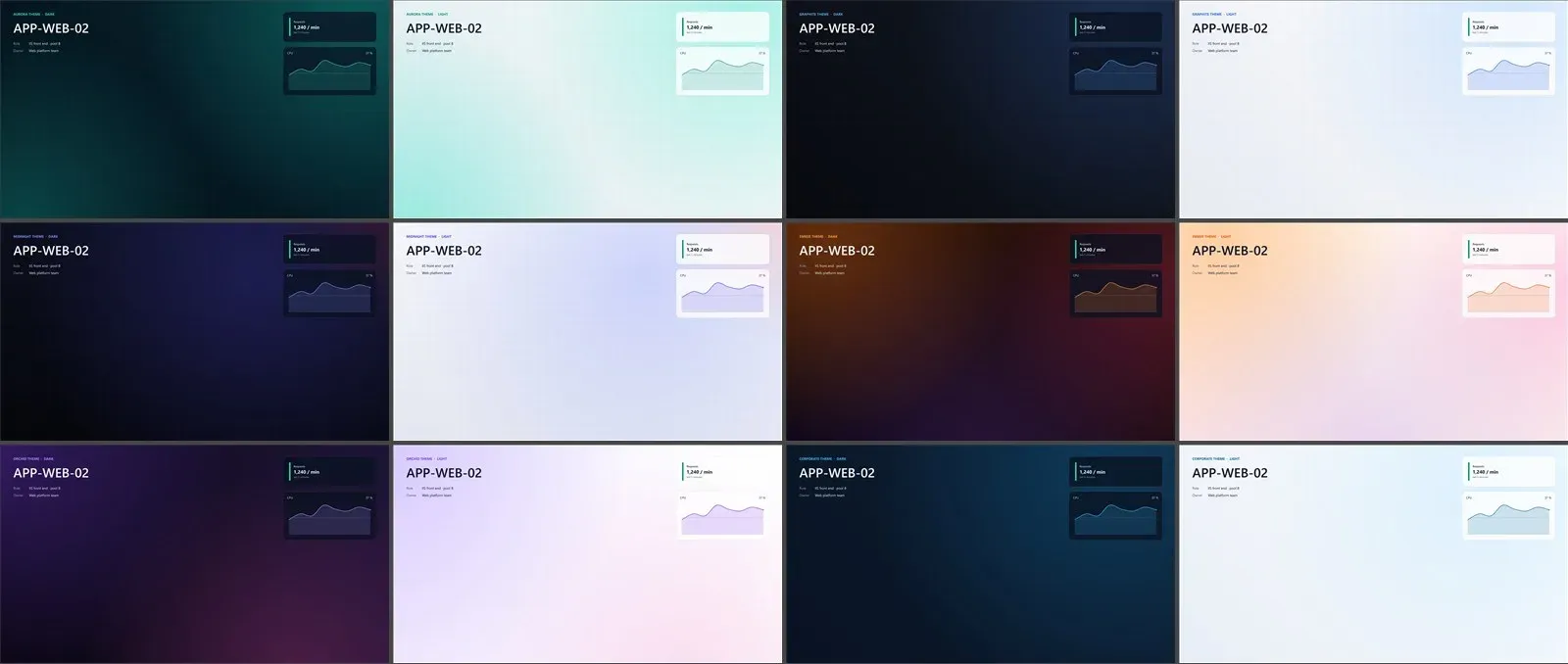
-Themeapplies one of six presets (Graphite, Midnight, Aurora, Ember, Orchid and Corporate), each with-ThemeMode LightorDark.New-BGInfoThemecustomises accent colours, surface, corner radius, font family and a scale factor for high-DPI screens.New-BGInfoBackgroundpaints a base colour, an optional image, a gradient, glows and a dot or grid pattern at the size of the target monitor unless a width and height are given. - Layout regions Panels flow into the named regions Top, Bottom, Left, Right and Center instead of fixed coordinates, so one script fits 1920x1080, 2560x1440, ultrawide and portrait screens.
New-BGInfoLayout -IconAreaWidthkeeps the desktop icon column clear and the safe area keeps the taskbar free. Items without-Regionuse-Anchor, offsets or absolute positions. - Widgets The widget cmdlets are
New-BGInfoMetric(one KPI with trend and status),New-BGInfoTable(rows from piped objects),New-BGInfoList,New-BGInfoCalendarHeatmap,New-BGInfoTimeline,New-BGInfoTreemap,New-BGInfoMermaidandNew-BGInfoQRCode. Mermaid diagrams are parsed and drawn without a browser by ChartForgeX.Mermaid, and QR codes are encoded by CodeGlyphX. The README notes that over-capacity tables and lists can shrink text to very small sizes. - Charts with history
New-BGInfoChartdraws 13 ChartForgeX chart kinds: Sparkline, Line, Area, Bar, HorizontalBar, Gauge, Circle, RadialBar, Bullet, Pie, Donut, ProgressBar and Pictorial. Charts keep their history between runs under<ConfigurationDirectory>\Charts, keyed by-Id, so a scheduled task builds a rolling trend, and-Metric CpuPercent,MemoryPercentorDiskFreePercentsamples the machine directly. - Warning and critical thresholds
-WarningThreshold,-CriticalThresholdand-ThresholdDirection Above|Belowchoose ok, warning or critical colours from the value. Bar, progress, bullet and pictorial charts colour each row, while gauges, circles and lines take the colour of the latest value. Metric cards and visual canvas tiles set their status the same way. - Topology maps and visual canvases
New-BGInfoTopologywith node, edge and group cmdlets places a compact service or network map on the wallpaper.New-BGInfoVisualCanvasandNew-BGInfoVisualCanvasTilebuild overlays with icon tiles, progress rails and mini charts, with text scaling per tile or per canvas. Colours accept ChartForgeX colour names, design tokens and hex strings. - Multi-monitor rendering
Get-BGInfoMonitorreturns each monitor's index, device name, primary flag, bounds and display scale, needs no elevation and works under Constrained Language Mode. A loop over its output with-MonitorIndexand a separate-OutputFileNamerenders one image per monitor, asExamples/Run.BGInfo.PerMonitor.ps1shows. The troubleshooting guide notes that the wallpaper fit mode applies to all monitors at once. - Lock screen and all user profiles
-Target LogonScreenorBothfirst uses the running account's WinRT lock screen API and, if that fails, a device-wide PersonalizationPolicy fallback that needs elevation and is limited to Enterprise, Education and Server editions.-AllUserswrites every profile's registry hive and the default profile and also needs administrator rights. Setting one's own wallpaper and rendering to a file need no elevation. - JSON configurations A layout can be exported with
-JsonPathand-ExportOnly, kept under version control and rendered later withInvoke-BGInfo -Path, optionally with-NoApply. The JSON keeps built-in value tokens, chart metrics, themes, regions, widgets, layout and target settings. It does not keep PowerShell code: a loop or data function runs once at export and its results are stored as fixed values. - Showcase scripts The 2.0.6 README lists twelve scenario scripts with light and dark renders: server status, help desk, lab or classroom, admin workstation, domain controller, Hyper-V host, NOC and on call, branch office PC, meeting room, build agent, patch day and kiosk or signage. Each starts with fixed sample data in a function that can be replaced with real sources, and writes a file without touching the desktop. The development branch extends the set to 22 scenarios.
- Deployment and operations guides The documentation has guides for Task Scheduler, Group Policy, Microsoft Intune, Configuration Manager, Remote Desktop with Azure Virtual Desktop and Windows 365, security and operations, and troubleshooting, built around a reference script named
Set-BGInfoWallpaper.ps1. The security guide lists file locations (C:\Program Files\PowerBGInfofor scripts,%LOCALAPPDATA%\PowerBGInfofor per-user output,C:\ProgramData\PowerBGInfofor machine images) and how to run the signed module under the AllSigned execution policy. - Known limitation in VS Code The README states that the VS Code PowerShell extension has a known problem with the module in Windows PowerShell 5.1. The regular Windows PowerShell 5.1 console, Windows PowerShell ISE and PowerShell 7 work. Issues are tracked in the GitHub repository.
Where PowerBGInfo fits
Labelling machines at sign-in and unlock
The Task Scheduler guide registers one task for the BUILTIN\Users group with triggers at sign-in, at workstation unlock and optionally on a timer, so the reference script runs in each user's own session without elevation and refreshes values such as host name, IP address and uptime. Registering the task needs an elevated session once per machine. A task running as SYSTEM changes SYSTEM's own wallpaper, so SYSTEM is reserved for machine images written to a file.
Domain-wide rollout with Group Policy
The Group Policy guide copies a saved module version and the wallpaper script from a share such as NETLOGON to Program Files with a computer startup script, then delivers the refresh task through Group Policy Preferences with logon and unlock triggers. The same GPO can set the PowerShell execution policy and, on Enterprise and Education editions, force a lock screen image rendered by PowerBGInfo.
Microsoft Intune Win32 app
The Intune guide packages the module, the script and a task registration script with the Win32 Content Prep Tool. The install command calls 64-bit Windows PowerShell through the Sysnative path, because a 32-bit host does not find a module installed under C:\Program Files, and detection checks the packaged version folder and the script file. Platform scripts, Remediations and the Personalization CSP cover cases around the Win32 app.
Help desk, classroom and signage wallpapers
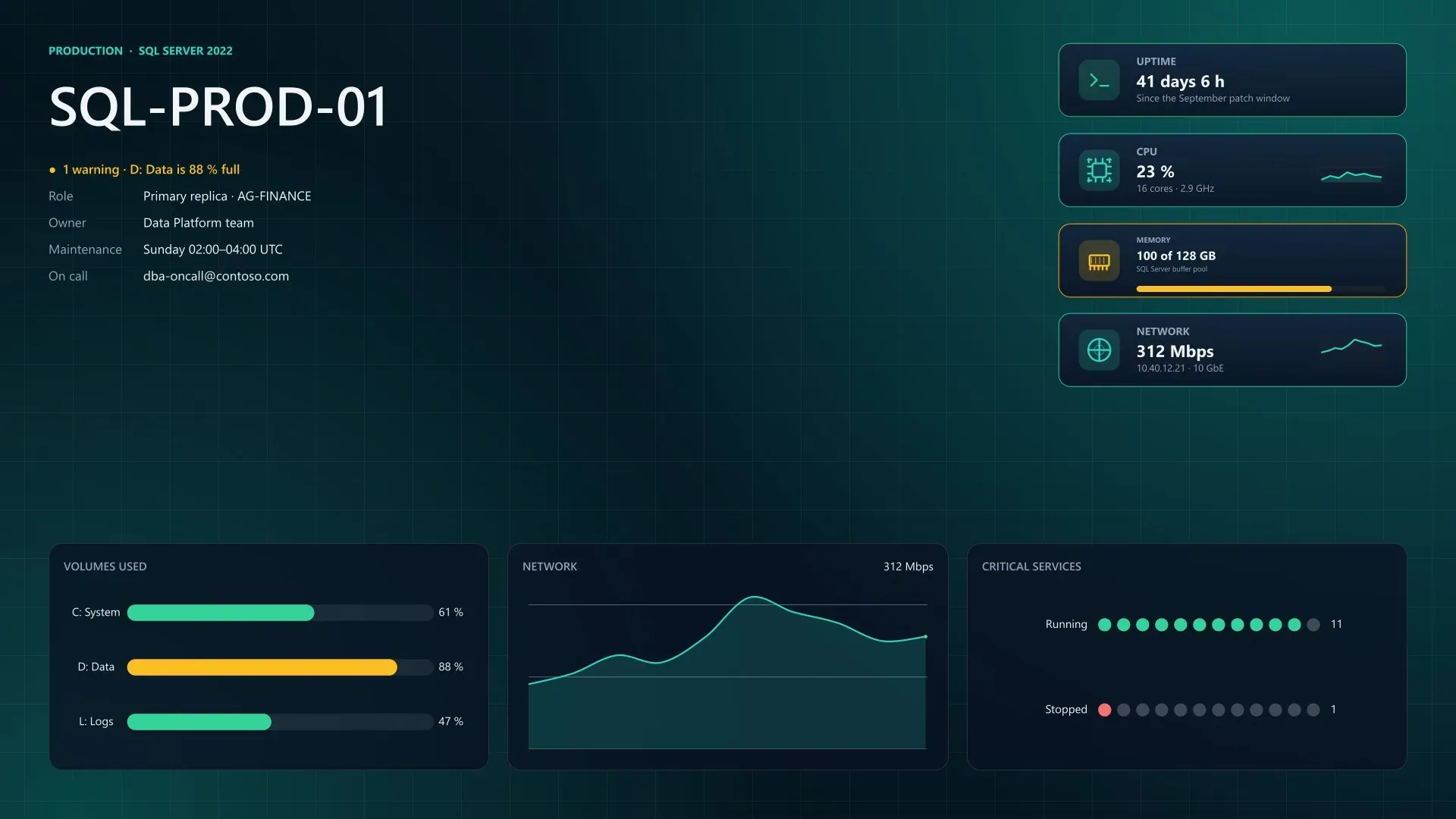
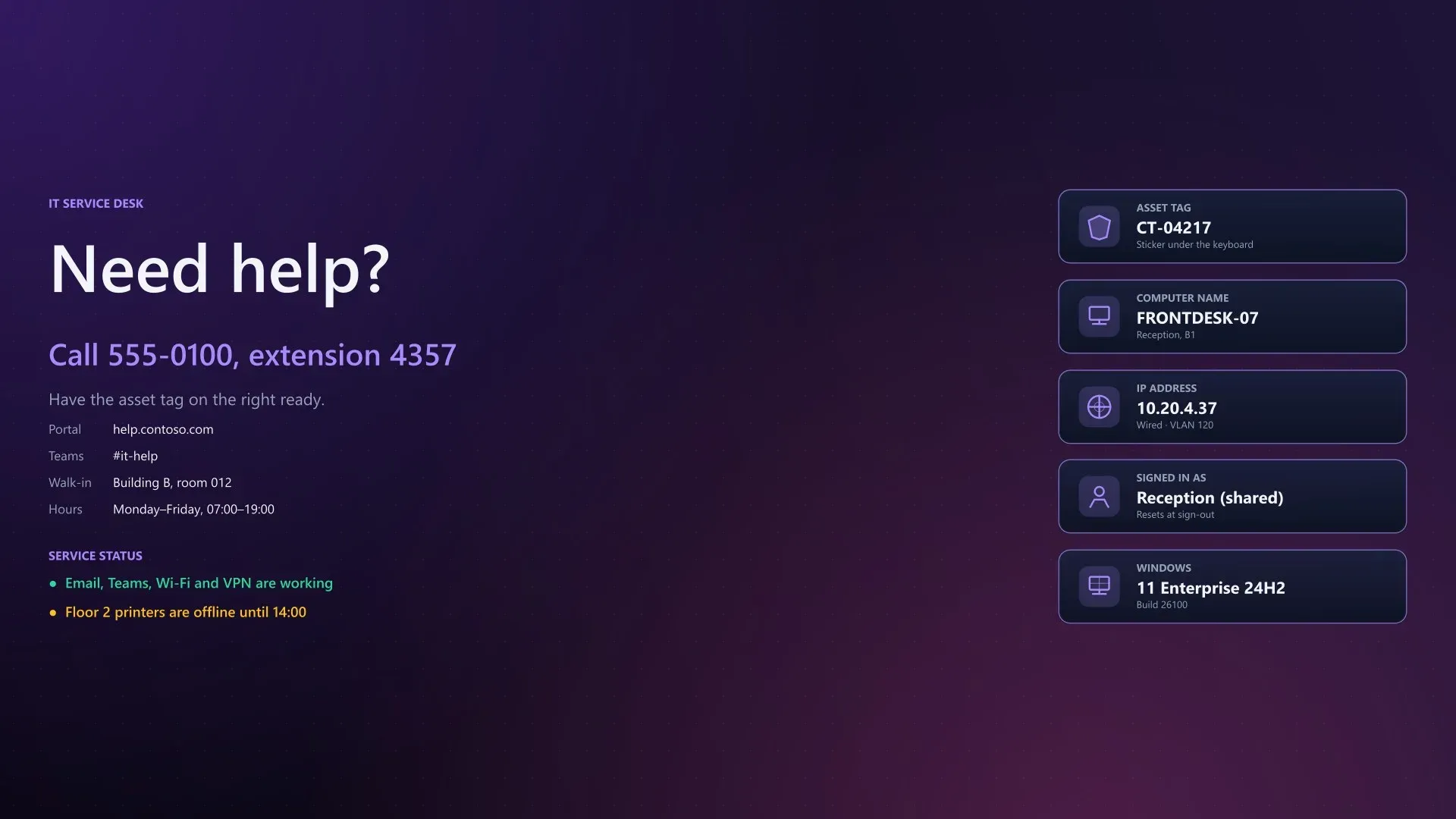
The showcase scripts build wallpapers that answer one question for the person at the screen: a help desk layout shows the phone number, portal, asset tag, computer name, IP address and signed-in account, a classroom layout shows the seat and reset time, and a signage layout shows one message with a QR code to scan for details. Each script renders with sample data first and writes a file, so the output can be reviewed before the data function is pointed at real sources.
Remote Desktop and Azure Virtual Desktop session hosts
On session hosts and AVD multi-session pools, the task runs in every user session with a per-user output folder and renders again on reconnect, and LoggedOnUser names the user of the session being rendered. The project states that AVD personal desktops and Windows 365 Cloud PCs work like a physical PC. Policies such as Enforce Removal of Remote Desktop Wallpaper can hide the result in remote sessions, as the troubleshooting guide notes.
Server status boards with live charts
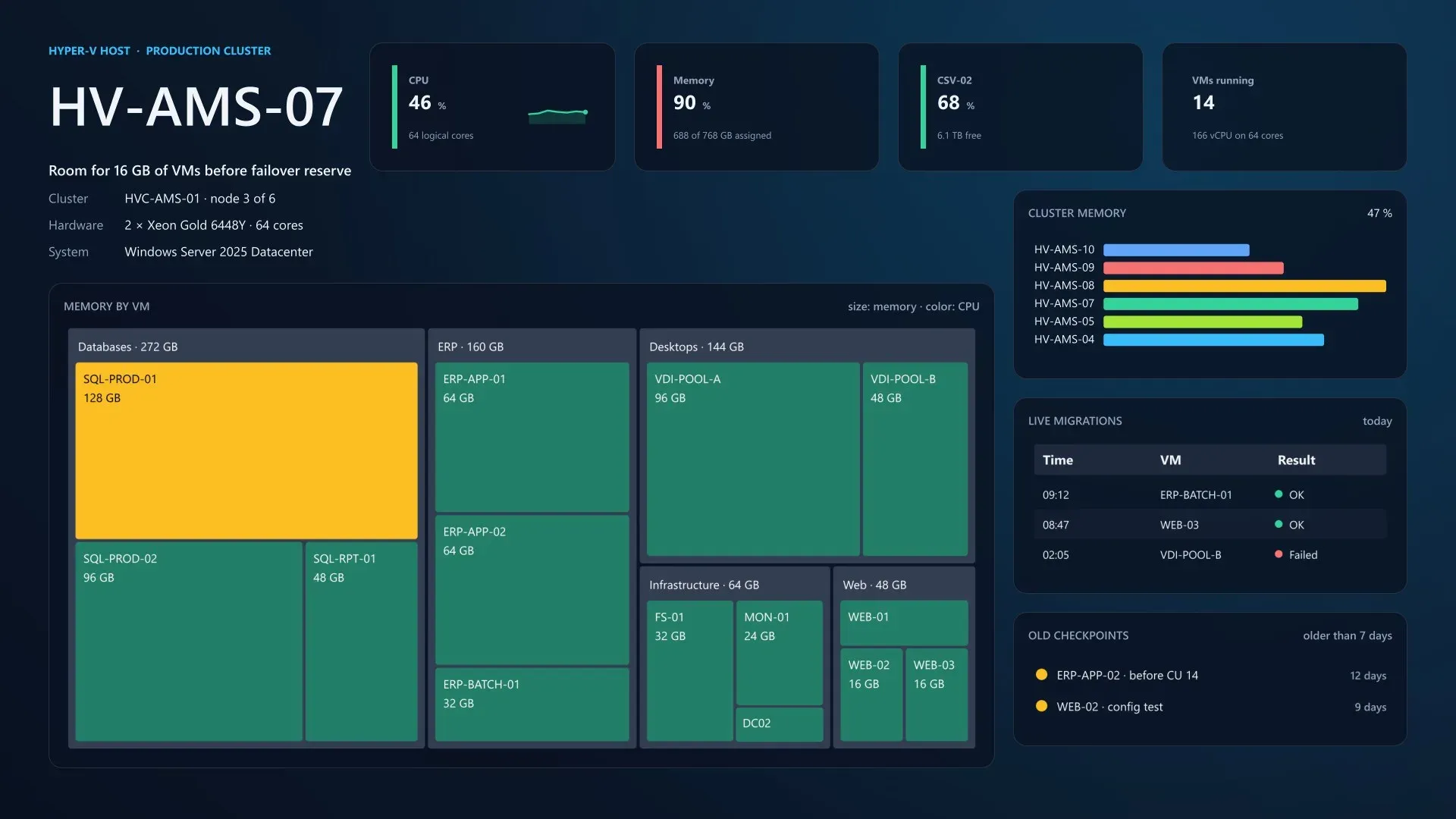
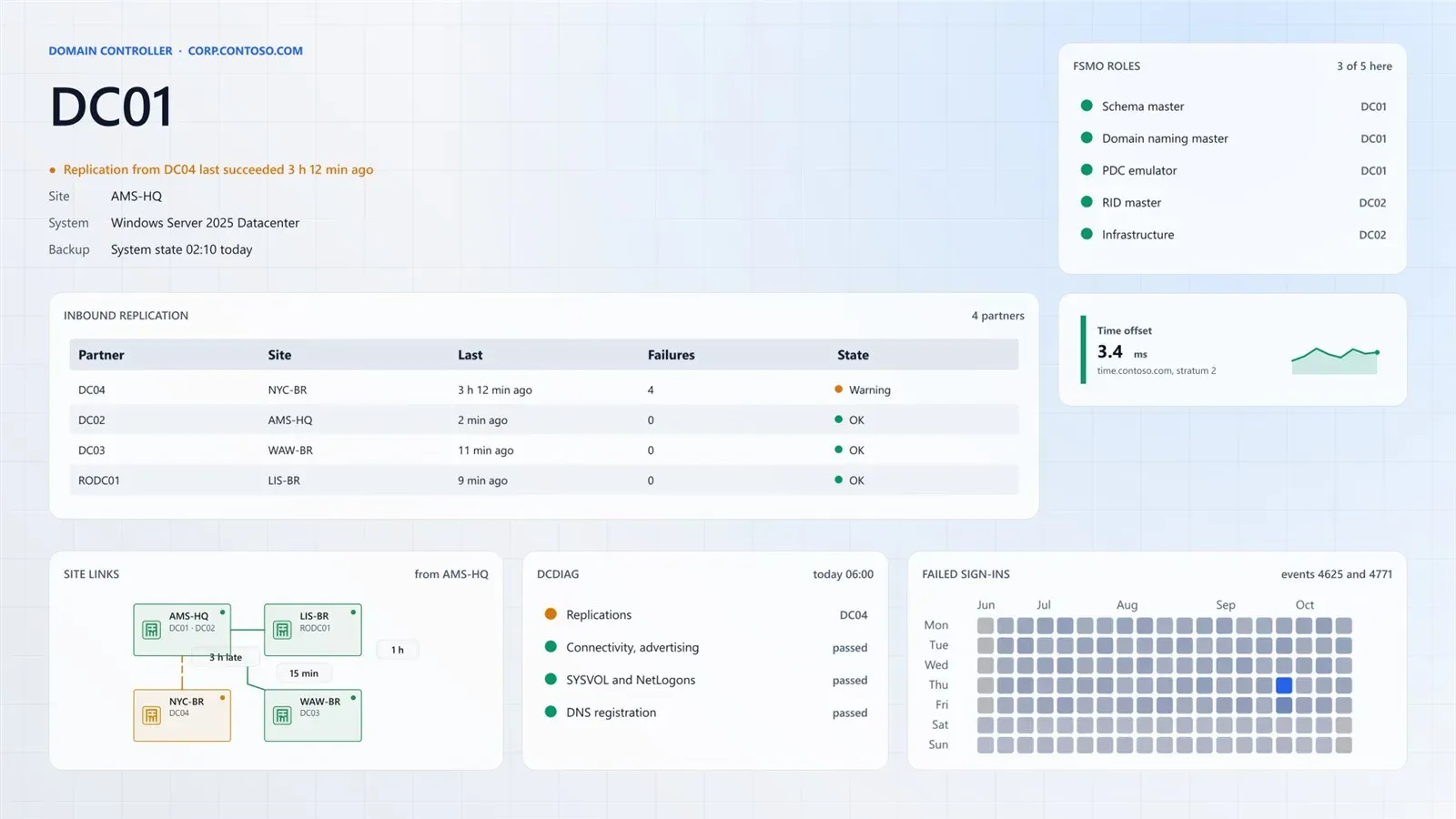
Server and infrastructure scenarios combine metric cards, volume progress bars with warning and critical thresholds, service status indicators and charts whose history persists between runs. The Hyper-V host example shows a treemap of VM memory coloured by CPU, and the domain controller example shows replication partners, FSMO roles, a site link topology and a calendar heatmap of failed sign-ins, all drawn from a data function the administrator supplies.
Install
Install-Module -Name PowerBGInfo -Scope CurrentUserReviews of PowerBGInfo
Be the first to share your experience with PowerBGInfo.
Write a review
Loading review form…
Found PowerBGInfo useful? Upvote it todayYour vote helps other IT teams find it in the daily ranking.