

What is IntunePrepTool?
IntunePrepTool is a free Windows application by Rink Turksma for creating Microsoft Intune Win32 app packages. It is written in PowerShell with SAPIEN PowerShell Studio and presents a Windows Forms interface with menus for configuration, downloads, packaging, Building Blocks, package updates, tools and upload. For each source it generates an install.ps1 and an uninstall.ps1, opens them in Windows PowerShell ISE for a test run and then builds the .intunewin file with the Microsoft Win32 Content Prep Tool (IntuneWinAppUtil.exe). The project is hosted on GitHub, and current guides are published on intunepreptool.com.
The tool is distributed as an MSI installer attached to each GitHub release. The basic setup guide describes downloading the MSI, unblocking it in the file properties if Windows marks it, installing it and always starting IntunePrepTool as Administrator from the Start Menu. Prerequisites are installed from buttons in the Start / Config menu, each of which opens a script in PowerShell ISE: the required PowerShell modules, Winget, Chocolatey and Microsoft Orca. The source code installs IntuneWin32App 1.4.4, Microsoft.Graph.Authentication, Microsoft.Graph.Applications and Microsoft.Graph.Identity.SignIns 2.27.0, MSAL.PS and CredentialManager 2.0. If IntuneWinAppUtil.exe is not found next to the tool, it shows a message asking to download the Microsoft Win32 Content Prep Tool and place the EXE in the same directory.
The latest release is IntunePrepTool 1.7.3.0, published on November 1, 2025, which fixes uploads of Building Blocks. Versions 1.7.1.0 and 1.7.2.0 fixed adding and uploading to tenants without a custom privacy URL. The 1.7.0.0 release notes added JPG, JPEG and WEBP logos (converted for upload), automatic use of Logo.png for the Company Portal, Winget install and uninstall scripts aligned with more than 200 Winget return codes, and a button to install the libwebp converter. Version 1.6.9.0 improved msiexec error handling and added a choice between verbose and status-only logging, and 1.6.8.0 added custom package descriptions and a custom privacy URL per tenant.
Uploads to Intune use the community IntuneWin32App PowerShell module from MSEndpointMgr. Adding a tenant creates an Entra ID app registration through Microsoft Graph, which requires signing in with Global Admin rights so that consent for the needed API permissions can be granted. The script creates a client secret valid for 12 months and stores it in Windows Credential Manager; customer settings are kept in CSV files under the user profile folder .IntunePrepTool. An optional Azure OpenAI deployment can be configured to suggest install parameters for EXE installers.
The source is released under the MIT License. IntunePrepTool runs only on Windows and covers package creation and upload; device enrollment, assignment targeting beyond the upload options and app installation on endpoints remain functions of Intune. The README notes that its long step-by-step section is outdated and points to the website for current instructions.
IntunePrepTool screenshots
Explore the interface. Open a screenshot to view it at full size.
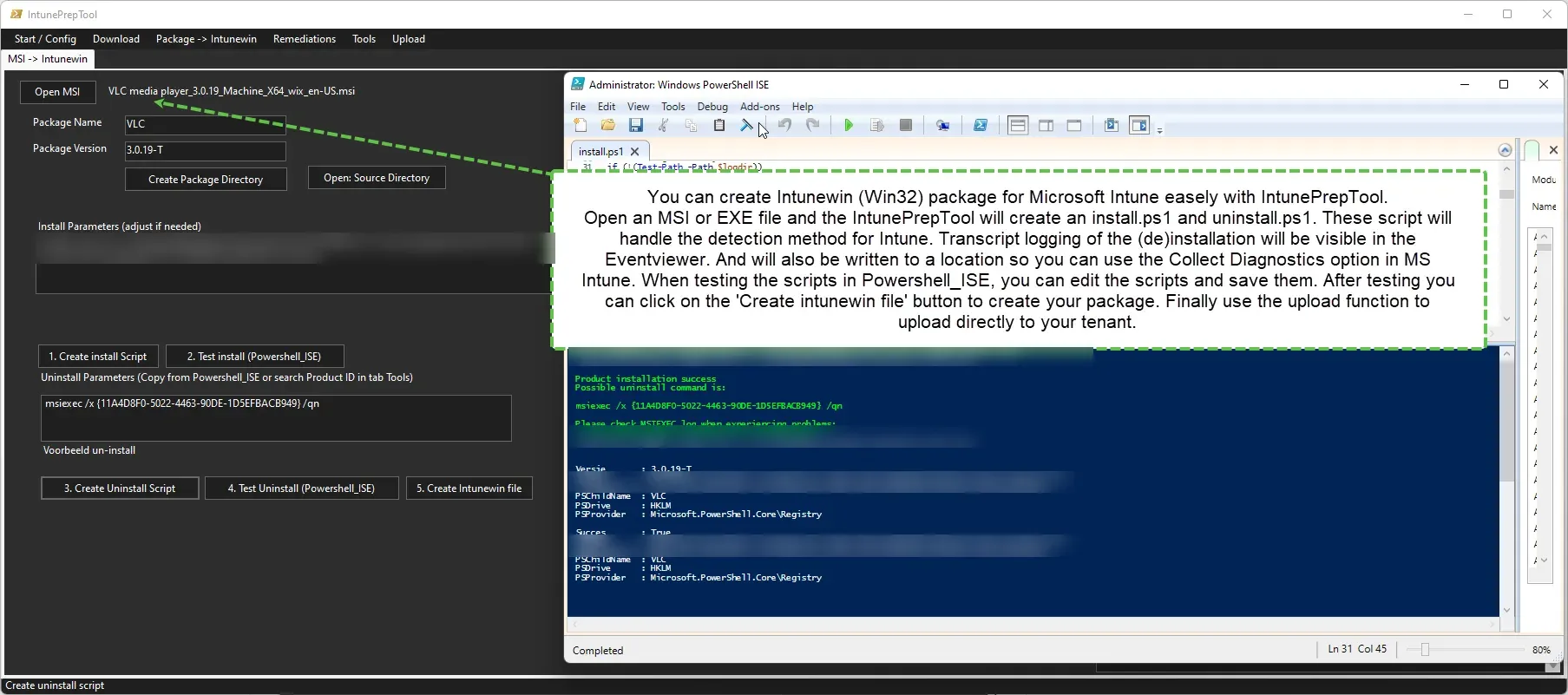
MSI packaging with a test run of install.ps1 in PowerShell ISE; customer-specific paths blurred.
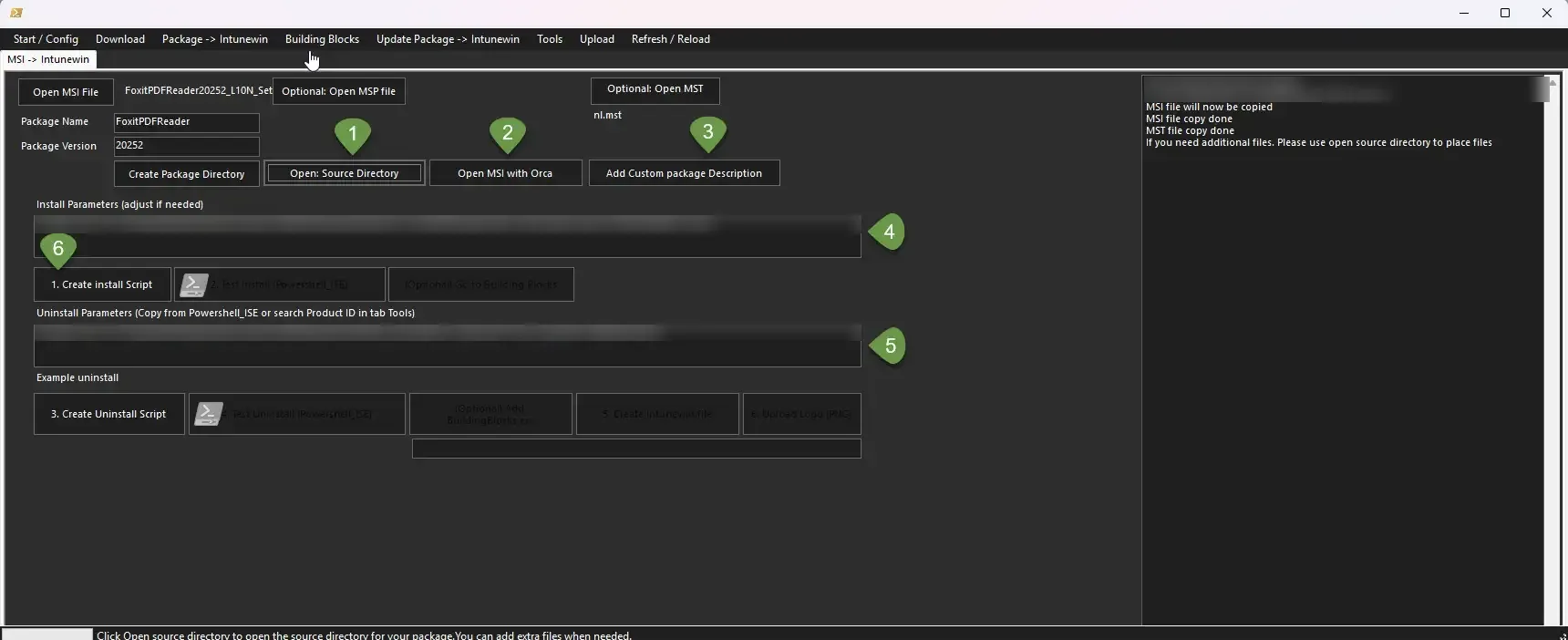
MSI package with an MST language transform and the Orca and custom description buttons; command lines blurred.
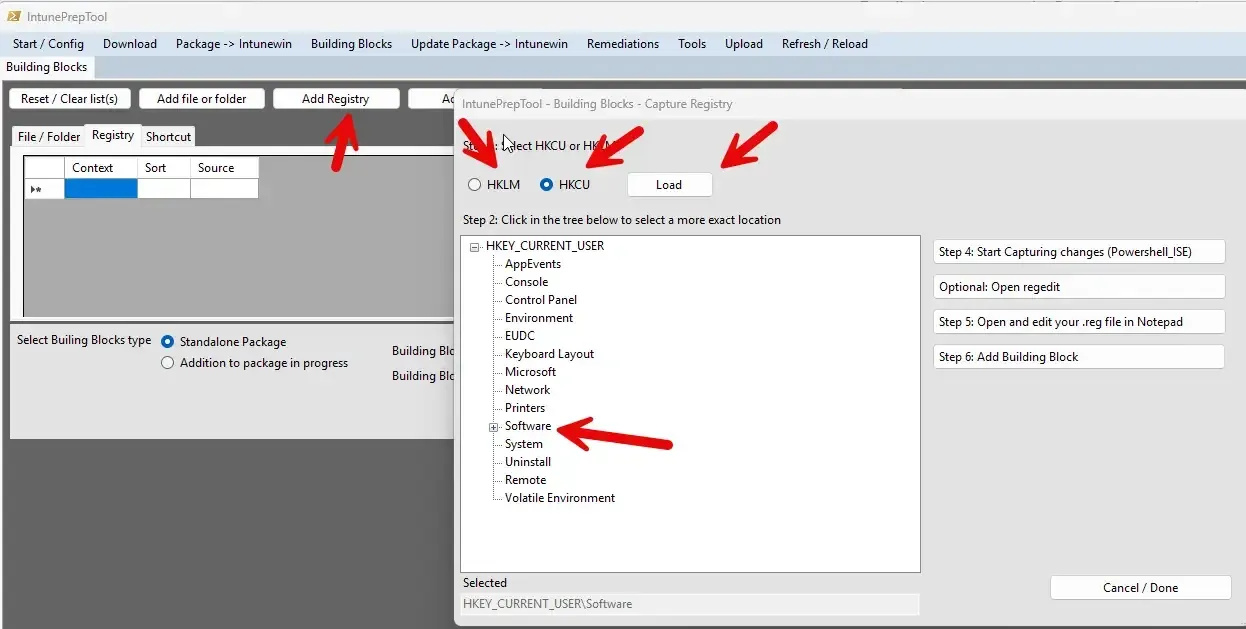
Building Blocks registry capture: select HKLM or HKCU, choose a key and capture changes.
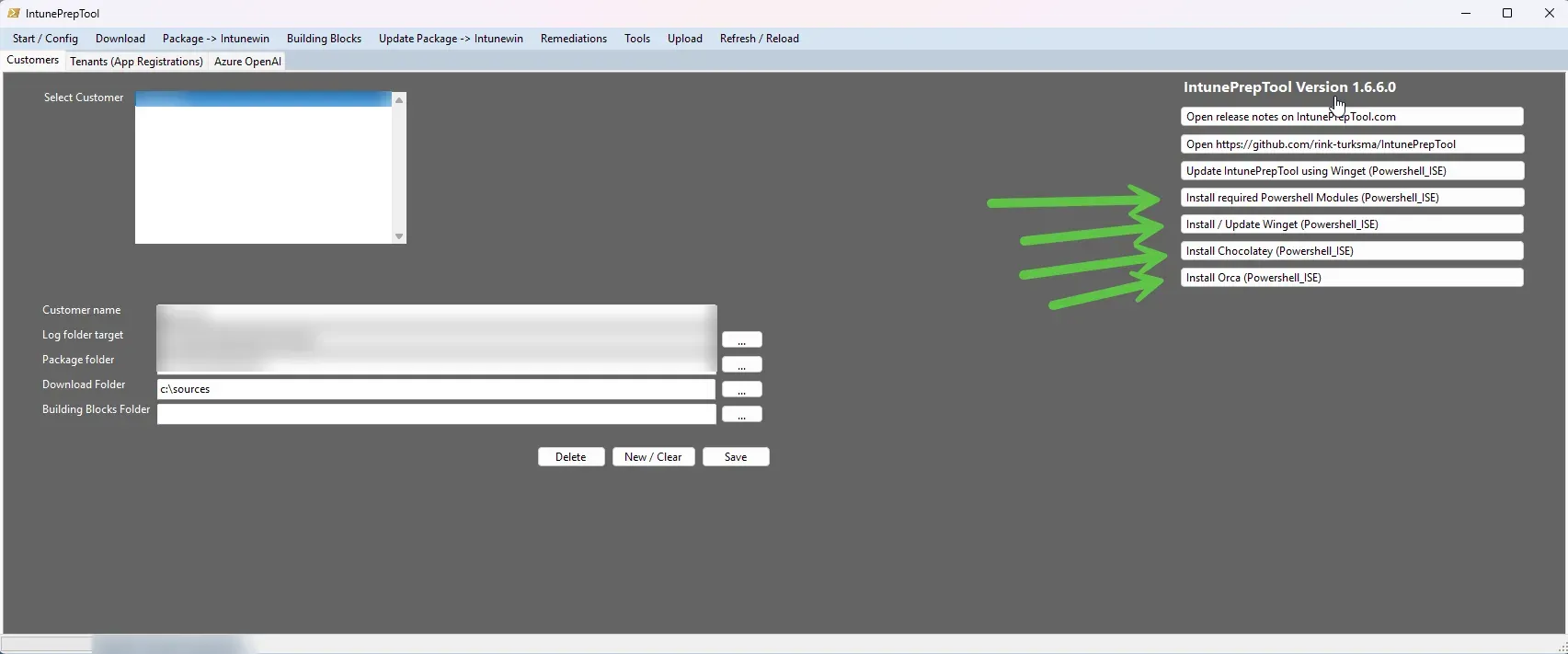
Customer setup in version 1.6.6.0 with prerequisite install buttons; customer name and paths blurred.
Source: official IntunePrepTool project page.
Key capabilities
- MSI packaging An MSI is copied into a new package source directory, optionally with an MST transform and an MSP patch. Default
msiexecinstall and uninstall command lines are filled in with logging to the customer log folder and can be edited. The Foxit Reader MST guide walks through the full MSI flow. - EXE packaging For EXE installers, a button runs the setup with
/?to show supported switches. When Test Install runs, the tool exports the Windows uninstall registry keys (including WOW6432Node) to a temporary .reg file, exports them again after the test and compares the two to fill in the uninstall string. - Further source types Besides MSI and EXE, packages can be built from MSIX files, Winget IDs, Chocolatey packages, PowerShell scripts and scheduled tasks. A scheduled task package runs PowerShell code weekly or at startup on the device.
- Generated install and uninstall scripts Each package gets an
install.ps1and anuninstall.ps1. The scripts handle the detection method for Intune and contain a section for extra custom PowerShell code that runs in the system context during installation. - Test runs in PowerShell ISE Install and uninstall scripts are opened in Windows PowerShell ISE for a test run before packaging. The output reports the msiexec return code with its meaning and flags Start Menu or desktop shortcuts created during the last 10 minutes, together with the line to remove them.
- Transcript logging Every generated script writes a transcript log that is also visible in Event Viewer. The log location makes the files available to the Collect Diagnostics option in Intune, according to the README screenshot notes.
- Winget integration The Tools menu searches Winget IDs, shows package details and lists available versions, and the Download menu fetches MSI, MSIX or EXE installers from the Winget repository into the configured download folder. Since 1.7.0.0, Winget install and uninstall scripts handle more than 200 return codes from the Winget repository documentation.
- Chocolatey packages Chocolatey sources produce scripts that run
choco installwith the package name on the device. The generated script notes when automatic Chocolatey installation was not selected and the dependency has to be present. - Building Blocks Building Blocks add files or folders, registry settings and shortcuts to a package in progress or as a standalone package. Registry changes are captured by comparing HKLM or HKCU before and after a change; HKCU actions run in user context and HKLM actions in system context, as described in the Building Blocks guide.
- Split user and system packages When Building Blocks mix user and system context actions, the tool builds two
.intunewinpackages. On upload, the dependency between them and the automatic installation settings are configured. - Upload to Intune After packaging, a
config.csvorBuildingBlocks.csvis written to the output folder and loaded in the Upload menu to create the app in Intune. The upload uses the IntuneWin32App module and picks upLogo.pngas the Company Portal icon. - Customer profiles Each customer profile stores a customer name, a log folder target, a package folder, a download folder and a Building Blocks folder. The setup guide states that no spaces are allowed in these fields and that a customer must be selected before creating a package.
- Tenant app registrations The Tenant (App Registrations) tab creates an Entra ID app registration per tenant after a Global Admin sign-in. Its client secret is stored in Windows Credential Manager, and since 1.6.8.0 a custom privacy URL can be set per tenant.
- Optional Azure OpenAI suggestions An Azure OpenAI deployment entered in the Azure OpenAI tab can suggest install parameters for EXE packages. A Setup Info button opens a PDF with the setup instructions for this tab.
- MSI tools The MSI flow includes a button to open the selected MSI in Microsoft Orca, which can be installed from the Start / Config menu. The Tools menu also searches the registry of the packaging machine for uninstall strings of installed applications.
- Custom descriptions and logos A custom package description, added in 1.6.8.0, is shown to end users in the Company Portal. Logos can be PNG, JPG, JPEG or WEBP; WEBP conversion requires the libwebp converter, which the Start / Config menu installs.
Where IntunePrepTool fits
Packaging an MSI with a language transform
The project guide packages Foxit PDF Reader with an MST language file (nl.mst in the example). After selecting the customer, the MSI and MST are opened, a package name and version are entered without spaces, and Create Package Directory copies the files into a source folder. The generated msiexec command with TRANSFORMS= is turned into install.ps1, tested in PowerShell ISE, followed by the uninstall script and its test, and then packaged with Create Intunewin file.
Packaging an EXE installer
For EXE setups, the tool can show the setup switches with /? or, with Azure OpenAI configured, suggest install parameters. During Test Install it compares the uninstall registry before and after installation and fills in the uninstall string, which can be set to an uninstall EXE path, the same EXE or an msiexec command.
Deploying Winget and Chocolatey applications
A Winget ID is located in the Tools menu, and the package is created from that ID, or the installer is first downloaded from the Winget repository and packaged as a regular MSI, MSIX or EXE. Chocolatey packages are handled in the same way with choco install in the generated script. Release 1.6.6.0 states that the tool installs Winget when it is missing on the packaging machine and handles target devices without Winget.
Adding registry settings, files and shortcuts
Building Blocks capture registry changes made in an application or in regedit, copy files or folders to system or user locations such as %APPDATA%, and create Start Menu or desktop shortcuts with an .ico icon. They are either attached to a package in progress through BuildingBlocks.csv or built as a standalone package.
Managing several customers or tenants
Customer profiles keep separate log, package, download and Building Blocks folders, and each tenant has its own app registration with a stored client secret. The upload step selects the tenant and uses the CSV written during packaging. Other Intune packaging projects listed on iThub include WinTuner, IntuneGet and the IntuneAutomation script collection.
Reviews of IntunePrepTool
Be the first to share your experience with IntunePrepTool.
Write a review
Loading review form…
Alternatives to IntunePrepTool
 WinTunerWinTuner is a GPL-3.0 PowerShell module that downloads WinGet installers and logos, builds .intunewin packages with generated scripts and publishes them to Microsoft Intune through the Graph API.
 IntuneGetIntuneGet is a free, open-source web app that packages Winget applications as Win32 apps for Microsoft Intune, with update policies, MSP mode, SCCM migration and self-hosting with Docker.
 IntuneAutomationIntuneAutomation is a free, MIT-licensed library of PowerShell scripts for Microsoft Intune that use Microsoft Graph. Scripts run locally or as Azure Automation runbooks, with a web catalog, an AI script generator and a hosted MCP server.