
What is AndroidMic?
AndroidMic is an open-source project that turns an Android phone into a microphone for a Windows, Linux or macOS computer. It consists of two applications: an Android app that records from the phone's microphone and streams the audio, and a desktop app that receives the stream and plays it into an audio output device on the PC. The project is maintained on GitHub by teamclouday together with wiiznokes, who rewrote the desktop side in Rust, and a group of outside contributors.
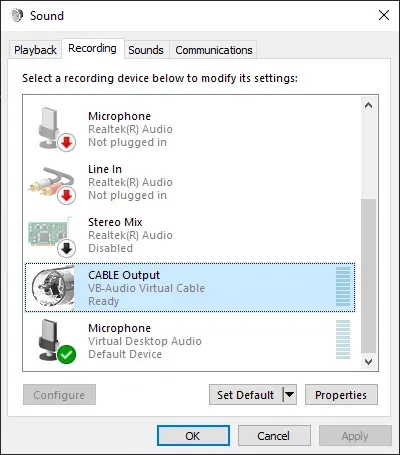
The desktop app does not install a microphone driver of its own. According to the README, a virtual audio cable is required: AndroidMic plays the received audio into the virtual cable's playback side, and other applications such as Discord, Teams, Zoom, OBS or Audacity then select the cable's recording side as their microphone. The README names Virtual Audio Cable or VB-Cable on Windows, a PulseAudio or PipeWire null sink with a remapped source on Linux, and BlackHole on macOS.
The phone and the PC can be linked over Wi-Fi or a LAN using TCP or UDP, over USB through Android Debug Bridge (ADB), or over USB Serial, where the phone switches to Android accessory mode. Bluetooth was supported in earlier versions; the README states it was removed in favor of USB Serial because of the higher bandwidth. The desktop app can apply noise reduction with RNNoise or SpeexDSP, voice activity detection, automatic gain control, dereverberation, amplification and voice effects before the audio reaches the virtual device.
The desktop app is written in Rust with the libcosmic toolkit from the COSMIC desktop project and uses the cpal audio library, with JACK, PipeWire and PulseAudio backends enabled on Linux. The Android app is written in Kotlin with Jetpack Compose and uses Protocol Buffers for its messages. The PC app started as a Windows-only WPF application in C#; that code is kept in the wpf-app-backup branch. The project is licensed under GPL-3.0.
The current release is AndroidMic 2.2.12, published November 6, 2026. It ships an Android APK, Windows installers for x64 and x86, a Linux AppImage and macOS DMG files for Apple silicon and Intel. Release 2.2.12 added an Unprocessed audio source on Android, a playout buffer with clock drift correction for lower and constant latency, a request for the local network permission on Android 17, and a system tray with minimize to tray on Linux. The Android app is also published on F-Droid, and the README points Nix users to the android-mic package in Nixpkgs.
Key capabilities
- Android microphone streaming The Android app records from the phone's microphone in a foreground service and sends the audio to the PC. It shows a persistent notification while streaming and offers mute and unmute from the notification; while muted, silence is streamed so the PC side does not have to re-buffer. The app requires Android 6.0 (API level 23) or later according to its build configuration.
- Wi-Fi and LAN over TCP or UDP Both devices must be on the same network. The phone connects to the PC's IP address and port, which the desktop app prints in its log window, and the desktop app lets the user choose the network adapter it listens on. On Windows the README says the firewall prompt must be answered with Allow access on first launch, otherwise the phone cannot reach the PC.
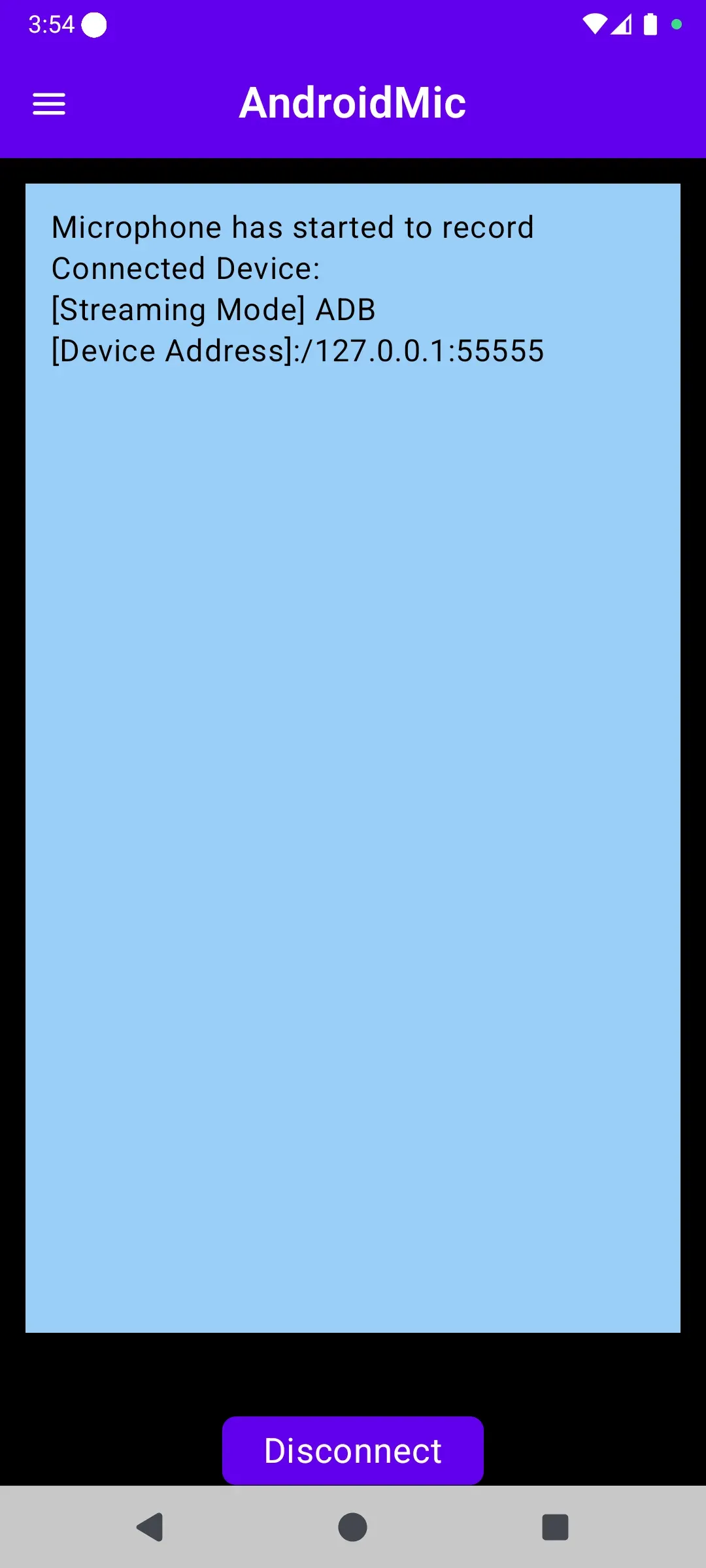
- USB through ADB In ADB mode the audio travels over a USB cable through Android Debug Bridge. This requires ADB on the PC and USB debugging enabled in the phone's developer options. On the phone only the port number shown in the PC app log is entered.
- USB Serial with accessory mode USB Serial uses the Android Open Accessory protocol: the phone is set to charging-only USB mode and switches to accessory mode on the first connection attempt, after which Connect is pressed again. On Windows the phone must use the WinUSB driver, which can be installed with Zadig, and ADB must not be running. On Linux the README asks for udev rules so the app can access the USB device without root.
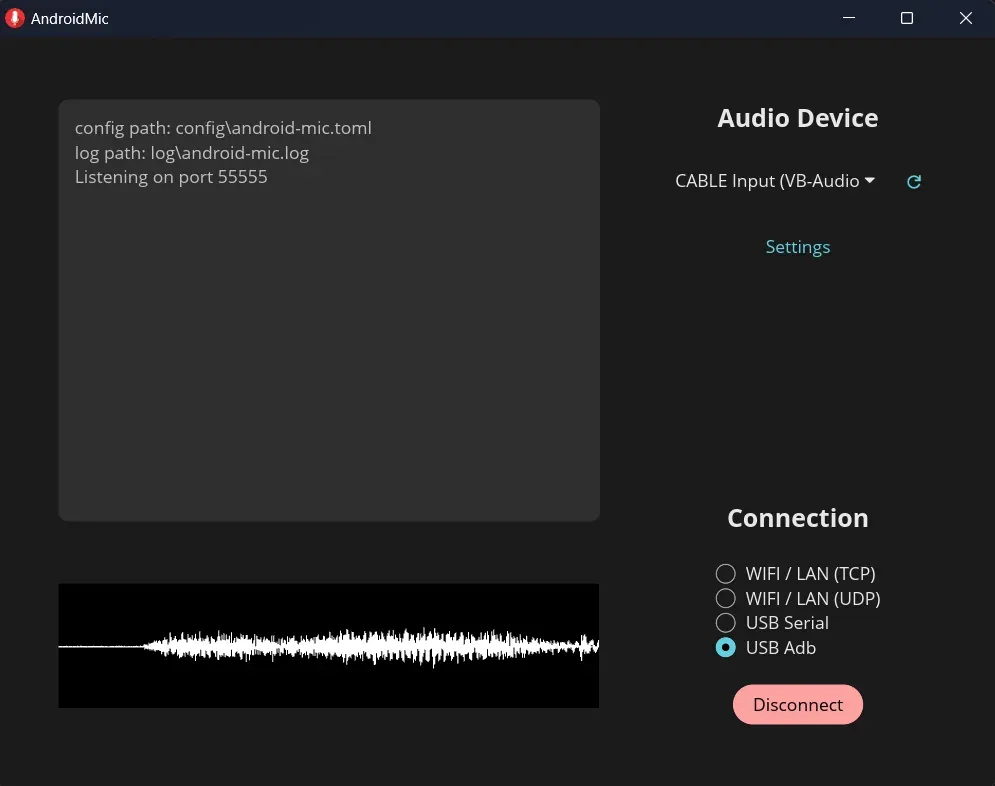
- Virtual audio device output The desktop app plays the incoming stream into a selected output device and lists the available devices with a refresh button. The intended target is the playback side of a virtual audio cable, not the speakers. Applications then use the cable's recording side as their microphone; the README names VAC or VB-Cable on Windows, PulseAudio or PipeWire virtual devices on Linux and BlackHole on macOS.
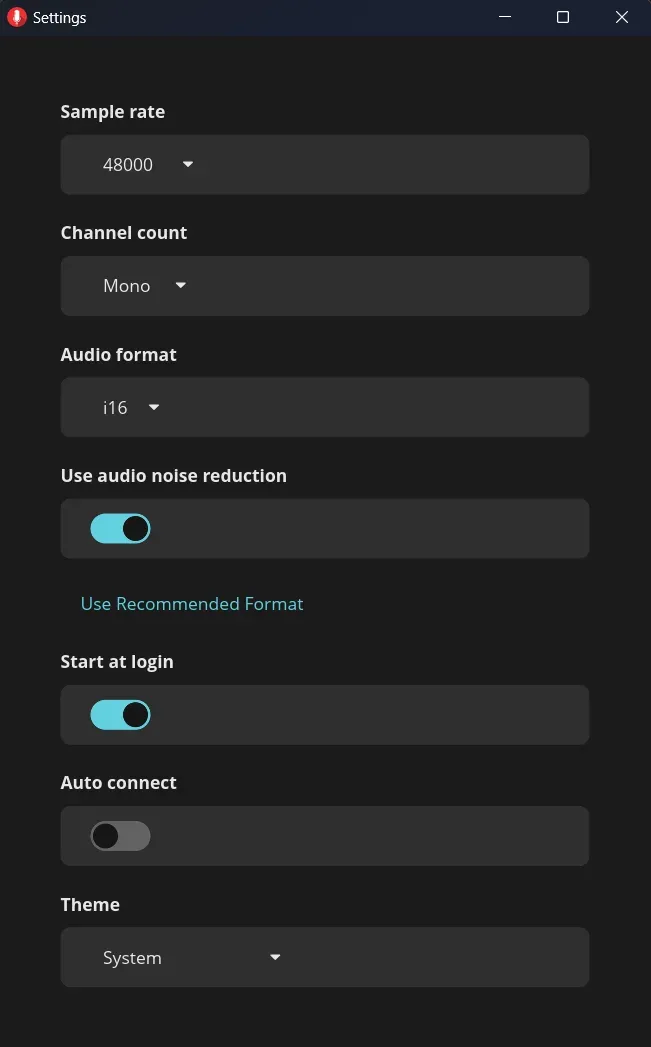
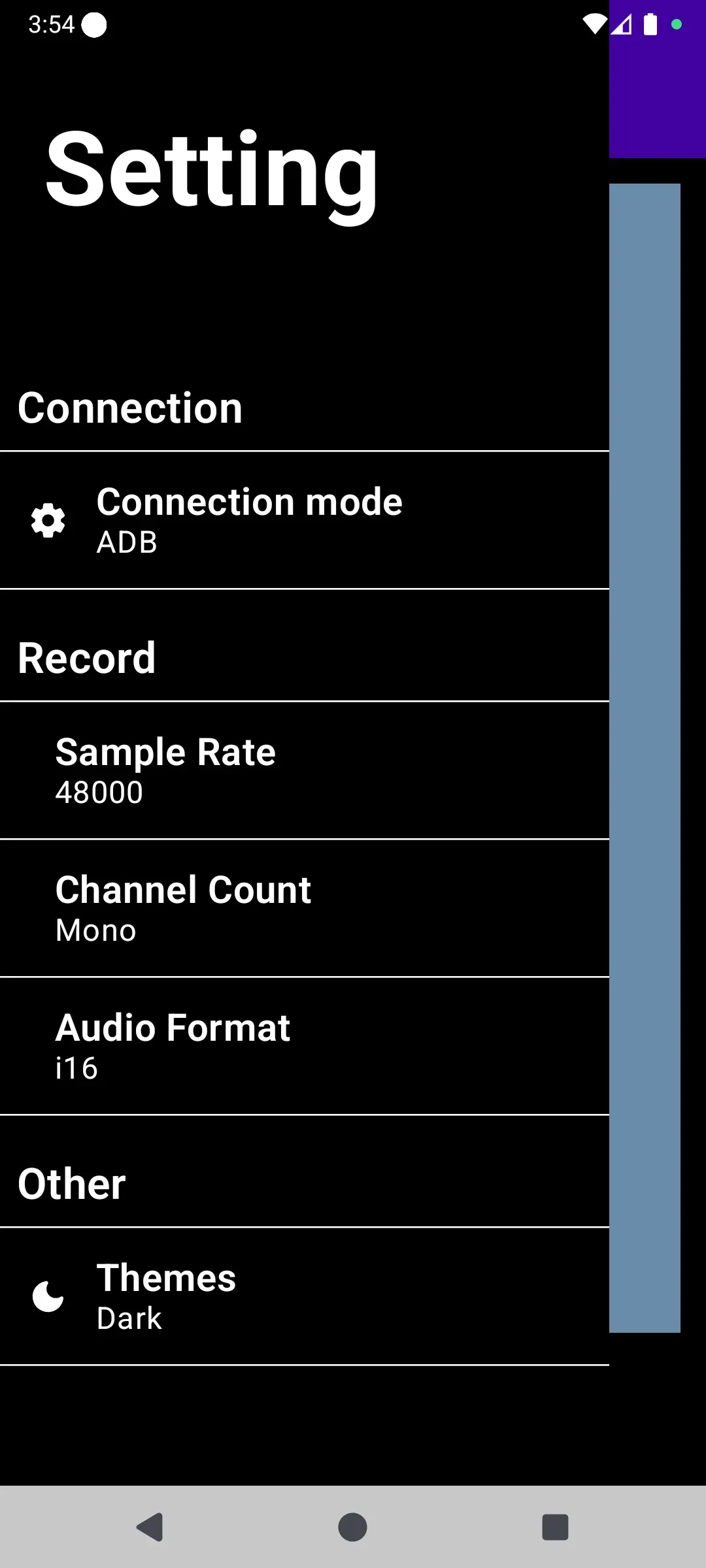
- Audio format settings on both sides Sample rate, channel count (mono or stereo) and sample format (u8, i16, i24, i32 or f32) can be set in the Android app and in the desktop app independently. The desktop settings include a Use Recommended Audio Format button. The README suggests 44.1 kHz or 48 kHz, mono, 16-bit or 24-bit as common settings and asks Linux users to set Mono when the output is a PipeWire or PulseAudio device.
- Android audio sources The Android app can record from the Mic, Voice Recognition, Voice Communication, Voice Performance or Unprocessed sources. Unprocessed, added in 2.2.12, requests the raw microphone signal without gain control, noise suppression or voice EQ for use with analyzers and SPL meters; devices that do not support it fall back to Voice Recognition, and an Unprocessed (forced) option skips the support check, as described in pull request 185.
- Noise reduction with RNNoise or SpeexDSP The desktop app has a noise reduction switch with a choice between RNNoise and SpeexDSP. With SpeexDSP, a slider sets the suppression level from -100 to 0 dB (default -30 dB), and a Reset Denoise Settings button restores the defaults. Noise reduction is off by default.
- Voice activity detection, gain and dereverberation Further SpeexDSP-based options are voice activity detection with a threshold, automatic gain control with a target level and dereverberation with an adjustable level. An Amplify option applies a gain factor between 0 and 10 (default 2.0). These settings sit in the desktop Settings window next to the noise reduction options.
- Voice effects A post-processing effect can be applied to the stream on the PC: environment effects named Mountain, Empty Room, Concert Hall, Spaceship and Underwater, and character effects named Chipmunk, Giant, Demon, Walkie-Talkie, Pop Star and Robot. The default is No Effect.
- Jitter buffer and latency Release 2.2.12 introduced a playout buffer with clock drift correction. Its contributor describes earlier end-to-end latency of around one second that drifted, and the new buffer keeps latency low and constant, according to pull request 186. A Jitter buffer slider (default 30 ms) controls how much audio is held to absorb network delays; the README advises raising it when audio stutters, and the app logs an underrun warning when the buffer runs dry.
- Waveform view and log The main desktop window shows a log area with the configuration path, log path and listening port, and an audio waveform of the incoming signal. The connection state is shown as Disconnected, Listening or Connected on the main button.
- Tray, autostart and auto connect The desktop app can start at login, start minimized and reconnect automatically. It has a system tray menu with Show Window, Connect, Disconnect, Stop Listening and Exit; Linux tray support through the ksni library arrived in 2.2.12. Themes include System, Light, Dark and two high-contrast variants.
- Command line options The Rust desktop binary accepts command-line arguments for the IP address, connection mode, output device, audio format, channel count and sample rate, plus an
--infoflag that prints the audio configurations the output device supports. The application keeps its settings in an android-mic.toml file and writes a log file. - Downloads for Windows, Linux and macOS The GitHub releases provide android-mic setup executables for Windows x64 and x86, an x86_64 AppImage for Linux and DMG images for aarch64 and x64 Macs. The README notes that macOS users may need to run
xattr -c /Applications/AndroidMic.appbefore the app opens, and that Windows Defender may flag the app as a false positive. - Android installation The Android app is distributed as an APK on GitHub releases and through F-Droid under the package name io.github.teamclouday.AndroidMic. It requests the microphone and notification permissions, and on Android 17 the Nearby devices permission, which the README says is required to connect to the PC.
- Localization The desktop interface is translated into English, French and Simplified Chinese, and the Android strings exist in the same three languages. Translations are stored as Fluent files in the repository.
Where AndroidMic fits
Using a phone as a microphone for voice calls
The workflow described in the README starts with a virtual audio cable on the PC, then the desktop app with the cable's playback device selected as output, then the Android app set to the same connection method. After the phone connects, Discord, Teams, Zoom or another call application selects the cable's recording device as its microphone. The project's troubleshooting notes point to the output device choice and the application's input choice as the usual causes when nothing is heard.
Streaming and recording with OBS or Audacity
Because the stream arrives as an ordinary input device, streaming and recording software such as OBS, Streamlabs, Audacity or FL Studio can use it like any other microphone. The README recommends matching sample rate and format between the phone and the PC and between the app and the virtual device; 44.1 kHz or 48 kHz mono is the common setting it lists.
Setting up the virtual device on Linux
On Linux there is no separate driver to install. The README shows two pactl commands that load a null sink named virtual_mic and a remapped source on its monitor; AndroidMic plays into the sink and applications record from the source. When the output device is PipeWire or PulseAudio the channel count should be set to Mono, and USB Serial mode needs udev rules for device access.
Connecting over USB when Wi-Fi is unreliable
USB ADB uses an existing ADB installation and USB debugging; the phone only needs the port number from the PC log. USB Serial works without ADB but needs the WinUSB driver on Windows, which the desktop app notes describe installing with Zadig, and a second Connect click after the phone enters accessory mode.
Cleaning up a noisy room
In the desktop Settings window, noise reduction can be switched on with RNNoise or SpeexDSP. SpeexDSP adds suppression level, voice activity detection, automatic gain control and dereverberation controls, and Amplify raises the overall level. The README also lists toggling noise cancellation as a step when audio quality is poor.
Measurement microphone for analyzers
Release 2.2.12 added the Unprocessed audio source on Android so that the stream carries the raw microphone signal for real-time analyzers, SPL meters and room EQ tools, as stated in pull request 185. The playout buffer introduced in the same release keeps latency constant, which its pull request describes as relevant for measurement tools. Similar Android-to-PC tools on iThub include scrcpy, which can forward the device microphone as an audio source, and PhoneBox.
Reviews of AndroidMic
Be the first to share your experience with AndroidMic.
Write a review
Loading review form…
Found AndroidMic useful? Upvote it todayYour vote helps other IT teams find it in the daily ranking.