

What is OBS Studio?
OBS Studio is free, open-source software for capturing, compositing, encoding, recording and streaming video. It is published by the OBS Project: the official website credits the project as created and maintained by Lain, with development by the OBS Studio contributors, and lists OBS, OBS Studio and the logo as registered trademarks of Wizards of OBS LLC. The application runs as a native desktop program. Scenes combine sources such as display and window capture, game capture, webcams, capture cards, images, text, media files and browser pages, and the program output can be recorded to disk, sent to a streaming service or exposed to other applications as a virtual camera.
The current release is OBS Studio 33.0.1, published on October 29, 2026 on the GitHub release page and the official download page. Windows 10 and 11 receive an x64 installer and a portable x64 ZIP; the GitHub release also carries a Windows arm64 ZIP, and the download page lists the Microsoft Store and Steam as further channels. macOS 13 or newer receives separate Intel and Apple Silicon DMG files. On Linux, the project officially distributes a Flatpak on Flathub and a PPA for Ubuntu 26.04 and newer. Every release lists SHA-256 checksums for its files.
Version 33.0 updated the embedded Chromium Embedded Framework, which renders browser sources and docks, from build 127 to build 150. It also reorganized plugin loading: first-party plugins now live in a folder named core, third-party plugins have a new install location, and plugins in the legacy locations keep loading until OBS Studio 34.0, as the legacy plugin locations article explains. Other 33.0 changes include reworked source snapping in the preview, NVENC on Arm64, hotkeys for audio monitoring, a Safe Mode that no longer starts the WebSocket server, and the removal of Ubuntu 24.04 support. The 33.0.1 hotfix corrects crashes and a deadlock when signing in to the Twitch and YouTube integrations, a memory leak in the image slideshow source and plugins failing to load in the Flatpak build.
Earlier releases in the 32 series added a basic plugin manager, opt-in automatic crash log upload on Windows and macOS, an experimental Metal renderer for Apple Silicon and Hybrid MOV recording (32.0), a reworked audio mixer and WebRTC simulcast (32.1), and a new Add Source dialog (32.2). Release 32.2 raised the minimum NVIDIA driver to version 570 and ended macOS 12 support; 32.1.2 is the last build for that system.
The core library, libobs, is written in C and handles sources, scenes, outputs, encoders, services and rendering; the interface is a Qt frontend in C++. Native plugins, Python and Lua scripts and the built-in obs-websocket server extend it, documented in the developer documentation. The source is licensed under the GNU General Public License version 2 or any later version. OBS Studio does not host video, provide a CDN or edit recordings on a timeline: it produces streams and files that other services and editors receive.
OBS Studio screenshots
Explore the interface. Open a screenshot to view it at full size.
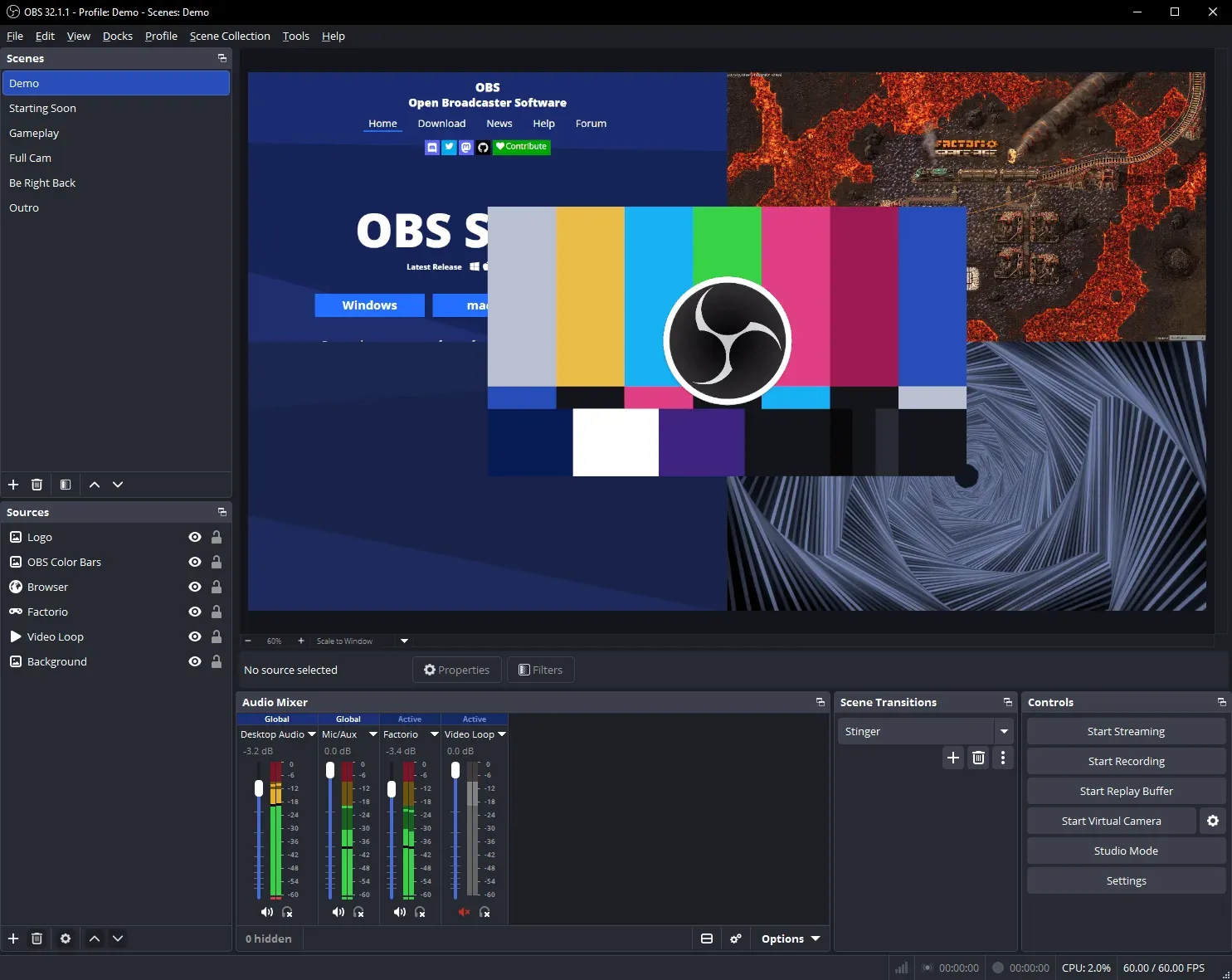
Official screenshot of the OBS Studio 32.1.1 main window from obsproject.com, showing a demo scene with browser, game and video sources.
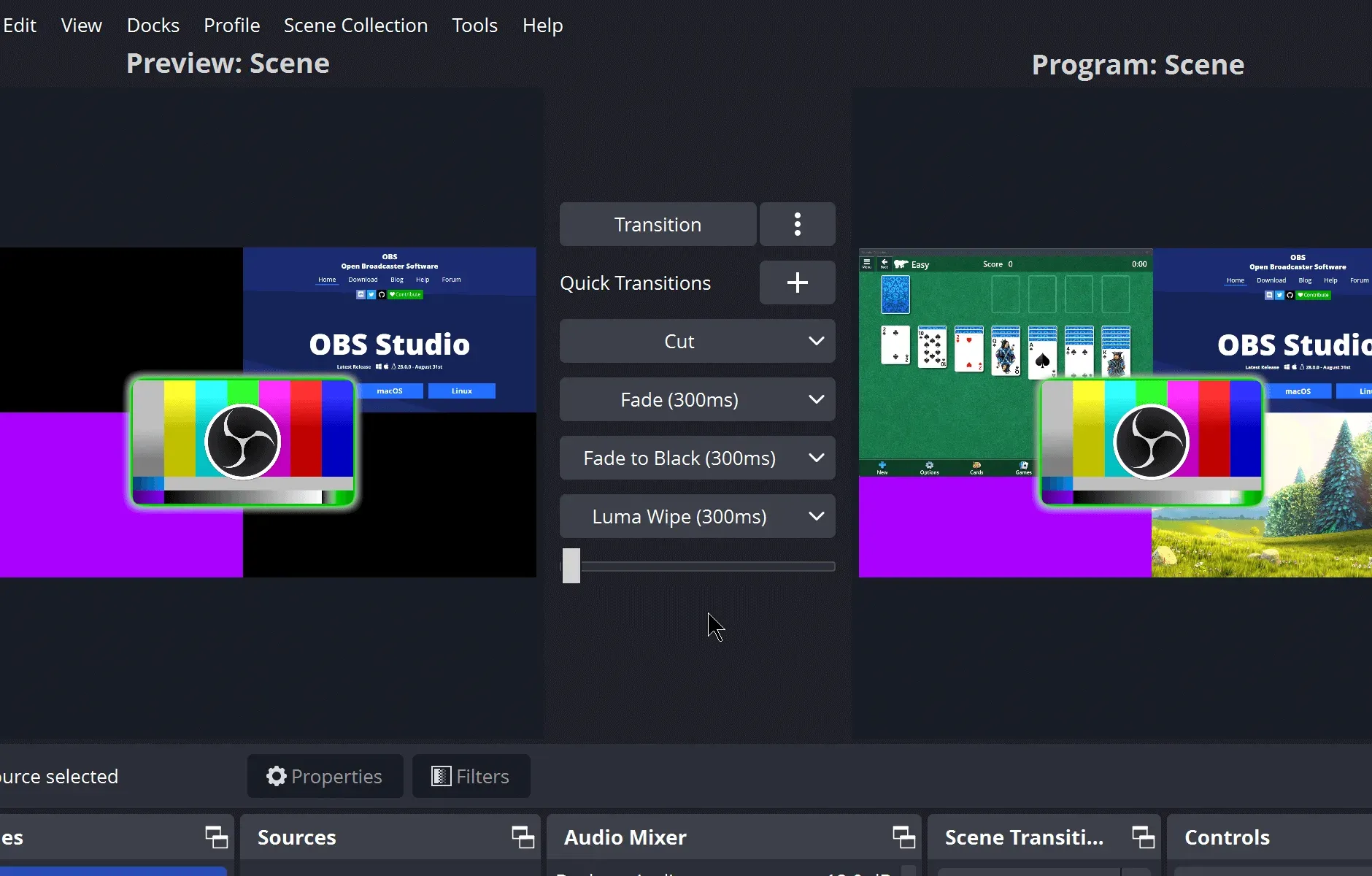
Studio Mode: the Preview scene on the left can be edited while the Program on the right stays live; cut, fade and luma wipe quick transitions sit in between.
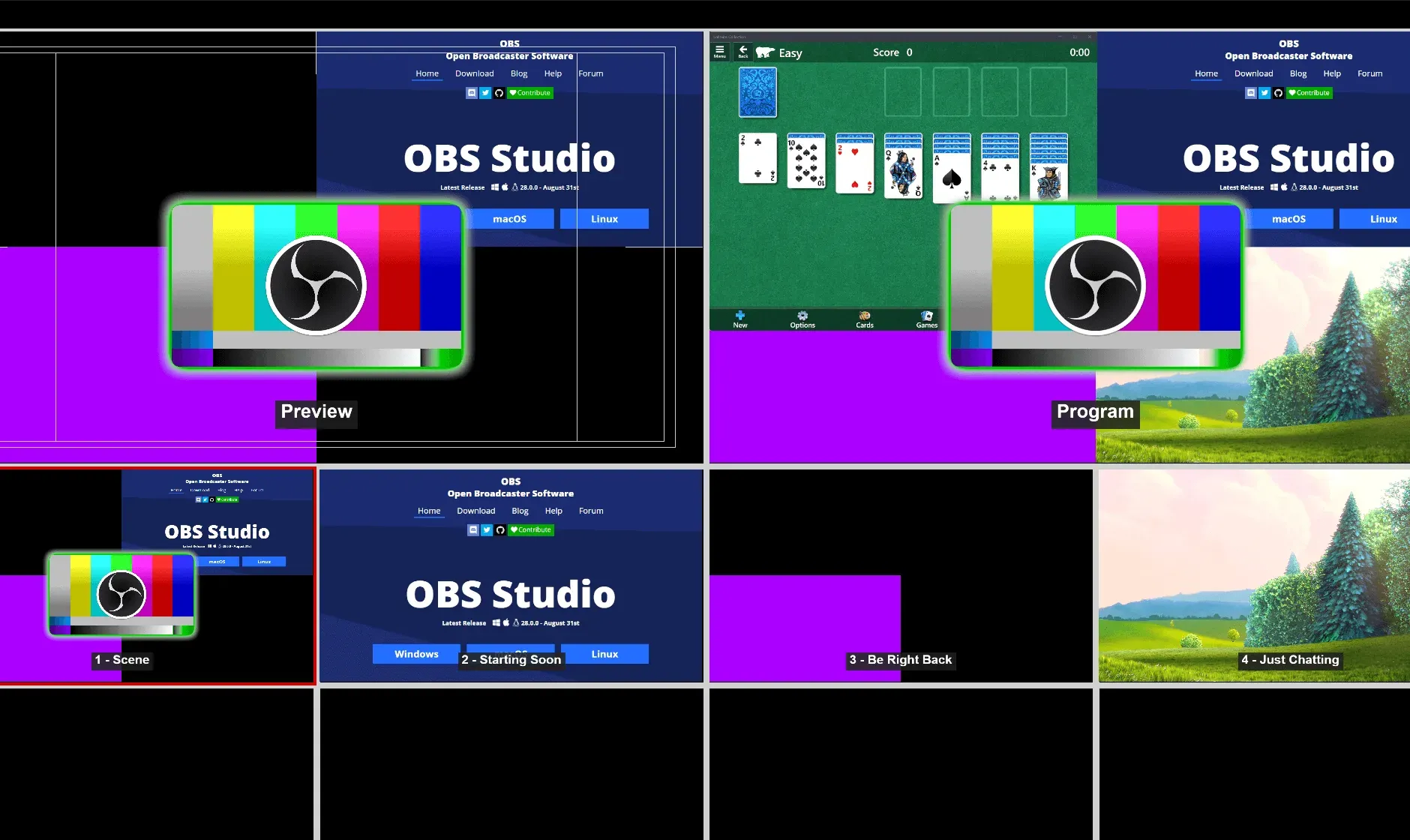
Multiview with Preview and Program on top and scene thumbnails such as Starting Soon and Be Right Back below.
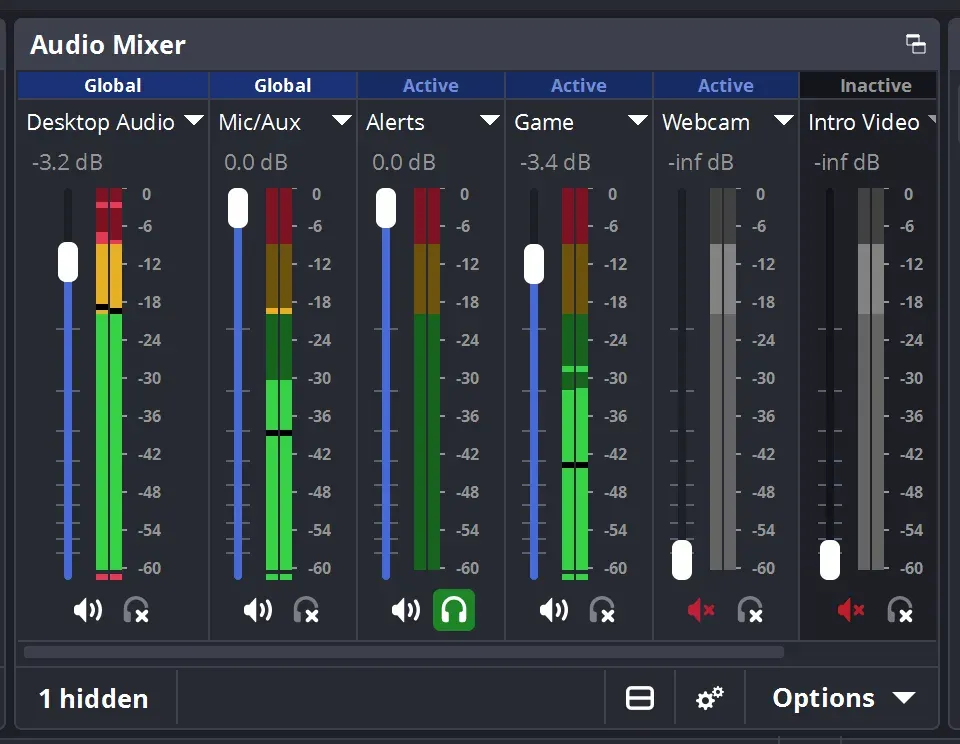
Audio Mixer with global and scene-specific sources, decibel meters, mute and monitoring buttons.
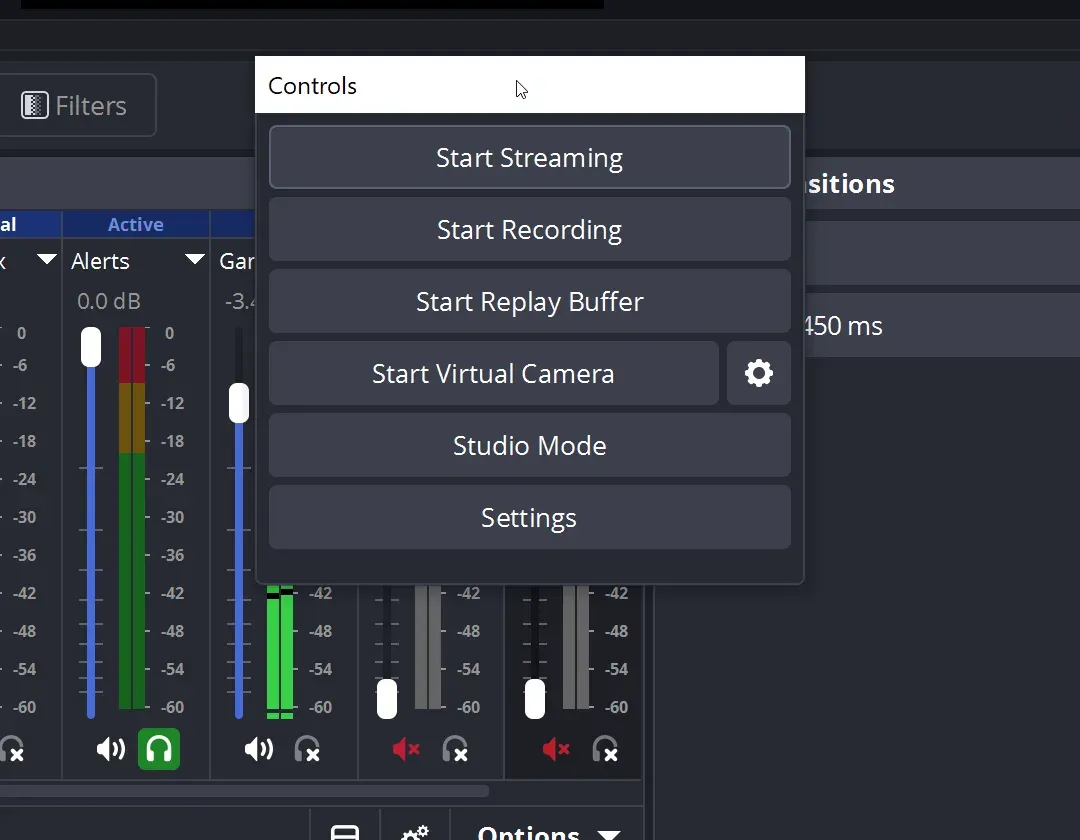
The Controls dock popped out into its own window, with Start Streaming, Start Recording, Start Replay Buffer, Start Virtual Camera and Studio Mode.
Source: official OBS Studio project page.
Key capabilities
- Download OBS Studio for Windows Windows 10 and 11 are supported. The download page offers an x64 installer, a portable x64 ZIP and a torrent, and lists the Microsoft Store and Steam as alternatives. A Windows arm64 ZIP is attached to the GitHub release; Windows on Arm support arrived in version 31.1.
- Download OBS Studio for macOS MacOS 13.0 or newer is required. Separate DMG installers exist for Intel (x86_64) and Apple Silicon (arm64), plus torrents and a Steam listing. Users still on macOS 12 have to stay on OBS Studio 32.1.2, the last release built for that version.
- Install OBS Studio on Linux The official channels are the com.obsproject.Studio Flatpak on Flathub and the ppa:obsproject/obs-studio PPA for Ubuntu 26.04 and newer, installed with add-apt-repository, apt update and apt install obs-studio. The GitHub release also includes an Ubuntu 26.04 x86_64 DEB. Packages from other distributions are unofficial and covered by the install instructions wiki.
- Scenes and sources A scene is a stack of sources: display capture, window capture, game capture, video capture devices, images, image slideshows, text, media files and browser pages. The number of scenes is not limited, and scene collections and profiles separate setups for different shows. Sources can be duplicated, grouped, transformed and given per-source filters.
- Screen, window and game capture Windows provides game capture for full-screen applications and several window capture methods, which 33.0 renamed for clarity. On Linux, Wayland sessions use a unified PipeWire Screen Capture source, while X11 remains supported. macOS uses Screen Capture, with improved transparency handling in 33.0, and has had application audio capture since version 30.
- Audio mixer and filters Each audio source gets a fader, meters and filters such as noise gate, noise suppression and gain, and VST plugins can be added. Version 32.1 rebuilt the mixer with horizontal and vertical layouts, pinned sources and a monitoring toggle; 33.0 added hotkeys for monitoring. Multiple audio tracks let a recording keep, for example, the microphone and the game on separate tracks.
- Studio Mode and transitions Studio Mode shows a Preview next to the live Program, so a scene can be edited before it goes on air. Transitions include cut, fade, fade to black, luma wipe and stinger videos, with quick transition buttons and a T-bar. Version 33.0 fixed glitches when moving sources inside a group while Studio Mode is active.
- Multiview A Multiview window displays Preview, Program and scene thumbnails at the same time. According to the project website, up to 8 scenes can be monitored and cued or transitioned with a click. It is useful on a second monitor during multi-camera shows.
- Recording outputs The recording output guide recommends MKV because an interrupted recording does not corrupt the whole file; File, Remux Recordings converts MKV to MP4. Hybrid MP4 and Hybrid MOV (32.0, with ProRes on macOS) are further options, and 33.0 improved file splitting for them. A replay buffer keeps the last seconds of output in memory and saves them on demand.
- Hardware and software encoders OBS supports x264 and hardware encoders from NVIDIA (NVENC), AMD (AMF), Intel (QSV), Apple (VideoToolbox) and VA-API on Linux, with H.264, HEVC and AV1 depending on the GPU. NVENC requires an NVIDIA driver of version 570 or newer since 32.2 and no longer supports Kepler GPUs. Version 33.0 enabled NVENC on Arm64.
- Streaming protocols and services Streams go out over RTMP, Enhanced RTMP with HEVC and AV1, or WHIP/WebRTC, which gained simulcast in 32.1. Multitrack Video, called Enhanced Broadcasting on Twitch, sends several encodes to services that support it. Integrated service logins exist for Twitch and YouTube, and Amazon IVS was added in 31.0.
- HDR and 10-bit video Since version 28, OBS can encode 10-bit and HDR video with HEVC or AV1 encoders, using settings such as the P010 color format and the Rec. 2100 PQ color space. HDR games can be tone-mapped when the canvas is SDR, and 32.2 added a filter to compose SDR content into HDR. Some filters do not work on HDR sources.
- Virtual camera The program output can be presented as a camera to video-call and meeting applications. On macOS the virtual camera was rebuilt in version 30 to work with all applications on macOS 13 and newer. The virtual camera guide covers setup per platform.
- Browser sources and docks Browser sources render web pages, such as alerts or overlays, inside a scene, and custom browser docks embed web panels into the interface. Both run on the Chromium Embedded Framework, now at build 150 in 33.0. Docks can be rearranged, undocked into separate windows or set to full height.
- NVIDIA audio and video effects On supported NVIDIA hardware, filters from the NVIDIA Broadcast SDKs provide noise removal, background removal and background blur. Version 32.0 added voice activity detection for noise suppression and a chair removal option, and 33.0 added support for the newest SDK releases. These filters depend on NVIDIA components and do not run on other GPUs.
- Hotkeys and layout Hotkeys can switch scenes, start or stop streams and recordings, mute sources, enable push-to-talk and, since 33.0, control audio monitoring. The dock-based interface can be rearranged freely and saved per profile. Source snapping in the preview now works along the whole axis and ignores hidden sources.
- Plugins and plugin manager Native plugins add sources, filters, outputs, encoders and services through the plugin API. A basic plugin manager has existed since 32.0. In 33.0, the libnsgif update is a breaking change for plugins using gs_image_file, and third-party plugins should move to the new folder layout before 34.0.
- Python and Lua scripting Scripts loaded from Tools, Scripts can react to events, create timers and change sources and scenes. The scripting documentation describes the shared hooks and the Lua-only script sources. Scripts run with the same permissions as the OBS process, so only trusted scripts should be loaded.
- Built-in WebSocket remote control Obs-websocket has shipped inside OBS Studio since version 28. Its 5.x server listens on port 4455 by default, generates a password on first load and can be configured under Tools, obs-websocket Settings. Controllers such as stream decks and automation tools use the documented WebSocket protocol.
- Safe Mode and crash reporting Safe Mode starts OBS without third-party plugins, scripts and, since 33.0, without the WebSocket server; OBS offers it after an unclean shutdown and it is also available from the Help menu. Log files can be uploaded for support. Automatic crash log upload on Windows and macOS is opt-in.
Where OBS Studio fits
Running a regular live stream
Build separate scenes for starting soon, main content, full camera, break and outro, then connect the stream key or log in to the Twitch or YouTube integration. Use Tools, Auto-Configuration Wizard as a starting point for resolution, frame rate and bitrate, and confirm the encoder in Settings, Output. Test a private or unlisted stream first and watch the status bar for dropped and skipped frames. After the 33.0.1 hotfix, retest any service login that crashed or stalled on 33.0.0.
Recording tutorials, demos and talks
Record to MKV and remux to MP4 afterwards, or choose Hybrid MP4 when a directly playable file is needed. Put the microphone, system audio and any music on separate tracks so an editor can balance or remove them later. Check that display or window capture shows the intended monitor and that notifications stay out of frame. Finished files can be cut in an editor such as Shotcut or LosslessCut.
Producing multi-camera events
Add capture cards and Blackmagic DeckLink inputs as video sources, enable Studio Mode and open a Multiview on a second monitor. Prepare transitions and quick transition buttons before going live, and assign hotkeys for scene changes. Test HDR and 10-bit paths only when the encoder is HEVC or AV1 and the destination accepts it. Rehearse the full running order, since a dropped capture device is easier to catch in rehearsal than on air.
Feeding video calls and webinars
Start the virtual camera to present a composed scene, such as a camera with slides or a lower third, to meeting software. Confirm the resolution the meeting application receives and whether it mirrors or crops the image. The virtual camera carries video only, so route audio through the meeting application or a separate virtual audio device.
Automating a show with WebSocket and scripts
Use obs-websocket to switch scenes, start recordings or change sources from a control surface, a bot or a production script. Keep authentication enabled, replace the generated password with a managed secret and restrict port 4455 to trusted hosts. For logic that must run inside OBS, a Python or Lua script can use timers and event callbacks. Version 32.1 added partial canvas support to obs-websocket, so check which requests your controller needs.
Maintaining plugins across upgrades
List every third-party plugin and its source before upgrading to 33.0. Plugins in the legacy folders still load until 34.0, but each should be moved to the new layout or updated by its author. Check plugins that render GIFs through gs_image_file, because the libnsgif update breaks them. Start once in Safe Mode to separate a plugin problem from a core problem, and on Linux use the Flatpak extension versions added in 33.0.
Install
flatpak install flathub com.obsproject.StudioReviews of OBS Studio
Be the first to share your experience with OBS Studio.
Write a review
Loading review form…
Alternatives to OBS Studio
 CapCap is an open-source screen recorder for macOS, Windows and Linux that shares a link when you stop or opens a local editor for polished videos.