What is WinRust?
WinRust is an open-source replacement for several parts of the Windows shell, written in Rust and published on GitHub by the account Lemxy. It is a set of small native programs, built without .NET or Electron, that take over the taskbar, File Explorer, file search and Task Manager, and add a disk cleaner, a disk-usage map, a photo viewer and a settings app. Every component ships inside one installer, WinRust.exe, which installs the selected components and removes all of them again with one Remove all button. The supported systems are Windows 10 and Windows 11 on x64.
The project is very new. The repository was created on November 17, 2026, and ten releases were published within five days, from the v0.1.0 pre-release to WinRust v0.5.3, published on November 21, 2026. Version 0.5.3 reorganised the gear menu of the bar into pages for theme, colours and transparency, templates and bar layout, added saved look templates, Win+1 to Win+9 shortcuts for app buttons, a Run mode for Win+R that works without Explorer, keyboard layout switching without Explorer, Windows 11 style toolbar buttons and date grouping in the file manager, wallpaper across all monitors and a faster handover from Explorer at sign-in on recent Windows builds. The release notes also list which changes were built and unit-tested but not yet checked on a live screen, and which GitHub issues are still open.
The README starts with a warning from the author: WinRust turns off Windows Search, hides the stock taskbar and can turn off Explorer as the Windows shell. The executable is not code-signed, so Microsoft Defender SmartScreen warns when it is started. The installer creates a system restore point before installing (through Checkpoint-Computer; Windows creates at most one restore point per 24 hours and only with System Protection on, and a failed restore point does not stop the install). The author recommends trying WinRust on a spare machine or in a virtual machine first. One optional component, purge, removes bundled Windows apps and is described as irreversible.
The source is a single Cargo workspace. The installer, plugin-launcher.exe, holds a table of plugins, each with an install and an uninstall routine that saves the original Windows values before changing them, so uninstall can put them back. A shared crate provides the English and Russian language switch, UI styles and palettes and an NTFS MFT reader; each plugin is its own crate, and ReShell ships with the bar. Building requires Windows x64 and Rust stable 1.85 or later with the MSVC toolchain, and a GitHub Actions workflow builds and tests the workspace on every push. The author publishes one-off benchmark figures from a single machine in the README and describes them as orders of magnitude rather than lab numbers.
WinRust is licensed under either MIT or Apache-2.0, at the user's option; GitHub shows Apache-2.0. There is no paid edition, account or online service, and no website besides the repository; bugs and requests go to GitHub Issues. A browser component, chrome-rs, is in the source tree but cannot be installed yet. Planned work is tracked in the roadmap. Projects that cover single parts of this scope on iThub include Microsoft PowerToys, Argus and Win11Debloat.
Key capabilities
- One installer for all components All programs are embedded in
WinRust.exe, downloaded from the latest release and run as administrator. The window lists each component with a checkbox and a description of what it changes in Windows; components install in a fixed order, and one that fails or is skipped does not stop the others. The install log is written to%ProgramData%\plugin-launcher\install.log. - rust-search: NTFS file search Rust-search reads the NTFS Master File Table of every NTFS drive and opens with Alt+Space. Installing it disables the Windows Search service, blocks
SearchHost.exeand hides the taskbar search box. On a stripped Windows image without the Windows Search service, for example a debloated LTSC build, that step is skipped with a warning instead of failing. - Run mode for Win+R With the bar running, Win+R and Start, Run open the Run mode of the launcher instead of the Windows Run box. It shows recent commands, 56 common commands such as
regedit,services.mscorms-settings:pages, searchable by description in English or Russian, programs from PATH and App Paths, and folder contents with Tab completion. Ctrl+Shift+Enter runs a command as administrator, and history is kept in%LOCALAPPDATA%\WinRust\run-history.txt. - rtaskmgr-win32: Task Manager A native task manager that opens with Ctrl+Shift+Esc.
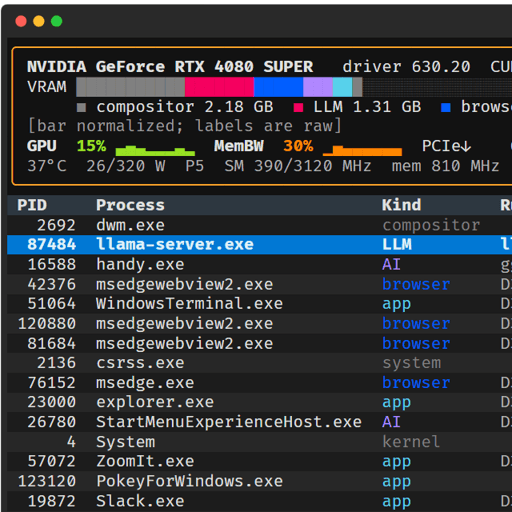
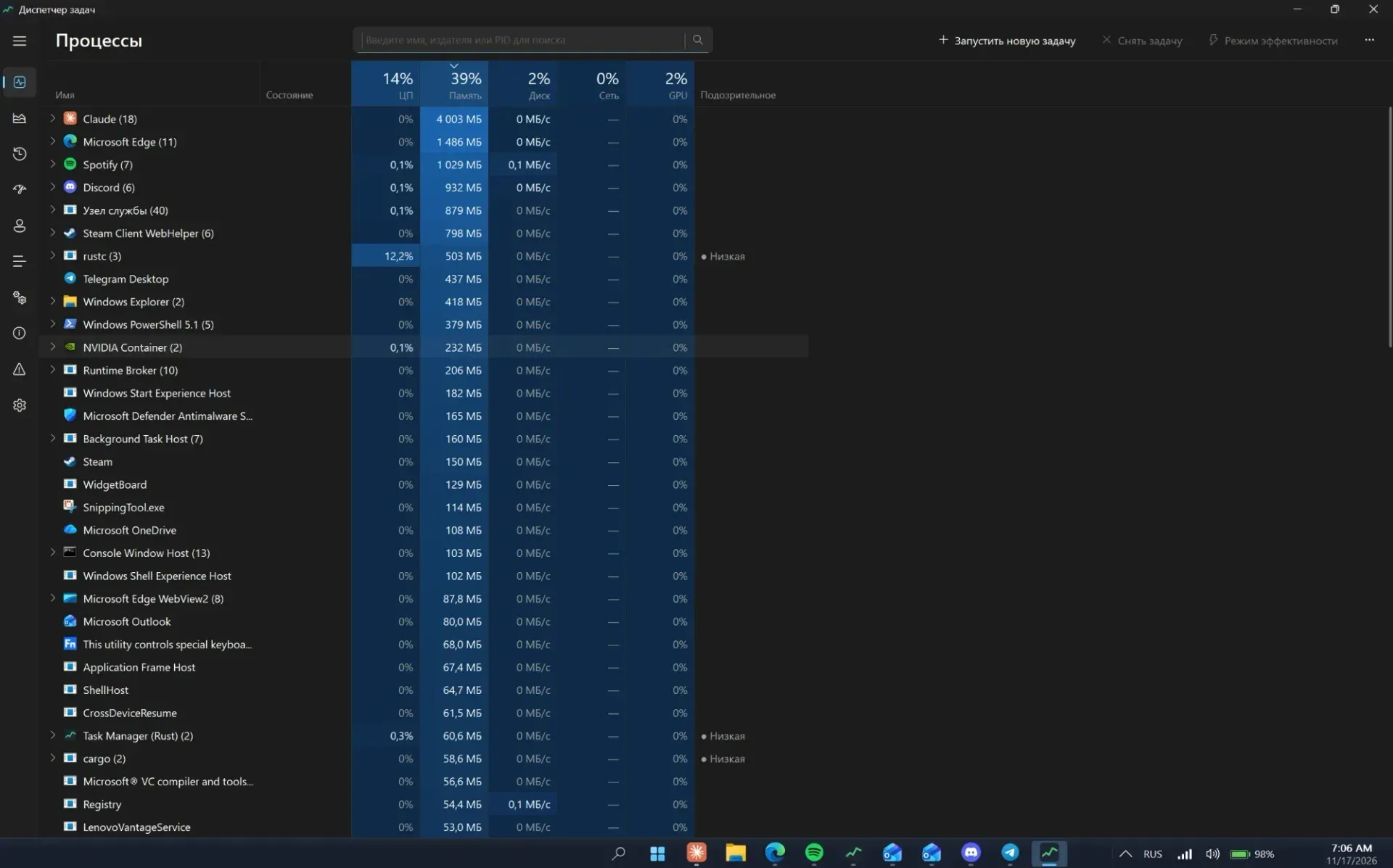
taskmgr.exeis redirected to it without modifying the system file. The process view shows CPU, memory, disk, network and GPU columns plus a column that flags suspicious processes, as the official screenshot shows. - Speed, Startup and What's slow pages The Speed page holds opt-in, reversible switches: Game and Work profiles that stop background services and launchers, clearing the memory standby cache, blocking Start menu, widgets and Phone Link processes, one weekly
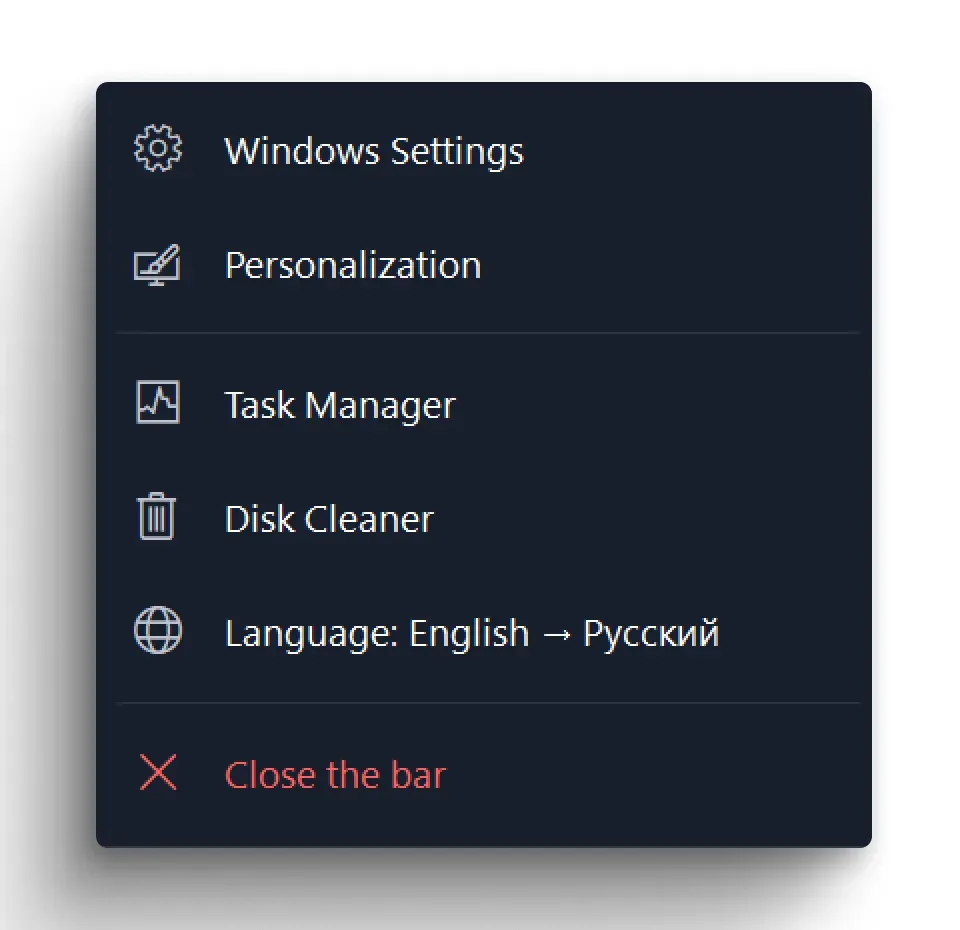
winget upgrade, Defender exclusions for build caches and game libraries, NTFS tweaks (no last-access times, no 8.3 names) and an ad-blocking hosts file. Startup lists logon and boot tasks and third-party auto-start services with their measured effect on recent boots, and What's slow shows driver DPC and interrupt time, hung windows, slow disks and boot times. Uninstall reverts these settings. - rs-du disk cleaner Rs-du is installed with the task manager and the bar and appears as Disk Cleaner in the bar menu. According to its component README, it reads sizes from the MFT, lists what can be freed before deleting anything, groups items as safe, recreatable or optional, and moves riskier user files such as old downloads to a 30-day quarantine instead of deleting them. Reading the MFT requires administrator rights.
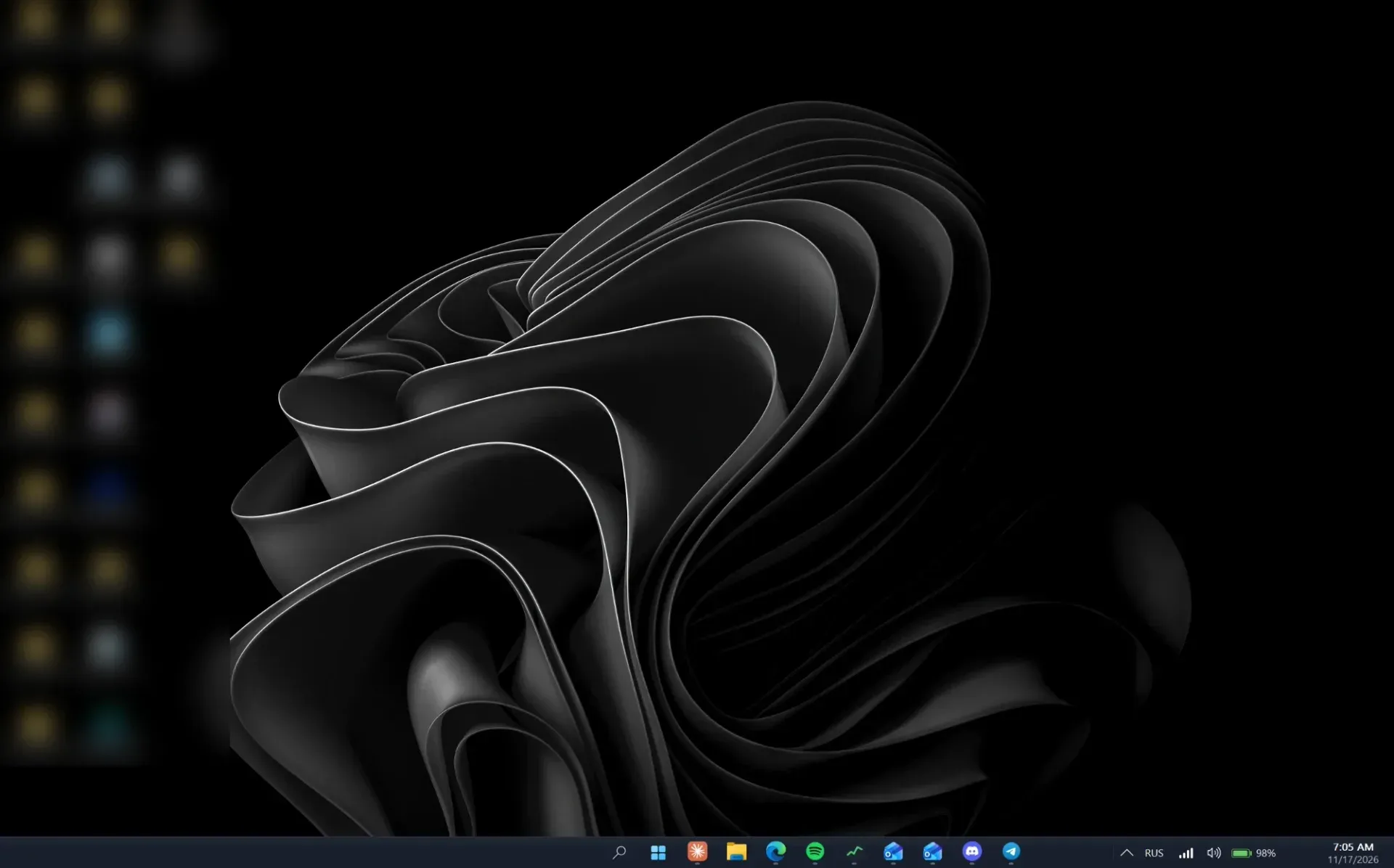
- topbar: replacement taskbar A Windows 11 style bar with window buttons, clock, volume and menus, which hides the stock taskbar. It can sit at the bottom, left or right edge (side bars show icons only), auto-hide, use three sizes, restrict Alt+Tab to the current monitor and snap windows dropped at the screen edges. Pinned buttons can be reordered, Win+1 to Win+9 open or switch to them, and Store (MSIX) apps start by their app ID so they work without Explorer.
- reshell hotkeys and safety net Reshell comes with the bar. It handles Win+Ctrl+1/2/3 and Win+` for virtual desktops, Win+D for the desktop, Win+I for settings and Win+E for the file manager, and brings the Windows taskbar back if the bar stops. The bar install also adds a block to the PowerShell profile that maps
grepto rg,llto eza andcatto bat and sets up zoxide, doing nothing when those tools are missing. - Six styles and custom colours The gear menu offers six styles that apply at once to the bar, the file manager and the search window: Normal, Terminal (green on black, Consolas), Floating dock, Tiling, White road and Ruby. Any colour of the bar and the WinRust windows can be changed through the Windows colour dialog, bar opacity can be set from 100 to 40 percent, and looks can be saved as templates. The style is stored in
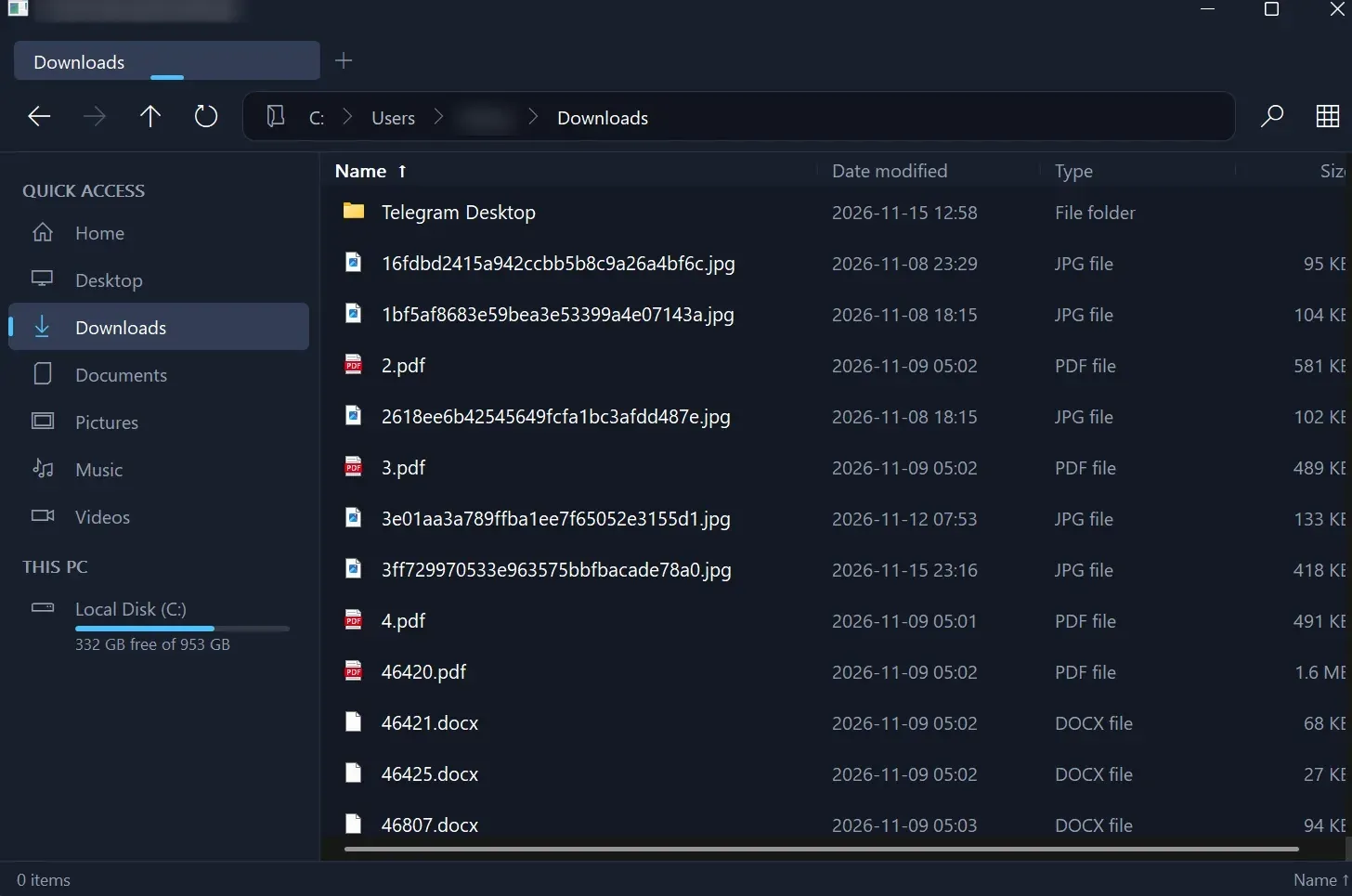
%ProgramData%\WinRust\style.txtand templates inthemes.txtin the same folder. - rust-explorer: file manager with tabs A file manager with tabs, quick access, drive space bars, Windows 11 style Cut, Copy, Paste, Rename and Delete buttons, date grouping and mouse back and forward buttons. "Show in folder" requests from other programs select the file, and the window reopens where it was closed. It requires the bar component and is unchecked by default on a fresh install.
- Copying and archives Rust-explorer has its own copier that copies several files at once on SSDs, uses unbuffered I/O for large files and shows progress in the status line. The context menu offers Compress to ZIP using all cores and Extract here for ZIP and 7z, with the project's own ZIP engine, and a
.zipfile opens like a folder for browsing and copying out. - Desktop and shell replacement When rust-explorer is selected, folders and drives open in it, it draws the desktop and Explorer stops being the shell; Explorer comes back automatically if the bar fails. The desktop supports sorting, arranging, small or large icons, hiding icons and a wallpaper scaled onto every monitor. On fresh installs it also adjusts the startup settings of PcaSvc, InventorySvc, lfsvc, cbdhsvc and DoSvc and the svchost grouping threshold when their values can be backed up, and restores them on uninstall.
- wiztree: WinRust Disk map A disk-usage map that appears as "WinRust Disk" in Start. Despite the component name, it is WinRust's own disk map and is not the commercial WizTree program. Installing it changes nothing in Windows beyond the program file and a shortcut.
- photoview A photo viewer that is added to the "Open with" menu. It does not become the default image viewer, so file associations stay as they are.
- rust-settings A settings app written in Rust with pages for display resolution and refresh rate, display arrangement, sound and per-app volume, power plans, night light, network adapters, Wi-Fi with password or 802.1X, VPN and proxy, Bluetooth, apps, Windows Update, disk cleanup, theme and system information. Win+I and the bar menus open it instead of Windows Settings; a few rare pages still open the system ones.
- debloat (command line only) Turns off telemetry, Copilot, Recall, Start menu ads and Edge running in the background through services and registry policies. Old values are saved and restored on uninstall. It is not offered in the installer window and is installed with
plugin-launcher install debloat --yes. - purge (command line only, irreversible) Removes bundled apps such as Clipchamp, News, Weather, Xbox overlays, Teams, Cortana, Widgets and Skype, plus telemetry tasks, for all users and from the Windows image, while the Store, Settings, Start and runtimes stay. The README marks it as irreversible with no undo. Running
purge.exealone only lists what would be removed; removal needsinstall purge --yes, and OneDrive and Edge are only removed with extra flags. - Removal and recovery Remove all in the installer undoes the changes and brings back Windows Search, the taskbar, Explorer and the services, using the values saved at install time. Older installs without those backups keep their current service values and report a warning. If the screen is left without a taskbar or desktop, the README describes starting
explorer.exefrom Task Manager through Ctrl+Alt+Del, then running the installer and pressing Remove all. - Command line From an elevated terminal,
plugin-launchersupportslist,installwith one or more names orall,update,uninstallfor a single plugin androllback --yesto remove everything. Without--yesit only prints warnings. Exit codes are 0 for success, 1 when at least one plugin failed and 2 for bad arguments, as documented in the command line section. - English and Russian interface The installer is in English, and its Russian button or the bar's right-click menu switches every WinRust program to Russian. The README and release notes are published in both languages.
Where WinRust fits
Installing selected components
The README describes downloading WinRust.exe from the releases page, running it as administrator, ticking components and pressing install. rust-explorer is unchecked on a fresh install and can be ticked there or switched on later with the Shell: rust-explorer switch in the bar's gear menu. If UAC asks for another administrator's password, per-user settings such as startup entries, scheduled tasks, the PowerShell profile and search permissions still go to the signed-in user, and the installer stops before changing anything if it cannot tell who that is.
Updating to a new release
An update uses the same flow: the new WinRust.exe from the releases page is run as administrator and the components to update or add are selected. An installed rust-explorer stays selected by default, and settings and the saved original Windows values are kept. From the command line, plugin-launcher update <plugin> reinstalls one plugin from the payload folder next to the executable.
Replacing Explorer as the shell
With rust-explorer and topbar installed, rs-shell starts autostart programs from the Run keys, including the 32-bit WOW6432Node key, and from Startup folders, respecting entries disabled in the Task Manager Startup tab. Since v0.5.3 it ends Explorer once every autostart program it recognises is running (about 15 seconds, or 30 with Startup folder shortcuts, according to the release notes), with 90 seconds as the limit, and writes what it waited for to %LOCALAPPDATA%\rs-shell\log.txt. Win+R, keyboard layout switching and tray icons are handled without Explorer.
Removing WinRust or a single component
Remove all in the installer window, or plugin-launcher rollback --yes, removes every component and restores the saved values; plugin-launcher uninstall <plugin> removes one. If the desktop or taskbar is missing, the documented path is Ctrl+Alt+Del, Task Manager, Run new task, explorer.exe, followed by the installer's Remove all. The restore point created before installation is a separate fallback provided by Windows.
Debloating from the command line
The two cleanup components are only available from an elevated terminal. plugin-launcher install debloat --yes applies reversible service and policy changes. For purge, the README describes running purge.exe first, which only lists the apps and tasks it would remove, and then plugin-launcher install purge --yes; OneDrive and Edge need purge.exe --apply --onedrive --edge. The removal of apps by purge cannot be undone by WinRust.
Customising the bar and windows
The gear at the left end of the bar opens pages for Theme, Colors and transparency, Templates and Bar, plus Tile the windows and Reset everything to defaults, which asks first and keeps templates. A style chosen on the Theme page applies to the bar, rust-explorer and the search window at once. The Tiling style puts a thin bar at the top and Tile the windows arranges open windows side by side, while Floating dock shows a pill-shaped bar that slides away over maximized windows.
Reviews of WinRust
Be the first to share your experience with WinRust.
Write a review
Loading review form…
Found WinRust useful? Upvote it todayYour vote helps other IT teams find it in the daily ranking.