

What is Argus?
Argus is a task manager for Windows, released as free software under the GNU Affero General Public License version 3 or later (AGPL-3.0-or-later). It is written in Rust, calls native Windows interfaces through windows-rs and draws its interface with GPUI Kit components, with charts redrawn at the display's refresh rate. The name comes from Argus Panoptes, the hundred-eyed giant of Greek mythology. The project is maintained in the Ray-lea GitHub repository, with the official website hosting an interactive in-browser version of the interface, a download page, documentation and a changelog. The interface and README are available in Simplified Chinese, Traditional Chinese, English, Spanish, German, Japanese, French and Russian.
The current release is Argus v0.4.0, published on November 6, 2026; the first public release, v0.1.0, appeared on October 16, 2026. Version 0.4.0 moved the interface from Tauri, SolidJS and WebView2 to a native Rust and GPUI Kit stack with DirectX rendering, so the app no longer depends on the WebView2 runtime. The same release added 40 selectable process columns in six groups, a disk Details view with health and SMART data for NVMe, ATA/SATA, USB-SAT and SCSI/SAS devices, more Intel integrated graphics readings, a configurable start page, a resizable sidebar and the official update mirror. It also bumped the privileged service protocol to version 10, which portable users update manually under Settings, Permissions, Privileged service.
Each release ships an installer (Argus_<version>_x64-setup.exe, installed for all users in Program Files, with in-app updates), a portable single executable that shares settings and history with the installed copy but does not update itself, and a SHA256SUMS.txt file. Downloads are on the official download page and on GitHub Releases. Argus requires Windows 10 22H2 (build 19045) or later on x64 and a graphics device and driver with DirectX 11 support. Code signing is provided through SignPath.io with a SignPath Foundation certificate; according to the README, test signing is in place while official release files are not yet Authenticode-signed. In-app updates are verified with a separate Minisign release key.
The privacy policy states that process, hardware, connection and resource data are processed locally, and that settings, the last 7 days of history and diagnostic logs stay on the device. There is no usage telemetry, advertising tracker or automatic crash reporting. Network access is limited to update checks (enabled by default, against GitHub, the update.argustask.com and dl.argustask.com mirrors and, unless restricted to GitHub only, GitHub proxy services), optional PawnIO driver downloads for kernel sensors, and links the user opens. Optional kernel sensors rely on the signed PawnIO driver; graphics telemetry uses Intel IGCL and AMD ADL. Community discussion takes place in GitHub Discussions and a QQ group.
Argus screenshots
Explore the interface. Open a screenshot to view it at full size.
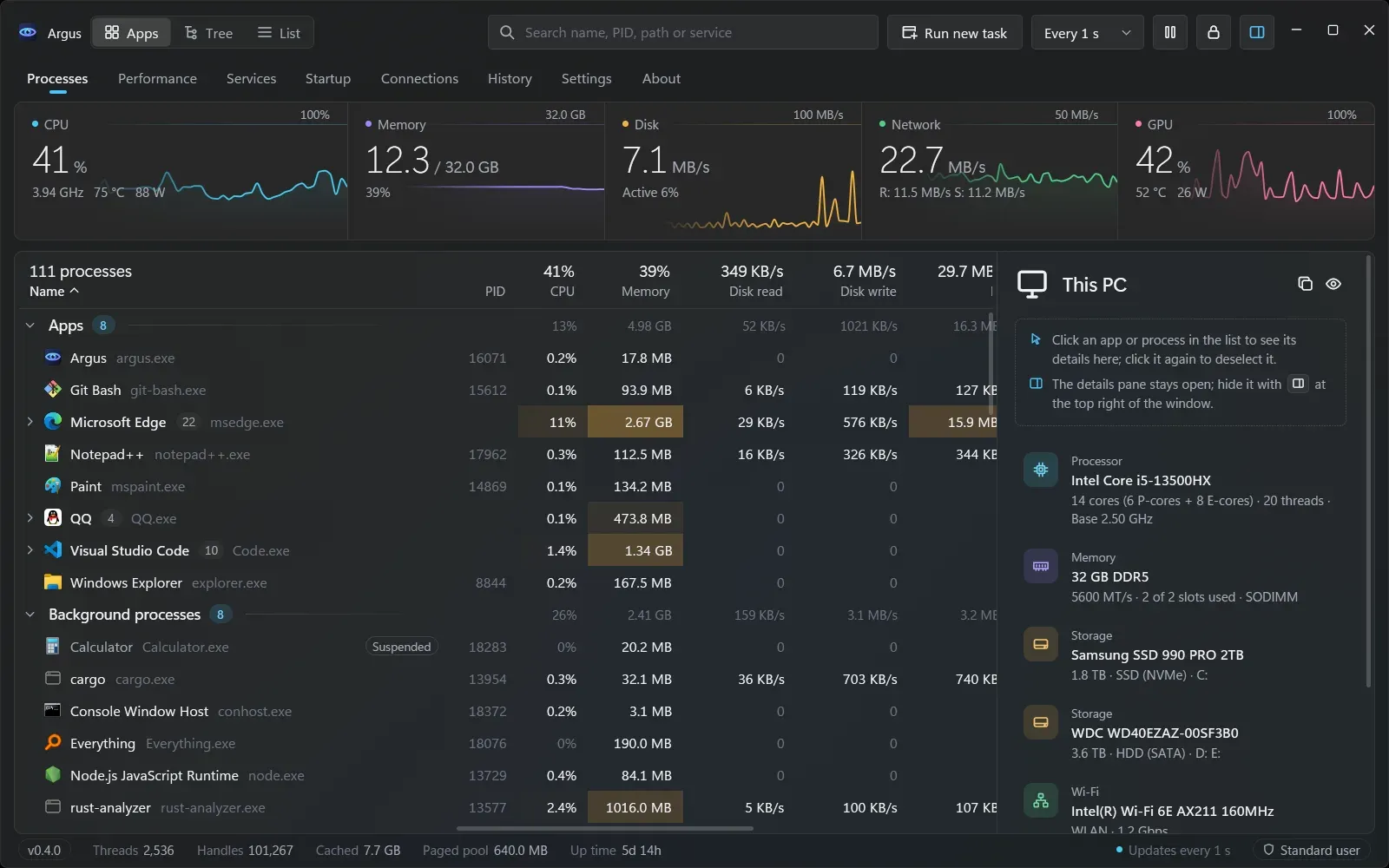
Argus Processes page in English, dark theme, from the project repository.
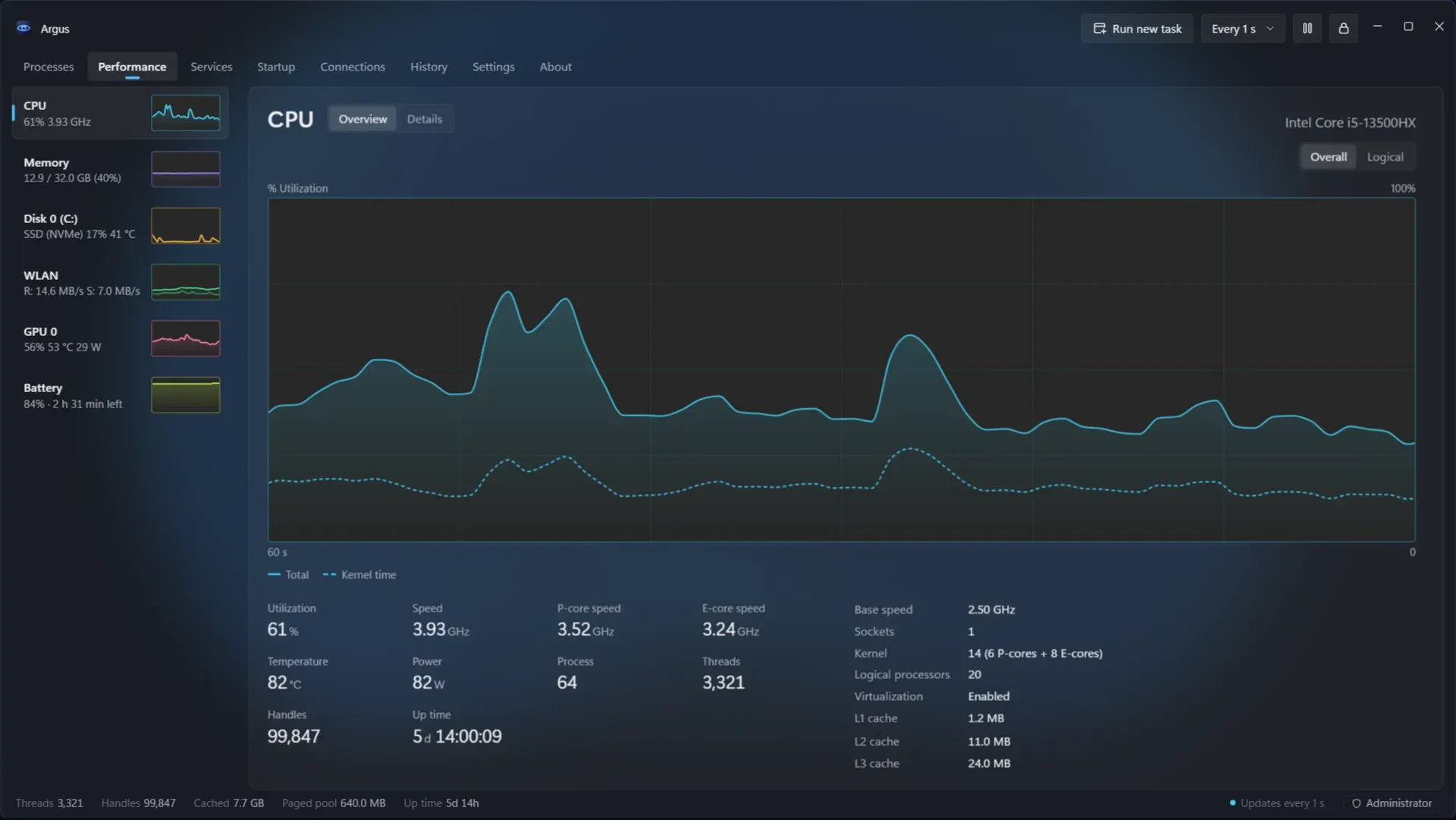
Performance page with the CPU overview, from the interactive interface on the official website.
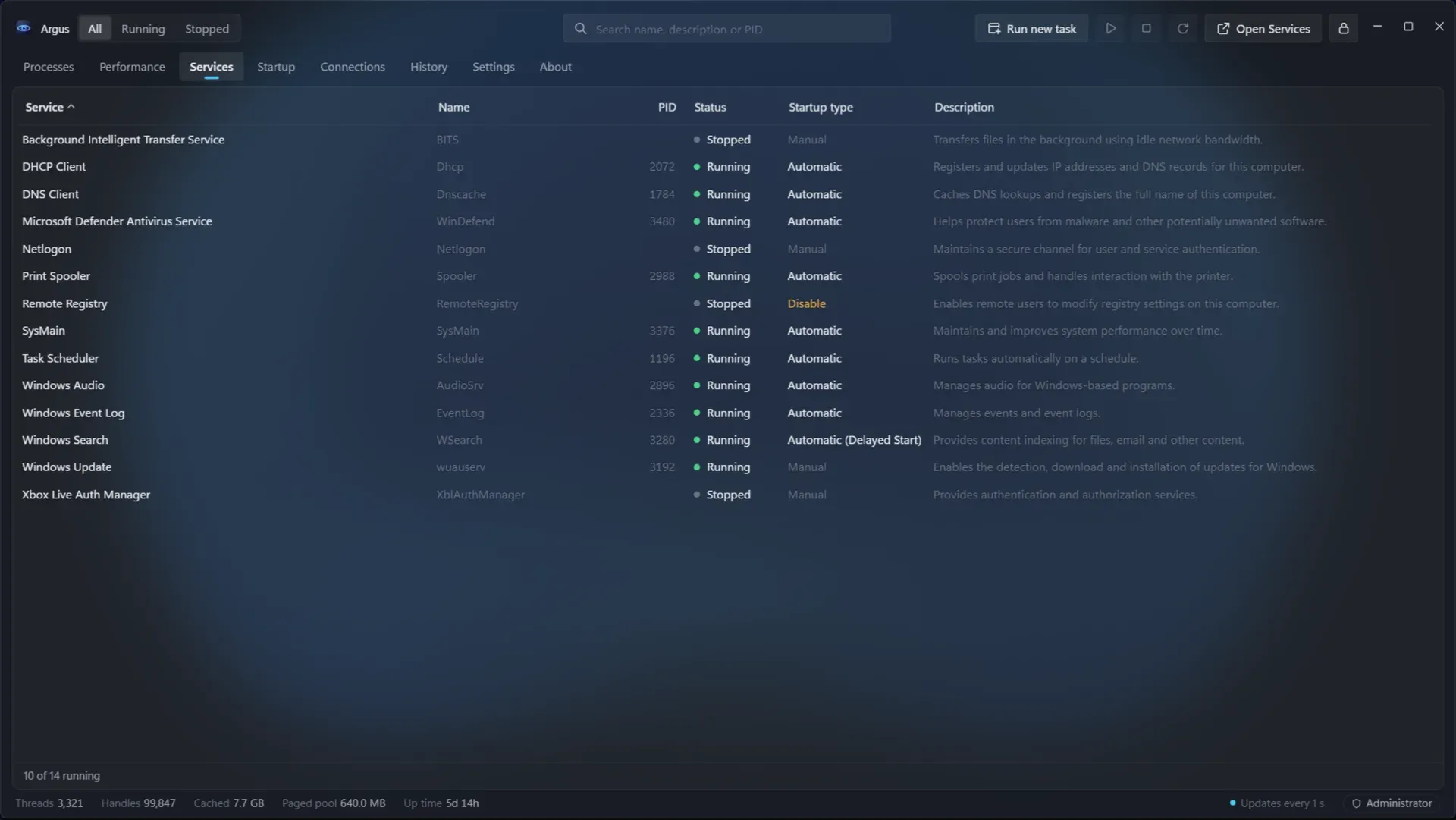
Services page with running and stopped services and their startup types, from the official website.
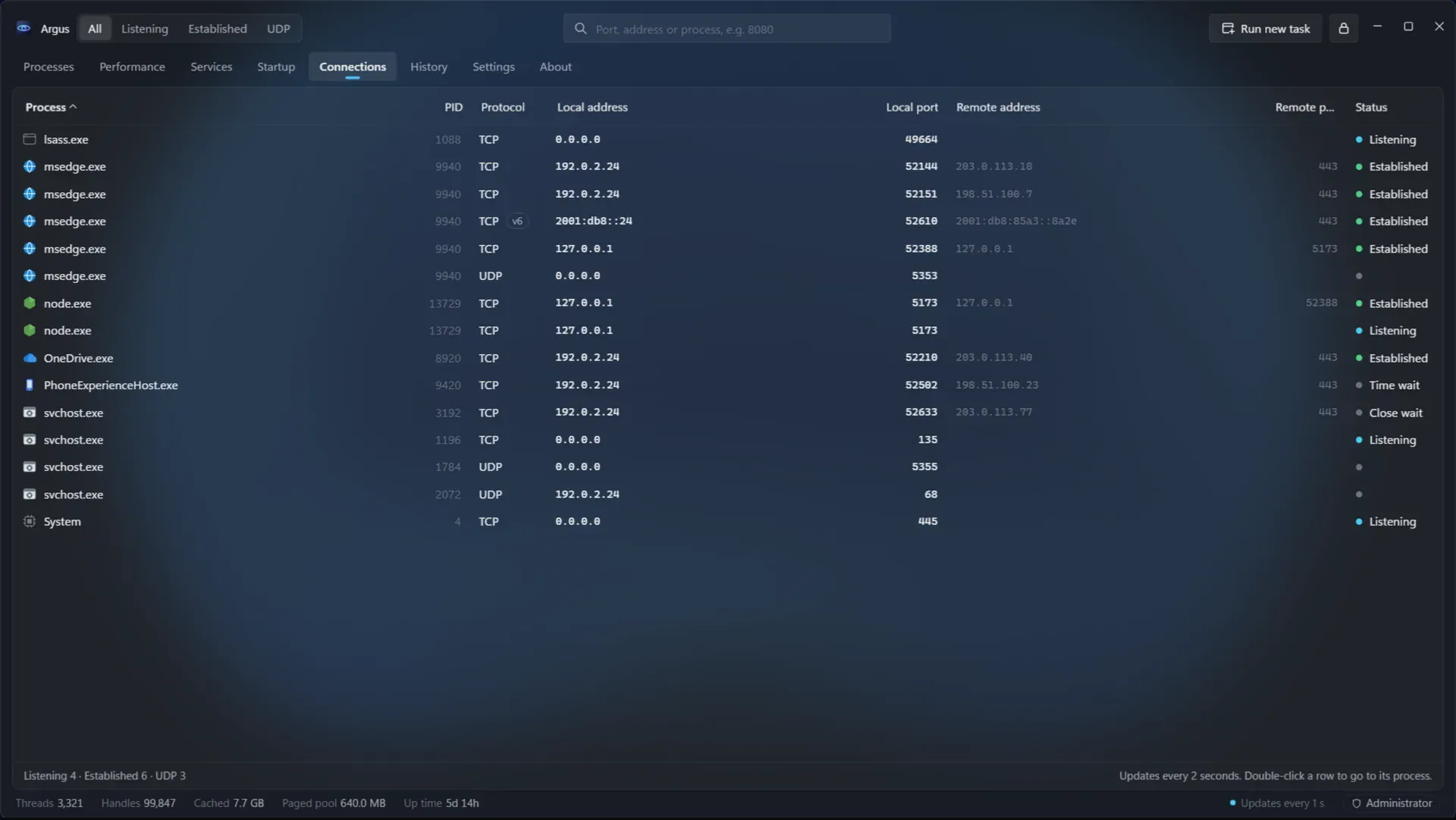
Connections page with listening and established TCP and UDP endpoints, from the official website.
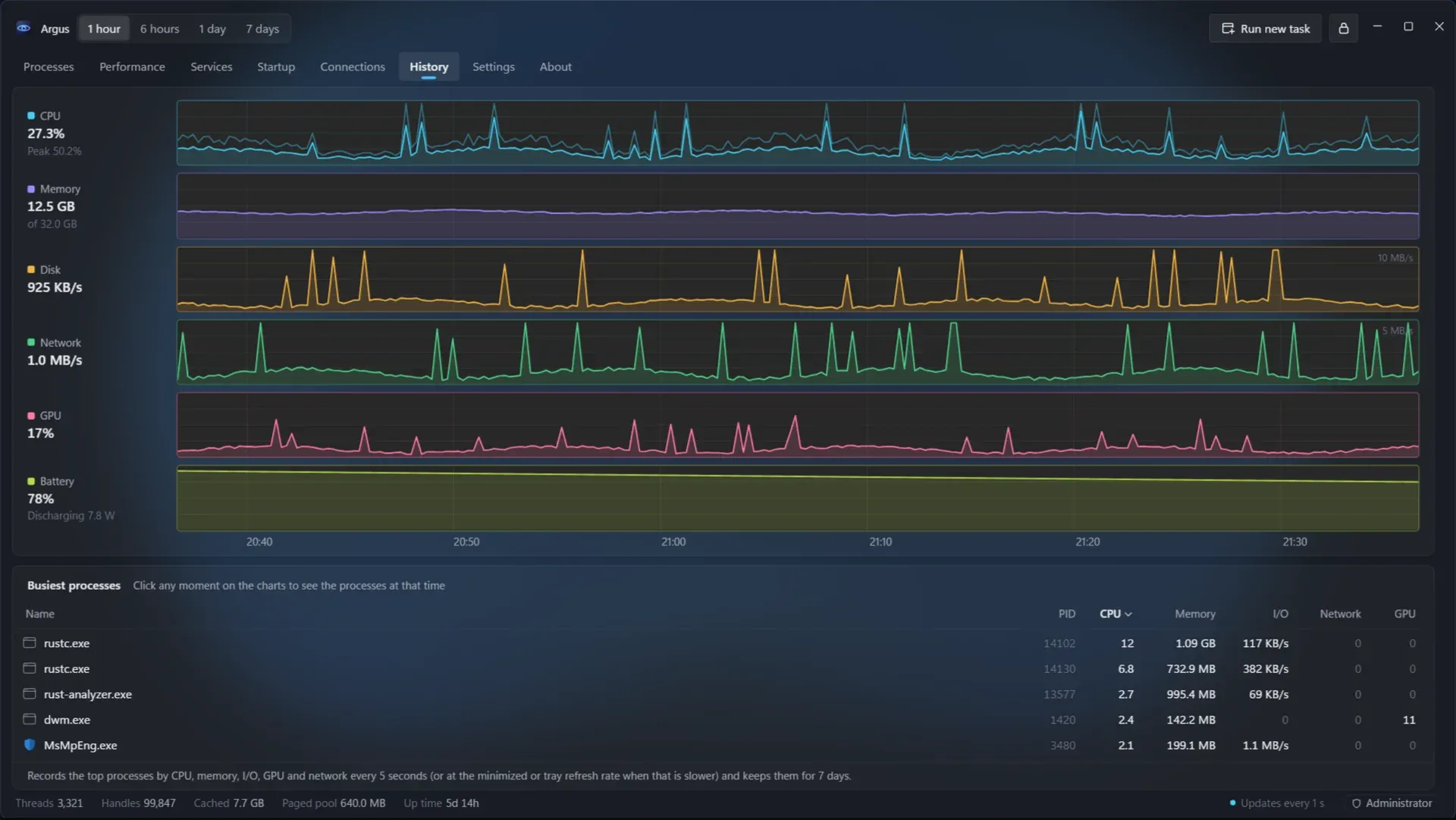
History page with resource charts and the busiest processes, from the official website.
Source: official Argus project page.
Key capabilities
- Download Argus for Windows Windows 10 22H2 or later and Windows 11, x64 only: the installer version installs for all users into Program Files, requires administrator permission to install and update, and supports in-app updates. The v0.4.0 installer is listed at 6.9 MiB on the website. A portable
Argus_<version>_x64.exeruns without installation and shares settings and history with the installed copy. Checksums are published inSHA256SUMS.txt. - Processes in three views The Processes page groups entries by app, as a process tree or as a flat list, with live CPU, memory, disk read and write, network and GPU usage per process. Processes or whole process trees can be ended, and the details pane shows the command line, owning user, integrity level and more. A summary strip at the top charts the last minute of CPU, memory, disk, network and GPU load.
- Customizable columns Since 0.4.0, 40 columns are available in six groups (General, CPU, Memory, Disk and I/O, Network, GPU), including dedicated and shared GPU memory, GPU engine, image name, virtual address space, peak working set, page faults and cumulative I/O. Columns are toggled from the header context menu or a Select columns dialog with search, and can be reordered by dragging.
- Priority, efficiency mode and rules Process priority and Windows efficiency mode can be changed from the context menu, or stored as rules that are applied automatically each time the target program starts.
- Performance and hardware sensors The Performance page covers CPU per-core load, P-cores and E-cores, frequency, temperature and power, plus memory, disks, network, GPU and battery. Hardware support for some sensors depends on the optional PawnIO kernel driver; the hardware data guide (in Chinese) lists sources and limits.
- Disk health and SMART An Overview and Details switch on disk pages reads NVMe, ATA/SATA, USB-SAT and SCSI/SAS information on demand: health status, remaining life, temperatures and thresholds, power-on time and cycles, total data read and written, error counters, PCIe link and SMART attributes. Serial numbers are hidden by default.
- Services and startup apps Windows services can be started, stopped and switched between startup types. Startup apps can be enabled or disabled, with the state kept in sync with the Windows Task Manager switch.
- Connections and ports Active TCP and UDP endpoints are listed with their owning processes, with exact port search and the option to close a connection.
- File locks Dropping a file or folder onto the window lists the processes that hold it, combining the Windows Restart Manager with handle enumeration, including processes' current working directories.
- Seven-day history Argus records resource charts for the past 7 days. Clicking any moment on the charts shows the busiest processes by CPU, memory, I/O, GPU and network at that time.
- Tray mode and global hotkey Ctrl+Alt+Esc shows or hides the window from anywhere. When minimized or hidden, the app stops drawing and uses separate, configurable refresh intervals to keep resource use low.
- No administrator rights required As a standard user, Argus shows the paths and resource usage of all processes. Optional administrator startup can be authorized once so sign-in, shortcuts and Task Manager entry points launch it elevated, and can be turned off again.
- Optional privileged service After a one-time administrator approval, a background service lets a standard-user Argus manage system processes, inspect file locks of elevated processes, apply rules, control services, close connections and measure per-process network traffic, plus disk I/O on Windows 10 and Windows 11 before 24H2. It can be uninstalled from Settings.
- Task Manager replacement Argus can replace the default Windows Task Manager, so Ctrl+Shift+Esc opens it. It can also run a new task, optionally as administrator, and restart the current desktop's Windows Explorer.
- In-app updates Stable and Beta channels are offered. New versions download in the background and are announced in the title bar, with release notes before and after updating. The download source can be limited to GitHub only in Settings.
- Native appearance and languages Windows 11 uses the Mica backdrop and Windows 10 a solid background. Accent color and light or dark theme follow Windows unless overridden. Eight interface languages follow the Windows display language, and a first-launch guide sets common options.
- Keyboard shortcuts Ctrl+1 to Ctrl+8 switch pages, Ctrl+F searches processes, holding Ctrl pauses refresh on the Processes and Performance pages, Enter opens details, and Alt+E or Delete ends a process (Shift+Delete skips confirmation).
- Build from source Building requires the Rust
stable-x86_64-pc-windows-msvctoolchain 1.99.1 or newer, Node.js 26.12.1+ (or 24.22.1+ LTS) with pnpm 12.14.0, and Visual Studio Build Tools with the C++ desktop workload.start.batruns a development build with automatic rebuilds, andstart.bat buildproducestarget\release\argus.exe.
Where Argus fits
Finding what slows a Windows PC down
The Processes page sorts apps and background processes by CPU, memory, disk, network or GPU use, with heavy values highlighted. The summary charts at the top show the last minute of system load, and the details pane gives the command line, user and integrity level of the selected process before it is ended or its priority is changed.
Looking back at a past spike
When a slowdown happened earlier, the History page lets the user pick a range of 1 hour, 6 hours, 1 day or 7 days and click a point on the CPU, memory, disk, network, GPU or battery chart. Argus then lists the processes that were busiest at that moment, from samples recorded about every 5 seconds and kept for 7 days.
Checking hardware and disk condition
The Performance page shows per-core CPU load, P-core and E-core speeds, temperatures and power draw, GPU engines and battery state. The disk Details view reads SMART attributes, remaining life, power-on hours and error counters for NVMe, SATA, USB-SAT and SAS drives.
Unlocking a file that cannot be deleted
Dragging a locked file or folder onto the Argus window identifies the process holding it. For files held by elevated processes, the optional privileged service or administrator startup is required.
Auditing services, startup apps and network connections
The Services page starts, stops and changes startup types of Windows services; the Startup page lists startup entries with publisher, location and command and toggles them; the Connections page shows listening and established TCP and UDP endpoints per process and can close a connection.
Using Argus as the default task manager
With the Task Manager replacement enabled, Ctrl+Shift+Esc opens Argus, and the global hotkey brings it back from the tray. Other Windows utilities in this directory include Pulse Diagnostics and Mole.
Reviews of Argus
Be the first to share your experience with Argus.
Write a review
Loading review form…
Related to Argus
 MoleMole is a free GPL-3.0 command-line toolkit (mo) for cleaning caches, removing apps with their leftovers, purging build artifacts, exploring disk usage and watching live system status on macOS, with separate Windows and early Linux CLIs.