
What is Microsoft PowerToys?
Microsoft PowerToys is a set of free, open-source utilities for customizing Windows and streamlining everyday tasks on Windows 11 and Windows 10. Microsoft develops it in the open on GitHub under the MIT license, with contributions from the community, and documents it on Microsoft Learn. The suite currently bundles more than 30 utilities, among them FancyZones for window layouts, Command Palette and PowerToys Run as launchers, Keyboard Manager, PowerRename, Advanced Paste, Peek, Text Extractor, Mouse Without Borders and ZoomIt. Each utility is turned on or off individually in the PowerToys Settings app. The current repository was created in 2019, and its release tags go back to the 0.1x preview builds of late 2019.
According to the installation guide, PowerToys needs Windows 11 or Windows 10 version 2004 (build 19041) or newer on a 64-bit x64 or ARM64 processor; the setup bootstrapper installs the Microsoft Edge WebView2 Runtime if needed. Each GitHub release provides four installers: per-user and machine-wide, each for x64 and ARM64, with published SHA256 hashes and a zip of Group Policy administrative templates. Microsoft also distributes PowerToys through the Microsoft Store and WinGet, while Chocolatey and Scoop packages are listed as community-driven install methods.
The code base is mainly C# and C++. The README roadmap states that the team continues to move utilities to WinUI 3, and release 0.102 moved Color Picker and Text Extractor to it. Most contributions require a Microsoft Contributor License Agreement. Stable releases are published as GitHub releases, while numbered dev preview builds for the next version, such as Dev preview v0.103.3151.0, appear as pre-releases.
The latest stable release is Release v0.102.3101.0, published November 6, 2026. This hotfix improves File Explorer thumbnail generation, fixes Mouse Without Borders pairing failures in signed builds and restores optional diagnostic event reporting without changing diagnostic-data preferences. It follows v0.102.3001.0, which fixed crashes in File Locksmith and Quick Accent, and the 0.102 feature release v0.102.2933.0 of October 21, 2026. That release added the Mouse Button Lock and CursorHide mouse utilities, a quick-access shelf for Command Palette, snip dictation in ZoomIt, command-line tools for Advanced Paste, Light Switch, Settings and Peek, and tap-alone remaps in Keyboard Manager. For 0.103 the README lists a new Awake flyout, Screen Ruler improvements and further WinUI 3 work.
PowerToys runs locally on the Windows PC and is Windows-only; there are no macOS or Linux builds. Per the data and privacy document, diagnostic data is optional and off by default since v0.86, and every diagnostic event is listed in that file. Optional AI features in Advanced Paste send content only to a model provider the user configures. Other desktop tools in this directory include the search launcher Kensaku and the Windows clipboard shelf Edge-Drop.
Microsoft PowerToys screenshots
Explore the interface. Open a screenshot to view it at full size.
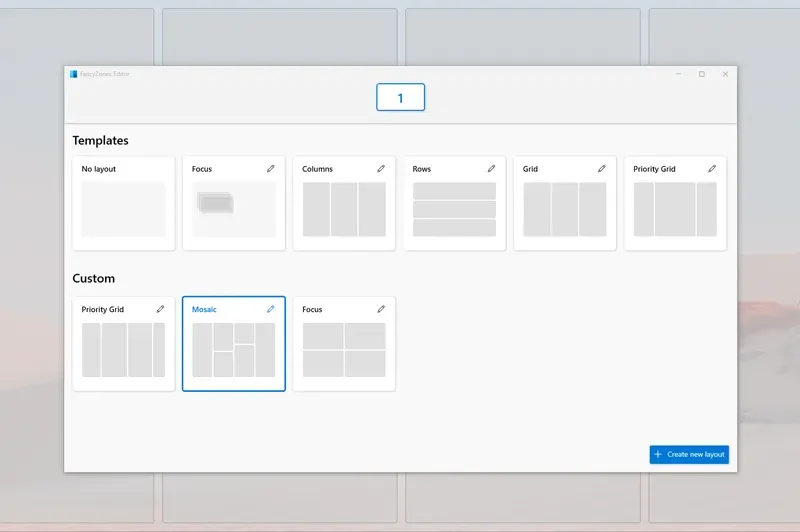
FancyZones editor showing template and custom window layouts, from the PowerToys repository overview images.
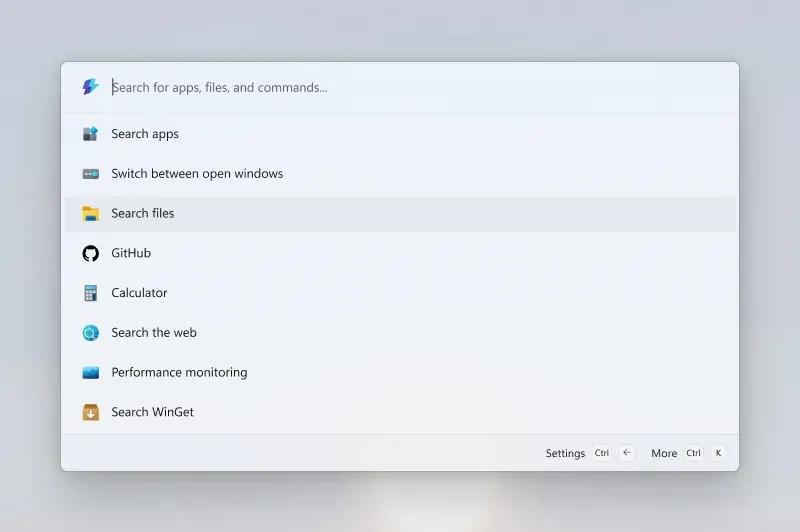
Command Palette with its default top-level commands, from the PowerToys repository overview images.
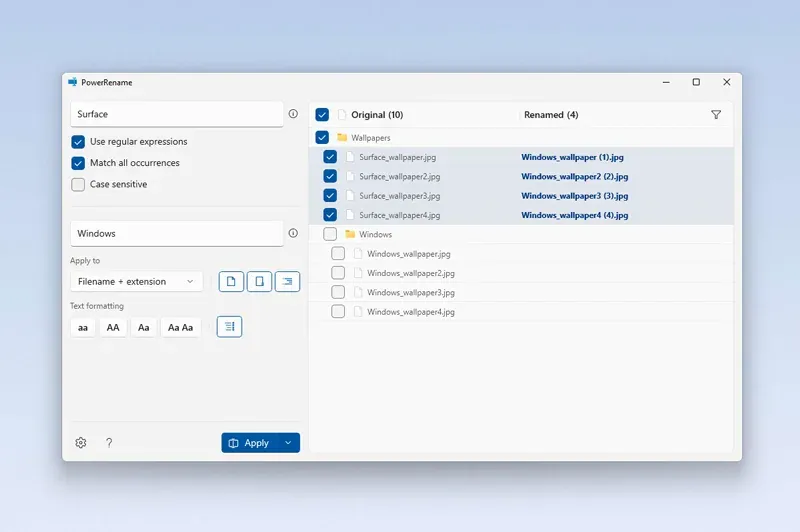
PowerRename previewing a regex rename of wallpaper files, from the PowerToys repository overview images.
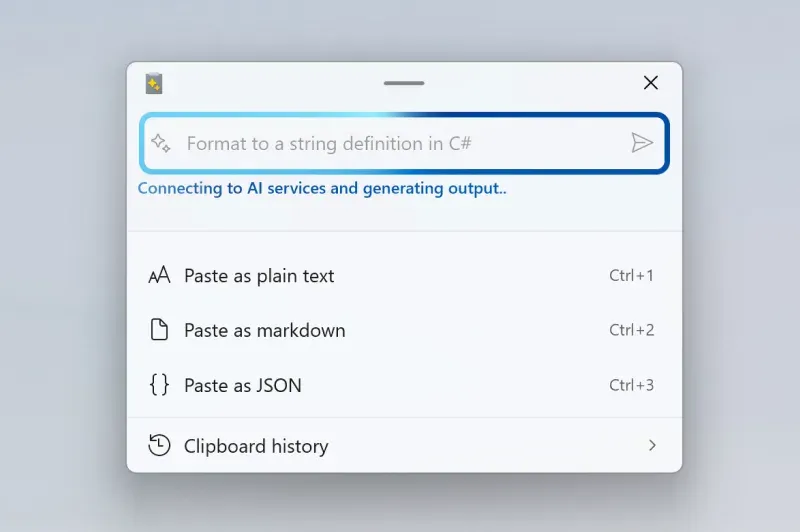
Advanced Paste window with paste options and the optional AI prompt, from the PowerToys repository overview images.
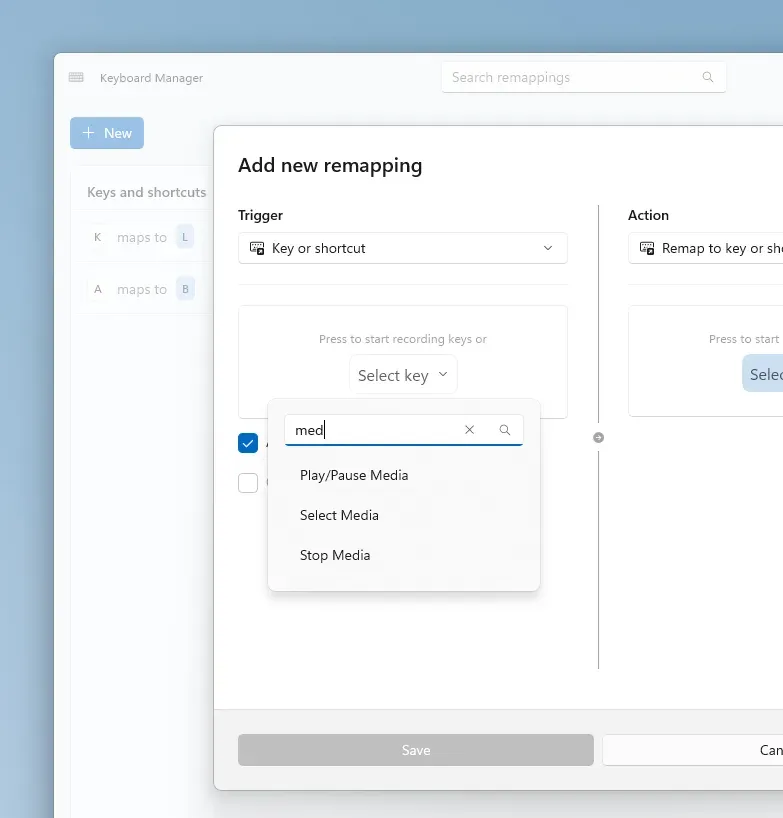
Keyboard Manager remapping editor with the searchable key picker introduced in 0.102, from the official release notes.
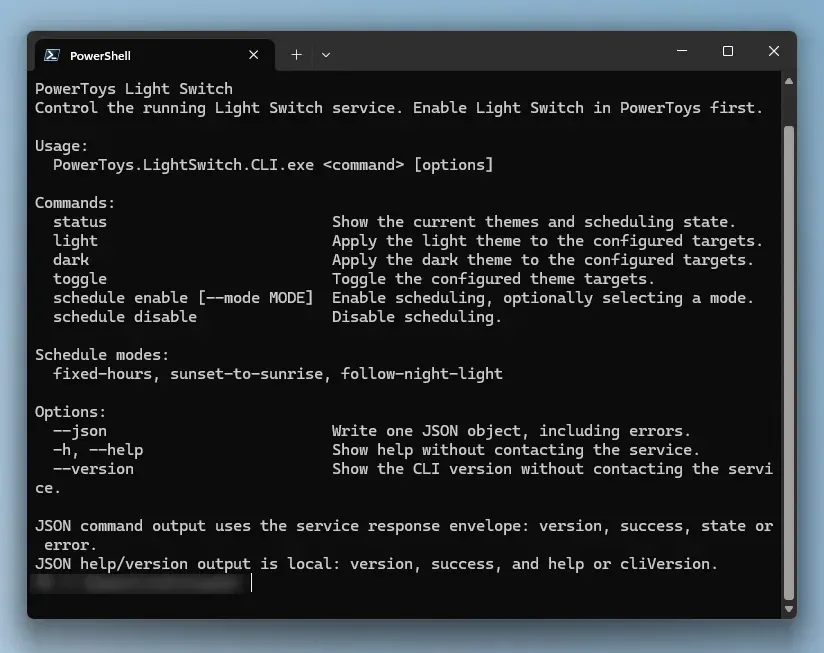
Help output of the Light Switch command-line tool added in 0.102, from the official release notes; the user name in the prompt is blurred.
Key capabilities
- Installers for x64 and ARM64 The per-user installer places PowerToys under
%userprofile%\AppData\Local\Programsfor the current user only, while the machine-wide installer installs to%ProgramFiles%for all users; both receive updates. The executables accept standard installer options such as/quiet,/passiveand/log, as documented in the installation guide. - Microsoft Store, WinGet and Desired State Configuration PowerToys is available from the Microsoft Store and with
winget install --id Microsoft.PowerToys --source winget; adding--scope machineselects the machine-wide installer. Settings can be applied declaratively: the PowerShell DSC module (since v0.80.0) works with WinGet configuration files, and the standalonePowerToys.DSC.exefor Microsoft DSC v3 (since v0.95.0) provides one settings resource per utility, as described in the DSC overview. - Settings app, updates and backups The General settings page covers automatic update downloads with toast notifications, a What's New dialog, settings search, shortcut conflict detection, a Quick Access flyout for toggling utilities, theme and language choices and a backup and restore location for settings. Settings files are backed up before each update. PowerToys can also run in administrator mode, which some features require, such as the Mouse Without Borders service.
- Command Palette Command Palette opens with Win+Alt+Space and launches apps, runs commands prefixed with
>, searches files, the web and WinGet, calculates expressions and reaches Windows settings. Recent releases added a compact mode, a quick-access shelf of pinned commands (Alt+1 to Alt+9), a keyboard-driven dock and Copilot key support. Extensions are standalone .NET applications that talk to Command Palette through a WinRT API, documented in the extensibility overview. - PowerToys Run PowerToys Run is the older quick launcher, opened with Alt+Space. It searches applications, folders, files and running processes, runs shell commands, calculates, converts units, computes hashes, generates GUIDs and opens web searches through plugins. The documentation describes Command Palette as the evolution of PowerToys Run.
- FancyZones window layouts FancyZones defines zones on each monitor from templates such as columns, rows, grid and priority grid, or from custom layouts drawn in the editor. Windows snap into a zone when dragged with Shift held or a non-primary mouse button, or through keyboard shortcuts. Since 0.102 the mouse wheel switches custom layouts while dragging.
- Window tools: Workspaces, Always On Top, Crop And Lock and more Workspaces captures a set of open applications with their positions and command-line arguments and relaunches them with one click or a desktop shortcut; the editor opens with Win+Ctrl+`. Always On Top pins a window above others, Crop And Lock creates an interactive cropped copy of a window, Grab And Move moves and resizes windows by dragging anywhere with a modifier key, and Window Hopper cycles between windows of the focused app.
- Keyboard Manager Keyboard Manager remaps single keys, shortcuts and keys to Unicode text sequences, globally or for specific applications. Version 0.102 added tap-alone remaps, search and filters for long remapping lists, bulk deletion and a searchable key picker, and remapping profiles can be deployed through DSC v3. Remaps apply only while PowerToys is running, and reserved combinations such as Win+L and Ctrl+Alt+Del cannot be remapped.
- Mouse utilities The mouse utilities include Find My Mouse, a click Highlighter, Crosshairs, Mouse Jump for crossing large screens, CursorWrap around screen edges and, since 0.102, Mouse Button Lock, which keeps a button logically held for long drags, and CursorHide, which hides the pointer while typing or after inactivity.
- Mouse Without Borders Mouse Without Borders controls up to four computers with one keyboard and mouse, shares the clipboard and transfers files between them. Computers pair with a generated security key, and the cursor moves to another machine at the screen edge. An optional service mode, enabled from administrator mode, can control elevated applications and the lock screen; the documentation notes that it adds security risk.
- Advanced Paste Advanced Paste (Win+Shift+V) pastes clipboard content as plain text, Markdown or JSON, saves it as a .txt, .html or .png file, extracts text from images with local OCR and transcodes audio or video to .mp3 or .mp4. Non-AI actions run locally. Paste with AI is off by default and uses a configured provider: OpenAI, Azure OpenAI, Mistral, Google or Azure AI Inference online, or Foundry Local, Ollama or Phi Silica locally; online providers need the user's own API key and may bill for usage.
- Text Extractor and Color Picker Text Extractor (Win+Shift+T) copies text from any screen region, including images and videos, through Windows OCR in the system language or installed OCR language packs; the documentation notes the output may need proofreading. Color Picker picks colors anywhere on screen with a magnifier and editor. Both moved to WinUI 3 in 0.102.
- File Explorer add-ons and Peek The File Explorer add-ons add preview pane handlers for SVG, Markdown, PDF, G-code, binary G-code, QOI and source code in more than 150 extensions, plus thumbnails; the documentation warns that the PDF handler can conflict with Outlook. Peek previews images, Office documents, video, web pages, Markdown, text, archives and read-only SQLite databases from a selected file without opening the full application.
- File tools: PowerRename, Image Resizer, File Locksmith and New+ PowerRename renames files in bulk with search and replace, regular expressions, text formatting and undo. Image Resizer resizes images from the File Explorer context menu, File Locksmith shows which processes are using a file, and New+ creates files and folders from personal templates.
- Developer and system tools Environment Variables manages environment variables with profiles and, since 0.102, removes duplicate PATH entries while keeping their order. Hosts File Editor edits the Windows hosts file, Registry Preview visualizes and edits registry files, Command Not Found is a PowerShell 7 module that suggests WinGet packages when a command fails, Quick Accent types accented characters, and Shortcut Guide lists keyboard shortcuts for Windows and supported apps.
- Display and presentation tools ZoomIt, also available standalone from Sysinternals, zooms (Ctrl+1), draws, records and snips the screen, and 0.102 added on-device snip dictation. Screen Ruler measures pixels with edge detection. Power Display adjusts brightness, contrast, volume, input, rotation and color temperature of external monitors over DDC/CI; the documentation warns that some monitors with malformed capability strings can trigger a system crash. Light Switch changes the Windows theme on a schedule, and Awake keeps the PC awake without changing power and sleep settings.
- Command-line tools The installer adds the PowerToys
binfolder to the user or system PATH.PowerToys.Settings.CLI.exelists and toggles utilities even when PowerToys is not running, and there are CLIs for Advanced Paste, FancyZones, File Locksmith, Image Resizer, Light Switch, Peek and Power Display, several with JSON output, as listed on the General settings page. - Group Policy and Intune management Since version 0.64, each release includes ADMX and ADML administrative templates for Active Directory and Intune. Policies can force the enabled state of all utilities or of each utility individually, and further policies control automatic update downloads, preview builds, online AI models in Advanced Paste, PowerToys Run plugins and Mouse Without Borders options. Computer Configuration takes precedence over User Configuration, and the registry values live under
Software\Policies\PowerToys.
Where Microsoft PowerToys fits
Arranging windows on large or multiple monitors
FancyZones splits each monitor into zones from a template or a custom layout, and windows snap into them with Shift-drag or keyboard shortcuts. Workspaces saves a whole arrangement of applications for one project and restores it with a single desktop shortcut, and Always On Top keeps a reference window visible. The FancyZones documentation covers per-monitor layouts and layout switching.
Launching apps and commands from the keyboard
Command Palette (Win+Alt+Space) searches apps, files, Windows settings, the web and WinGet packages, runs shell commands and calculates expressions, and its compact mode can show pinned commands launched with Alt+number. Developers extend it with .NET extensions that register through the Windows Package Catalog. PowerToys Run (Alt+Space) remains available with its plugin model.
Remapping keyboards and shortcuts
Keyboard Manager swaps keys, maps shortcuts to other shortcuts or text, and limits a remap to specific applications. Tap-alone remaps give a key a separate action when pressed alone. Remapping profiles can be exported and deployed with DSC v3, and the remaps stay active as long as PowerToys is running.
Working across several PCs
Mouse Without Borders links up to four Windows computers with a shared security key, so one keyboard and mouse move between them at the screen edges, with a shared clipboard and file transfer. For presentations and demos, ZoomIt zooms and annotates the screen, and Mouse utilities such as Find My Mouse and the click Highlighter make the pointer easier to follow.
Handling files and clipboard content
PowerRename renames batches of files with regular expressions and a preview of the result, Image Resizer creates resized copies from the context menu, and File Locksmith identifies the process holding a locked file. Advanced Paste converts clipboard content to plain text, Markdown, JSON or files, and Text Extractor copies text from any part of the screen.
Managing PowerToys across an organization
Administrators deploy the machine-wide installer silently with /quiet or through WinGet, then use the Group Policy templates in Active Directory or Intune to force utilities on or off and to control utility settings. DSC configuration documents and PowerToys.Settings.CLI.exe apply settings from scripts, and the privacy document lists the optional diagnostic events.
Install
winget install --id Microsoft.PowerToys --source wingetReviews of Microsoft PowerToys
Be the first to share your experience with Microsoft PowerToys.
Write a review
Loading review form…
Related to Microsoft PowerToys
 KensakuKensaku is a free, MIT-licensed file search and launcher for Windows, macOS and Linux. It indexes names, document text, code and OCR text from images on the local machine, adds meaning search and exposes the index to AI agents over MCP.EEdge-DropEdge-Drop is a free, open-source Windows clipboard shelf that opens at the screen edge and keeps copied text, links, images and files ready to paste or drag.