
What is OpenScreen?
OpenScreen is a free, MIT-licensed desktop application for Windows, macOS and Linux that records a screen or a single window and turns the take into an edited product demo or walkthrough. Recording, editing, on-device transcription, captions and MP4 or GIF export happen on the local machine, and the project states that there is no account, no paid tier and no watermark. Source code, releases and issues are on GitHub under the getopenscreen organization, with documentation on getopenscreen.com.
The project was created in October 2025 by Siddharth Vaddem as a Screen Studio alternative in the repository siddharthvaddem/openscreen. That original repository is now archived and stops at v1.5.0; its README points users to the getopenscreen repository, describing it as maintained by people who continue the project in their own way. The continuation README and the first post of the development journal state that development moved there with the original author's approval, under the same name and the same MIT license. The getopenscreen repository is not marked as a GitHub fork, but its history contains the original commits up to the v1.5.0 release. The development journal is written by Etienne Lescot, listed as the maintainer, and releases credit a wider group of contributors.
The current release is OpenScreen v2.3.0, published November 17, 2026. It adds a floating camera preview during recording, pause and resume for voiceover recording, expandable execution steps and token usage in the AI chat, per-clip 180 degree rotation, Dutch and Polish interface translations and direct X11 recording on Linux desktops without a ScreenCast portal. Version 2.0.0, published October 3, 2026, introduced a new editor, zooms planned from recorded clicks, an Auto output format, 3D camera and cursor themes, and voice loudness normalization; v2.2.0 added layout changes within a video and audio-only export.
The app is built with Electron and TypeScript. Capture uses each platform's native API: ScreenCaptureKit on macOS, Windows Graphics Capture on Windows and PipeWire through the ScreenCast portal on Linux, with a browser capture fallback. A native Rust compositor draws both the live preview and the export on the GPU (Direct3D 11 on Windows, Metal on macOS, wgpu with Vulkan on Linux), and transcription runs whisper.cpp locally. Projects are saved as .openscreen JSON files.
The README describes OpenScreen as under active development with rough edges and possible breaking changes, including to the project format and the CLI. There is no region capture: a whole screen or a window is recorded and cropped afterwards. There is no upload or sharing service, and captions are only burned into the video, without a separate SRT or VTT file. Funding is through GitHub Sponsors and Ko-fi. Similar listings on iThub include Cap, Recordly and OBS Studio.
Key capabilities
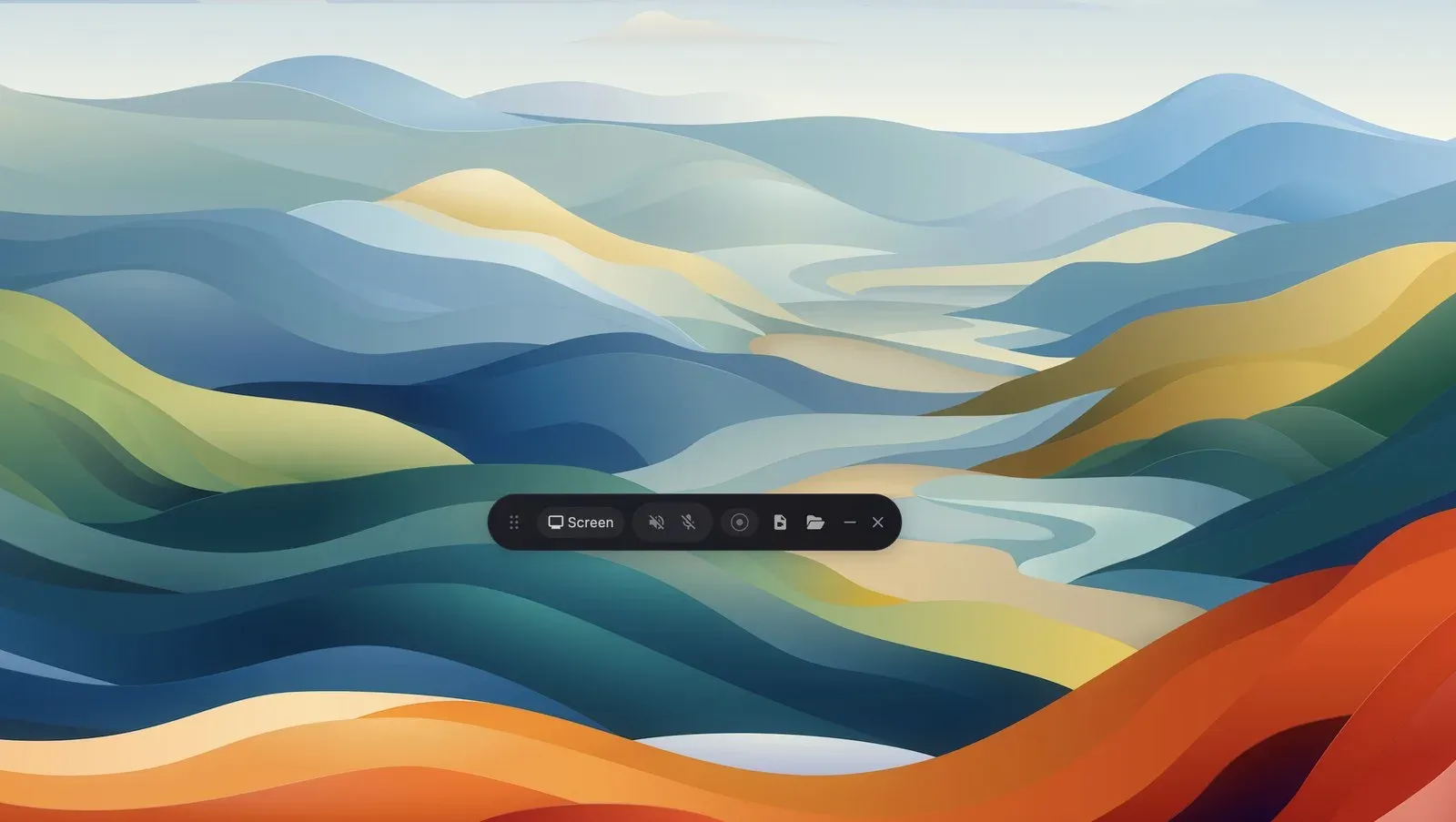
- Screen and window recording A floating recording bar, the HUD, records a whole display or one window, with a 3-2-1 countdown, pause, restart and cancel. On macOS 15.2 and later the system picker is used, and on Linux the desktop's ScreenCast dialog asks what to share on every take. Recording can also start from a Record page inside the editor. A rectangular region cannot be selected; cropping happens per clip in the editor, as the recording documentation notes.
- System audio, microphone and webcam System audio, microphone and webcam are separate toggles, with device pickers, a level meter and a camera preview. The webcam is saved as its own file and composited later as a picture-in-picture overlay with snap positions, roundness, mirroring, shape and shadow options. System audio on Linux needs PipeWire; older PulseAudio-only setups may record the microphone only.
- Editable cursor overlay In the default cursor mode the system cursor is kept out of the pixels and its movement is recorded as data. The editor can then redraw it with a chosen style, size up to eight times the system cursor, smoothing, motion blur, click bounce and click impact. Windows and macOS record cursor shape and clicks (macOS needs the Accessibility permission); Linux records position and shape, and clicks on Wayland need read access to the mouse device through a udev rule or the input group.
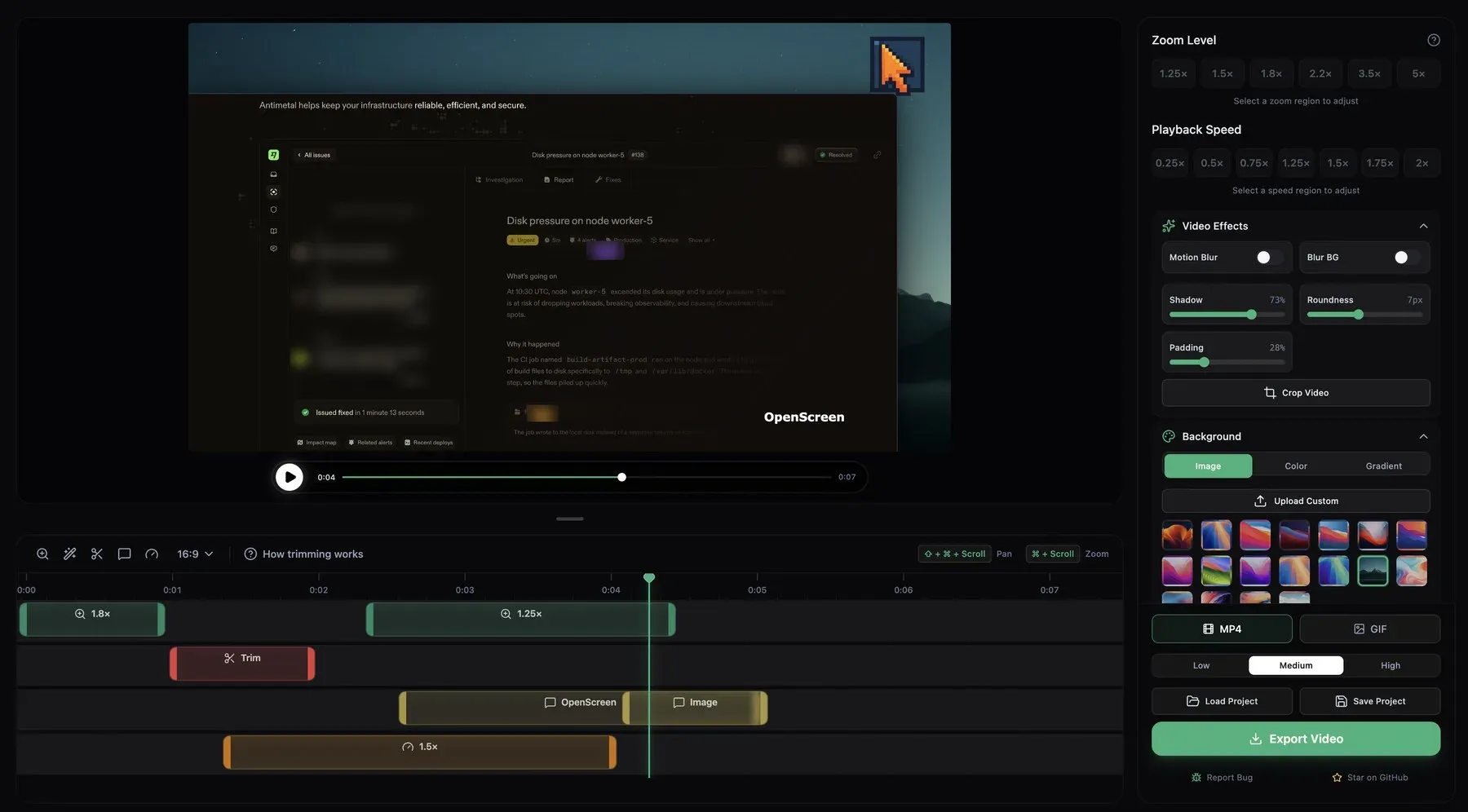
- Automatic and manual zooms Zoom regions have adjustable depth, duration, easing and position, and an automatic zoom mode follows the cursor. The Automatic zooms entry in the auto-enhance menu creates zooms from the recorded clicks without any AI provider. Zoom focus also follows the pointer inside cropped clips.
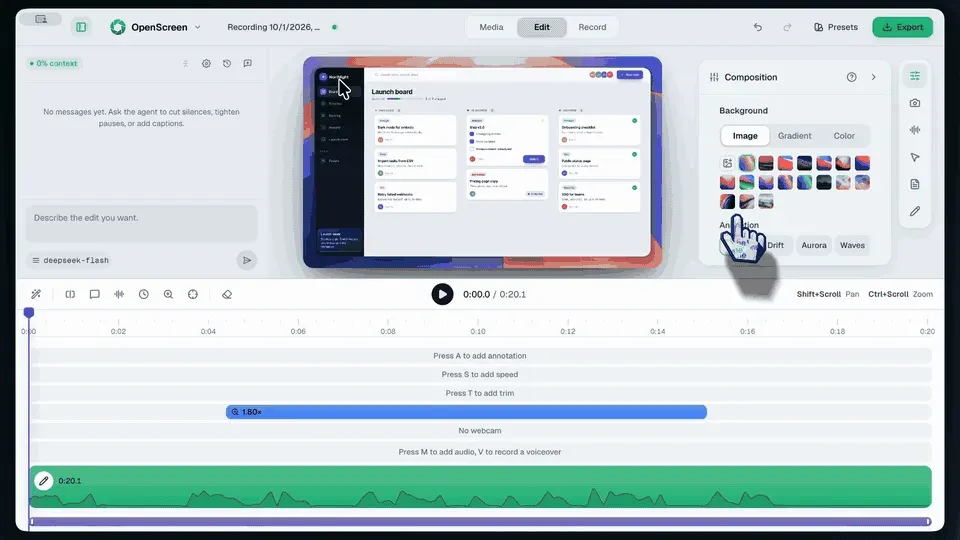
- Timeline editing The timeline holds zoom, trim, speed, Full Camera, effect and annotation regions, with snapping guides, an audio waveform and keyboard shortcuts. Speed regions range from 0.25x to 16x, and each clip has its own crop rectangle, in and out points and, since v2.3.0, an optional 180 degree rotation. Several recordings and imported videos can be combined in one project from the media library.
- Backgrounds, padding and frame styling The Composition panel places the recording on a wallpaper, solid color, gradient or custom image, with an optional animation (Drift, Aurora, Waves) and background blur. Shadow, padding, corner roundness and motion blur are adjustable. The output format can be Auto, the clips' original shape, or fixed ratios such as 16:9, 9:16, 1:1, 4:3 and 4:5.
- Annotations and privacy blur Text, arrow, image and blur annotations sit on the frame, and text has appearance animations such as Fade, Rise, Pop, Slide Left and Typewriter. Blur regions stay attached to the recording so they keep covering the hidden area under zooms. Details are in the editing and timeline documentation.
- On-device transcription and captions Audio is transcribed locally with whisper.cpp in Whisper's 100 languages; the model (about 264 MB) is downloaded once from Hugging Face and checked against a SHA-256 hash. Captions are a live view of the transcript with font, background, position and line-length controls, and are burned into the export. Translation into 15 target languages uses a connected LLM provider, as described in the captions documentation.
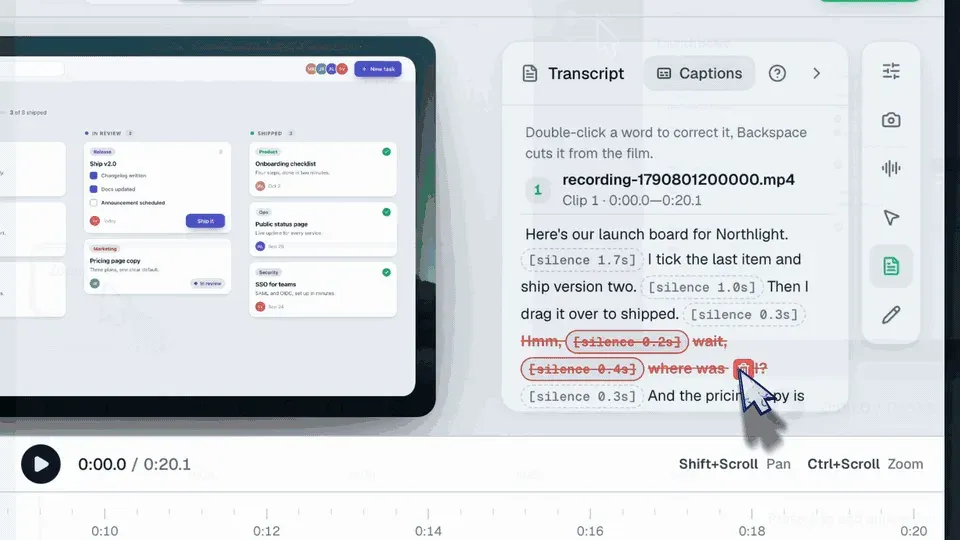
- Editing by transcript The Transcript panel shows the text of every clip on the timeline. Deleting a word or a range marks that span as skipped, which cuts it from playback and export like a trim region, and silences are marked inline so they can be removed the same way. Skipped spans can be restored.
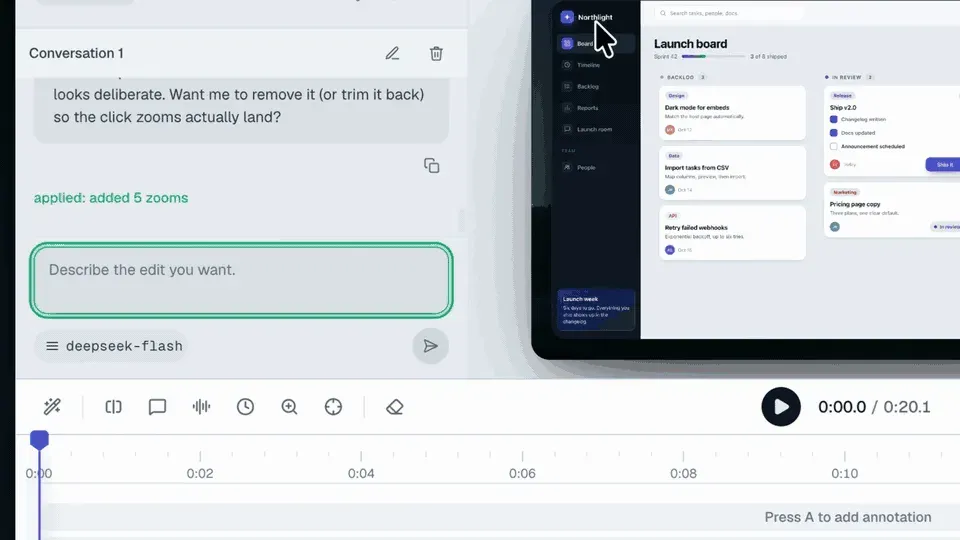
- Optional AI editing assistant A chat panel applies edits described in plain language as undoable timeline operations: trims, zooms, speed regions, annotations, camera layouts, captions and the look of the video. It stays off until the user connects an API key for Claude, OpenAI, Gemini, Mistral, OpenRouter, MiniMax or an OpenAI-compatible endpoint; keys are stored with Electron safeStorage and requests go directly to that provider. An Agent edits switch can make the assistant read-only.
- Custom GPU effects An agent can write a small WGSL shader effect, such as a click ripple or a vignette, which is placed on its own timeline row and rendered in preview and export on all three platforms. Each effect gets a cost tier from Light to Very heavy, and code that fails to compile is refused. Effect code runs only on the GPU, without access to files or the network.
- Headless CLI The desktop executable doubles as a command-line tool with
record,sources,captions,export,pack,infoandmcpcommands, and--jsonprints NDJSON for scripts and CI jobs. Project files are plain JSON that a script can edit before rendering. The CLI reference lists all options. - MCP server for coding agents OpenScreen can run as an MCP server, either inside the app on 127.0.0.1 with an access token or as a stdio server started with the
mcpcommand. Clients such as Claude Code or Codex can list sources, start and stop recordings, edit projects, look at frames and export. Edits, recordings and exports from MCP clients are refused until MCP edits is switched on, and the project publishes anopenscreen-demoskill for agents. - GPU-accelerated MP4 and GIF export MP4 export offers 720p, 1080p or source resolution at 24, 30 or 60 fps with H.264; GIF export offers 15 to 30 fps, four sizes and a loop toggle, and audio can be exported to WAV or M4A. Rendering and encoding use the GPU (NVENC or AMF on Windows, VideoToolbox on macOS, VAAPI on Linux) with a software fallback. VP9 output was removed. See the export documentation.
- Windows installation The Microsoft Store package is signed by Microsoft and updates itself; it is also available through
winget install --source msstore OpenScreen. Standalone x64 and ARM64.exeinstallers on GitHub Releases are not code-signed, so SmartScreen shows a warning. Requirements start at Windows 10 version 1903 with an Intel 8th Gen or AMD Ryzen 2000 series processor. - macOS installation Separate Apple Silicon and Intel
.dmgbuilds are published, and the official Homebrew cask installs withbrew install --cask openscreen. Builds from 1.9.0 onward are signed with an Apple Developer ID and notarized. macOS 13 or later is required, and recording needs the Screen Recording and Accessibility permissions. - Linux packages Each release ships an AppImage, a
.deb, an.rpmand a.pacmanpackage for x64, plus a Nix flake with NixOS and Home Manager modules that also covers aarch64 by building from source. Wayland capture needs xdg-desktop-portal and PipeWire, while X11 desktops can be recorded directly. Installation steps are in the installation guide. - Network use and usage count The project has no upload feature and no account. The app downloads transcription models once, checks GitHub for updates in self-updating builds, and sends one anonymous daily count of active installs to PostHog's EU servers with version, OS, architecture, install channel and install week. That count can be turned off with Send Anonymous Usage Count in the tray menu or the
DO_NOT_TRACK=1variable, as listed in the FAQ. - Interface languages The interface is available in 17 languages, including English, German, French, Spanish, Italian, Dutch, Polish, Czech, Portuguese (Brazil), Russian, Turkish, Arabic, Vietnamese, Japanese, Korean and Simplified and Traditional Chinese. The language setting only changes the app interface, not the recording.
Where OpenScreen fits
Product demos and launch videos
The documented workflow is to record a window with microphone narration, then add automatic zooms from the recorded clicks, a background with padding and a webcam overlay, and export an MP4 or GIF in the aspect ratio of the target platform. The project's product demo guide walks through these steps.
Tutorials and walkthroughs with captions
A narrated recording is transcribed on the device, filler words and silences are removed by deleting them from the transcript, and burned-in captions are styled and placed in the frame. Caption translation is available when an LLM provider is connected, and the original transcript is kept beside every translation.
Short social clips in several formats
One project can be switched between 16:9, 9:16, 1:1, 4:5 and other formats without changing annotation shapes, and exported as MP4 at up to source resolution or as a looping GIF. Speed regions shorten slow passages, and trims remove unwanted sections before export.
Demo videos attached to pull requests
The README describes a flow in which a coding agent installs the openscreen-demo skill, connects the MCP server, plans a storyboard, records the app, edits the take with OpenScreen's tools, exports the MP4, checks it frame by frame and attaches it to a pull request. The AI editing documentation covers Claude Code, Codex and other MCP clients.
Scripted recordings in CI
The CLI records a display or window for a fixed duration, writes a .openscreen project, lets a script add zooms or labels by editing the JSON, captions the narration and renders the final MP4 or GIF without opening a window. NDJSON output with --json gives machine-readable progress and results.
Recordings that contain sensitive screens
Blur annotations hide parts of the recording such as email addresses or tokens and stay in place under zooms, and the AI assistant can add them as well. Because recording, transcription and rendering stay on the machine, the source footage is not uploaded; only an optionally connected AI provider receives project data such as the timeline and transcript.
Install
brew install --cask openscreenReviews of OpenScreen
Be the first to share your experience with OpenScreen.
Write a review
Loading review form…
Found OpenScreen useful? Upvote it todayYour vote helps other IT teams find it in the daily ranking.