

What is Screenity?
Screenity is a screen recorder and annotation tool distributed as a Manifest V3 extension for Google Chrome. It is made by Alyssa X, a solo developer who started it as a side project; the GitHub repository dates from November 2020. The extension records the whole screen, an application window, a browser tab, a selected area of a tab or the camera alone, together with the microphone and, where the browser allows it, system audio. Used without an account, it processes and stores recordings on the local computer and exports them as files.
The main distribution channel is the Chrome Web Store listing. Each GitHub release also attaches a build.zip that can be unpacked and loaded through Chrome's developer mode. The README calls this self-hosting: such a build runs in local-only mode, with no API calls, sign-in flows or platform features, because the code paths that talk to the paid service are only active in the store version. Building from source needs Node.js 14 or later, npm install and npm run build; saving to Google Drive from a self-built copy requires your own OAuth client ID in manifest.json.
The current release is Screenity 4.7.2, published on October 25, 2026. It removes a leftover frame at the start of some screen recordings, keeps microphone, drawing and blur notices out of the captured video, smooths the start of cloud recordings, and improves trimming, cutting and camera background removal. Version 4.7.1 fixed Linux recordings that stalled for a few seconds where the browser has no hardware video encoder. Version 4.7.0 added a teleprompter for account users, an Auto quality mode with manual resolution and frame rate choices, and a shortcut to toggle the microphone. Since 4.6.0 the MediaRecorder path produces MP4 with H.264 by default instead of WebM with VP9, and recording falls back to the software encoder when the hardware encoder is busy.
The extension is written in JavaScript with React 18 and Radix UI components. Fabric.js drives the drawing canvas, MediaPipe Tasks Vision runs camera background effects as WebAssembly, and Mediabunny and gif.js handle media processing and GIF output inside the browser. The interface ships in 18 locales. The requested permissions include host access to all URLs for the on-page toolbar, tab capture, downloads, unlimited local storage and Google identity for Drive uploads, with desktop capture, offscreen documents, alarms and clipboard access as optional permissions.
The source is licensed under the GNU GPL version 3 since the Manifest V3 rewrite in version 3.0.0; the README also points to the Screenity Terms of Service on intellectual property and asks anyone planning a commercial product on the code to contact the author. Screenity Pro is a separate hosted web app with a scene editor, cloud library, share links and captions. Out of scope for the open-source extension: a Firefox version, native desktop applications and server-side processing. The live blur tool hides page elements visually and does not redact the underlying content.
Screenity screenshots
Explore the interface. Open a screenshot to view it at full size.
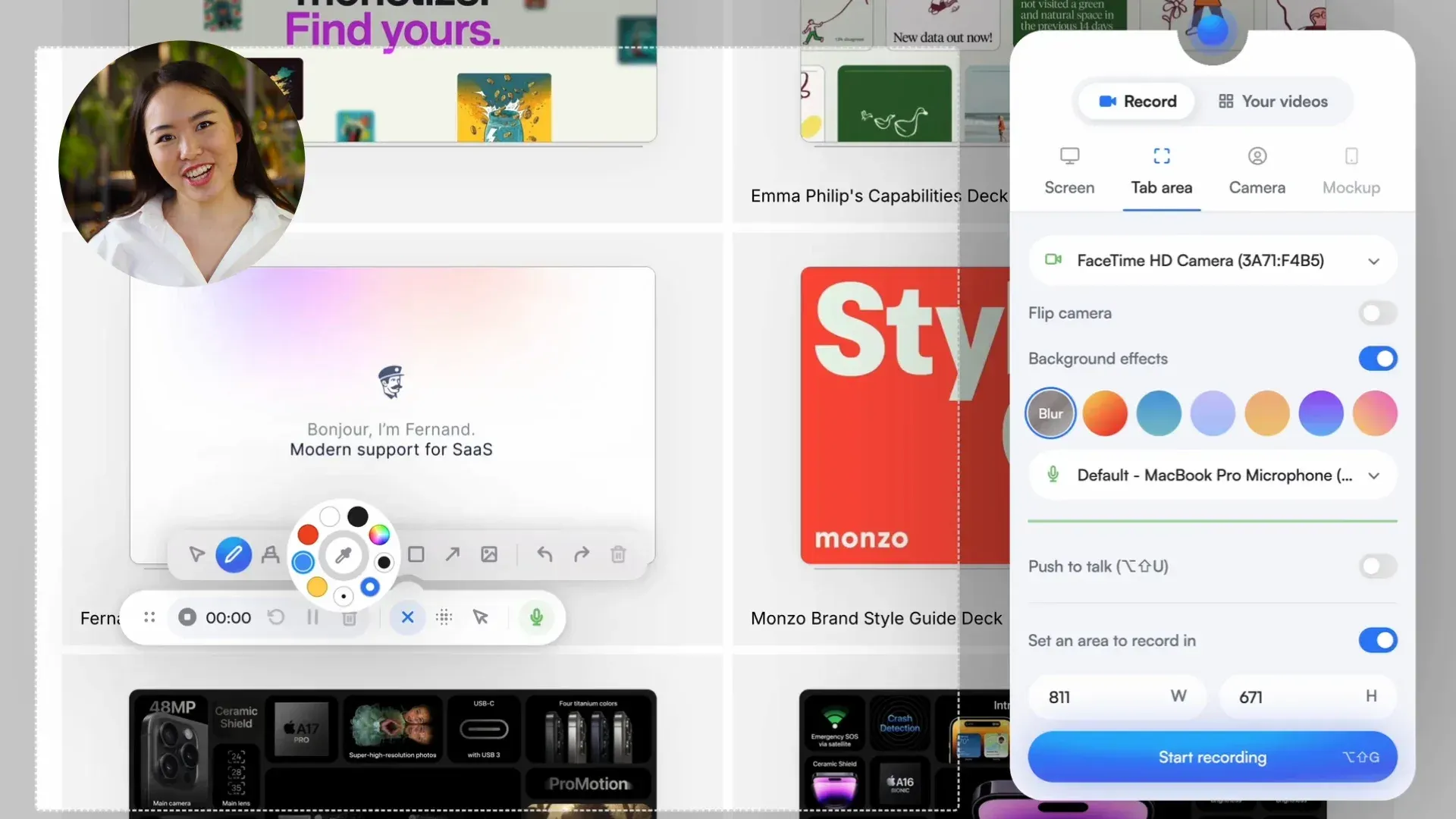
Official README image: the recorder popup, camera bubble, color picker and recording toolbar during a tab area capture.
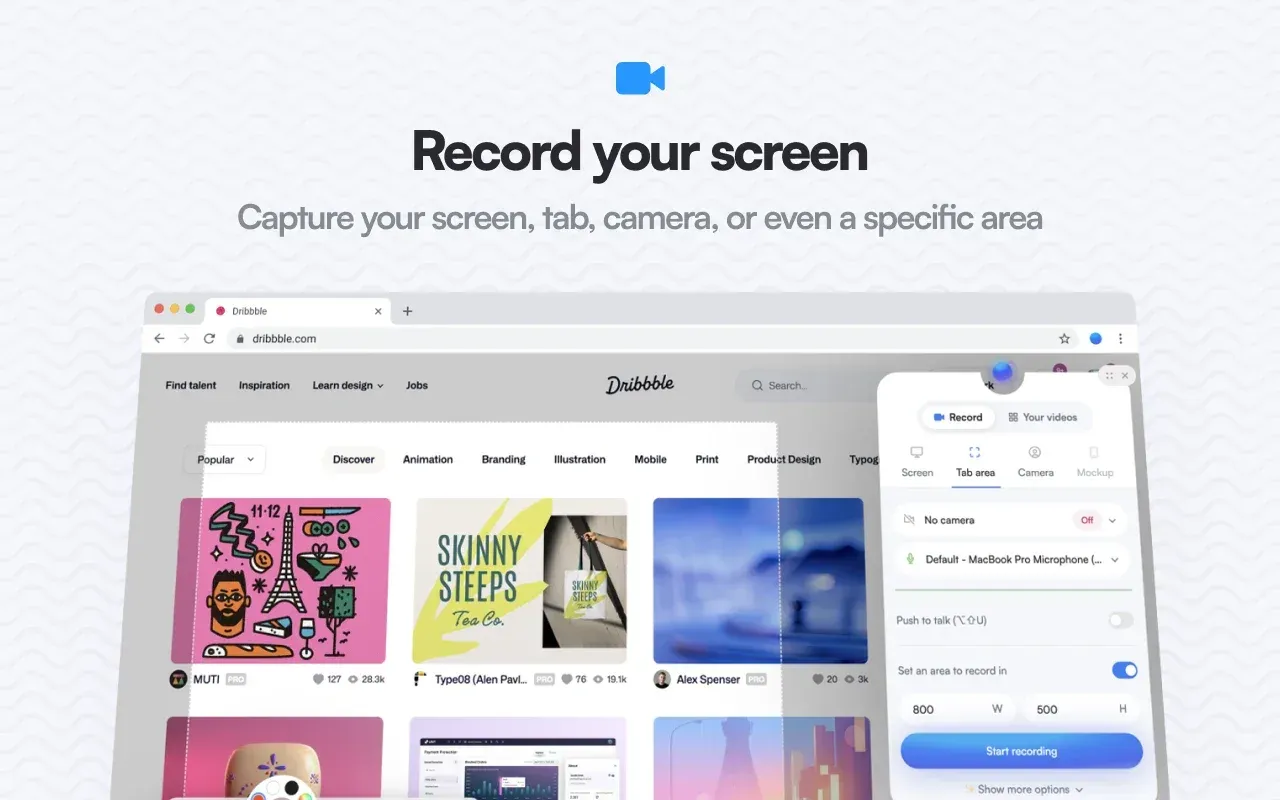
Official Chrome Web Store screenshot of custom area recording with width and height fields.
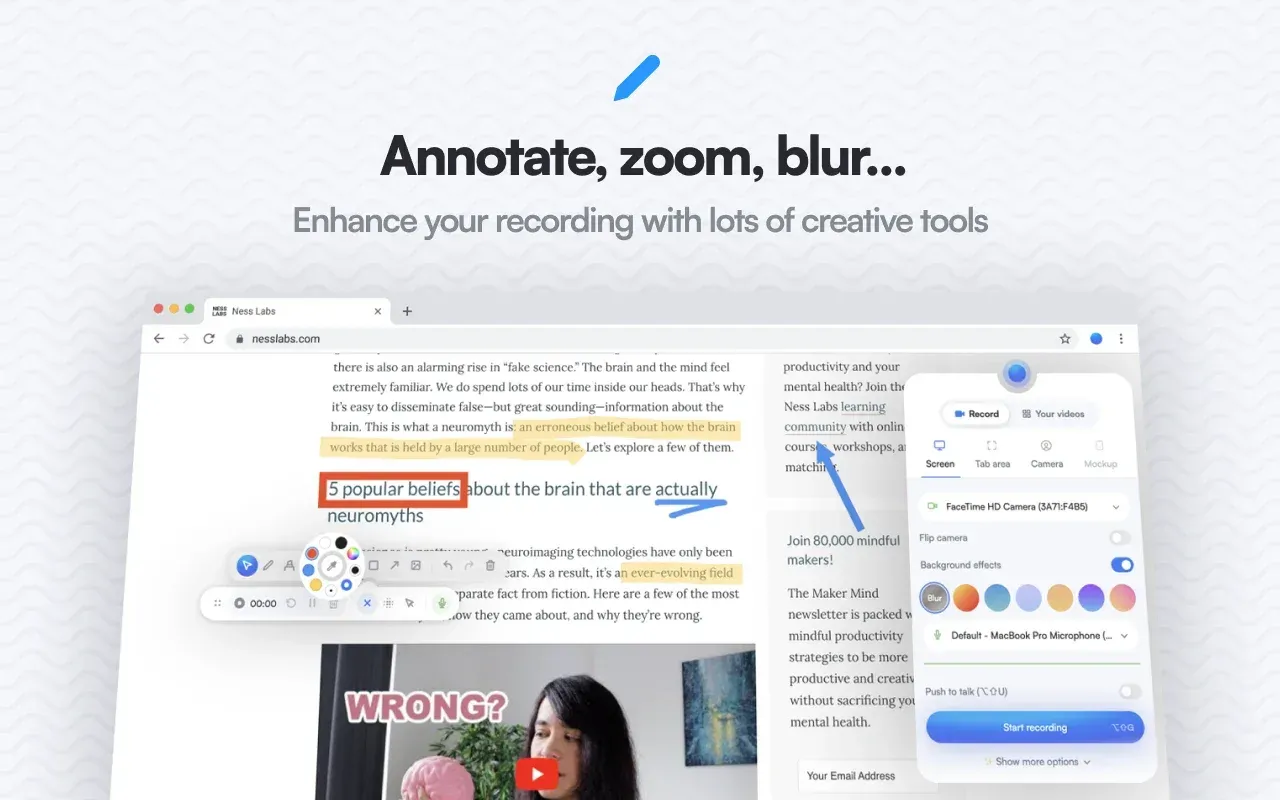
Official Chrome Web Store screenshot of live annotation tools and background effects in the popup.
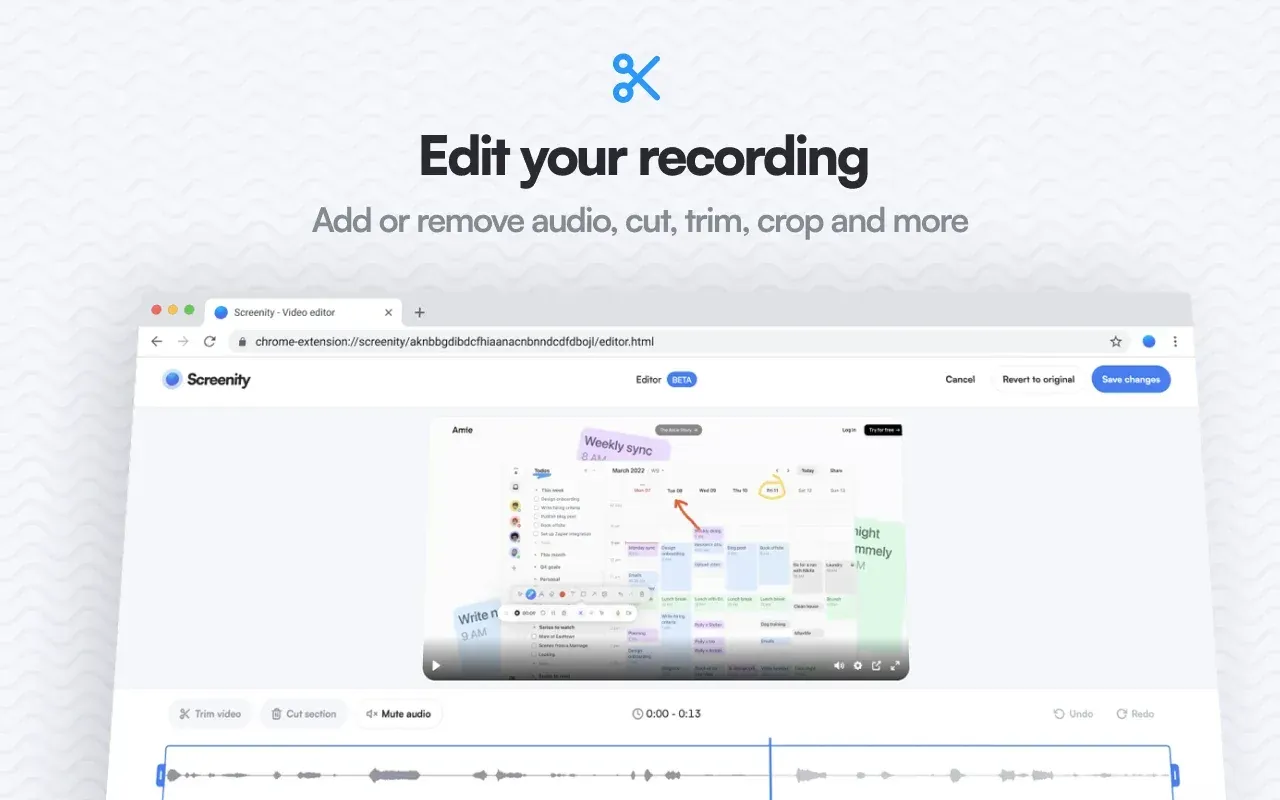
Official Chrome Web Store screenshot of the local extension editor; the BETA label reflects an earlier interface version.
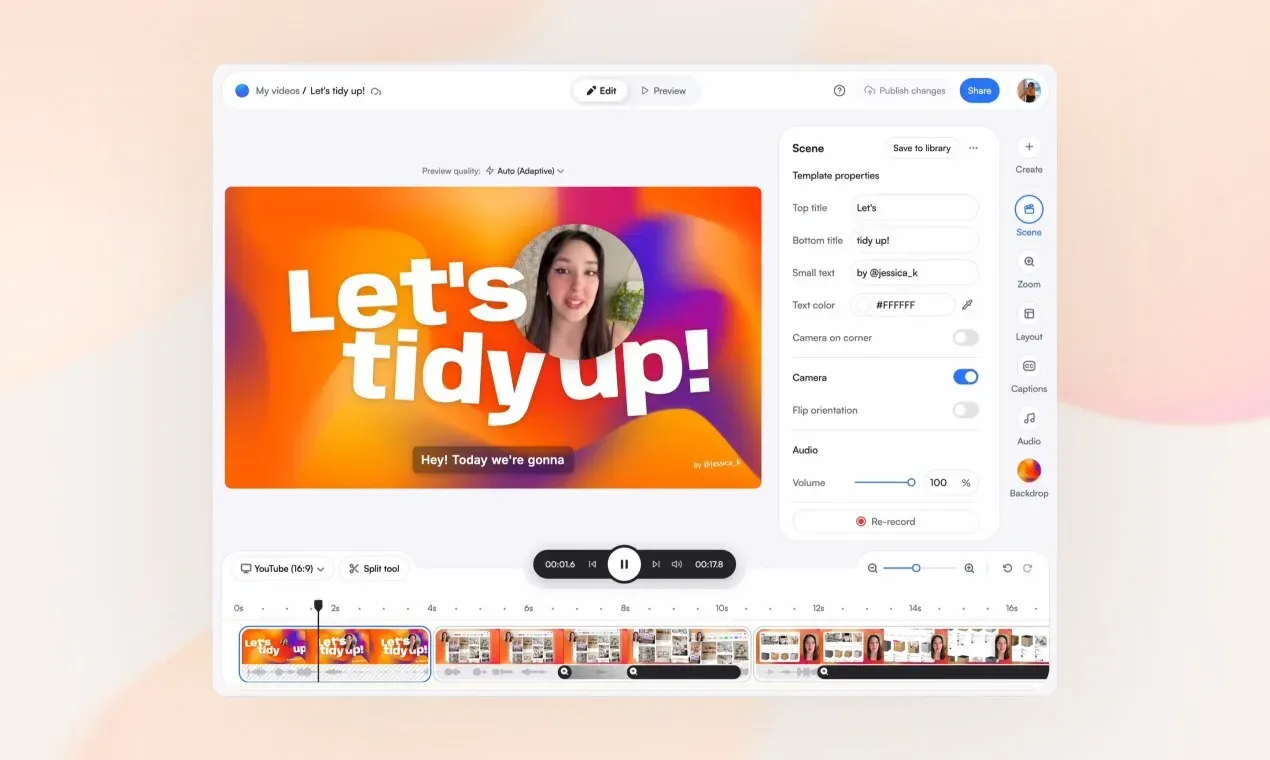
Official screenity.io preview of the paid Screenity Pro web editor, not the free extension.
Source: official Screenity project page.
Key capabilities
- Install from the Chrome Web Store Open the store listing, select Add to Chrome and pin the icon from the extensions menu. A setup tab opens after installation and the first recording works without signing in. The help center names Chrome or another supported Chromium-based browser as the requirement, and there is no Firefox version.
- Load the release build locally Download
build.zipfrom the releases page, extract it to a folder, enable developer mode atchrome://extensions/and use Load unpacked. This copy runs in local-only mode with no sign-in or platform features. Updates are manual: replace the folder with the next release. - Build from source Clone the repository, run
npm installandnpm startfor a development server, ornpm run buildfor a production build, then load thebuildfolder. The README requires Node.js 14 or later. Google Drive upload needs a Chrome App OAuth client ID from Google Cloud Console and a persistent extension key. - Recording sources Record the entire screen, an application window, a browser tab, a fixed area of a tab or the camera alone. Area recording takes width and height values in the popup. Since 4.6.0, custom area recording is disabled up front on sites that block it, and sites that block the camera or microphone through Permissions-Policy show a warning.
- Microphone and system audio Select a microphone, enable push to talk, or record internal audio from the tab or system. Version 4.7.0 added a configurable shortcut that turns the microphone on and off before or during a recording. System audio depends on what the browser's share picker offers on each operating system.
- Quality and storage checks The standalone extension can record up to 4K at 60 fps, depending on the device and display, with Auto as the default quality since 4.7.0. Without an account, Screenity checks free disk space before starting and refuses with Not enough space when it is too low. A recording that fills the disk stops with a Memory limit reached message and keeps what was captured.
- Live annotation Draw with a pen, add text, arrows, shapes and images, and undo or clear marks on a supported web page during a recording. The drawing tools work on pages in the browser, not inside other desktop applications. The annotation guide lists each tool.
- Live blur of page elements Blur mode outlines the element under the pointer and blurs it on click; pressing 0 clears all blurs and Esc leaves the mode. Blur is visual only and does not remove information from the page. The blur guide recommends preparing the page or pausing before revealing anything sensitive.
- Cursor and click highlighting Highlight clicks, highlight the cursor or switch to spotlight mode. These effects are drawn on supported web pages while recording. They suit walkthroughs where viewers need to follow the pointer.
- Camera overlay and background effects The camera appears as a movable bubble that can be flipped, with background blur or a set of background images. The effects run locally through MediaPipe models bundled with the extension. Release 4.7.2 improved background blur and removal quality.
- Recording controls and shortcuts A countdown, an auto-stop timer, pause and resume, discard and a hideable toolbar are available. Default shortcuts are Alt+Shift+G to start, Alt+Shift+X to cancel and Alt+Shift+M to pause or resume; other commands such as drawing, blur and microphone toggles can be bound in Chrome's shortcut settings.
- Local editor After recording, the player tab offers trim, cut, mute, add audio and crop. Processing runs on the device, so editing is limited to recordings of at most 60 minutes, and 7 minutes for some recovered recordings. Longer recordings can still be downloaded as WebM or as raw data.
- Export formats Download as MP4 (marked recommended), WebM or GIF, or save the unprocessed raw recording from the Advanced section. GIF export is limited to 30 seconds, so longer clips need trimming first. Files go to the browser's normal download location.
- Save to Google Drive Sign in from the player to upload the current version to a Drive folder named Screenity. The extension requests the
drive.filescope, which covers only files it creates. School and work Google accounts can block this sign-in, and very large recordings may exceed Drive limits. - Recording recovery If the player tab closes, the popup menu offers Restore last recording from data still on the device. Recovery is not guaranteed, and starting a new recording can overwrite the retained data. The recovery guide describes the raw file fallback.
- Managed deployment setting The manifest declares a managed storage schema with one policy,
skipSetup, which stops the setup page from opening on install. Administrators who distribute the extension through Chrome policy can use it to avoid the onboarding tab on managed machines. - Interface languages The extension includes 18 locales: English, German, French, Spanish, Italian, Polish, Portuguese (Brazil and Portugal), Russian, Ukrainian, Turkish, Korean, Hindi, Tamil, Indonesian, Catalan and Simplified and Traditional Chinese.
- Optional Screenity Pro web app An account adds the hosted editor with scenes, layouts, zooms, captions in 99 transcript languages, a cloud library and share links that can be private, public, password-protected or embed-only. The Pro page lists one plan at 10 US dollars per month or 120 dollars per year, a 7-day trial and recordings of up to one hour.
Where Screenity fits
Recording a product demo or bug report in the browser
Choose Tab area to capture only the relevant part of a web application, set the width and height, and enable the camera bubble if a presenter should be visible. Use click highlighting so viewers can follow the steps, then trim the start and end in the local editor. Export MP4 for issue trackers and documentation, or a GIF of up to 30 seconds for a short inline example. Check that the microphone level and system audio match what the browser share picker offered.
Explaining an internal process without exposing data
Prepare the page first: close unrelated tabs, sign in with a demo account and apply live blur to names, emails or payment fields before recording. Annotate with arrows and text while talking through the workflow. Because blur hides elements visually and does not redact them, review the exported file frame by frame where sensitive content was on screen, and pause the recording before revealing anything that must not be captured.
Recording in a no-account or offline environment
Install the extension while online, then record, edit and download without signing in; the recorder, player and editor run from files inside the extension. This fits teams whose policy forbids uploading recordings to a third-party service. Confirm that Save to Drive and any sign-in prompts stay unused, and keep enough free disk space because recordings are written to local browser storage until exported. The requirements page describes the offline behavior.
Rolling the extension out on managed Chrome
Distribute the store version, or a pinned unpacked build, through Chrome policy and set skipSetup in the extension's managed storage to suppress the onboarding tab. Review the requested permissions with security staff, especially host access to all URLs and tab capture. On macOS, users must also allow the browser under Screen and System Audio Recording in System Settings before screen capture starts.
Maintaining a local-only fork
Download the release build.zip or build from source with Node.js, and load the folder unpacked. The self-hosted build disables platform features and sends nothing to Screenity's service, according to the README. Track releases manually, re-run your build after each tag and configure your own Google OAuth client ID if Drive upload is needed. Respect the GPLv3 obligations when redistributing a modified copy.
Moving recordings into the hosted editor
When a team needs share links, captions, viewer comments or multi-scene editing, the Screenity Pro web app takes over. Recordings made without an account are not uploaded automatically: download the file and upload it to the web app, where it becomes a separate project. Check the trial and retention terms first; the subscription guide explains what happens to links and videos when access ends.
Reviews of Screenity
Be the first to share your experience with Screenity.
Write a review
Loading review form…
Alternatives to Screenity
 CapCap is an open-source screen recorder for macOS, Windows and Linux that shares a link when you stop or opens a local editor for polished videos.
 CaptureFlowCaptureFlow is an open-source screen recorder that gives you a share link as soon as you stop recording and can be self-hosted on Cloudflare or Docker.
 OBS StudioOBS Studio captures screens, windows, games, cameras and audio, composes them into scenes, then records the result or streams it over RTMP or WHIP. It runs on Windows, macOS and Linux under GPL-2.0-or-later, with plugins, scripting and WebSocket control.