
What is PaperTodo?
PaperTodo is a sticky-note app for the Windows desktop, written in C# with native WPF on .NET 10. Every "paper" is an independent desktop window that holds either a to-do checklist or a Markdown note. There is no central management window: the notification-area icon is the global entry point, and papers can fold into small capsules that dock to the left or right screen edge. The project is developed by the GitHub account snownico0722, started in May 2026, and publishes an English and Chinese README, a user manual and a changelog. Since v3.3 the interface can be switched between Simplified Chinese, English, Japanese and Korean. Similar projects listed on iThub include Joplin, Beaver Notes and Super Productivity.
The app is distributed as a portable single-file executable on GitHub Releases and needs no installer. The latest stable release is v3.40, published on October 20, 2026, with three files: a self-contained x64 build that bundles the .NET runtime, a smaller no-runtime build for systems that already have the .NET 10 Desktop Runtime (x64), and a Windows 7 SP1 x64 build labelled "best effort". The README asks users to run the executable from a dedicated writable folder such as D:\Apps\PaperTodo\, because data is saved next to it. PaperTodo is also sold on the Microsoft Store, where it was listed at US$1.29 on November 17, 2026; the README states that the GitHub download stays free and that the Store purchase is a way to support development.
v3.40 adds Ctrl+W and title-bar middle-click to close an expanded paper, an option to shorten the master capsule, dropping plain text into a note in reading mode, faster show and hide for long to-do lists, a Notepad fallback when the external-open file type has no associated app, save changes that reduce the risk of losing files on a forced shutdown, multi-monitor position protection at startup and autostart status synced with the Windows Startup apps list. Earlier milestones: v3.0 (July 2026) rebuilt the capsule system and added images in notes and recordable global shortcuts; v3.3 added file and folder links on to-dos, the language selector and anonymous usage statistics. The v3.2 notes state that plugin support and other experimental features are not part of the 3.x line.
A 4.0 line is in pre-release. v4.0.0-beta1 (September 15, 2026) adds live hover previews on edge capsules, a plugin system with Web plugins on WebView2 and Native plugins on .NET 10 and WPF, Ctrl+F search across all papers, a WYSIWYG Full Render Markdown mode, to-do reminders and multi-selection, a limit of 200 papers instead of 100, and Labs features such as a local MCP server started with --mcp and tethering a paper to another application's window. The README on the main branch already carries a v4.0.0-beta2 badge, and the user manual follows the main branch, so it also describes unreleased features such as up to five workspaces, Markdown and HTML export, and skins with native Windows 11 materials that are not in v3.40.
PaperTodo is source-available, not open source. Its LICENSE.md combines the unmodified PolyForm Noncommercial License 1.0.0 with a "PaperTodo Individual Professional Use Additional Permission 1.0". Individuals may use it free of charge, including for employment, freelance and other paid work; noncommercial modification and redistribution are allowed if the license and notices are kept; selling it or offering it, modified or not, as a commercial product or service is not allowed; ordinary companies may not centrally install, deploy or distribute it to staff without a commercial license; educational, charitable, public research and government organizations may use and deploy it internally for free. The file itself states that these terms are not an OSI-approved open-source license, and GitHub reports the license as Other. Building from source requires Windows and the .NET 10 SDK; bundled third-party components are AvalonEdit and Hardcodet.NotifyIcon.Wpf (MIT) and LMDB (OpenLDAP Public License 2.8).
Key capabilities
- Portable Windows download Each release ships single-file executables for Windows x64:
PaperTodo-v3.40-win-x64-self-contained.exeincludes the .NET runtime and starts directly, whilePaperTodo-v3.40-win-x64-no-runtime.exeneeds the .NET 10 Desktop Runtime (x64). v3.40 also offers a self-contained Windows 7 SP1 x64 build marked "best effort". Nothing is installed; exit from the tray before replacing the executable with a newer version. - Microsoft Store edition The same app is listed on the Microsoft Store under the publisher name snowtrigger in the Productivity category, at US$1.29 in the US store on November 17, 2026. The README describes the Store purchase as optional support for development, while the GitHub builds remain free to download.
- Papers as independent windows Each paper is its own desktop window with a title bar, a pin button for always-on-top and a resize handle in one of three styles (Standard, Soft or Hidden). Papers work with Windows Snap layouts, hide their shadow while snapped and can be hidden from the taskbar and the Alt+Tab switcher. Titles hold up to 20 characters.
- To-do papers Type in the blank row and press Enter to add the next item; drag the right-hand grip to reorder; paste several lines and they are split into separate items as one undoable step. Completed items can be cleared automatically or moved to the bottom of the list, and Ctrl+Z / Ctrl+Y undo and redo changes in both to-dos and notes.
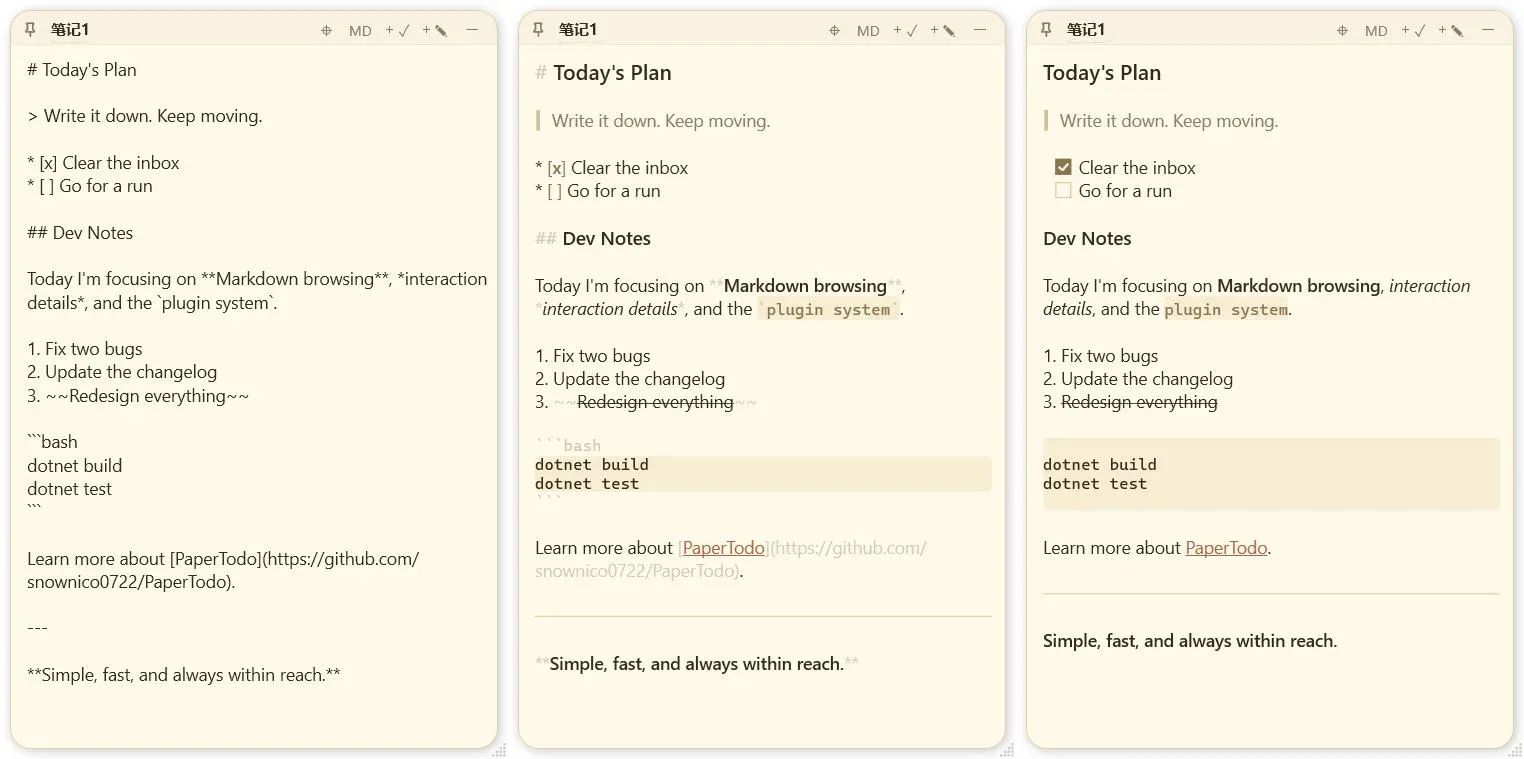
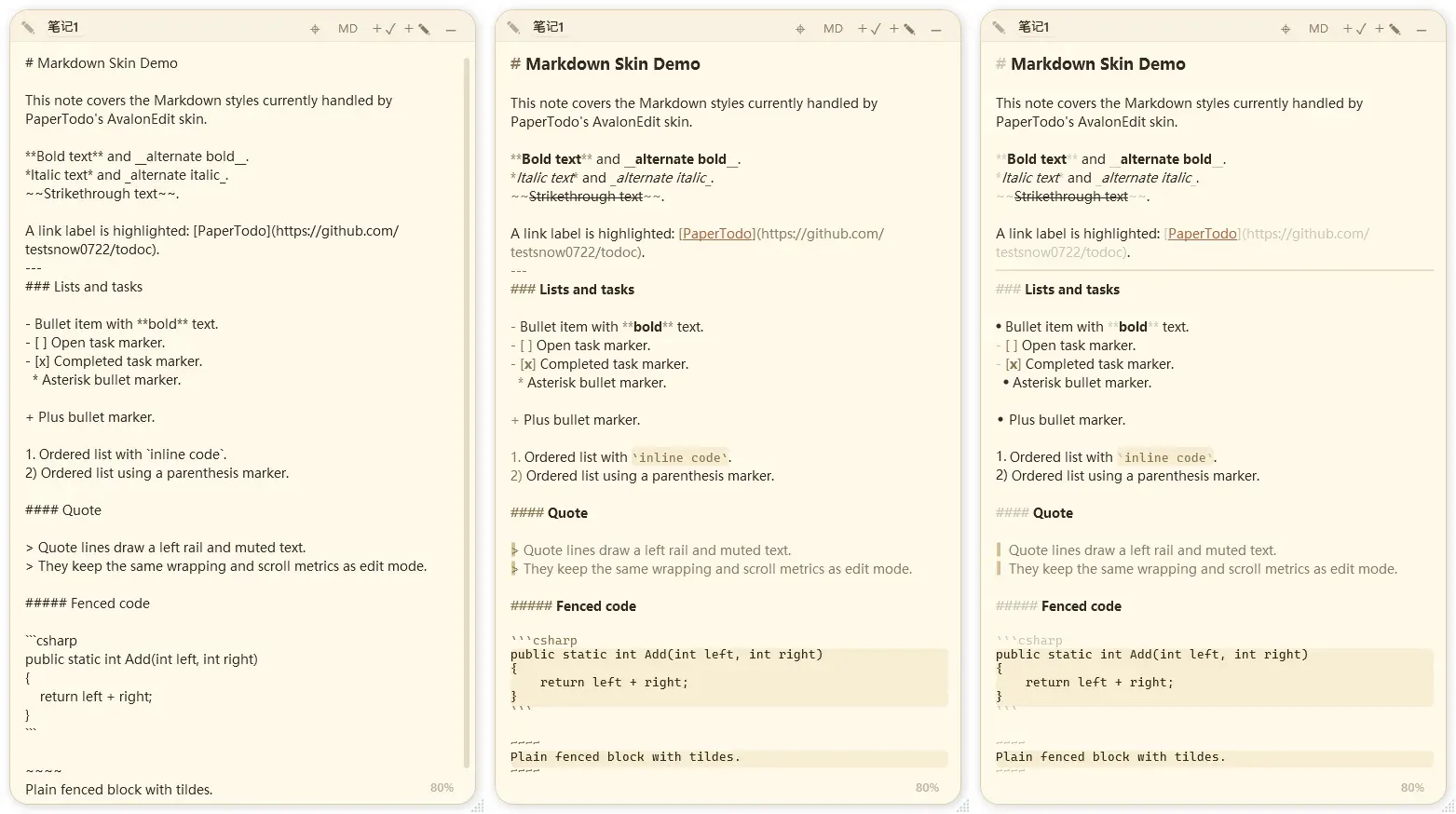
- Markdown note papers Notes support headings, bold, italic, strikethrough, lists, task lists, blockquotes, inline code, fenced code blocks, links and horizontal rules, with Off, Basic and enhanced rendering levels. Plain http and https URLs are clickable since v3.3. The manual states that complex tables, remote images and block-level HTML layout are not supported.
- Images inside notes Images can be pasted, dropped from File Explorer or inserted from the context menu, including WebP since v3.1. They are stored in a local LMDB database (
note-assets.lmdb) and referenced with short IDs such as. By default images over 8 MB or with a longest side above 2048 pixels are compressed, and images wider or taller than 4096 pixels are rejected. - Capsules and edge docking A paper can collapse into a compact capsule, either floating or docked in a queue at the screen edge. A master capsule at the top collapses or expands the whole queue and can be dragged to change the queue start height. Capsules can be dragged between edges and monitors, including monitors with different DPI scaling, and edge spacing can be set to 0, 4 or 8 DIP.
- Linking to-dos to papers, files and folders Since v3.3 a to-do can link to another note or to-do paper, or to a local file or folder dropped from File Explorer. Clicking the link opens the paper or launches the file with its default application; the context menu can reveal the containing folder or remove the link, and invalid paths are marked.
- PowerShell script capsules A note whose first line is
!por!powerbecomes a script launcher, and the current manual lists!pwsh,!ps5and!pfto pick PowerShell 7, Windows PowerShell 5.1 or a persistent session. Collapsed, it shows a lightning capsule that runs the script on click. The user manual warns that scripts run with PaperTodo's permissions and without a sandbox. - Global shortcuts and command line Shortcuts can be recorded for Show all, Hide all, Toggle visibility, New to-do, New note and Quit, plus optional Ctrl+Shift+1 to 9 and Ctrl+Alt+1 to 9 combinations that open edge capsules by position. The manual documents the command-line switches
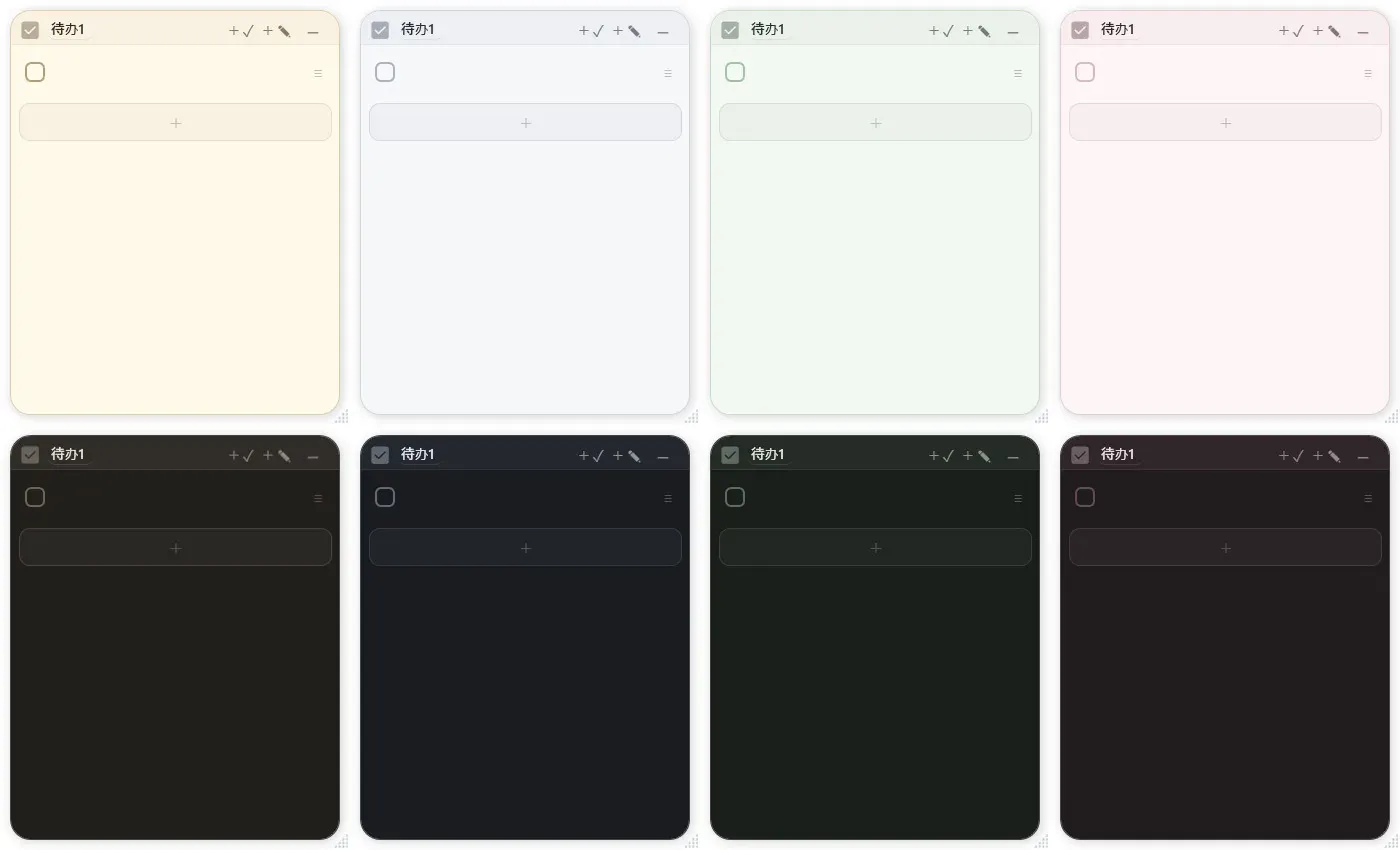
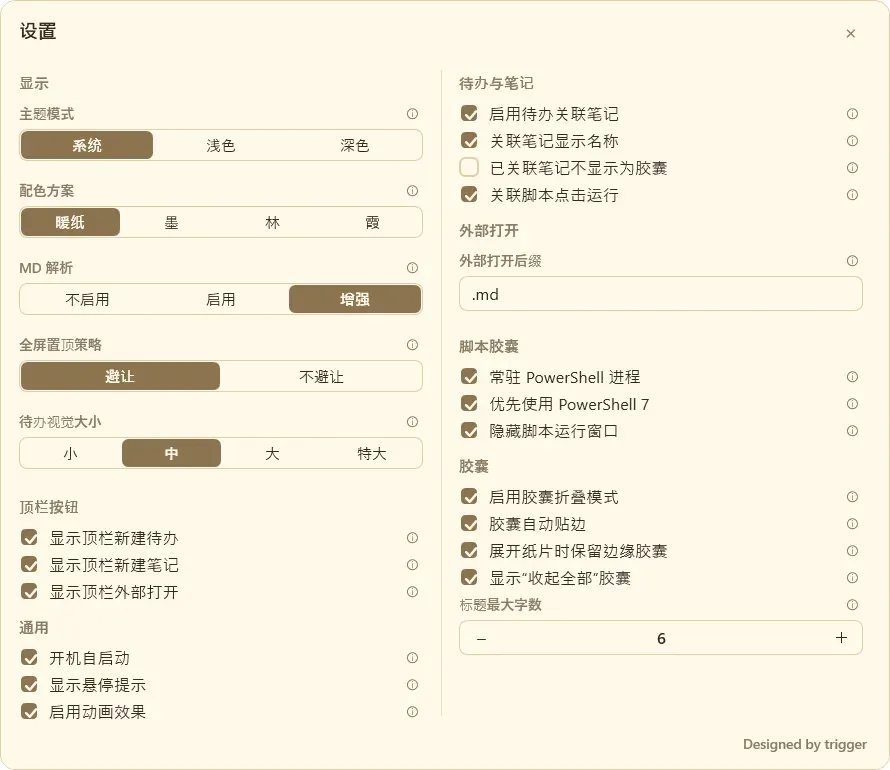
--show,--hide,--toggle,--new-todo,--new-noteand--exit, forwarded to the running single instance. - Appearance and fonts Themes follow the system or are fixed to light or dark, with Warm Paper, Ink, Forest and Rose palettes. Global text size runs from 80% to 120% with separate sizes for notes, to-dos, titles and capsules, and Standard, Soft or Sharp text rendering. A
papertodo.ttfplaced next to the executable becomes the custom font, with an optional bold file, andPaperTodo.icoreplaces the tray icon. - Fullscreen avoidance and multiple monitors Topmost papers and capsules step back behind fullscreen apps on the monitor that shows them, including some administrator-elevated apps, while staying on top on other monitors. Double-clicking the tray icon pulls every paper back into view after a monitor is disconnected or windows drift off-screen.
- Local data and backups All content is saved automatically to
data.jsonbesidePaperTodo.exe, about one second after typing stops or at least every ten seconds during continuous editing, withdata.backup.jsonas a short-term backup. Moving to another PC means exiting the app and copying the whole folder. The app runs fully offline; v3.3 added anonymous usage statistics, which the Help improve setting describes as version, language, country, monitor count and feature usage counts, without note content. - Open notes in an external editor The paper menu exports a note and its images to temporary files and opens them with the app associated with the configured extension, by default
.md; since v3.40 it falls back to Notepad when no app is associated. The export is one-way: edits made in the external editor are not written back. - 4.0 beta: edge previews, search and reminders The v4.0.0-beta1 pre-release adds hover preview cards on edge capsules (to-dos can be checked off in the card, notes preview up to 6,000 characters), Ctrl+F search across all papers, a WYSIWYG Full Render mode, multi-selection with batch actions and to-do reminders with tray notifications and sound. These features are not in the stable v3.40 release.
- 4.0 beta: plugins and local MCP The beta adds a plugin system: Web plugins in HTML, CSS and JavaScript on WebView2, or Native plugins on .NET 10 and WPF, placed in a
plugins/folder with data limits of 10 MB and 20 MB. Samples include clocks, a Pomodoro timer, a review pool and a Codex CLI Bridge. As a Labs feature,PaperTodo.exe --mcpexposes a local MCP server so authorized AI clients can read and edit papers; the changelog notes that plugins run without a security sandbox. - Build from source With Windows and the .NET 10 SDK, the README build is
git clone --recurse-submodules https://github.com/snownico0722/PaperTodo.gitfollowed bydotnet build -c Release. Redistributing modified builds is limited to noncommercial purposes under the license terms, which also require keeping the license and the Required Notice line.
Where PaperTodo fits
Keeping a daily checklist on the desktop
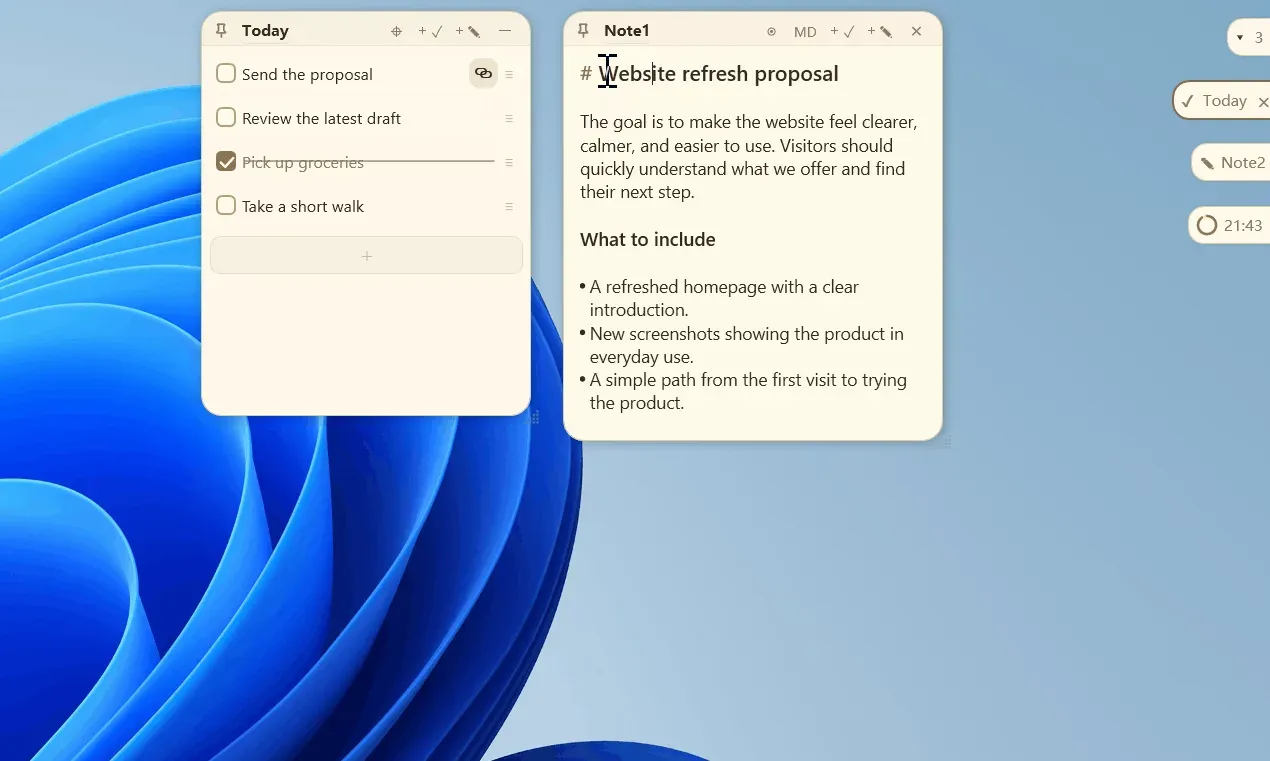
On first launch a default to-do paper opens in the middle of the screen. Items are added with Enter, checked off with the box on the left and reordered with the drag grip; with automatic clearing or sinking enabled, completed items leave the active list. The pin button keeps the paper above other windows, and everything is saved without a save command.
Writing short Markdown notes with screenshots
A note paper takes Markdown text and pasted screenshots or images dropped from File Explorer. The rendering level is set in Settings: Off shows plain source, the basic level keeps the markers with styling, and the enhanced level renders headings, lists, quotes and code. Ctrl plus the mouse wheel zooms the note text, and clicking the percentage badge resets it to 100%.
Clearing the desktop with edge capsules
With capsule mode and edge docking on, clicking the top-right button or pressing Ctrl+W folds a paper into a capsule at the screen edge. Clicking the capsule opens the paper again, the master capsule collapses the whole queue, and queues can sit on either edge of each monitor. In the v4.0 beta, hovering a capsule opens a preview card instead.
Linking tasks to project files and notes
Dragging a file or folder from File Explorer onto a to-do turns the item into a launcher for that path, and dragging another paper's link button onto a row links the two papers. This is how the user manual describes keeping related notes, documents and folders one click away from a task list.
Running PowerShell snippets from a capsule
A note that starts with !p followed by PowerShell commands becomes a script capsule: collapsed, it shows a lightning icon and runs the script on a left click, while a right click offers Expand to paper for editing. Settings control whether a persistent PowerShell process is reused, whether PowerShell 7 is preferred and whether the script window is hidden.
Backing up and moving to another PC
Because data lives beside the executable in data.json, data.backup.json and note-assets.lmdb, the documented migration is to exit from the tray, copy the entire folder and start PaperTodo from the new location. The manual notes that text and images should be restored from the same backup, since the JSON file and the image database belong together.
Reviews of PaperTodo
Be the first to share your experience with PaperTodo.
Write a review
Loading review form…
Found PaperTodo useful? Upvote it todayYour vote helps other IT teams find it in the daily ranking.