
What is HVTools?
HVTools is a free, open-source Windows desktop application that inventories and documents Microsoft Hyper-V environments. It is built by Michael Morten Sonne, who describes it as a Hyper-V counterpart to RVTools, the widely used inventory utility for VMware. It connects to the local host, a remote standalone host or a failover cluster (which, according to the project, also covers Azure Local), collects configuration data and shows it in tabbed grids that can be exported. The code is on GitHub and the project site is hvtools.app.
The only release at the time of checking is the 1.0.0.0-alpha1 pre-release, published on March 11, 2026 as a zip file with a published SHA256 value. The release notes call it an early preview that may contain bugs or breaking changes, with stability and performance not yet finalized, and the changelog lists exports across tabs as work still to come. According to the development timeline, it began as PowerShell scripts in November 2025, moved to a Windows Forms interface in December 2025, gained cluster support later that month and had its public release in March 2026.
The application is written in C# on .NET 10 with a Windows Forms interface. Per the technical documentation, it queries Hyper-V mainly through WMI in the root\virtualization\v2 namespace, uses PowerShell 7.5 cmdlets for some operations and cluster management, and uses the Failover Clustering provider for cluster data. It needs the .NET 10 Desktop Runtime and the Hyper-V PowerShell module. The code is licensed under the MIT license. The site states that releases are digitally signed and that the project is not affiliated with Microsoft.
HVTools is an inventory and light management tool, not a monitoring system, backup product or hypervisor manager. It reads data on demand rather than collecting history, has no server component and no public API. Documentation of cluster-wide management actions is limited, and the README itself says more features are coming, so treat the alpha as a tool for inventory and review rather than for unattended operations.
Key capabilities
- Download and install Download the zip from the releases page (the alpha 1 file is about 13.9 MB, with its SHA256 value printed in the release notes), verify the hash and run the installer or executable as Administrator. The site lists Windows 10 or later (64-bit) and Windows Server 2016 or later as supported systems, with the .NET 10 Desktop Runtime as the main prerequisite. There is no macOS or Linux build.
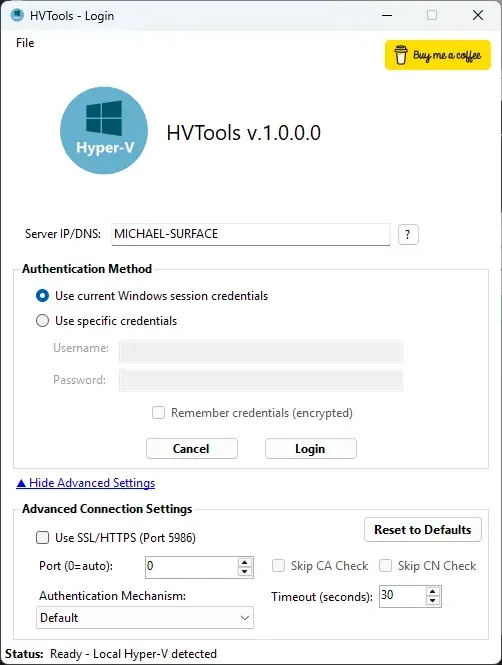
- Local, remote and cluster connections The login window accepts a hostname, FQDN or IP address, and the application resolves the host name when you connect by IP. Authentication is either the current Windows session or specific credentials. An advanced section lets you set the port, SSL/HTTPS on port 5986, skipping CA and CN checks, the authentication mechanism and a timeout in seconds.
- Failover clusters and Azure Local Enter any cluster node or the cluster name and HVTools detects the cluster, discovers the nodes and collects data in parallel. The cluster tab shows node status, highly available VM distribution, cluster networks, Cluster Shared Volumes, failover priorities, preferred owners, node weight and drain status, and fault domains. The README says this also covers Azure Local.
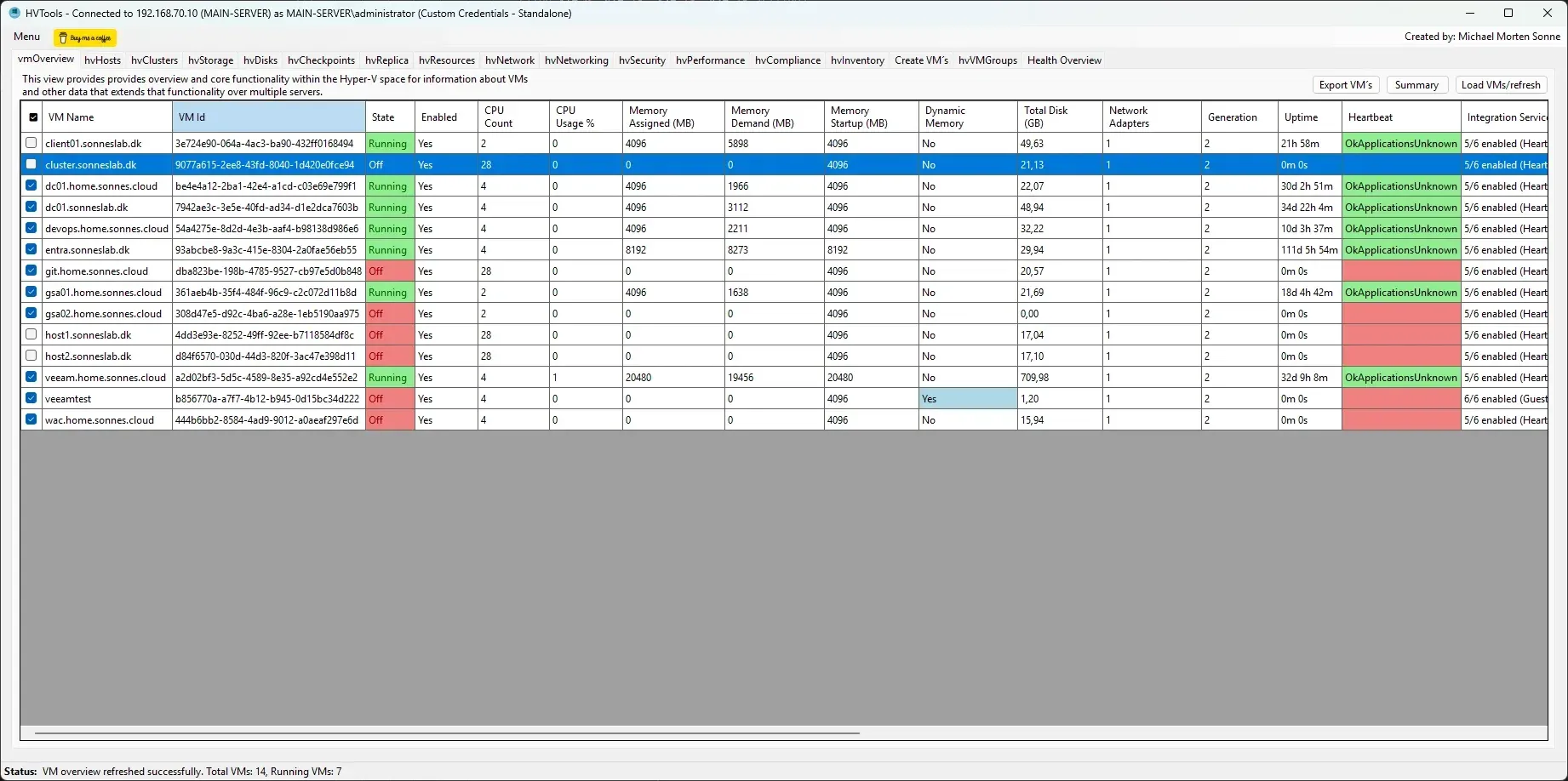
- Virtual machine inventory The main grid lists configuration (CPU, memory, disks, network), generation 1 or 2, state, Integration Services status, heartbeat, uptime, checkpoints, replication state, creation date and VM ID. States are color-coded, with green for running, red for off and yellow for paused. Double-clicking a VM opens its complete details.
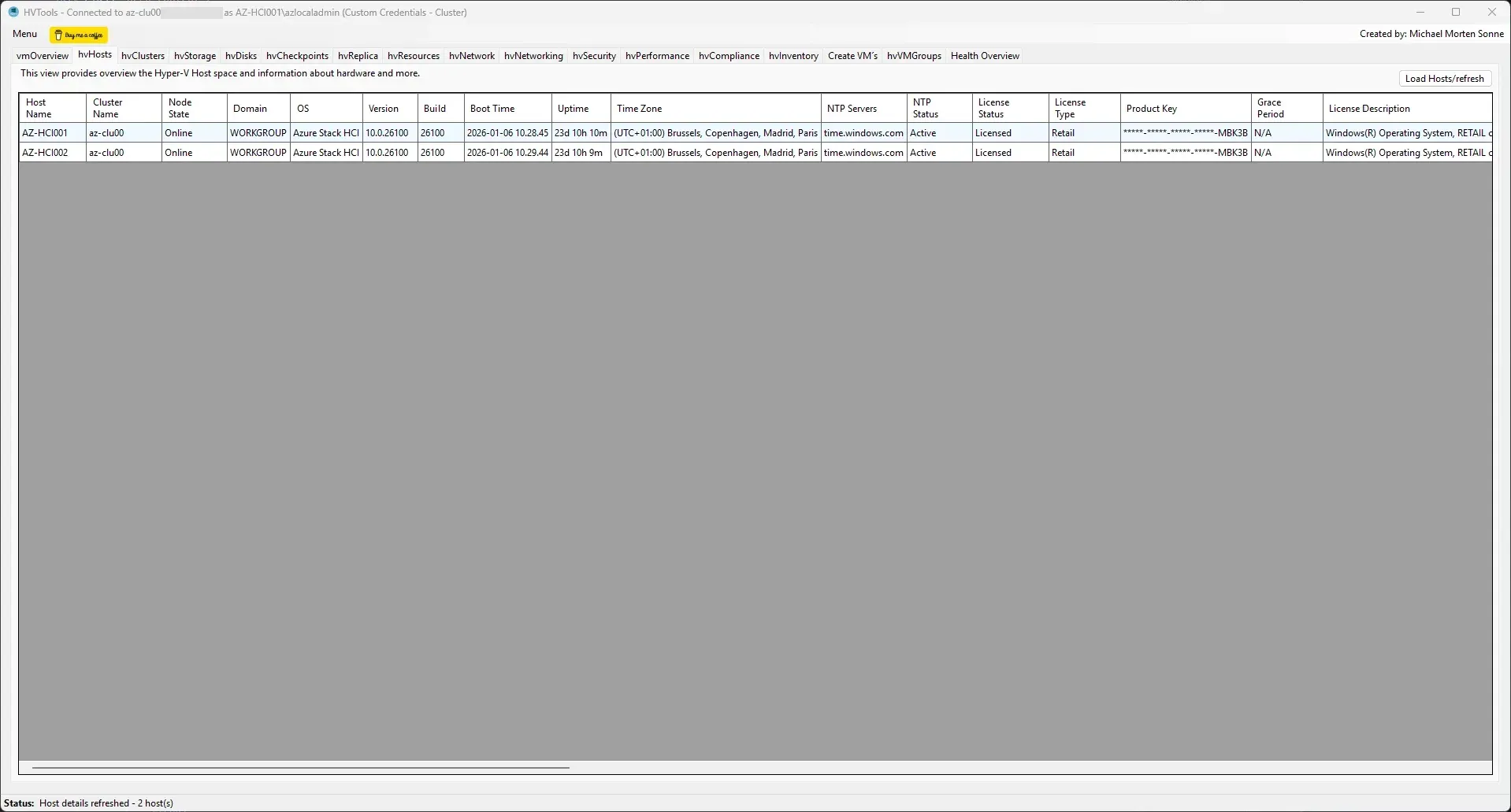
- Host details Host rows cover hardware model and serial number, CPU and memory, operating system version and build, licensing status and grace period, boot time, time zone and NTP settings, Hyper-V paths, network adapters with IP addresses, SLAT, Hyper-Threading, NUMA spanning, Live Migration and Enhanced Session Mode settings.
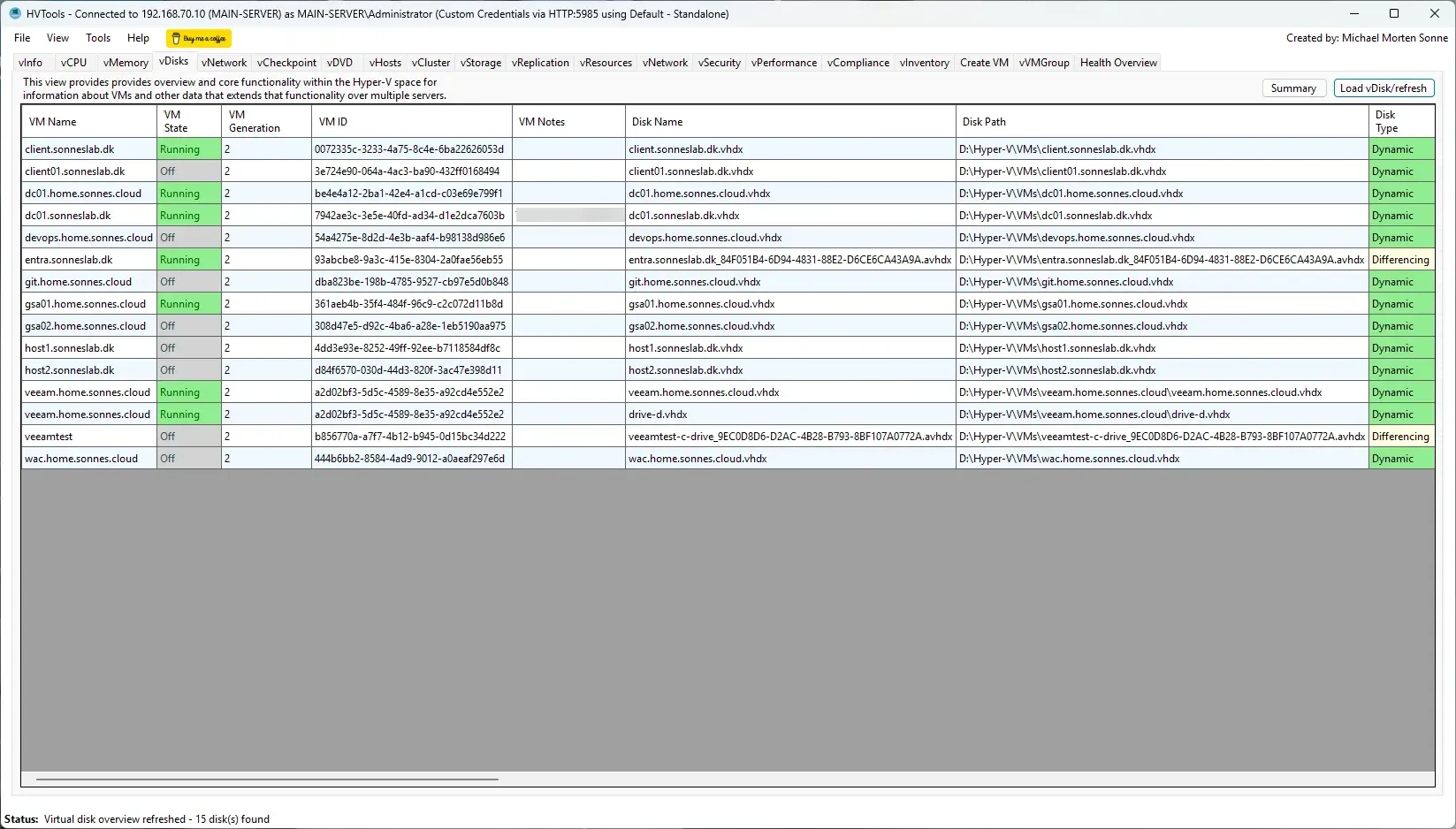
- Virtual disk analysis The disk tab lists type (dynamic, fixed, differencing or pass-through), format (VHD, VHDX or physical), size and space efficiency, fragmentation, SCSI or IDE controller, minimum and maximum IOPS settings, parent chains for differencing disks, and shared and cluster disks. Recommendations include moving VHD files to VHDX.
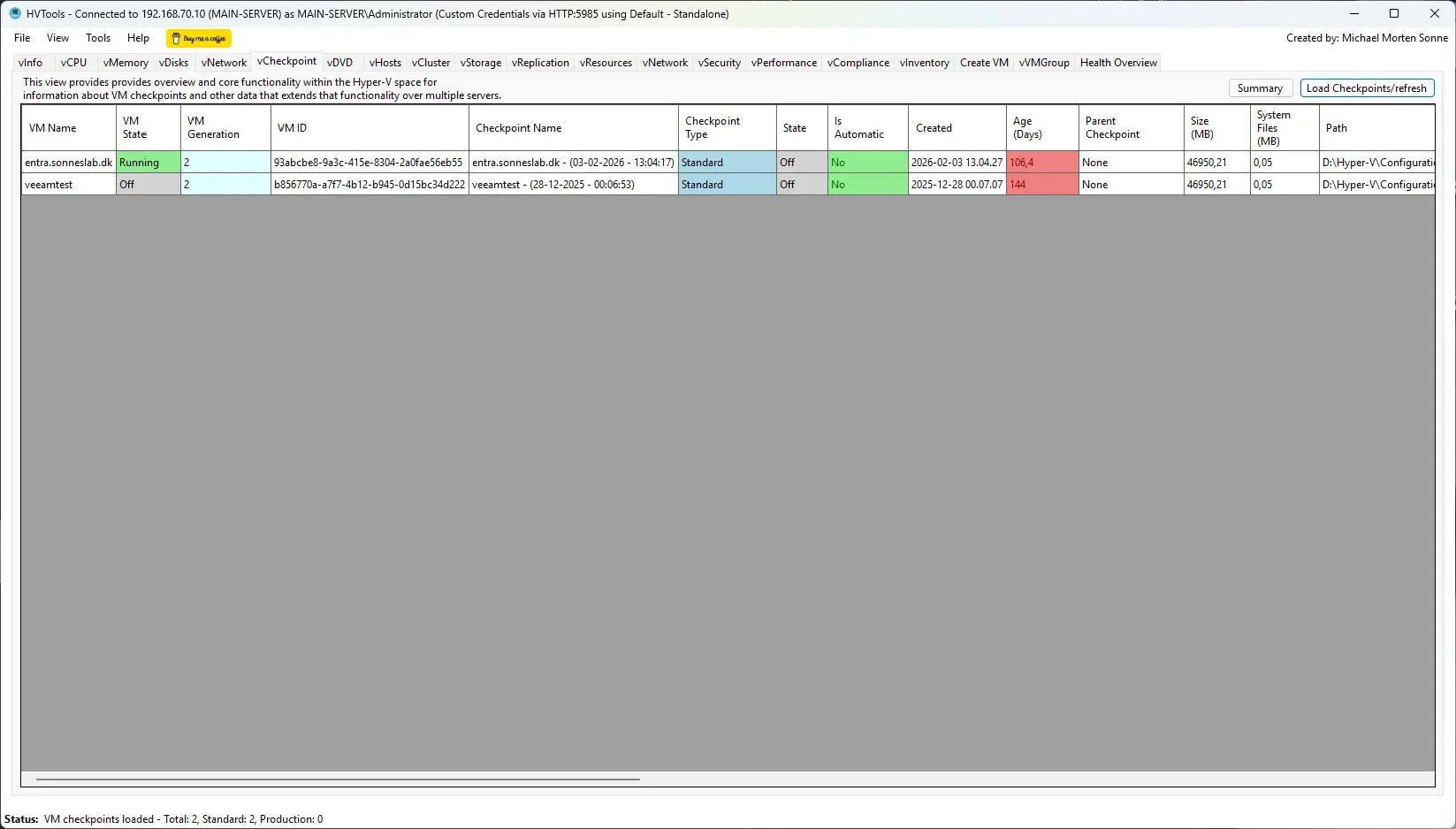
- Checkpoint overview and cleanup Checkpoints from all VMs appear in one list with type (standard or production), age, size and parent-child hierarchy. Old checkpoints are highlighted and can be deleted from the tool. Deleting a checkpoint is a change in the environment, so use an account with only the rights you intend.
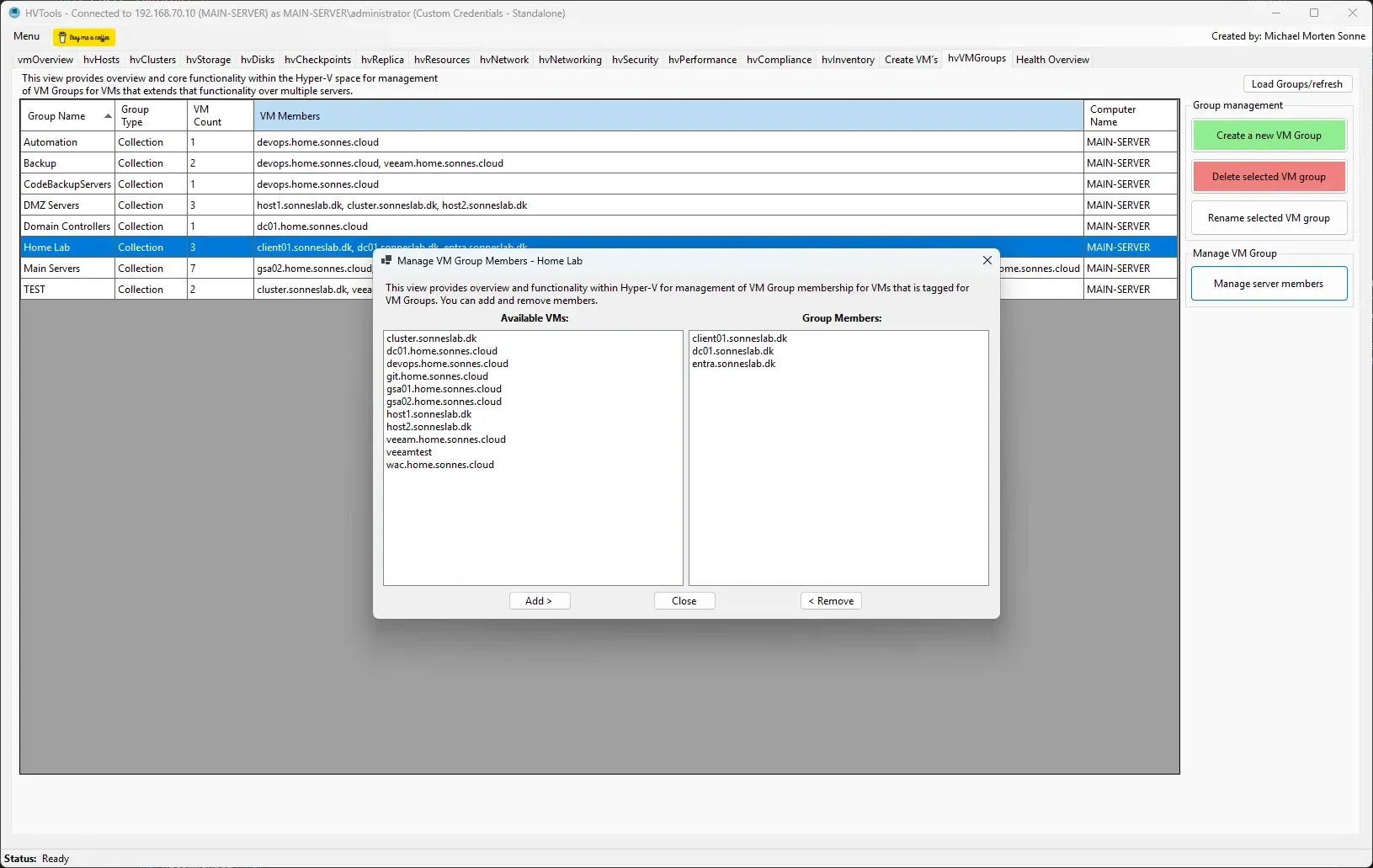
- VM groups Groups (management collections or VM collections) can be created, renamed and deleted, and VMs can be added or removed in bulk. The site mentions using groups to start, stop and manage several VMs or to organize backup jobs. Group membership is included in exports; in CSV it goes to a separate file.
- Summaries and recommendations A Summary button on each tab produces statistics and suggestions, such as checkpoint cleanup, disk optimization, fragmentation alerts and capacity hints. These are heuristics for review and do not replace a capacity-planning tool.
- Export to JSON, CSV, XML and text Selected VMs can be exported as JSON for scripting, CSV for Excel, XML for structured exchange or formatted text for documentation. Exports include metadata such as time, exporting user, host and connection type, VM counts and application version. The changelog lists broader Excel/CSV export workflows as unreleased work.
- Encrypted credential storage The login window offers a Remember credentials (encrypted) check box, and the README lists encrypted storage for repeated connections. The technical page, by contrast, says credentials are never stored persistently and are cleared when the application exits. Resolve this by testing the build you deploy and not using the option on shared machines.
- Multiple instances You can start several instances to connect to different environments at once and compare them side by side. Title bars show the server, user and connection type so that windows are easy to tell apart.
- Logging and diagnostics HVTools writes a file log with severity levels and offers quick access from the Help menu. Long-running collection runs in the background so the interface stays responsive, with progress indicators.
- Remote access requirements For remote hosts you need network access, WinRM and PowerShell remoting, and an account with Hyper-V Administrator rights. The technical page lists TCP 135, 5985, 5986 and the dynamic RPC range 49152 to 65535, notes that NAT between client and host is not supported and recommends group-based least-privilege access. See the technical documentation for the full list.
- Build from source The repository includes the solution and a build script; building needs Visual Studio 2022 17.12 or later and the .NET 10 SDK. Contribution guidelines are in the contributing guide, and the author asks that improvements are contributed back to the repository.
Where HVTools fits
Documenting a Hyper-V environment
Connect to each host or cluster, review the VM, host and disk tabs, and export JSON or CSV with the VMs you need. Store the exports with a date in the documentation system. Compare two exports over time to find new VMs or changed configurations. The README lists the fields in each export.
Auditing checkpoints and disks
Open the checkpoint tab, sort by age and size and review which checkpoints are older than your policy. Check the disk tab for dynamic disks that have grown, fragmentation and VHD files that could move to VHDX. Confirm backups before deleting checkpoints, because deletion cannot be undone from the tool.
Reviewing a failover cluster
Connect with an account that has cluster access, then check node status, preferred owners, drain state and shared volumes. Use read-only access when you only need reports; the technical page says Cluster Administrator rights are needed for VM group and cluster resource changes.
Preparing a migration or audit
Export VM configuration, generation, memory, disk layout and network adapters before a platform change, then use the data to size the target. Generation 1 and generation 2 VMs, differencing disks and pass-through disks need separate handling, so mark them in the export.
Setting up least-privilege access
Create a security group for HVTools users and grant Hyper-V Administrators, Remote Management Users and Distributed COM Users on the hosts, as the project documentation describes. Verify with the PowerShell connectivity checks it lists, and open only the ports you need between the client and the hosts.
Comparing several sites at once
Start one instance per site, connect with the proper credentials and export each. The title bar shows the connected server and user, which helps avoid changing the wrong environment when several windows are open at once.
Reviews of HVTools
Be the first to share your experience with HVTools.
Write a review
Loading review form…
Found HVTools useful? Upvote it todayYour vote helps other IT teams find it in the daily ranking.