

What is Frame?
Frame is a free, open-source desktop media converter that provides a native interface for FFmpeg and FFprobe. It converts video, audio and still images and exposes the settings that FFmpeg otherwise takes as command-line arguments: containers, encoders, quality modes, filters, audio and subtitle track selection, and metadata handling. The official website credits the app to Marek Jóźwiak, and the source code is published in the 66HEX/frame repository on GitHub, where the project describes itself as an FFmpeg GUI. Packages are available for macOS, Windows and Linux. According to the website, media conversion runs locally with FFmpeg, files are not uploaded to a conversion service, and the app connects to GitHub when it checks for application updates.
The first public release, 0.1.0, appeared on January 19, 2026 as a macOS interface for FFmpeg conversion to MP4, MKV, WebM, MOV and MP3 with H.264, H.265, VP9, ProRes and AV1 encoders. Early versions were built with Tauri and a Svelte front end. Version 0.30.0, released in July 2026, rebuilt Frame as a Rust-native application on the GPUI-CE user interface framework and removed the Tauri and Svelte shell, the web-based preview, the earlier translation dictionaries and the bundled RealESRGAN upscaling feature. The code is now a Rust workspace (Rust Edition 2024) with three crates: frame-app for the interface, frame-core for FFmpeg argument generation, source probing, filter construction, compatibility validation and progress parsing, and frame-updater for signed update verification and installation. Media rules live in a shared JSON compatibility matrix that the Rust code reads. The same repository also holds the SvelteKit website and the user documentation.
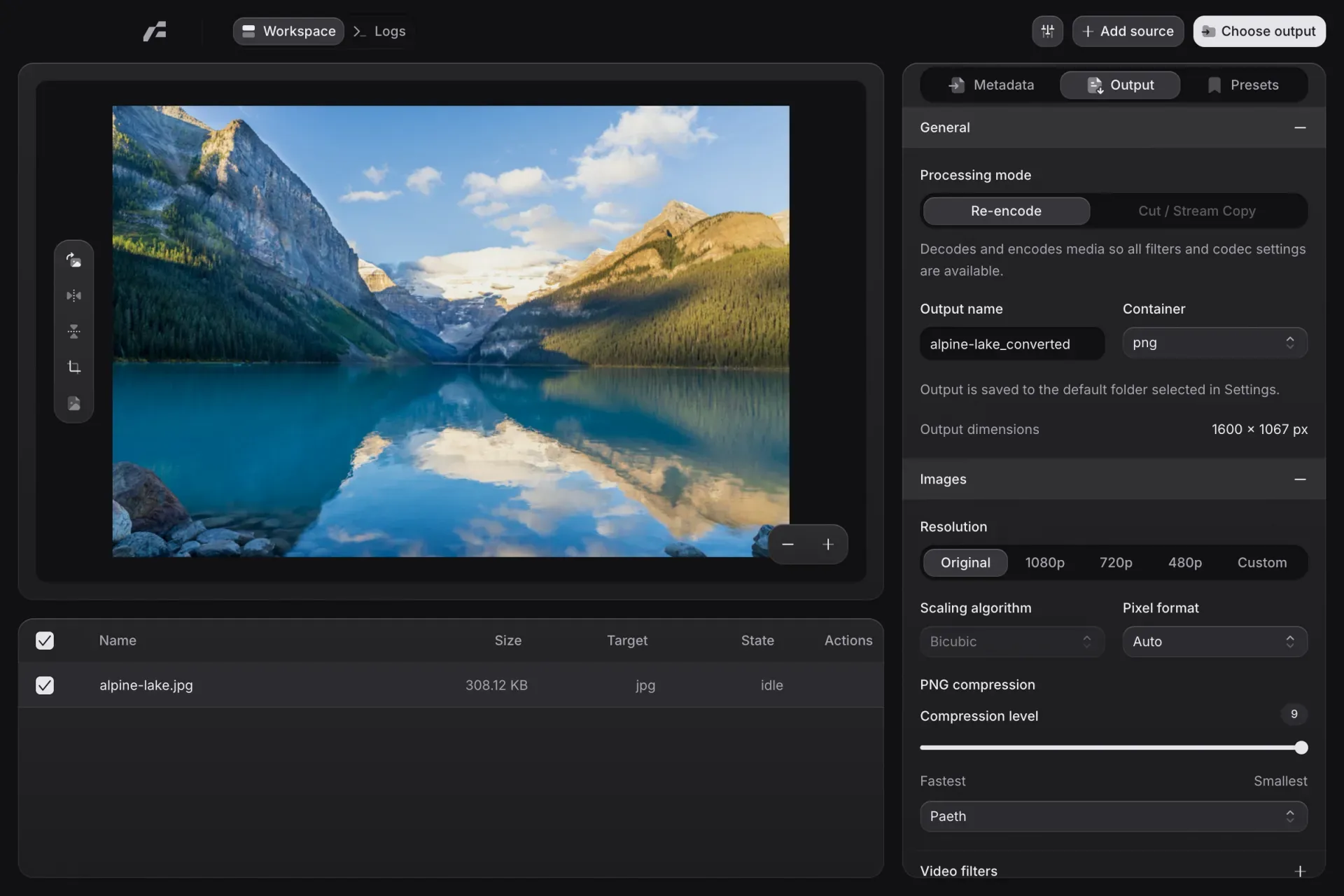
Release 0.34.0 was published on November 11, 2026. It adds automatic black-bar detection for cropping, custom crop ratios, Opus import and export, an Apply to All action, direct SVT-AV1 presets, .ts import, keyboard navigation of the queue and support for the system reduced-motion setting. The bundled FFmpeg and FFprobe move from 8.1.2 to 9.0.2, the interface gets Metadata, Output and Presets inspector tabs, and the fixes include hardware encoder start checks, the hvc1 tag for HEVC in MP4 and MOV, and subtitle timing after trims. Earlier versions are documented in the changelog.
Each GitHub release contains DMG and zipped app bundles for Apple Silicon and Intel Macs, a Windows x86_64 installer, and AppImage and tar.gz packages for Linux on x86_64 and aarch64; Frame is also distributed through WinGet, a Homebrew tap, Flathub and Nixpkgs. The native packages bundle FFmpeg and FFprobe, while the Flathub and Nixpkgs builds use the media tools of their runtime or package set. The builds carry no Apple Developer ID or Windows Authenticode signature: macOS packages are ad-hoc signed and not notarized, and Windows SmartScreen can show a warning. The README lists GitHub Sponsors funding goals for these costs: 99 US dollars per year for the Apple Developer Program and an estimated 300 to 700 US dollars per year for a Windows code-signing certificate.
The native application and the conversion core are licensed under GPL-3.0; the website keeps its own MIT template license, and the README acknowledges FFmpeg under GPLv3. Documented limits include AVIF, HEIC and HEIF, which are accepted as image inputs but not offered as outputs, hardware encoding only through VideoToolbox in the macOS bundles and NVIDIA NVENC in the Windows bundles, and software encoders only in the Linux bundles. Similar projects listed on iThub include HandBrake, an open-source video transcoder, and LosslessCut, an FFmpeg desktop app for cutting and remuxing without re-encoding.
Key capabilities
- Video, audio and image sources Frame imports video in MP4, MOV, MKV, AVI, WebM, TS, MTS, M2T, M2TS and GIF, audio in MP3, M4A, WAV, FLAC and Opus, and images in PNG, JPEG, WebP, BMP, TIFF, AVIF, HEIC and HEIF, by drag and drop, file picker or folder import. Each source is inspected with FFprobe, and the Metadata tab lists the detected streams with codec, dimensions, frame rate, pixel format and audio track details.
- Output containers Video can be written to MP4, MKV, WebM, MOV, GIF, M2T (188-byte MPEG-TS) and MTS or M2TS (192-byte M2TS); audio to MP3, M4A, WAV, FLAC and Opus; images to PNG, JPEG, WebP, BMP and TIFF. The container decides which codecs and track types are offered, and unsupported combinations are rejected before a conversion starts.
- Video encoders and quality control Encoders include
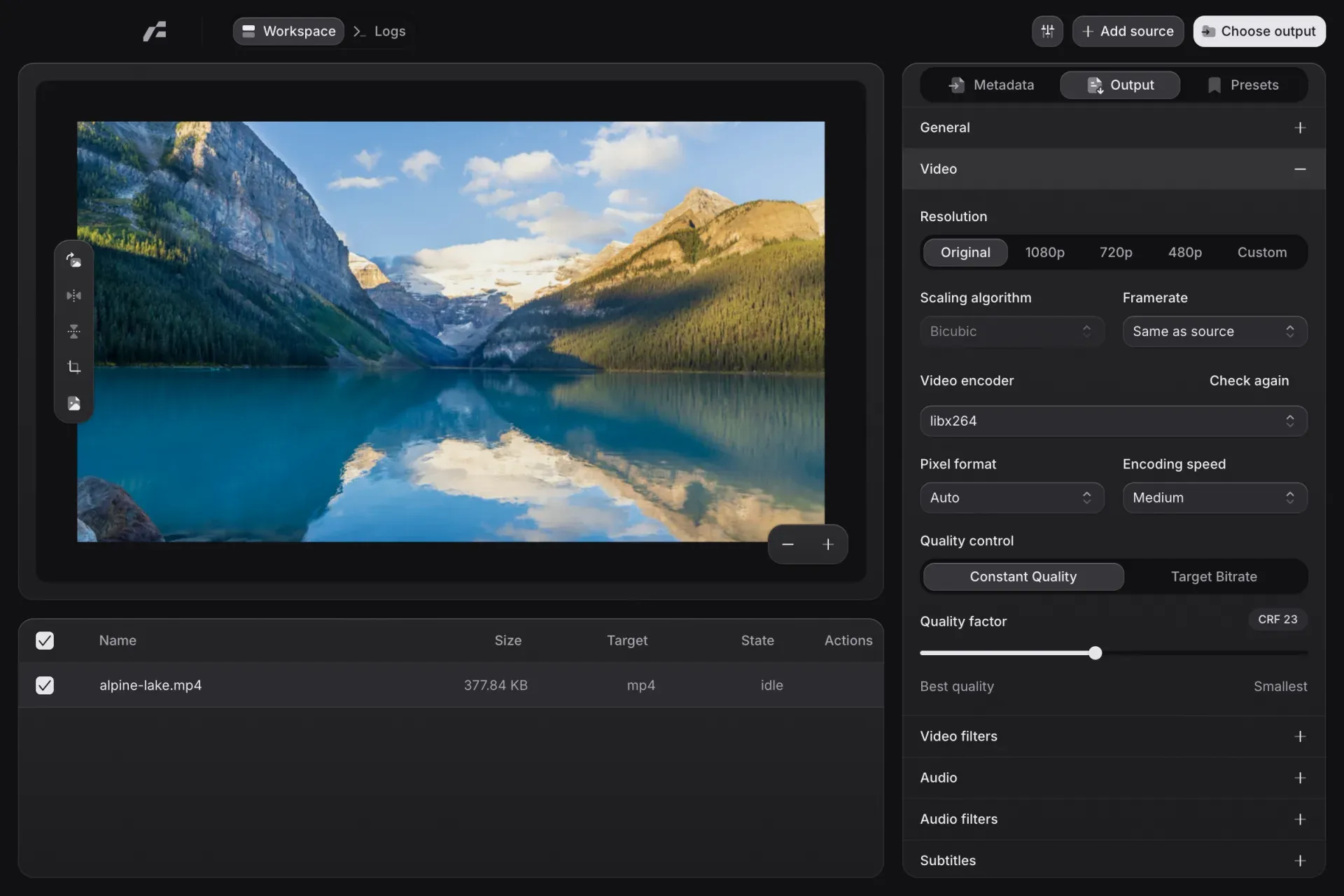
libx264,libx265, VP9, Apple ProRes,libsvtav1, MPEG-2 Video and GIF palette output. Quality is set as a CRF value or a target bitrate with codec-specific speed presets, including SVT-AV1 presets 0 to 13 with a 10-bit option. The video guide also covers resolution presets or custom sizes, frame-rate conversion, pixel format and scaling. - Hardware encoding MacOS bundles include the VideoToolbox H.264 and HEVC encoders, Windows bundles include NVIDIA NVENC for H.264, HEVC and AV1, and Linux bundles use software encoders. Frame detects encoder capabilities from the bundled FFmpeg at startup, checks whether a hardware encoder can actually start, and shows the failure reason with a Check again action.
- Re-encode or Cut / Stream Copy Re-encode decodes and encodes the media so that every filter and codec setting is available. Cut / Stream Copy trims and remuxes with FFmpeg stream copy instead; the app states that cut precision in this mode depends on keyframes, and image overlays are suspended while their settings are kept.
- Crop, rotation, flip and overlay Controls around the preview crop, rotate and flip the picture, and an image can be positioned over a video. Version 0.34.0 adds black-bar detection from up to five samples, more aspect-ratio presets and custom ratios or pixel sizes, with the calculated output size shown live; applying a crop updates the output resolution.
- Video filters The Video filters section offers brightness, contrast, saturation, gamma, hue, color temperature, sharpening, Gaussian blur, denoise, deband, vignette, grayscale and deinterlacing. The conversion core builds them into the FFmpeg filter chain, and brightness, contrast, gamma and saturation adjustments keep high bit depth.
- Audio encoding and track selection Audio encoders include AAC, AC-3, Opus, MP3, MP2, ALAC, FLAC, 16-bit PCM and Blu-ray PCM, plus
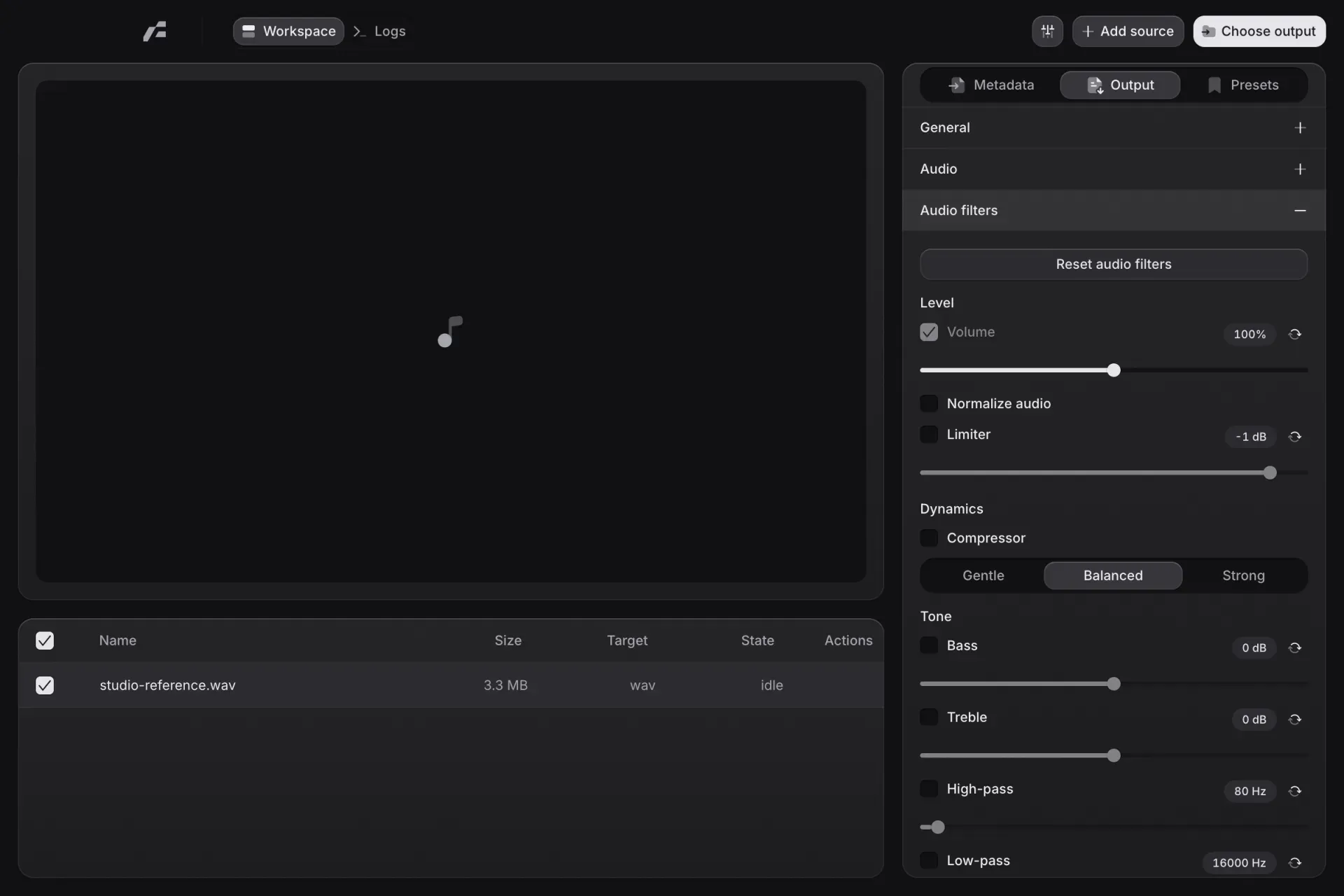
libfdk_aacwhen the FFmpeg build provides it. Settings cover bitrate, VBR quality where supported, channel layout and volume. Only the checked source audio tracks are exported. - Audio filters Volume, normalization, a limiter, a compressor with Gentle, Balanced and Strong settings, bass, treble, high-pass and low-pass filters, noise reduction, de-essing and stereo width are available, each with its own toggle and reset control.
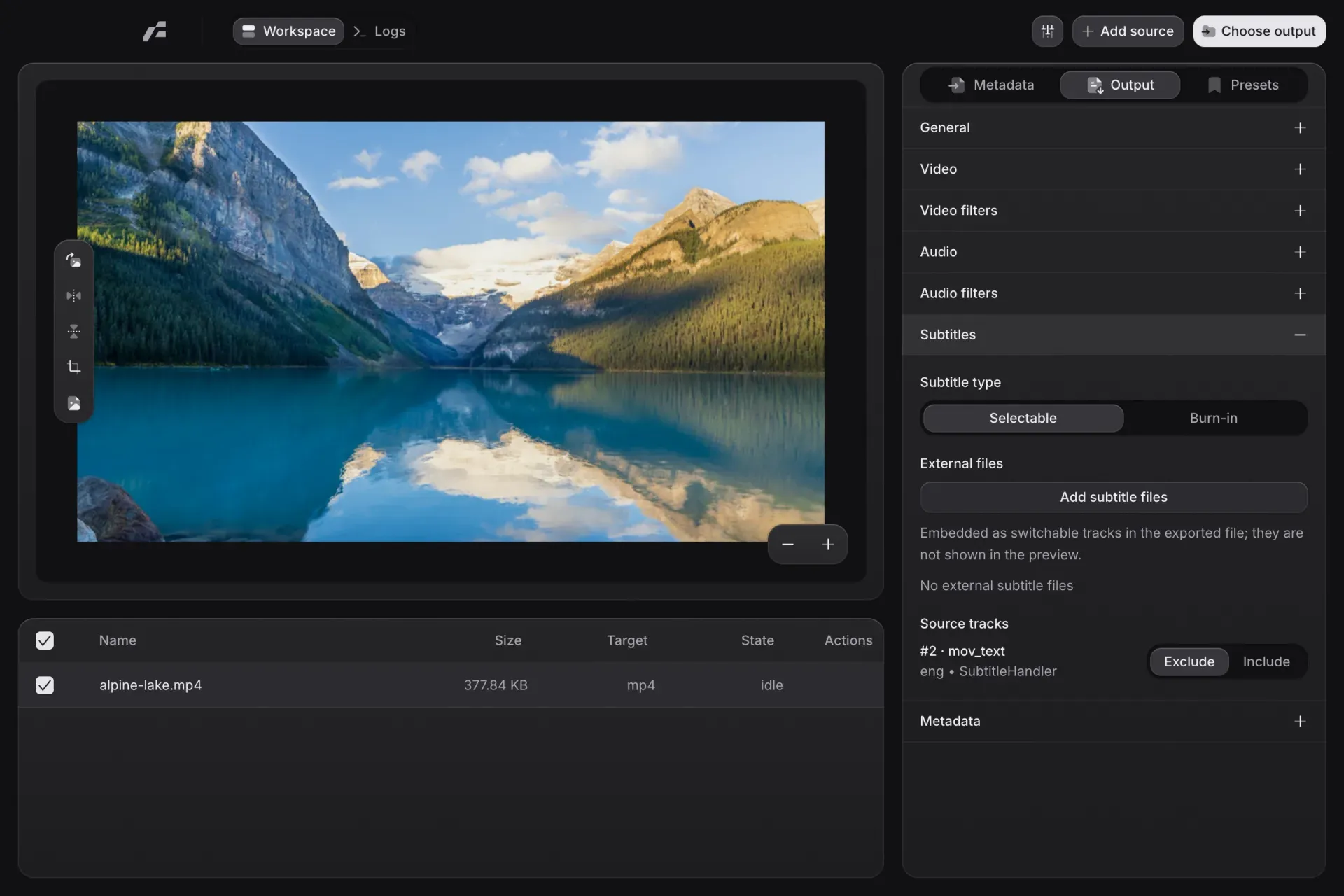
- Selectable and burned-in subtitles Embedded subtitle streams are exported only when checked, and external SRT, ASS and WebVTT files become switchable tracks with language, title, default and forced flags in MP4, MOV, MKV and WebM. Burn-in mode renders one subtitle file into the picture with font, size, color, outline and position controls and requires re-encoding.
- Transport-stream and disc workflows M2T, MTS and M2TS workflows support MPEG-2 Video, MP2, Opus in TS, AC-3 and Blu-ray PCM, plus PGS, DVB subtitle, DVB teletext, ARIB caption and HDMV subtitle handling. M2T converts bitmap PGS or DVD subtitles to standard DVB subtitles, and program service name and provider metadata can be preserved, cleaned or replaced.
- Metadata The Metadata tab shows what FFprobe reads from the source, while the Metadata section in Output preserves, cleans or replaces supported fields in the exported file. The metadata guide notes that cleaning fields does not remove information visible or audible in the media itself.
- Still images and animated GIFs Image controls follow the format: JPEG quality and Huffman mode, WebP lossy or lossless mode, PNG compression and prediction, and TIFF compression, with 16-bit PNG and TIFF output. GIFs are made from video with frame rate, color count, dithering and loop count controls.
- Preview and trim The selected source plays in a preview with playback and trim controls over the picture, and a trim popover sets start and end times in
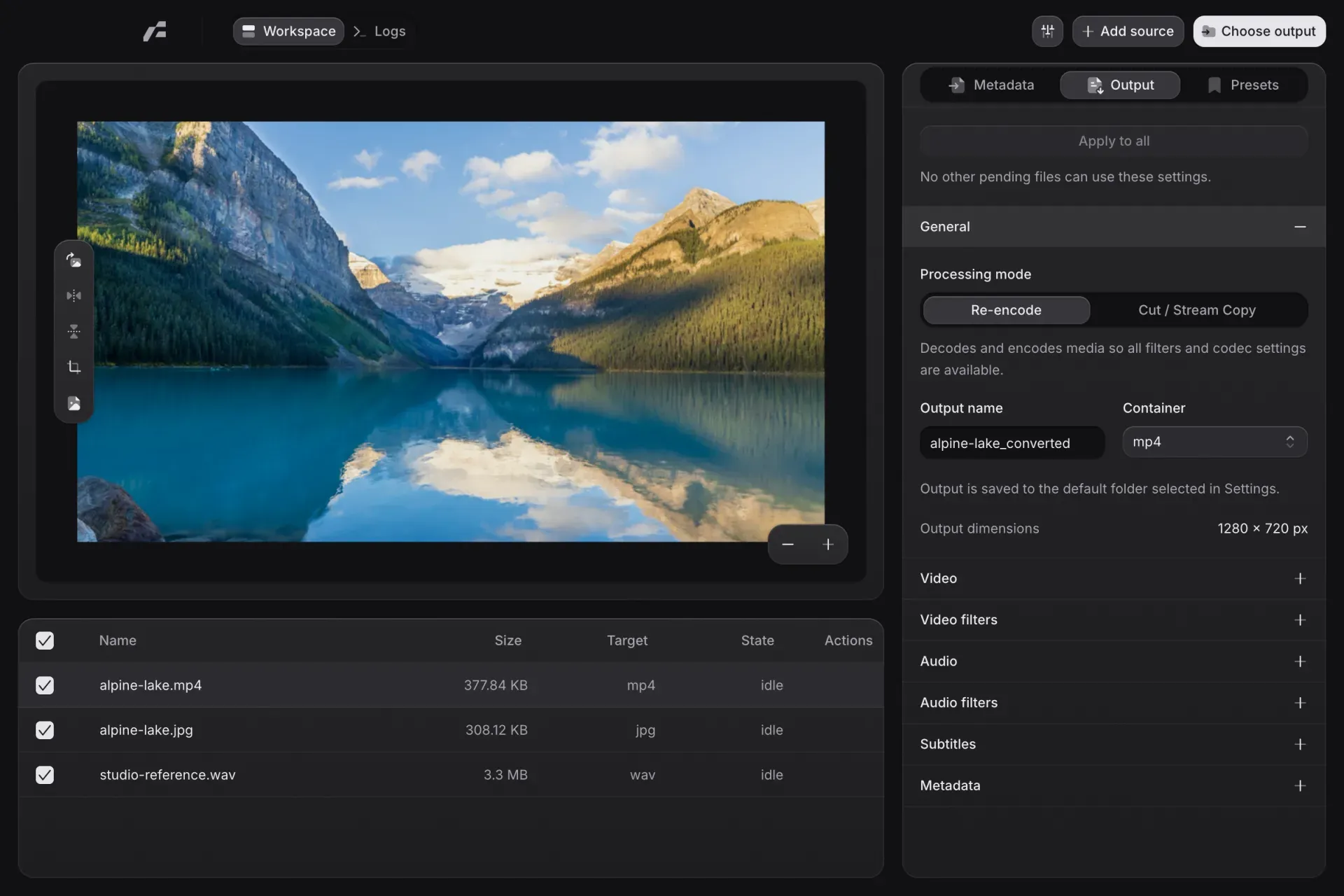
HH:MM:SS.mmmfields. Preview frames are extracted with FFmpeg, and pan and zoom help inspect details. - Queue and batch conversion Every queued source keeps its own output configuration, and its checkbox decides whether it joins a run. Apply to All copies settings to compatible pending files while keeping their track and subtitle selections, and presets can be applied to all compatible files. Outputs go to the default folder with deterministic suffixes instead of overwriting existing files.
- Concurrency, logs and settings A Rust task controller limits simultaneous FFmpeg processes through the Max concurrency setting, and progress and log events are shown while conversions run, with a separate Logs view. App Settings also hold the default output folder, a Dark or Light theme, interface scaling from 80 to 200 percent and update controls.
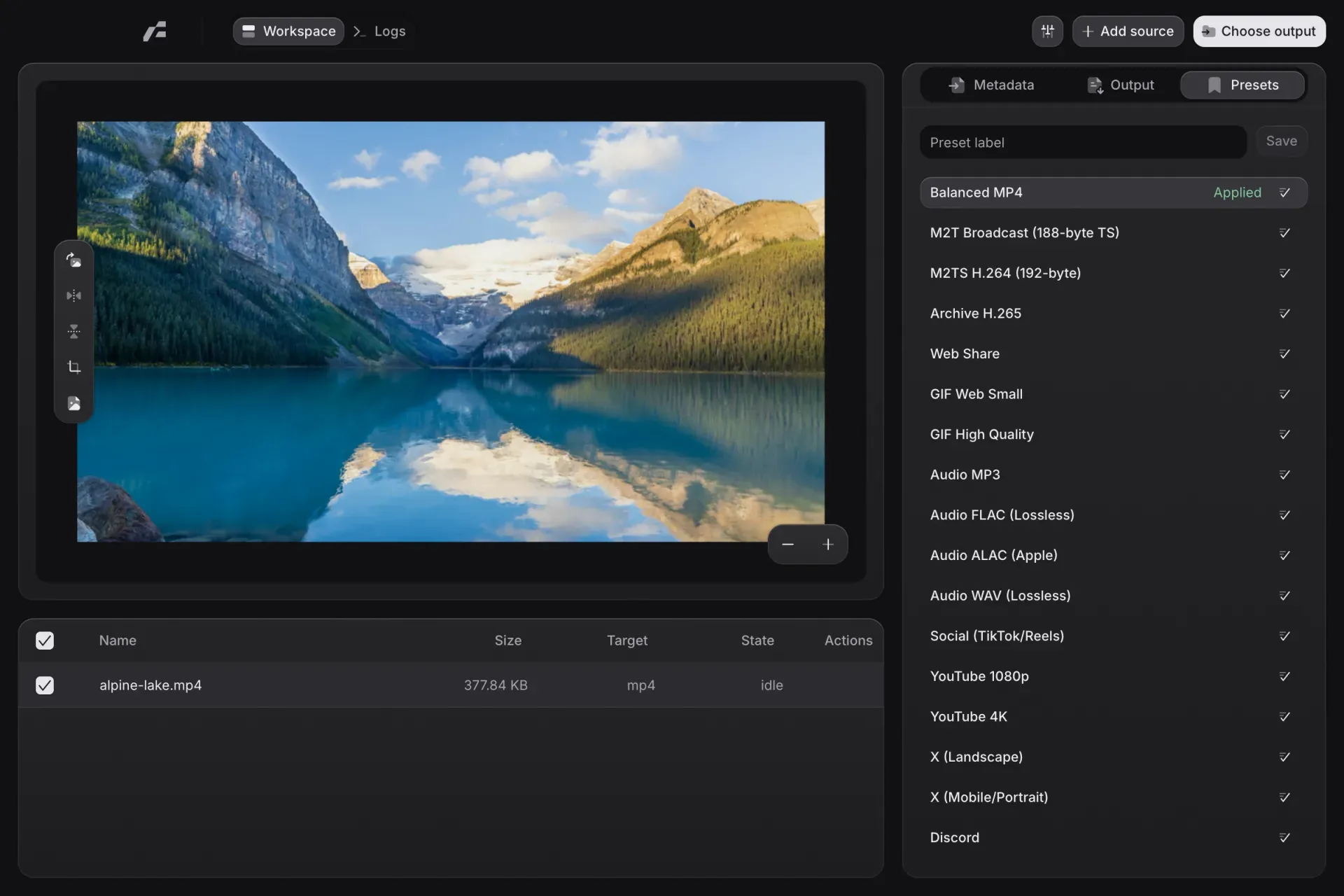
- Built-in and custom presets The 0.34.0 source defines 17 built-in presets, including Balanced MP4, Archive H.265, Web Share, M2TS H.264, GIF Web Small, Audio FLAC (Lossless), YouTube 4K, Social (TikTok/Reels) and Discord. Presets that do not fit the selected media are disabled, and custom presets are saved under a label and can be deleted.
- Signed updates Native builds include an updater that verifies the Ed25519 signature of the GitHub release manifest and the SHA-256 hash of the package before a bundled helper installs it. The security policy also lists
SHA256SUMS, a CycloneDX SBOM and build-provenance attestations, and notes that AppImage and Flatpak updates bypass this updater. - Installation and building from source The installation guide covers DMG packages, the Homebrew tap (
brew install --cask frameafterbrew tap 66HEX/frame), WinGet (winget install --id 66HEX.Frame -e), Flathub (io.github._66HEX.Frame), AppImage and Nixpkgs (frame-media-converter). For the unsigned macOS build, the README documentsxattr -dr com.apple.quarantine /Applications/Frame.app. Source builds use Rust withcargo xtask setup-ffmpegandcargo xtask run.
Where Frame fits
Converting a video to MP4
The first-conversion guide starts by dropping a file into Frame or choosing Add source, then selecting its row so that the preview and inspector refer to that file. The Balanced MP4 preset is applied from the Presets tab, and the Output tab shows the resulting configuration in its General, Video, Audio, Subtitles, filter and Metadata sections. Once the audio and subtitle tracks to export are checked and an output folder is set, Start runs the conversion and the queue shows status and progress while FFmpeg processes the file.
Converting a folder of mixed media in one run
A folder of video, audio and image files is imported into the queue, where each file keeps its own settings. The batch conversion guide describes configuring one representative file, converting and checking it, and then reusing that configuration through Apply to All or by applying a preset to all compatible files after a confirmation. The checked entries run together, and Max concurrency in Settings limits how many FFmpeg processes share the CPU, GPU, memory and storage bandwidth at the same time.
Trimming a clip without re-encoding
The trim popover in the preview sets the start and end of the range, and the Cut / Stream Copy processing mode remuxes that range with FFmpeg stream copy instead of encoding it again, so the original video and audio streams are kept. The app states that cut precision in this mode depends on the keyframes of the source. Filters, crops, overlays and codec changes require the Re-encode mode, which decodes and encodes the media so that all settings are available.
Making an animated GIF from a video
A video source is set to GIF output, or the GIF Web Small or GIF High Quality preset is applied, and the trim range in the preview selects the part to animate. Frame rate, color count, dithering and loop count shape the result. The images and GIFs guide explains that these settings affect both appearance and size, and that duration and dimensions usually have the largest effect on file size.
Exporting audio and choosing tracks
An audio file is converted, or the soundtrack of a video is exported, by choosing MP3, M4A, WAV, FLAC or Opus in General and configuring the Audio section. Only the checked source tracks are written, so a file with several languages or a commentary track can be reduced to the tracks that are wanted. Bitrate or VBR quality, channel layout and volume are set per output, and the audio filters add normalization, limiting, compression, tone controls, noise reduction, de-essing and stereo width. The audio guide notes that converting a lossy source to FLAC or WAV does not restore discarded detail.
Preparing subtitles, metadata and transport streams for delivery
In the Subtitles section, embedded tracks and external SRT, ASS or WebVTT files become switchable tracks with language, title, default and forced flags, or one file is burned into the picture with font, size, color, outline and position settings. The Metadata section then preserves, cleans or replaces the output fields, for example to drop source metadata before a file is shared. For broadcast and disc workflows, the M2T, MTS and M2TS profiles carry DVB, teletext, ARIB or PGS subtitles together with program service name and provider metadata, as described in the subtitles guide.
Install
winget install --id 66HEX.Frame -eReviews of Frame
Be the first to share your experience with Frame.
Write a review
Loading review form…
Found Frame useful? Upvote it todayYour vote helps other IT teams find it in the daily ranking.