

What is OpenShot Video Editor?
OpenShot Video Editor is a free, open-source, non-linear video editor for Windows, macOS, Linux and Chrome OS. Jonathan Thomas, a developer from North Texas, started it in August 2008 to give Linux a simple open-source editor. In 2012 he incorporated OpenShot Studios, LLC and transferred the copyright and trademark to it; the company later joined the Open Invention Network. Development is funded by users through donations and a paid Microsoft Store listing, not through license sales, according to the About page.
The current release is OpenShot 4.1.1, published on November 2, 2026. It is a maintenance build on new runners with updated FFmpeg dependencies, AMD AMF and HEVC NVENC/QSV export presets, GPU encoder validation before a CPU fallback, and fixes for saving on Windows and network shares. It ships with libopenshot 1.1.1. Version 4.1.0 (October 31, 2026) added text typed directly on the video preview, Auto-Optimize for heavy 4K+ footage, an experimental command-line interface for scripts and AI coding agents, export settings checked while editing, and native Linux ARM64 builds on the daily PPA and edge Snap channel. Version 4.0 (August 2026) introduced the Color View, the Recording View and a redesigned native Qt timeline; 4.0.1 added ripple cuts in the Razor tool and official Snap packaging.
Stable builds are distributed from the official download page: 64-bit and 32-bit Windows EXE installers (with a portable install mode), the Microsoft Store package for Windows 10 and 11, an Intel x86_64 DMG for macOS, a Linux AppImage, the openshot-qt Snap, an Ubuntu PPA and an installer script for x86_64 Chromebooks. Each GitHub release asset comes with a SHA256 file and a torrent. Daily builds are published for every commit. Many Linux distributions also package OpenShot, but the project warns that those versions are often outdated.
The interface is written in Python with a Qt binding (PyQt5, PyQt6 or PySide6, selected with OPENSHOT_QT_API). Decoding, compositing, effects and rendering run in libopenshot, a C++ library licensed under LGPL-3.0 that relies on FFmpeg, with audio handled by libopenshot-audio. Projects are saved as JSON .osp files that use the same format as the separate OpenShot Cloud API. Animated 3D titles call an installed copy of Blender, and SVG titles can be opened in an external vector editor such as Inkscape.
The editor itself is licensed under the GNU GPL version 3 or later. It is a desktop application: it has no hosted editing service, no team collaboration server and no native Apple Silicon build (Apple Silicon Macs run the Intel build through Rosetta). The advanced generative AI menus require a separately installed local ComfyUI server and are marked experimental. The full user guide covers each feature, and its introduction lists the minimum system requirements.
OpenShot Video Editor screenshots
Explore the interface. Open a screenshot to view it at full size.
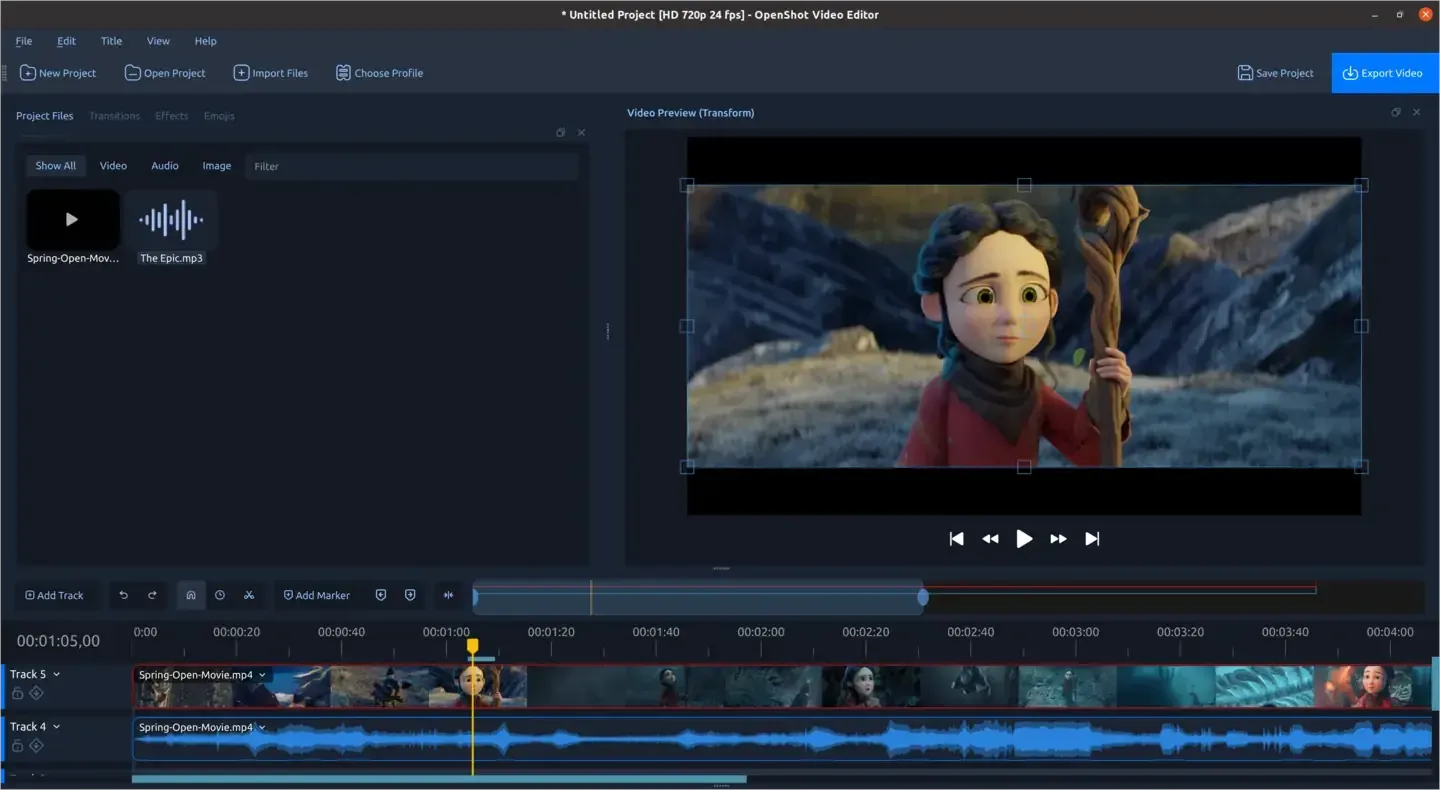
Main editing window with Project Files, the video preview and a two-track timeline showing video thumbnails and an audio waveform. Official screenshot from openshot.org.
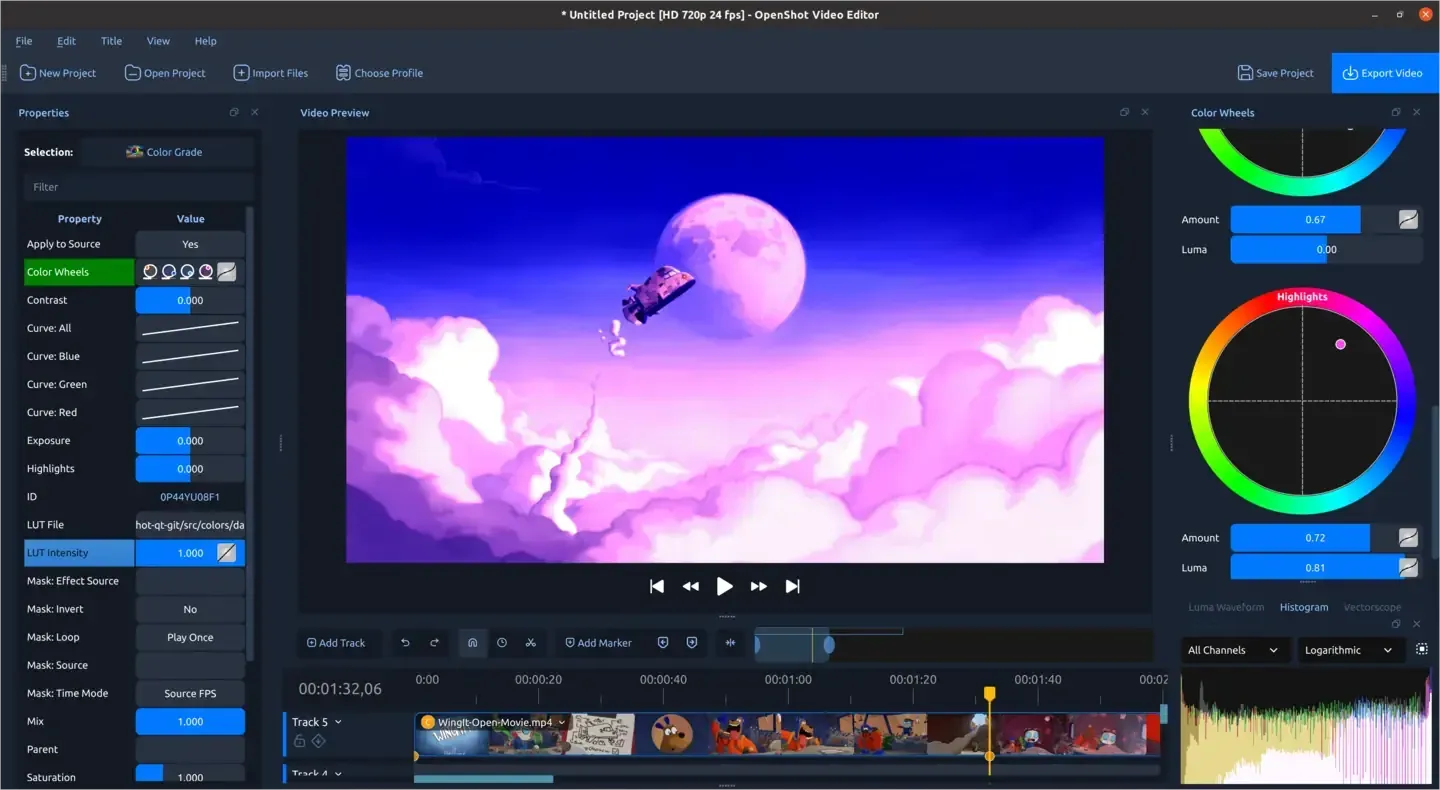
Color View with the Color Grade properties (curves, LUT file and intensity), color wheels and a histogram. Official screenshot from openshot.org.
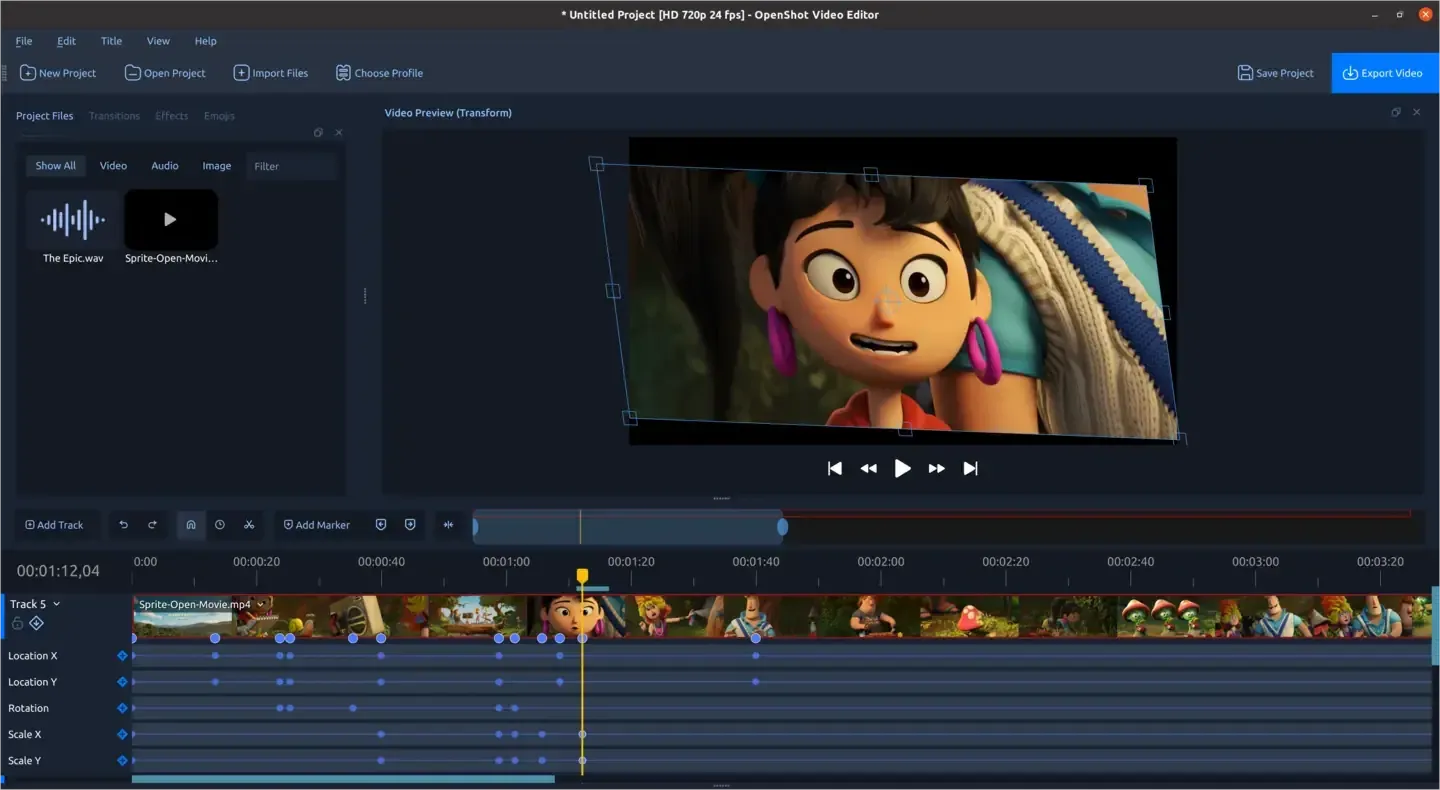
Keyframe panel showing Location, Rotation and Scale keyframes for a clip, with transform handles in the preview. Official screenshot from openshot.org.
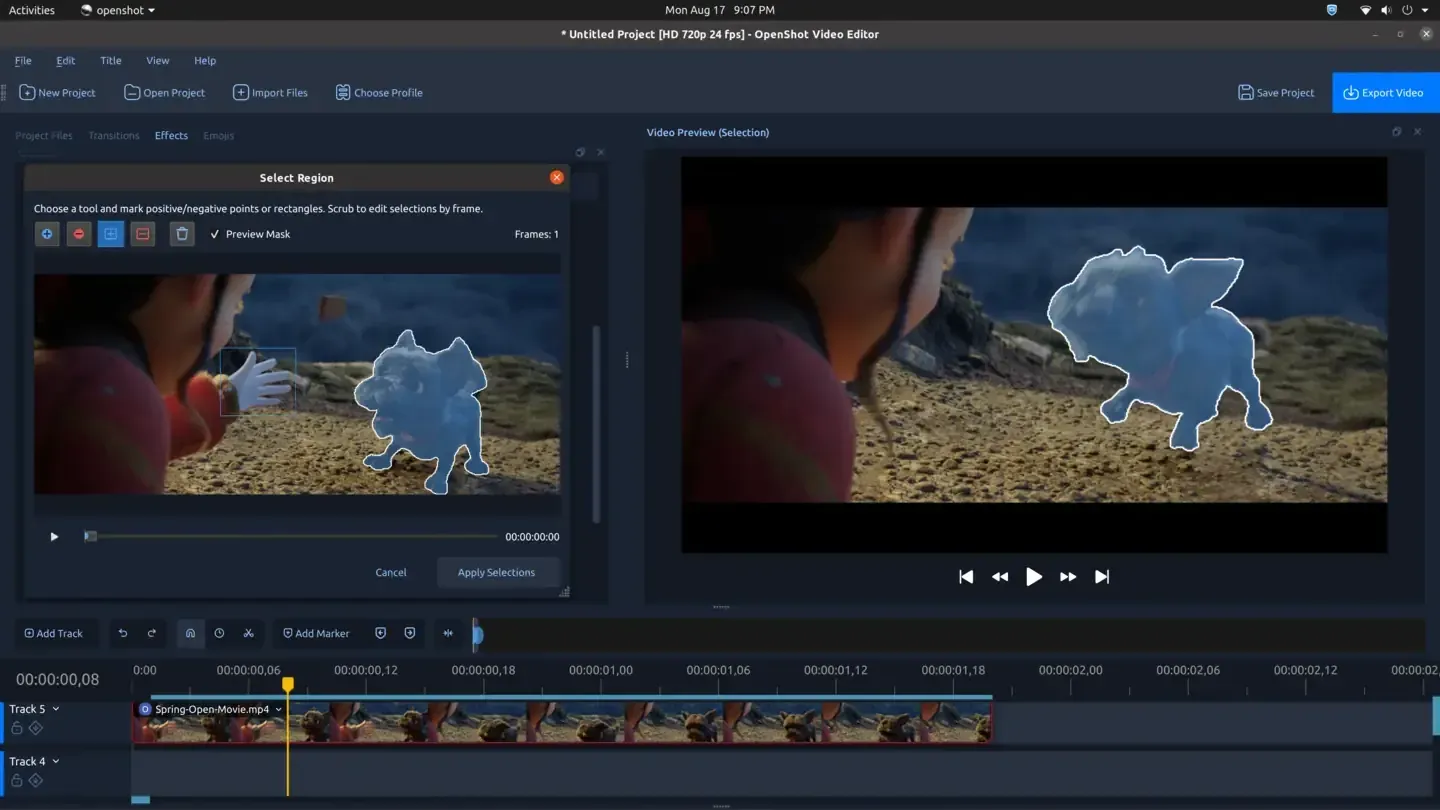
Select Region dialog for an object mask: positive and negative points define the subject, and the preview shows the generated mask. Official screenshot from openshot.org.
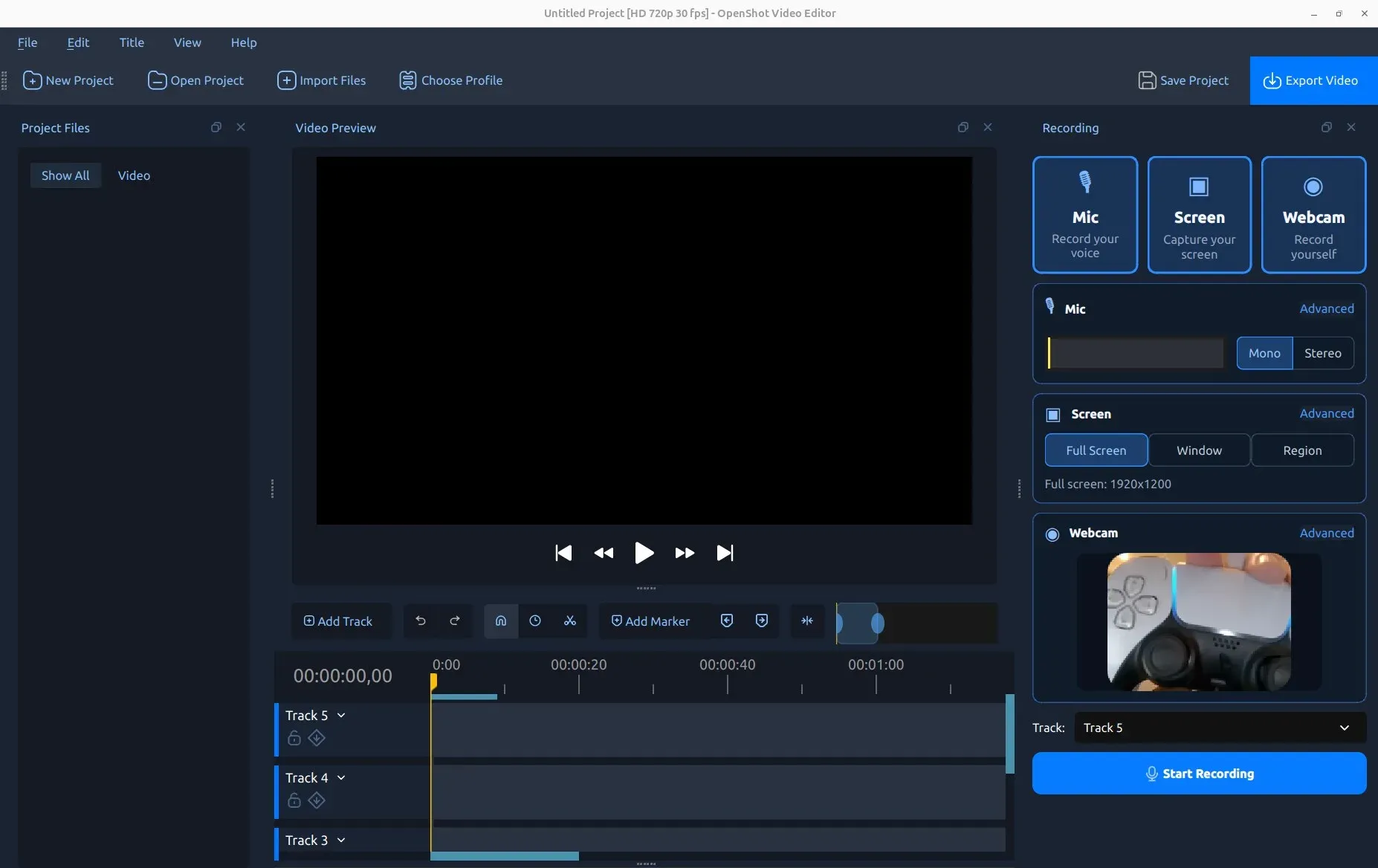
Recording View with microphone, full-screen capture and webcam sources enabled, and the destination track selector. Screenshot from the official user guide.
Key capabilities
- Download for Windows The download page offers free 64-bit and 32-bit EXE installers, plus a paid Microsoft Store package for Windows 10 and 11 that installs updates automatically and helps fund development. Users without administrator rights can run the installer with
/portable=1 /currentuser /noiconsfor a portable copy. The EXE installers are updated manually by downloading the next release. - Download for macOS The macOS build is a DMG that installs by dragging the application into Applications. It is compiled for Intel x86_64 processors; Apple Silicon Macs run it through Rosetta, and the documentation states that no native Apple Silicon version is available yet. Release 4.1.1 includes a libopenshot fix for a VideoToolbox export crash on Mac.
- Download for Linux and Chrome OS The x86_64 AppImage runs without installation once marked executable; Ubuntu 22.04 and later need
libfuse2. The official Snap installs withsudo snap install openshot-qtand updates automatically, and the stable PPA installsopenshot-qtandpython3-openshotthrough apt. Native ARM64 builds exist only on the daily PPA and the edge Snap channel. On Chromebooks, a script sets OpenShot up inside the Linux environment on x86_64 hardware only, as described in the installation guide. - Timeline with unlimited tracks Clips are arranged on an unlimited number of tracks with drag and drop, snapping, zooming, markers and frame-by-frame stepping. Clips can be trimmed, split with the Razor tool, scaled, rotated, sheared and cropped directly in the preview. Since 4.0.1 the Razor tool shows source-frame previews and can ripple cut to close the gap on the same track.
- Keyframe animation Almost every clip, effect and text property can be animated with keyframes using linear, Bezier or constant interpolation. A keyframe panel under each clip shows the curves for properties such as location, rotation and scale. One-click presets add common motion, fades, camera moves and looks without setting each keyframe by hand.
- Native text, titles and captions Since 4.1, text is typed directly on the video preview (Shift+T) and styled from a floating bar, with outlines, backgrounds, borders and spacing in an Edit Style dialog; these properties can also be keyframed. The Title editor remains available for SVG templates, scrolling credits and lower thirds, and animated 3D titles are rendered through an installed copy of Blender. Captions provide timed subtitles.
- Color View, LUTs and video scopes The Color View added in 4.0 groups color wheels, RGB curves, exposure, contrast and saturation controls with live scopes: a luma waveform with RGB parade, a histogram and a vectorscope. Industry-standard
.cubeLUT files can be applied with an intensity control, and OpenShot ships a built-in LUT collection. The color chapter walks through correction and grading. - Effects and transitions Video effects include chroma key, blur, brightness and contrast, film grain, a stabilizer, masks and many more, and audio effects include a compressor, expander, noise removal and echo. Transitions and wipes use grayscale images or animated masks and preview in real time. Speed changes and time remapping support slow motion, reverse playback, loops and ping-pong.
- Screen, webcam and microphone recording The Recording View introduced in 4.0 captures the microphone, the full screen, a window or a region, and a webcam, alone or together. Each source is written to its own file and clip: system audio is embedded in the screen video, microphone audio stays separate, and webcam video has no audio track to avoid echo. A source card is greyed out when the device or operating-system capture service is not detected, as the recording chapter explains.
- Export targets and GPU encoding More than 70 export targets and profiles cover common formats and platforms such as YouTube, TikTok, Reels and Shorts, with an advanced mode for codecs, bitrates and image sequences. Hardware encoding is available through NVENC, VA-API, Quick Sync, VideoToolbox, DirectX and, since 4.1.1, AMD AMF, with HEVC presets for NVENC and QSV. If the driver or encoder is missing, the CPU
libx264target works on all systems. Since 4.1, settings are checked with FFmpeg while you edit, before any file is written (export guide). - Auto-Optimize for heavy footage OpenShot creates smaller optimized copies of slow videos (720p by default) for previews, thumbnails and seeking, while exports always read the original files. Since 4.1 it detects slow footage from thumbnail timing and offers to optimize a project automatically, with Ask, Always or Never set in the Optimize preferences tab. The copies need extra disk space alongside the project.
- Built-in AI tools Without external services, OpenShot provides motion tracking, object detection and stabilization effects, and version 4.0 added local model downloads for Object Mask and Object Detection workflows. Masks are built by marking positive and negative points or rectangles in a Select Region dialog and scrubbing through frames. Results depend on the footage and should be reviewed frame by frame.
- Advanced AI through ComfyUI When a ComfyUI server is reachable (default URL
http://127.0.0.1:8188), Create with AI and Enhance with AI menus add text-to-image, text and image-to-video, upscaling, frame interpolation, scene splitting, Whisper transcription, tracked blur and highlight, and sound or music generation. The project recommends at least an NVIDIA 12 GB GPU, 64 GB of RAM and 200 GB of free storage, and lists the required custom nodes and model files in the AI chapter. Custom workflows exported from ComfyUI as API JSON can be added to~/.openshot_qt/comfyui/. - Command-line editing for scripts and agents The experimental CLI in 4.1 starts a session, imports media, adds and trims clips, applies presets, effects and keyframes, adds text and exports, returning JSON on stdout and JSON errors on stderr. Sessions can run headless or drive the open editor, keep undo history and export jobs, and save to
.osp. The CLI chapter documents its use with coding agents such as Claude Code and Codex; on Windows it runs throughopenshot-qt-cmd.exe. - EDL and Final Cut Pro XML exchange Timelines can be imported and exported as CMX-3600 EDL files or Final Cut Pro XML to move edits between OpenShot and other editors. EDL is limited to a single track per import, which is a limitation of the format. The import and export chapter lists the supported properties for each format.
- Autosave, recovery and project files Projects are JSON
.ospfiles with a companion assets folder for generated titles and animations. Autosave writes recovery copies at a set interval, and version 4.1 made project saving safer. Projects created in a newer version might not open in an older one, so teams should align versions before sharing. - Interface, shortcuts and languages Simple and Color workspace layouts can be switched or saved as custom views, and docks can be moved or detached. Keyboard shortcuts are customizable, high-DPI displays are supported, and a built-in tutorial introduces the main window. The interface is translated through Launchpad into more than 100 languages.
Where OpenShot Video Editor fits
Editing a tutorial or product demo
Open the Recording View, enable Screen and Mic (and Webcam if a presenter view is wanted), choose the destination track and record directly into the project. Because each source is its own clip, trim pauses on the screen track, adjust narration volume separately and place the webcam as picture-in-picture with keyframed position. Check that system audio was captured on your operating system before a long session, and test a short recording first using the recording guide.
Producing social media clips
Create a project with the vertical or square profile the platform expects, add text directly on the preview for captions and labels, and use motion presets for quick animation. In the Export dialog, pick the platform target from the Simple tab; 4.1 checks the format and codec combination while you edit. Play the exported file on a phone before publishing, since preview playback does not reproduce every encoder setting.
Color correcting and grading footage
Switch to the Color View, open the luma waveform, histogram and vectorscope, and correct exposure and white balance before applying a creative look. Add a .cube LUT with the LUT File property and lower its intensity if it is too strong. Check skin tones on the vectorscope and compare the result on a second display; color management depends on the monitor and the operating system.
Editing 4K footage on modest hardware
Accept the Auto-Optimize banner or enable it with File, Auto-Optimize, so OpenShot generates 720p working copies for previews and seeking. Edit as usual; exports read the original files at full resolution. Reserve disk space for the optimized copies and the cache, select a hardware export target that matches your GPU, and confirm a short export completes before rendering a full project.
Automating repetitive edits with scripts or AI agents
Start a CLI session, import media, apply the same clip presets, text and keyframes, then run export validate and export start --wait. A script reads object IDs from the JSON replies instead of parsing screen output, and --dry-run checks a batch before it is applied. The CLI is experimental in 4.1, so pin the OpenShot version in the script and keep a reviewed sample output, following the CLI documentation.
Masking, tracking and blurring subjects
Use the Object Mask or tracking tools to follow a moving subject, marking points to include or exclude in the Select Region dialog, then apply a blur or highlight. For heavier generative work, connect a local ComfyUI server in Preferences, Advanced, and confirm the Check button reports success. Review every frame of an anonymization blur before publishing, because tracking can drift on fast motion or occlusion.
Install
sudo snap install openshot-qtReviews of OpenShot Video Editor
Be the first to share your experience with OpenShot Video Editor.
Write a review
Loading review form…
Alternatives to OpenShot Video Editor
 OpenCutOpenCut is a free, open-source CapCut alternative. The public website runs OpenCut Classic; the main repository is being rebuilt around Rust, with plugins, an Editor API and automation on its roadmap.
 LosslessCutLosslessCut is a free GPL-2.0 desktop GUI for FFmpeg on Windows, macOS and Linux. It trims, splits, merges and remuxes media by copying streams, edits tracks and metadata, and adds a CLI and local HTTP API.