

What is Zen?
Zen is a self-hosted notes application written by Shesh Babu and published on GitHub as sheshbabu/zen; its companion repositories refer to it as Zen Notes. A single Go server stores every note as Markdown text inside a local SQLite database and serves a Preact web interface to the browser. Notes are organized with tags rather than folders, and saved views called Focus Modes narrow the workspace to a chosen set of tags. The project website states a memory footprint of about 20 MB with minimal CPU use, and a public demo shows the interface with sample content.
Distribution is deliberately small. The documented path is Docker Compose with the image ghcr.io/sheshbabu/zen/zen, which a GitHub Actions workflow builds for linux/amd64 and linux/arm64 on every push to master and on every Git tag. The alternative is building from source with Go and esbuild, which produces one binary with the front-end assets embedded. There are no desktop installers or native mobile apps: phones and tablets use the responsive web interface, which can be installed as a progressive web app. Setup steps are in the installation guide.
The latest tag is 2.0.0, created on October 24, 2026. The project publishes Git tags and container images rather than GitHub releases with notes, so the commit comparison from 1.5.0 to 2.0.0 serves as the changelog. That range added note version history with automatic pruning, tag-scoped API tokens that replace the earlier MCP tokens, persisted canvases, YAML frontmatter on import, auto save, spellcheck, a simple table editor, tag colors, collapsible headings, search previews and sorting, a resizable side panel for internal links and a fix for stored cross-site scripting in note titles and search results. Commits after the tag add offline reading of previously opened notes.
The dependency list is short. The Go module requires go-sqlite3 compiled with the FTS5 build tag, bcrypt from golang.org/x/crypto, golang.org/x/image for image resizing and a UUID package. The front end uses Preact, markdown-it, highlight.js, Lucide icons and Konva.js for the canvas. Numbered SQL migrations in the repository define the schema. Background tasks purge the trash on a 30-day cycle, expire sessions, resynchronize the image folder and prune note versions once a day.
Zen is licensed under the GNU Affero General Public License v3.0. The README calls it a personal project built for the author's own use: the code is open for forking, but pull requests and issues may not be reviewed. Each instance accepts a single user account, so sharing, real-time collaboration and team workspaces are out of scope. The canvas, the MCP server, semantic search and similar-image lookup are marked experimental, and the two semantic features depend on the separate Zen Intelligence service.
Zen screenshots
Explore the interface. Open a screenshot to view it at full size.
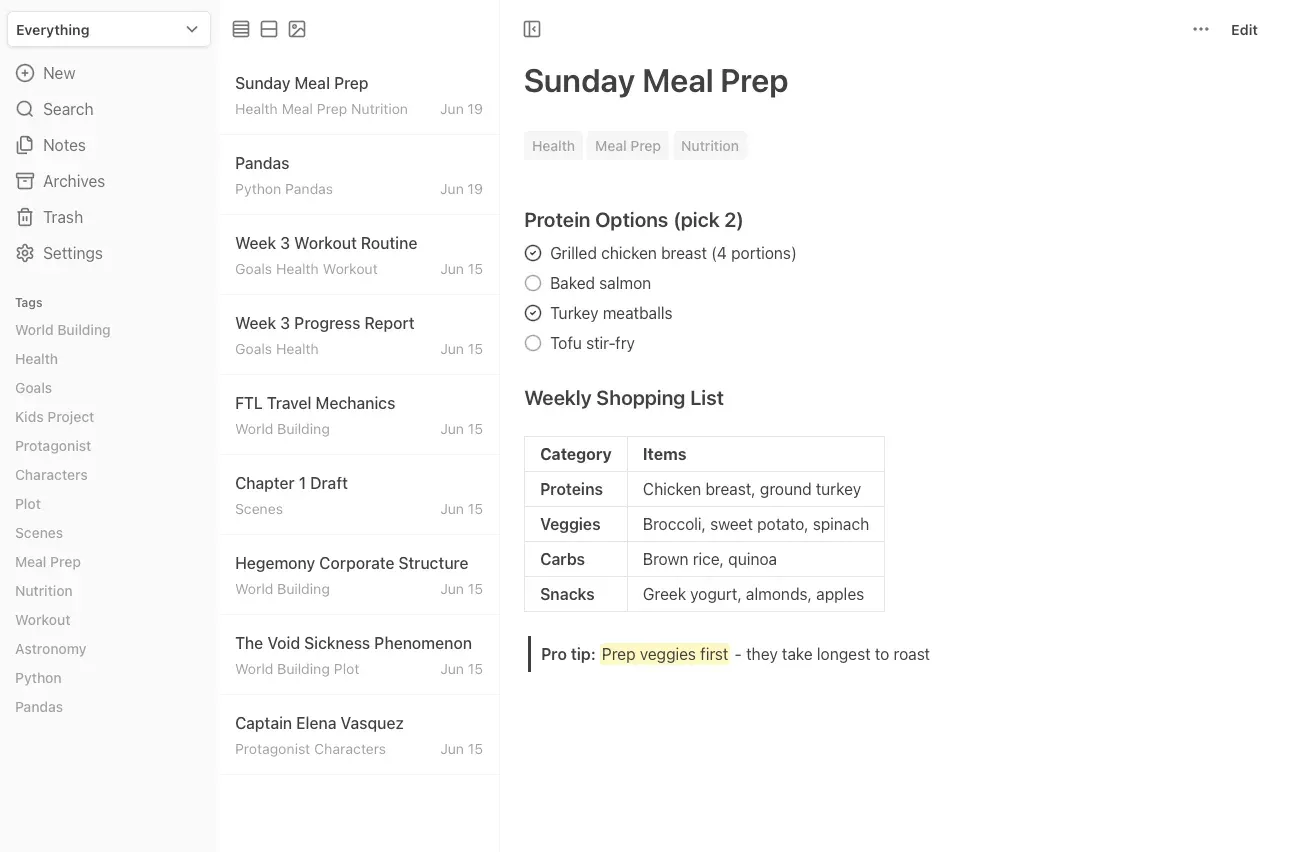
Official screenshot from the Zen documentation folder: tag sidebar, note list and a rendered note with task list, table and highlighted text.
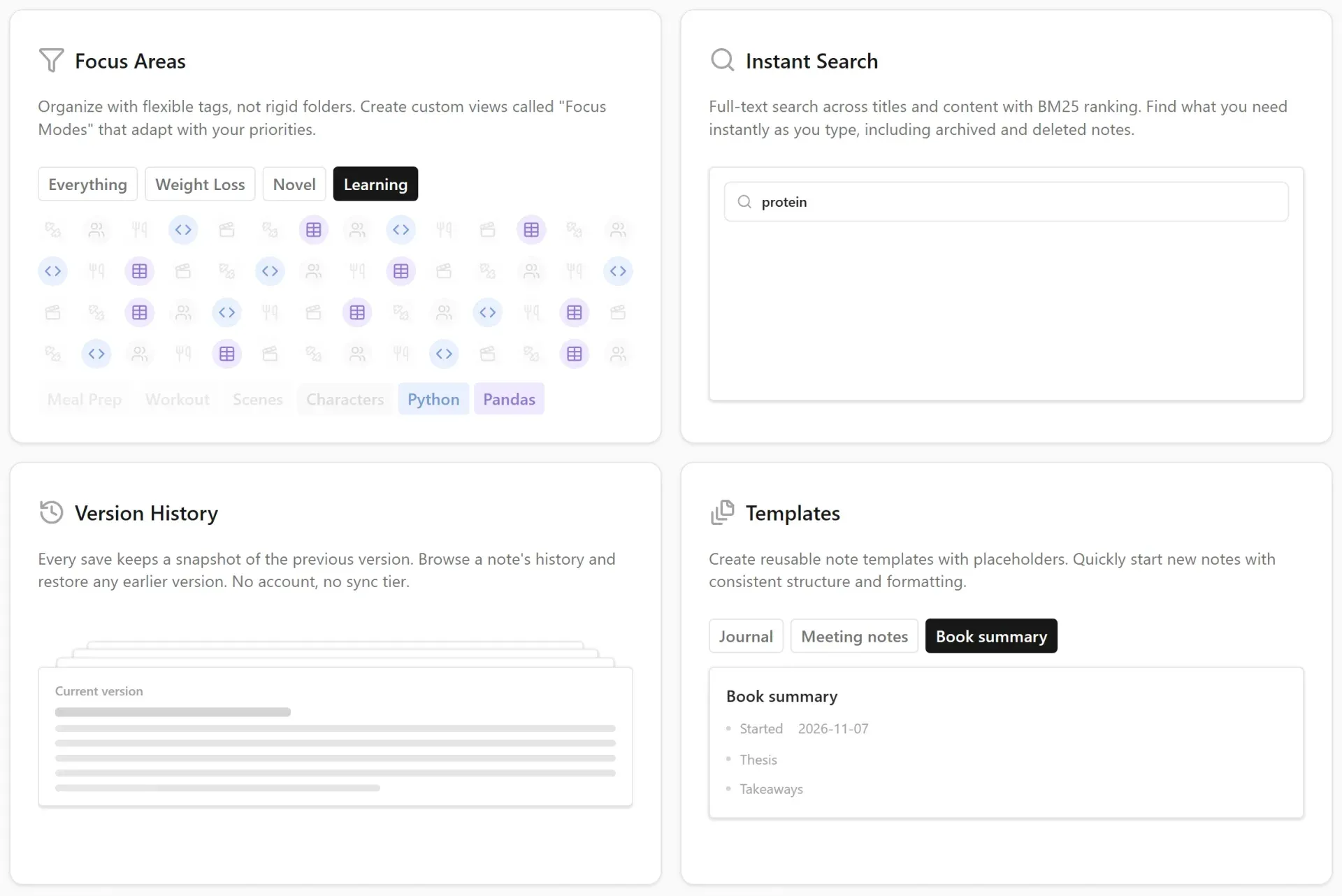
Section of the official Zen website showing illustrations of Focus Modes, BM25 search, version history and templates; these are website mockups, not full application screens.
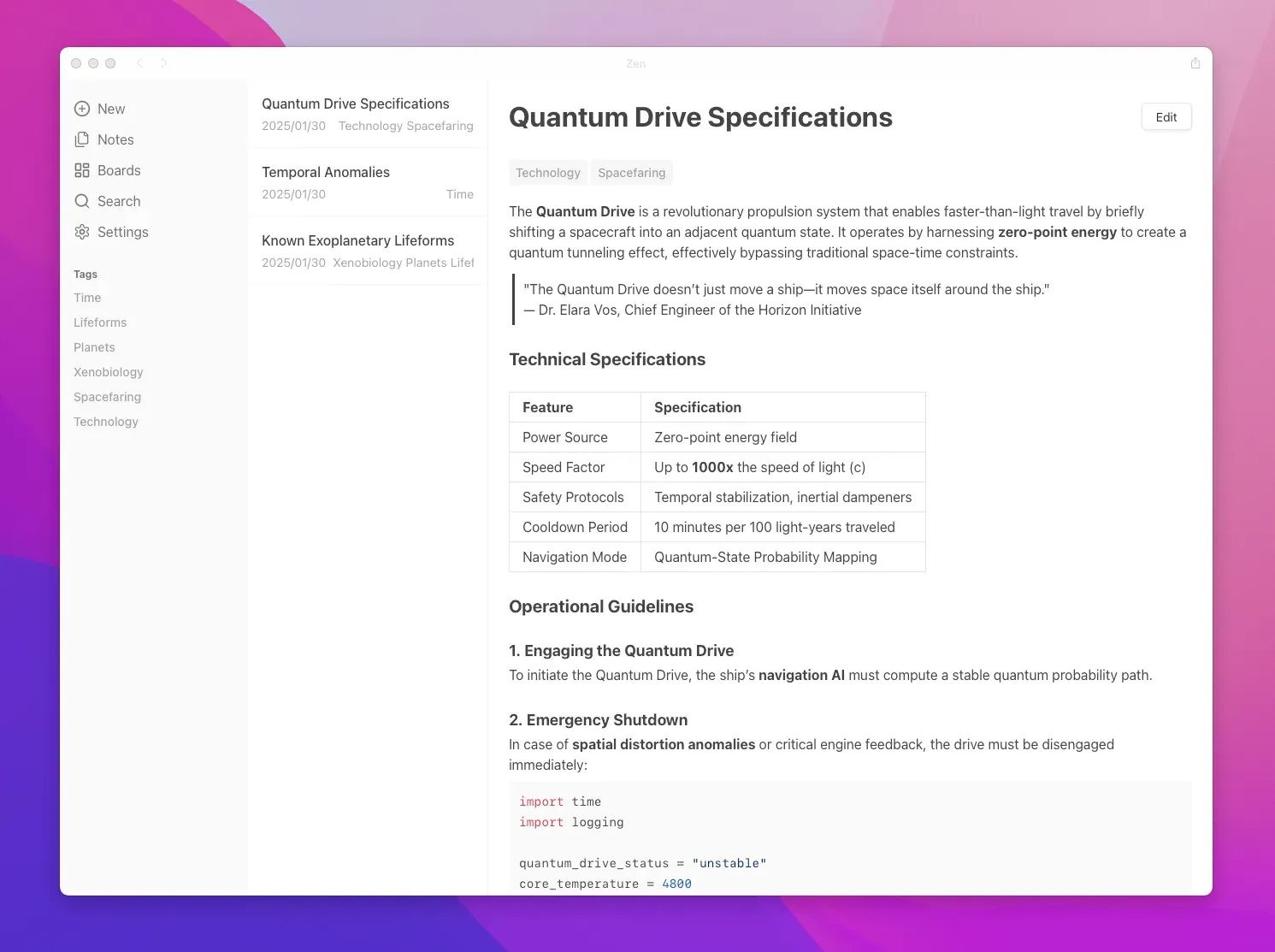
Original screenshot from the first commit in January 2025; the sidebar has since changed, but it shows table and code block rendering.
Source: official Zen project page.
Key capabilities
- Docker Compose deployment The official compose file runs
ghcr.io/sheshbabu/zen/zen:lateston port 8080 with two volumes:/datafor the SQLite database and/imagesfor uploaded images. Start it withdocker compose up -dand open the web interface in a browser. The build workflow also pushes an image per Git tag for amd64 and arm64, so a deployment can pin2.0.0instead of followinglatest. See the Docker Compose instructions. - Single binary built from source The documentation lists Go 1.23 or later, Git and esbuild as prerequisites; the current go.mod declares Go 1.24.
make buildbundles the Preact front end with esbuild and compiles the server with thefts5tag, and./zenstarts it. go-sqlite3 is a cgo package, so the build machine also needs a C compiler.PORTchanges the default port 8080 andIMAGES_FOLDERmoves image storage. - Markdown stored in SQLite Notes are plain Markdown text in a SQLite file named
zen.db, not a proprietary document format. The renderer supports tables, fenced code blocks with syntax highlighting, task lists and highlights. Code blocks get a copy button, checklists can be ticked in preview mode and long tables scroll on their own. The database is a single file, which keeps backup and inspection simple but means notes are not individual files on disk. - Tags and Focus Modes Organization relies on tags instead of folders; tags can carry a color and are listed in the sidebar. Focus Modes are saved views over a set of tags, so a workspace can show only writing, health or work notes. A new note created inside a tag view receives that tag automatically. There is no nested folder hierarchy to replicate from another tool.
- Full-text search with BM25 ranking Search uses SQLite FTS5 across titles and content and ranks matches with BM25. The search dialog opens with Ctrl or Cmd plus K, has All, Notes and Tags tabs, highlights matches in a preview and can sort results. The website states that archived and deleted notes are included in results. Without the optional intelligence service, search is lexical rather than semantic.
- Version history with pruning Saving a changed note snapshots the previous text, at most once every five minutes, dated by when that text was last edited. A daily task thins older snapshots: all versions from the last hour are kept, then one per hour up to seven days, one per day up to 30 days and one per week after that. Notes with five or fewer versions are skipped. Restoring a version replaces title and content but keeps the current tags.
- Templates with placeholders Templates store a name, an optional default title, Markdown content and tags. Placeholders
{{date}},{{time}}and{{datetime}}are filled when a note is created, and{{datetime:FORMAT}}accepts Go time layouts such as02-01-2006. The templates guide lists the formats. Templates are useful for journals and meeting notes. - Pinning, archive and trash Important notes can be pinned to the top of lists. Notes can be archived or soft deleted, individually or in bulk, and restored from Archives or Trash. A background task cleans up the trash on a 30-day cycle, and Trash can also be cleared manually. Archived notes stay searchable.
- Internal links and side panel Notes can link to other notes. Since the 2.0.0 cycle, a link opens the target note directly, while a Shift-click opens it in a resizable side panel that also shows tags, so two notes can be read together. Backlink graphs are not part of the feature list.
- Image handling Images can be dragged into a note or pasted from the clipboard; they are written to the images folder and referenced from Markdown. A gallery layout and a lightbox with arrow-key navigation show visual content. The server resizes images and resynchronizes the folder from disk every 24 hours. Keep the images volume in the same backup plan as the database.
- Editor and interface The interface offers list, card and gallery layouts, light and dark themes, an adjustable editor width, a formatting toolbar, auto save, spellcheck, a simple table editor and collapsible headings. Keyboard shortcuts cover new notes, search, bold, italic, highlight and list indentation, documented in the shortcut reference. Copying and sharing a note require the instance to be served over HTTPS.
- Markdown import with frontmatter Settings, then Import, accepts Markdown files. By default the filename becomes the title; an optional YAML frontmatter block can set
title, comma-separatedtagsand RFC 3339createdandupdatedtimestamps, as described in the import reference. Missing or unparsable timestamps fall back to the import time. The separate Zen Import scripts convert Day One JSON and Apple Journal HTML exports into that format. - Export and portability Export produces a ZIP archive with Markdown files for other applications, JSON data with titles, content, tags, timestamps and archive state for programmatic import, and the referenced images. This makes a full exit possible without database tools. Version history is not described as part of the export.
- Backups The documentation provides a PowerShell script that copies
zen.dbwith the sqlite3.backupcommand, runsPRAGMA integrity_checkand counts notes in the copy. The companion Zen Backup container automates timestamped copies with a cron schedule (default0 5 * * *), 30-day retention and a read-only mount of the data folder. Image folders need a separate copy. - REST API with tag-scoped tokens API tokens are created under Settings, API Tokens, shown once and revocable. Each token gets Read or Read and write access per tag or on all tags, and can list, read, create, update and search notes and list tags under
/api/v1/. A note is editable only if the token can write every one of its tags, and an update replaces both title and content. Deleting, archiving, pinning, version history and settings still require a logged-in session. See API tokens. - MCP server (experimental) The
/mcpendpoint speaks the Model Context Protocol over HTTP and exposes three tools:search_notes,list_notesandget_note. Clients authenticate with an API token in a Bearer header. The MCP guide shows aclaude mcp add --transport httpcommand for Claude Code and anmcp.jsonblock for LM Studio. The tools read notes; they do not create or edit them. - Canvas (experimental) A canvas arranges notes, images and sticky notes spatially on an infinite surface rendered with Konva.js. Canvases are stored in the JSON Canvas format and persisted since the 2.0.0 cycle. Shortcuts cover duplicating and deleting selected nodes. The feature is labeled experimental on the website.
- Semantic search and similar images (experimental) Setting
INTELLIGENCE_ENABLED=trueandZEN_INTELLIGENCE_URLconnects Zen to Zen Intelligence, a separate Python service that uses a Qdrant vector database and a Hugging Face model cache. Zen queues indexing work and processes it every five minutes. The repository warns that this service is under active development and may break without notice. - Single-user authentication The first visit creates the only account, with an email address and a bcrypt-hashed password; the server refuses to create a second user. The browser session uses a cookie, and expired sessions are cleaned up daily. There are no roles, shared notebooks or single sign-on options.
Where Zen fits
Running a private notes server at home
Create a directory, copy the compose file from the documentation, map /data and /images to persistent host paths and run docker compose up -d. Create the single account on first visit, then place the instance behind a reverse proxy with TLS if it will be reached outside the local network; the documentation does not describe built-in TLS, and copy and share actions need HTTPS. Pin an image tag such as 2.0.0 and check memory use against the stated 20 MB figure on your own hardware.
Migrating from Markdown folders or journaling apps
Prepare Markdown files with YAML frontmatter for title, tags and timestamps, or run the Zen Import scripts on a Day One JSON or Apple Journal HTML export. Import a small sample first and confirm that titles, tag names and created dates arrive as expected, because unparsable timestamps fall back to the import time. Folder structures do not map to anything in Zen, so convert folder names into tags before importing.
Giving an AI assistant scoped access to notes
Create an API token with Read access only on the tags the assistant should see, then register http://<host>/mcp in Claude Code or LM Studio with that token in the Authorization header. Test that a note carrying an unshared tag does not appear in search_notes results. Remember that a note is readable if the token can read any one of its tags, so a note tagged both private and shared will be visible.
Capturing notes from scripts
Use POST /api/v1/notes/ with a Read and write token limited to an inbox tag, sending title, content and tag IDs as JSON. Look up tag IDs through GET /api/v1/tags/ first. New tags and untagged notes require write access on all tags, and updates replace both title and content, so a script that edits notes must send the full text. Deletions and archiving stay outside the token API.
Backing up and restoring the database
Schedule the Zen Backup container or adapt the documented sqlite3 script, and copy the images folder alongside it. After each backup, run PRAGMA integrity_check and count rows in the notes table, as the script does. Rehearse a restore on a second instance from a backup copy, and keep periodic ZIP exports as a format-independent fallback that other tools can read.
Recovering earlier text with version history
Open a note's history to compare snapshots and restore an older one; restoring keeps the current tags. Because snapshots are taken at most every five minutes and thinned to hourly, daily and weekly copies over time, version history is not a substitute for backups of intermediate edits. Check the retention behavior against how often you rewrite long notes.
Reviews of Zen
Be the first to share your experience with Zen.
Write a review
Loading review form…
Alternatives to Zen
 MemosMemos is an MIT-licensed, self-hosted note-taking server written in Go. Short Markdown memos land on a dated timeline with tags, Views, Spaces and per-memo visibility, stored in SQLite, MySQL or PostgreSQL on your own host.
 BlinkoBlinko is a GPL-3.0 note-taking server for quick card notes and longer Markdown notes, with RAG search, AI chat, MCP and an OpenAPI interface. It runs from one Docker image on PostgreSQL; a hosted Blinko Cloud edition is also offered.
 JoplinJoplin is a free, open-source note and to-do app for Windows, macOS, Linux, Android and iOS, with offline-first storage and encrypted sync.