

What is Manage?
Manage is an open-source project management application for small teams. The official site labels it a beta and describes self-hostable, developer-friendly project management with tasks, events, files and documents, aimed at people who find larger tools heavy. The code lives in the techulus/manage repository and is published under the GNU Affero General Public License v3. The product is built by Techulus and is distinct from other tools that share the generic word manage in their names.
The application is a Next.js 16 project written in TypeScript and run with Bun. Data lives in PostgreSQL through Drizzle ORM, authentication uses the Better Auth library with email one-time codes and organizations, the interface uses Tailwind CSS with shadcn components and Radix primitives, rich text uses the BlockNote editor, and API calls between browser and server go through tRPC. Real-time updates use TurboWire over WebSockets, e-mail goes out through SMTP with React Email templates, and uploaded files go to S3-compatible storage. The repository notes list the same stack.
Manage has no tagged releases or GitHub releases at the time of this profile; the package version is 0.1.0 and the latest repository activity dates from August 2026. The project is therefore best read as an actively developed beta that you follow by commit rather than by release number. There is a hosted instance on the official site, which the landing page describes as free during beta with pricing to be decided at launch, and a self-hosted path documented in the README.
For self-hosting the README names three requirements: a PostgreSQL database, optional S3-compatible storage for uploads and an SMTP server for notifications. It offers a one-click Railway template and says Manage runs on any platform that supports Node.js or Bun. The repository includes a build.Dockerfile based on Bun, an .env.example with every variable and a start script that checks the TurboWire and S3 settings, but no official container image or published Docker Compose file is documented, so plan to build the image yourself.
Manage screenshots
Explore the interface. Open a screenshot to view it at full size.
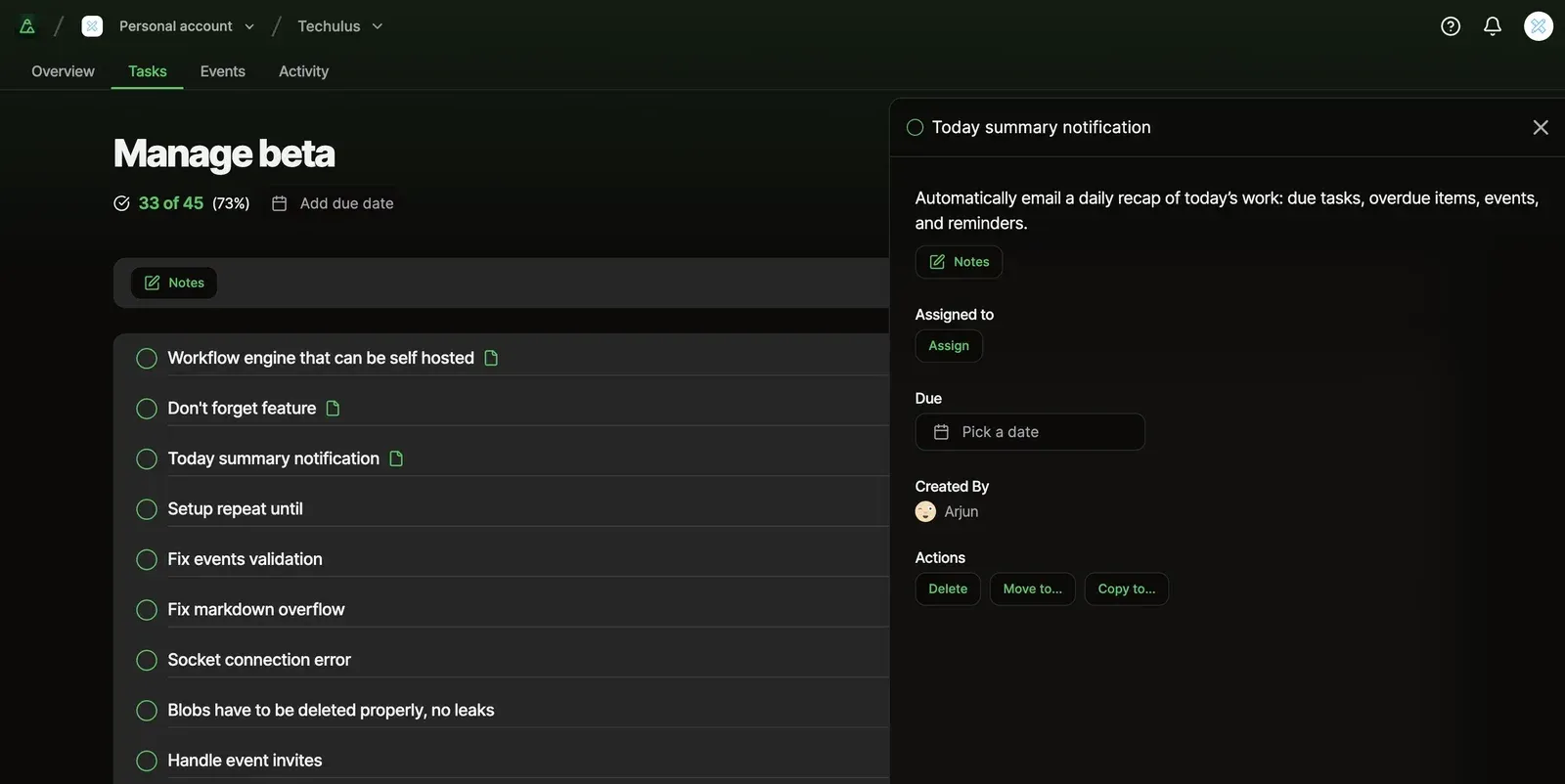
Official repository screenshot of a task list and the task detail side panel with notes, assignee and move or copy actions.
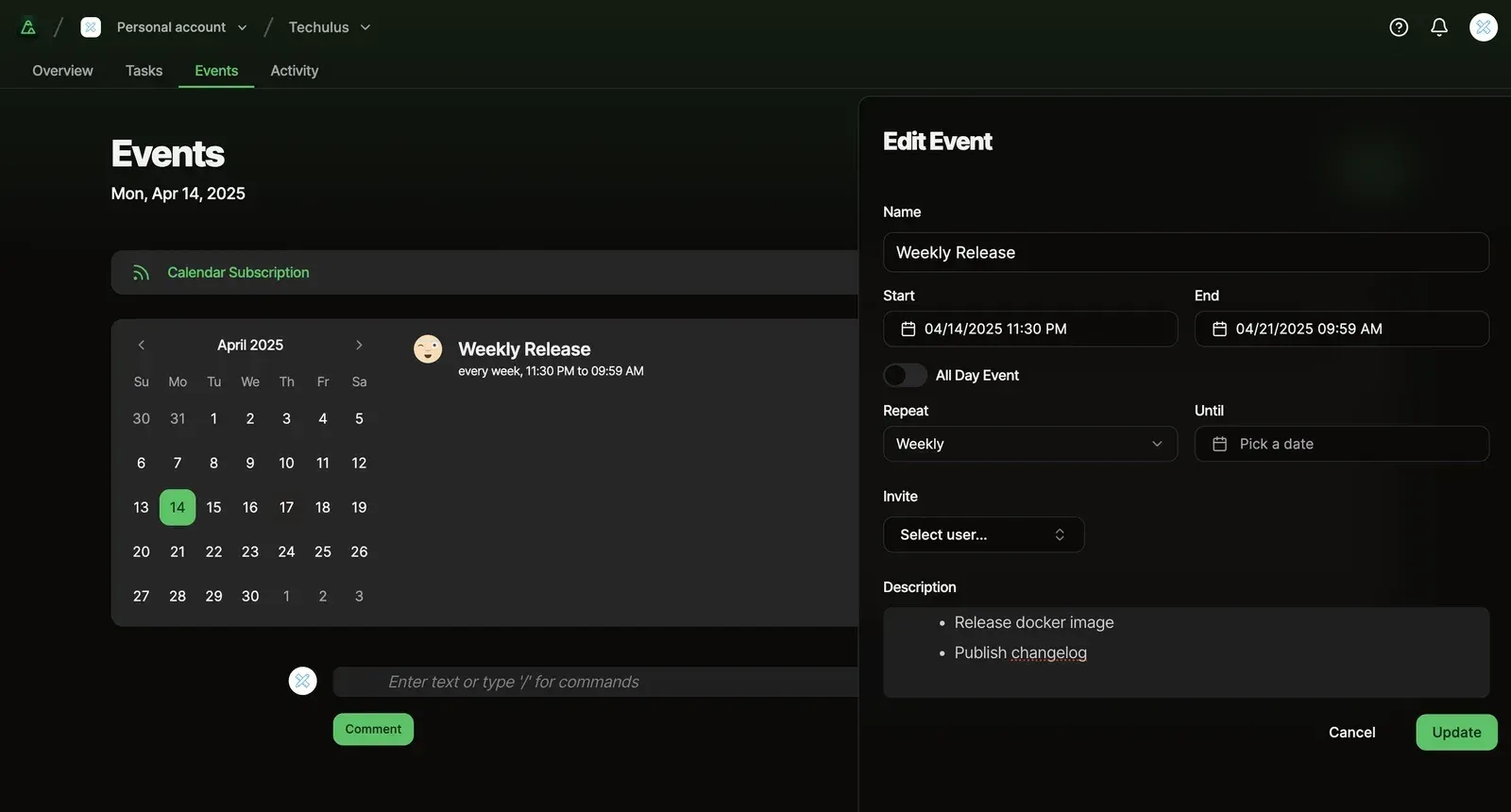
Official repository screenshot of the Events page with the calendar subscription link and the weekly repeat setting.
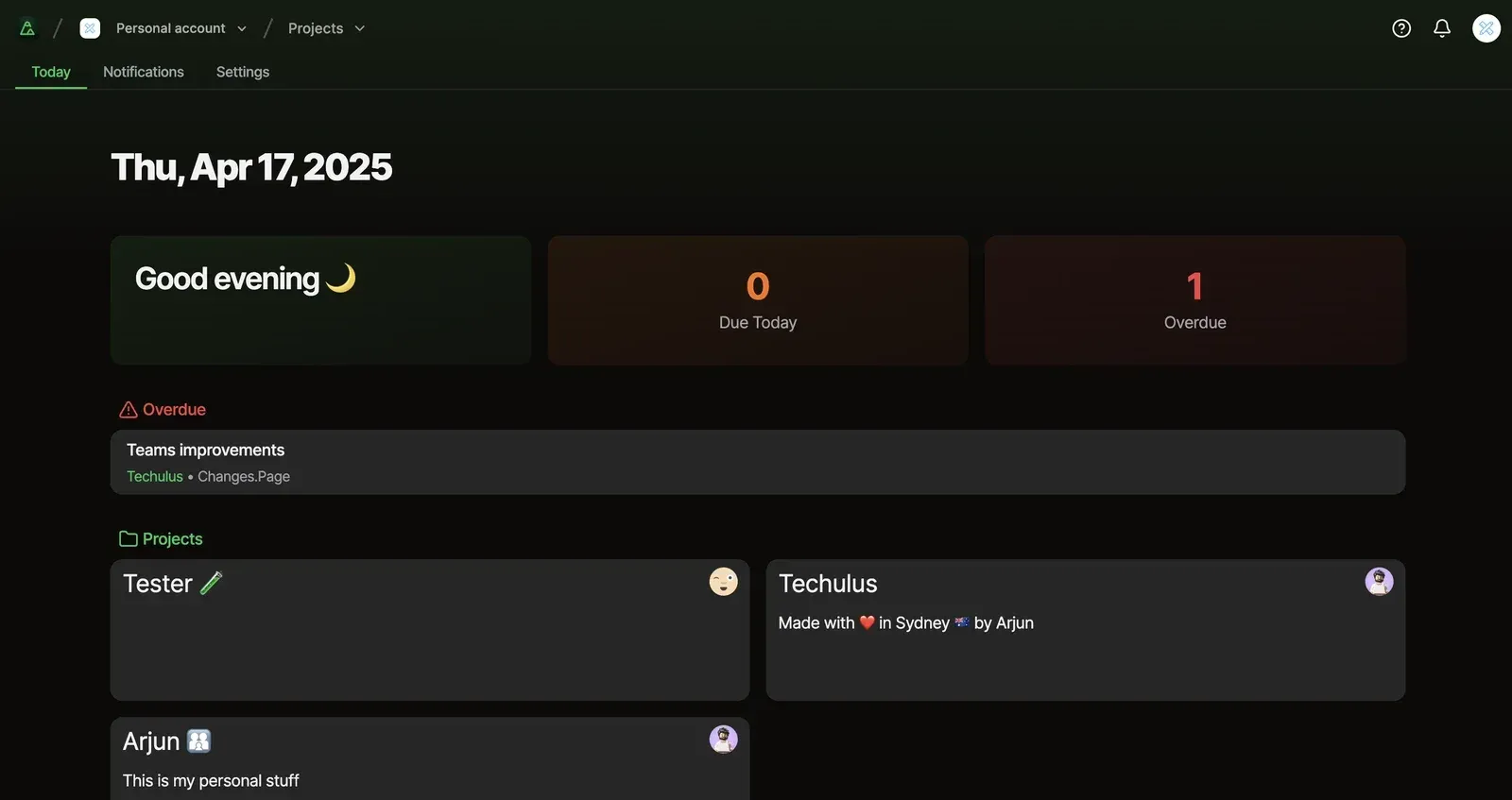
Official repository screenshot of the Today dashboard with due today, overdue and project cards.
Source: official Manage project page.
Key capabilities
- Organizations and personal accounts Work happens in an organization or in a personal account, switched from the header. Organizations are created by users, the creator becomes the owner, and members join by invitation e-mail. The sign-up flow can accept an invited person who has no account yet.
- Email one-time code sign-in Password login is switched off in the authentication configuration. Users receive a six-digit code by e-mail that expires after ten minutes, and sessions last 90 days with daily refresh. This means a working SMTP server is a hard requirement, including for the first administrator.
- Projects A project has a name, description, status of active or archived and an optional due date. Projects can be archived to clear the dashboard without deleting them, and a Show Archived link brings them back into view. Each project groups task lists, events, posts and an activity feed.
- Task lists and tasks Task lists hold tasks with a name, notes, status, due date, assignee and a manual order set by drag and drop. Tasks can be moved or copied to another list, and a list shows completion progress as a count and percentage. The data model is simple: there are no sub-tasks, custom fields or dependencies in the schema.
- Rich-text notes with mentions Task notes, comments and posts use a block editor that supports slash commands, lists and mentions of other users. A mention creates a notification for the mentioned person. File attachments in the editor go through S3-compatible storage with presigned uploads.
- Today view The Today page lists tasks that are due today and overdue, plus your projects, with counts at the top. An optional daily summary e-mail contains due tasks, overdue items and events. It is the closest thing Manage has to a personal inbox of work.
- Events and calendar Events have a start, an end, an all-day option, a repeat rule with an until date and invited users. They appear in a month calendar and a week view inside each project. The repeat options are simple recurrences, not a full calendar rule editor.
- Calendar subscription and ICS import Each project can publish its events as a calendar subscription feed that external calendar apps can follow, and an ICS file can be imported into a project. The feed URL is per project, so treat it like a shareable secret and check what it exposes before pasting it into a public calendar.
- Posts and drafts Posts are written entries inside a project with a title, a category, draft state and a publish date. They suit meeting notes, announcements or decision records that do not fit a task. Your own drafts are listed separately until you publish them.
- Comments and activity feed Tasks, events and posts have comment threads, and every project keeps an activity feed that records who changed what. The feed has a detail panel for each entry. It helps small teams audit changes, but it is not a formal compliance log.
- Notifications An in-app notification center collects mentions and assignments, and e-mail templates cover invitations, one-time codes, daily summaries and account notices. Real-time delivery depends on the optional TurboWire connection, which the start script checks at boot.
- Search across projects A command-menu style search finds projects, task lists, tasks, events and posts by text, with filters for type, project and status, and limits results to projects you can access. It uses case-insensitive pattern matching in PostgreSQL, so it is simple rather than ranked full-text search.
- Roles and project permissions Organization owners and admins see all projects in the organization. Other members see projects they created or were granted, with a per-project role of editor or reader. A permissions panel in each project manages those grants.
- File storage and cleanup Uploads are stored in the S3-compatible bucket you configure, with MinIO suggested for self-hosting in the example environment file. A scheduled cleanup route removes unconfirmed blobs, and the settings page shows storage usage for the workspace. Back up the bucket together with the database.
- Installable web app The repository ships web app manifest icons and iOS splash screens, so the interface can be installed to a phone or desktop home screen as a progressive web app. There is no native iOS, Android or desktop client.
- Self-hosted mode and sign-up control Setting
SELF_HOSTED=trueskips the marketing landing page and shows a billing note that no billing is required, andDISABLE_SIGNUPS=trueblocks new accounts while existing users can still sign in. The example environment file documents these and the database, SMTP and S3 variables. - Light and dark themes with keyboard shortcuts The interface follows a theme provider with light and dark modes and offers a command menu and keyboard shortcut hooks. The official screenshots show a dark theme with green accents. Accessibility has not been audited in any source reviewed for this profile.
Where Manage fits
Running a small team on one project board
Create an organization, invite teammates by e-mail and open one project per client or product. Put work into task lists, assign owners and due dates and use the Today page as the daily check. Confirm that invitation mails arrive before relying on them, and agree on a convention for task list names so that finished work can be archived without confusion.
Planning with dates and a shared calendar
Add recurring events for releases or reviews, invite the people involved and subscribe your calendar app to the project feed. Ask each person to confirm the event time in their own calendar app. Check time zone handling by creating an event across a daylight saving change, because Manage takes the time zone from the browser.
Keeping decisions and notes next to tasks
Use posts for meeting notes or decision records and link people with mentions so that they are notified. Keep drafts private until they are ready, and use comments on tasks for short questions rather than long threads. Check that mentions reach the right person in the notification center and that archived projects stay searchable when you need an old decision.
Limiting who sees what
Give each member access only to the projects they need, with editor or reader roles, and keep administrators few. Test with a second account in a private window to verify that a reader cannot change tasks and that a non-member cannot find the project in search.
Self-hosting for a team or a client
Provision PostgreSQL, an S3-compatible bucket and an SMTP relay, set the environment variables and deploy through the Railway template or a Bun container you build. Disable sign-ups after creating your accounts, put the app behind TLS and test a restore of both database and bucket.
Evaluating a beta tool before committing
Import a small real project by hand, run it for a few weeks and note missing features such as reporting, sub-tasks, time tracking or integrations. Watch the commit history and issues for the pace of change, and keep an export route in mind, since no import or export tool is documented. Decide in advance what result would make you move to a more established tool, so the trial has an end.
Reviews of Manage
Be the first to share your experience with Manage.
Write a review
Loading review form…
Alternatives to Manage
 PlanePlane is a project management tool for tracking work items, running cycles, grouping work into modules and writing pages. The Community Edition is AGPL-3.0 and self-hosted with Docker or Kubernetes; Plane Cloud and the Commercial Edition add paid plans.
 VikunjaVikunja is an AGPL-licensed task manager written in Go. It runs as a single binary or Docker container on SQLite, MySQL or PostgreSQL, offers four project views, CalDAV, webhooks, SSO and an MCP server, and is also sold as an EU-hosted cloud service.
 KanKan (kan.bn) is an AGPL-3.0 kanban project management app with boards, lists, cards, labels, comments, checklists, activity logs and templates. It runs on Kan Cloud or self-hosted with Docker Compose and PostgreSQL.