

What is Surf?
Surf, published as Deta Surf, is a personal AI notebook for macOS, Windows and Linux. It combines a browser, a local media library and a note editor so that a person can research across web pages, YouTube videos, PDFs and their own files without copying text between windows. The project is open source at deta/surf, and the product site is deta.surf.
Deta describes itself as a company that designs computing products to help people think better and says it works from Berlin. Surf is built mainly in Svelte, TypeScript and Rust and runs on Electron, so browsing uses Chromium. Saved items live in a local storage engine called SFFS, the Surf Flat File System, which keeps files, a local database and vector embeddings on the user's machine in open formats. The library documentation explains where that data is stored.
The open-source build is distributed through GitHub Releases as a macOS disk image for Apple Silicon and Intel, a Windows x64 installer and a Linux x64 AppImage. The latest release is 1.4.7-beta.0, published on April 29, 2026. Its release page lists the four installers but carries no written notes, so this profile does not describe what changed in it. The installation guide states that the open-source releases are not code-signed, so macOS and Windows show security warnings that the user must approve. The earlier managed Surf from Deta offered built-in AI, signing, automatic updates and extensions; the open-source version does not include the built-in AI and needs the user's own model configuration. Existing local data can be reused when migrating.
The source code uses the Apache 2.0 license, with a patched Ghostery ad-blocker package under MPL-2.0 and some files with their own headers. The Deta name and logos are not covered by the license. The website describes Surf as being in beta.
Surf screenshots
Explore the interface. Open a screenshot to view it at full size.
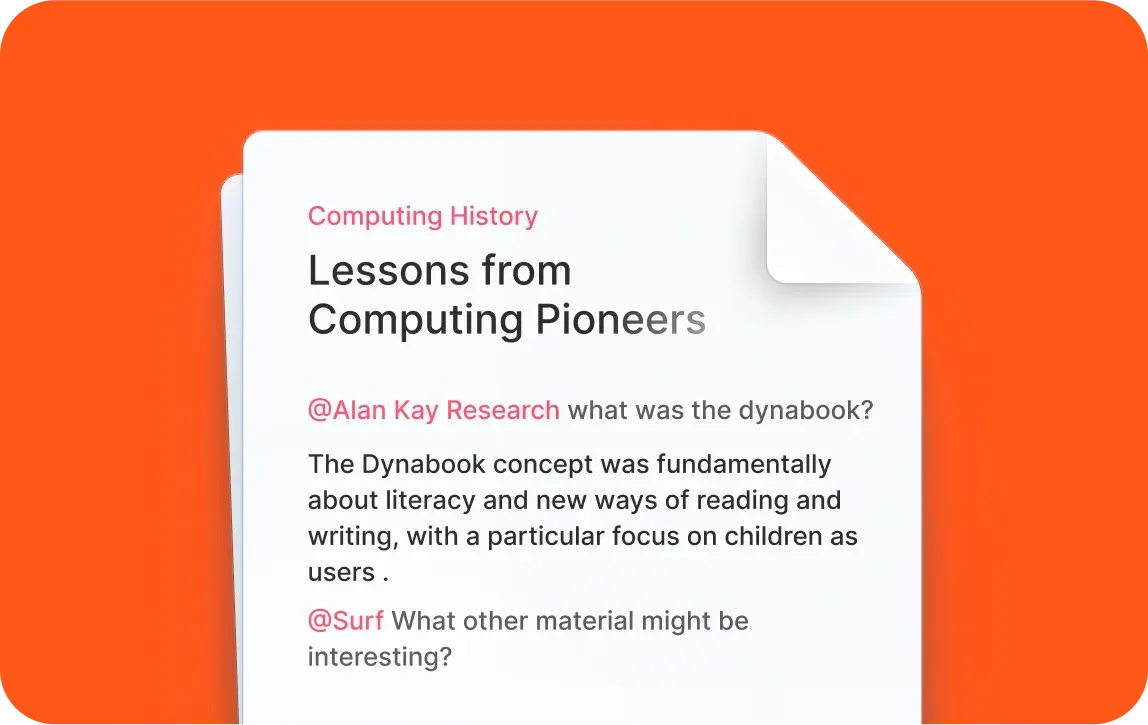
Official README image of a Smart Note that @-mentions a source and generates cited text.
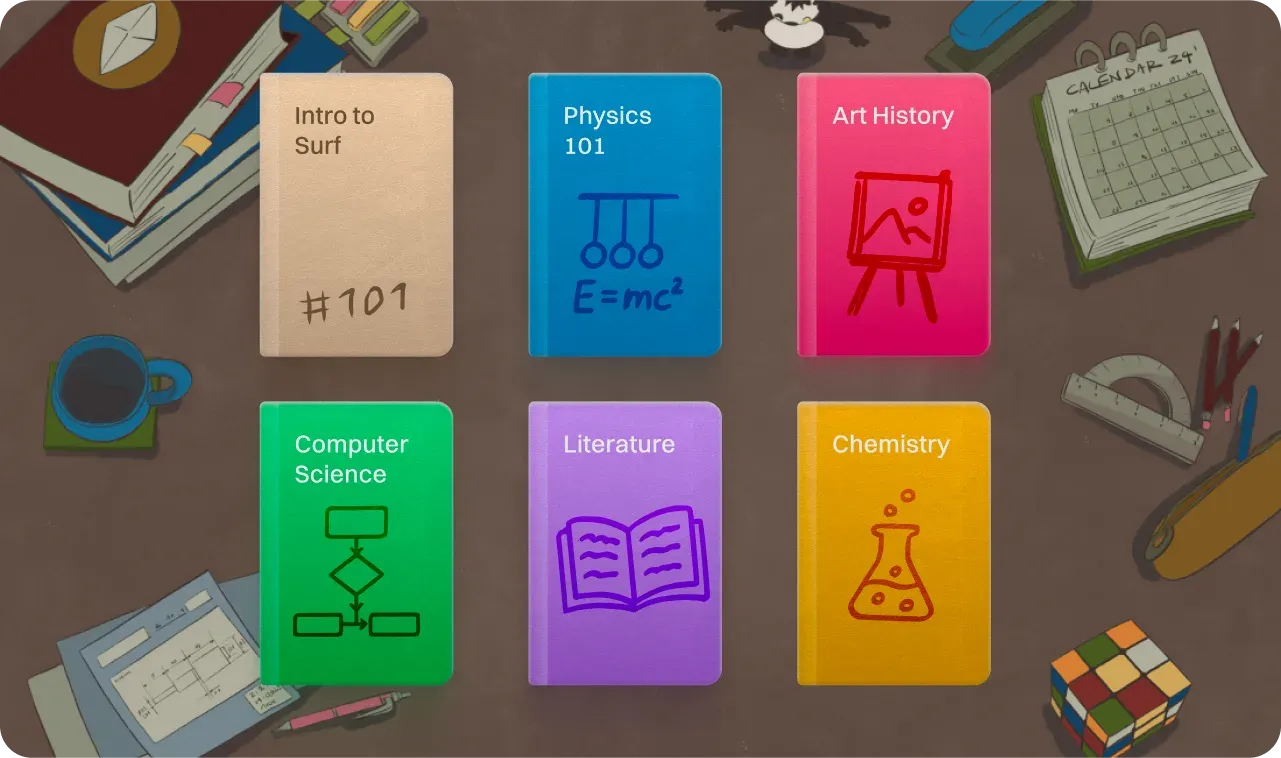
Official README image of the notebook grid in the local library.
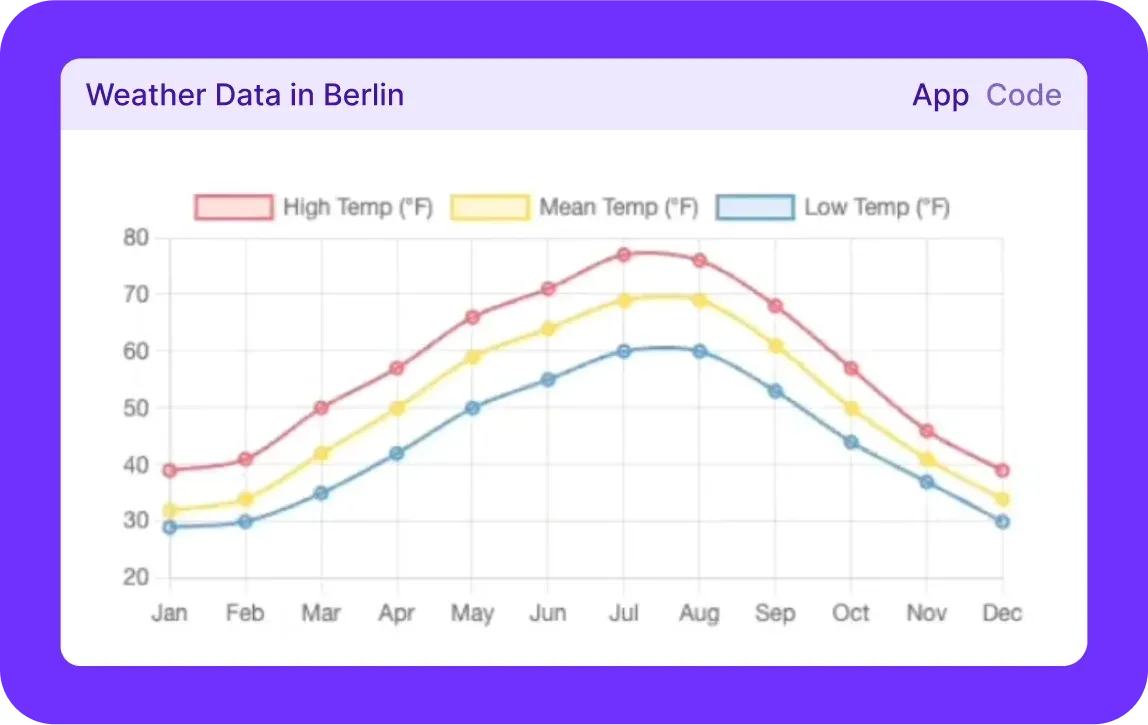
Official README image of a Surflet, an interactive applet generated inside a note.
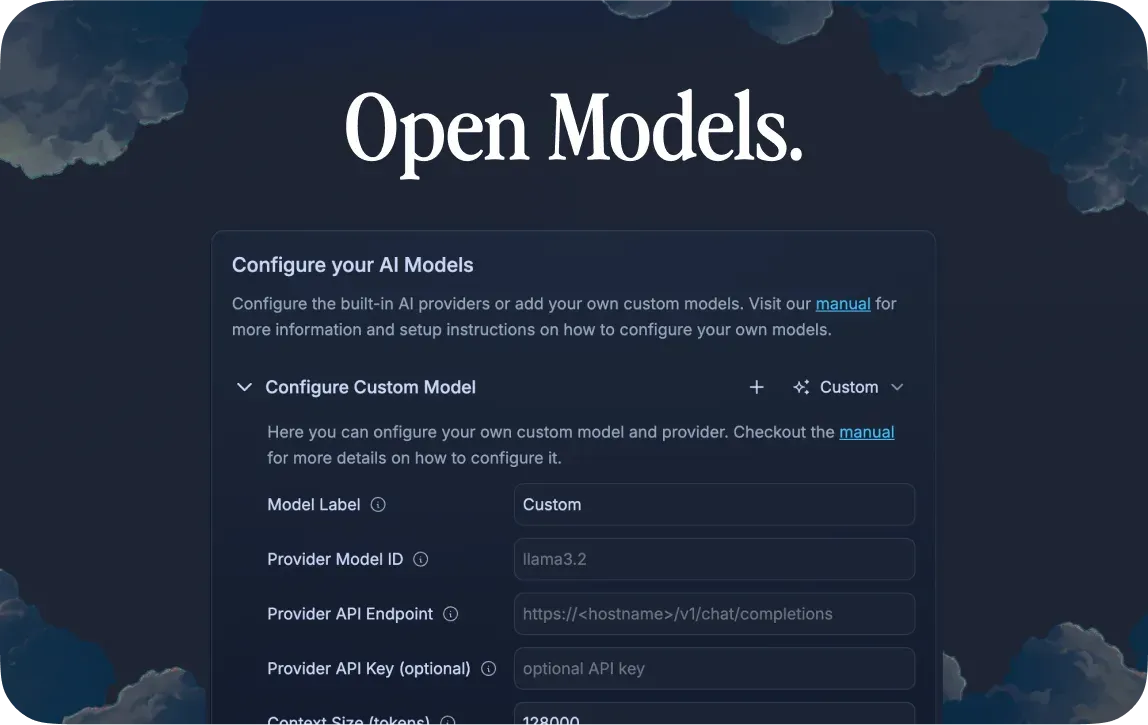
Official README image of the AI settings where a custom model is added.
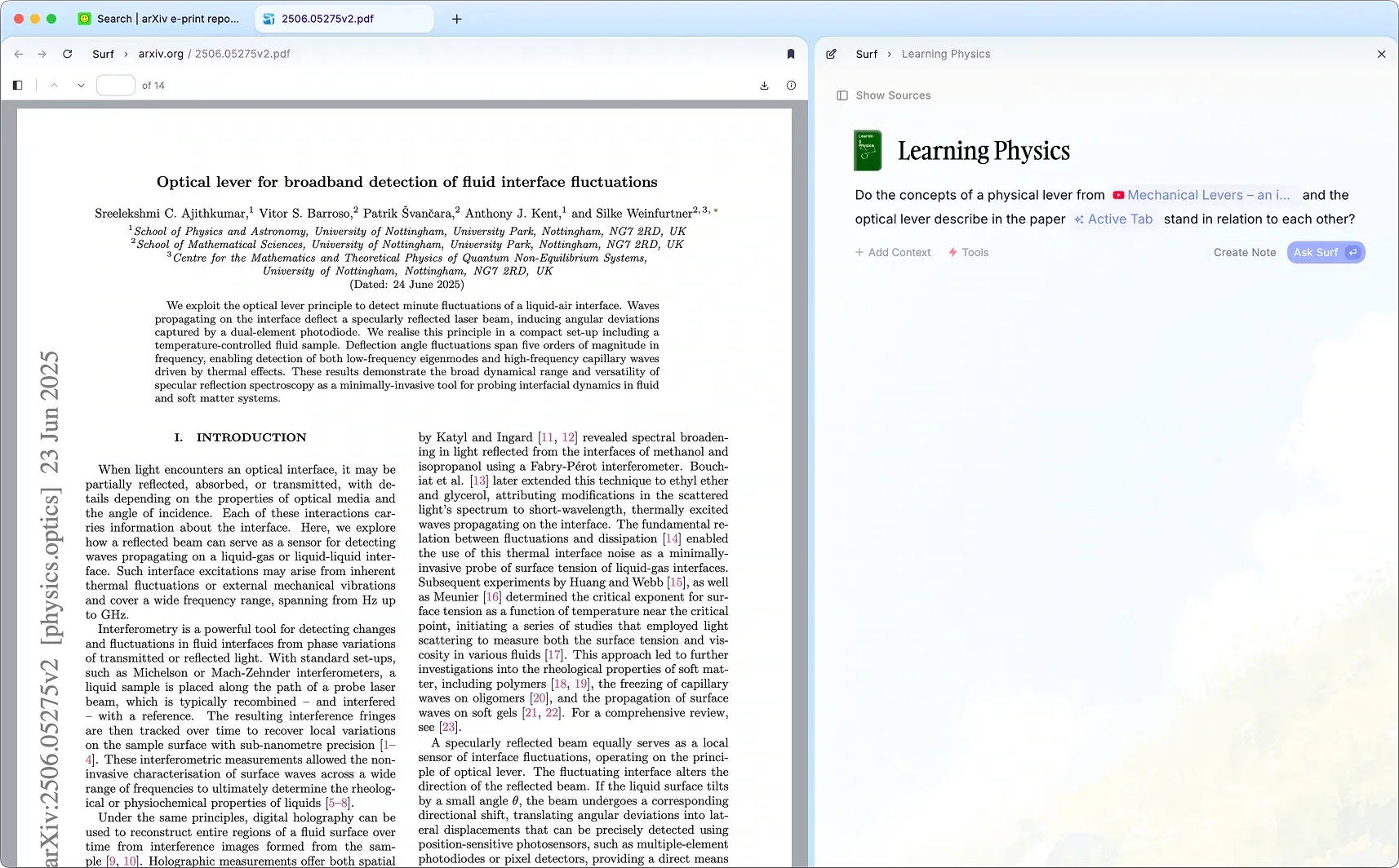
Official README image of split view, with a PDF beside a note.
Source: official Surf project page.
Key capabilities
- Local multimedia library Surf saves local files, web pages, YouTube videos, tweets, Reddit posts, articles, Notion and Google documents and Slack messages. For each item it creates a local file, a database entry and, when there is text, a vector embedding. PDFs get full-text embedding and images go through automatic OCR.
- Notebooks Items are grouped into notebooks, which also act as context for the AI features. Notebook covers can be customised by drawing on them. Much of the library is available offline once saved, as the library guide describes.
- Smart Notes A note is a rich-text editor with AI writing and editing that draws on selected context. You can start it in a new tab with Ask Surf or open it beside a page in split view. Notes support headings, lists, code blocks and to-do lists through a slash menu.
- @-mentions as context Typing @ opens a search across tabs, notes, saved PDFs and notebooks, and the chosen items become the context for generation. This keeps the answer tied to named sources instead of an open-ended chat history.
- Citations Generated text carries citations that jump to the source passage: a section of a web page, a timestamp in a video or a page in a PDF. Clicking one opens the source in a side view, and Ctrl or Cmd click opens it in a normal tab. Verify important claims against the source anyway.
- Web search tool A toggle lets a note search the web and bring results back into the note. Searches and retrieved text go to whichever model and search provider the configuration uses, so check what leaves the machine.
- Surflets The Surflet tool asks the model to generate a small interactive applet, such as a chart, a physics demo or a game, inside a note. Surflets are saved as HTML files on the machine, can keep state locally between uses and can be edited in any text editor.
- Bring-your-own models Under Preferences, AI, you can enter an API key for built-in providers or add a custom model. A custom entry needs the URL of an OpenAI-compatible chat completions endpoint, a model ID, an optional key and a context size, so local servers and cloud endpoints both work. The model can be switched per query.
- Tabs, split view and sidebar Web pages, notes and files open in tabs, with split view for side-by-side reading and a sidebar for notebooks and notes. Vertical tabs are among the features the website lists.
- Page-aware chat prompts When chat is opened on a page, Surf can suggest prompts based on the content, such as a question about the topic or a summary of a section.
- Data ownership tools The Surf menu has an option to show the Surf data folder in Finder or Explorer, and each item has a view-in-folder action. This makes backup, inspection and export a file-copy task.
- Platform installers Downloads are Surf-x.y.z.arm64.dmg, Surf-x.y.z.x64.dmg, Surf-x.y.z-setup.exe and Surf-x.y.z.x86_64.AppImage. The guide lists the steps to open the unsigned app on macOS and Windows.
- Isolated web content Each website loads in a sandbox on Chromium via Electron. The web security note admits that Surf does not yet detect phishing or malicious downloads and does not support certificate transparency, so treat it with the same caution as a young browser.
- Keyboard shortcuts and themes A shortcuts page lists common commands, and the site lists dark mode, local file import by drag and drop and custom notebook styling.
- Source and contribution The repository includes a contributing guide with a codebase overview, a code of conduct and a security policy for private reports.
Where Surf fits
Researching across sources
Save the web pages, videos and PDFs for a topic into one notebook, then open a note and @-mention the notebook. Read the generated text next to its citations and click through to check them. Surf is only as reliable as the model and the retrieved text, so treat the output as a draft.
Studying a long PDF or lecture
Open the PDF or YouTube page, press Ask Surf and let the note open in split view beside it. Ask for a summary, then a question about a specific section and follow the citation to the page or timestamp. Keep the model's context size in mind for very long documents.
Choosing and configuring a model
Follow the AI models guide: add an API key for a built-in provider or enter an OpenAI-compatible URL for a local server. For private material, use a local model and confirm in the network settings of your machine that nothing leaves it. Test with a non-sensitive note first.
Making small interactive tools
Turn on the Surflet tool and describe a chart, a calculator or a tracker over data in the note. The applet is stored as an HTML file, so you can review the code before running anything you do not trust. It can keep local state between uses.
Keeping a portable archive
Use the data-folder menu item to find where SFFS stores files and copy that folder as part of a backup. Because the formats are open, other tools can read the files. Record the Surf version with the backup, since the app is a beta.
Installing the unsigned build
Download the installer for your platform from GitHub Releases and check it comes from the deta/surf repository. Follow the macOS Open Anyway steps or the Windows Run anyway prompt described in the installation guide only if you accept running unsigned software. Re-download the installer from the releases page for each update, because the open-source build does not include automatic updates.
Reviews of Surf
Be the first to share your experience with Surf.
Write a review
Loading review form…
Alternatives to Surf
 SurfSenseSurfSense is an open-source NotebookLM alternative for Windows, macOS and Linux, plus a Docker image: index local files, get cited answers, let an agent redline Word files and build documents, with local or remote models and no account.
 Open NotebookOpen Notebook is an MIT-licensed research workspace you run with Docker: collect PDFs, web pages, audio and video into notebooks, chat with cited answers, search by keyword or meaning and generate podcasts, using any of 24 cloud or local AI providers.
 NotesnookNotesnook is a free, open-source note-taking app with end-to-end encryption, web, desktop and mobile clients, positioned as an alternative to Evernote.