

What is Open Notebook?
Open Notebook is a self-hosted research workspace that its maintainers position as a privacy-focused alternative to Google's NotebookLM. You collect sources such as PDFs, web pages, YouTube videos and audio into notebooks, run saved prompts that store insights on each source, chat with the material, search it and turn selected content into podcast episodes. The project was started in October 2024 by GitHub user lfnovo and is developed in the open at github.com/lfnovo/open-notebook, with a project site at open-notebook.ai.
Distribution is container-first. The recommended route is the docker-compose.yml shipped in the repository, which runs two services: surrealdb (SurrealDB v2) and open_notebook, which holds the web UI on port 8502, the REST API on port 5055 and the background worker. Images are published as lfnovo/open_notebook on Docker Hub and ghcr.io/lfnovo/open-notebook on GitHub Container Registry. A single-container image (v1-latest-single) still exists but is deprecated and will be removed in v2. The installation guide also documents running from source and a native Windows route for machines that cannot run Docker or WSL. There is no hosted edition and no paid plan: you pay only the AI providers you connect.
The current release is v1.15.1, published November 4, 2026 as a security release. The background worker now enforces the uploads-directory and URL checks on every processing path, the content-core extraction library (2.2.1 or later) refuses link-local and cloud-metadata addresses on every redirect hop, and the generic POST /api/commands/jobs endpoint was removed. The previous release, v1.15.0 of October 4, 2026, introduced the "Quiet Green" interface, SiliconFlow and Z.ai providers, MiniMax text-to-speech, OpenDocument uploads, PBKDF2 credential encryption and a 180-second default timeout for model calls.
The stack is described in the architecture document. A Next.js 16 and React 19 frontend talks only to a FastAPI backend. Long-running work such as source extraction, embeddings and podcast generation runs in a worker built on surreal-commands, which reads jobs from SurrealDB. SurrealDB stores documents, graph relations between sources, notes and notebooks, and both BM25 full-text and vector indexes. Chat history lives in a LangGraph SQLite checkpoint. Every model call goes through the maintainer's Esperanto library, which provides the provider support matrix.
Open Notebook is released under the MIT license. The project's vision document states what it is not: a document editor, a file storage system or a general-purpose chatbot. It is single-user by design today, with one optional shared password and no user accounts or roles; multi-user support is listed as a direction under consideration, not a dated plan. The application bundles no language models, so at least one chat model and one embedding model must be configured before chat and vector search work.
Open Notebook screenshots
Explore the interface. Open a screenshot to view it at full size.
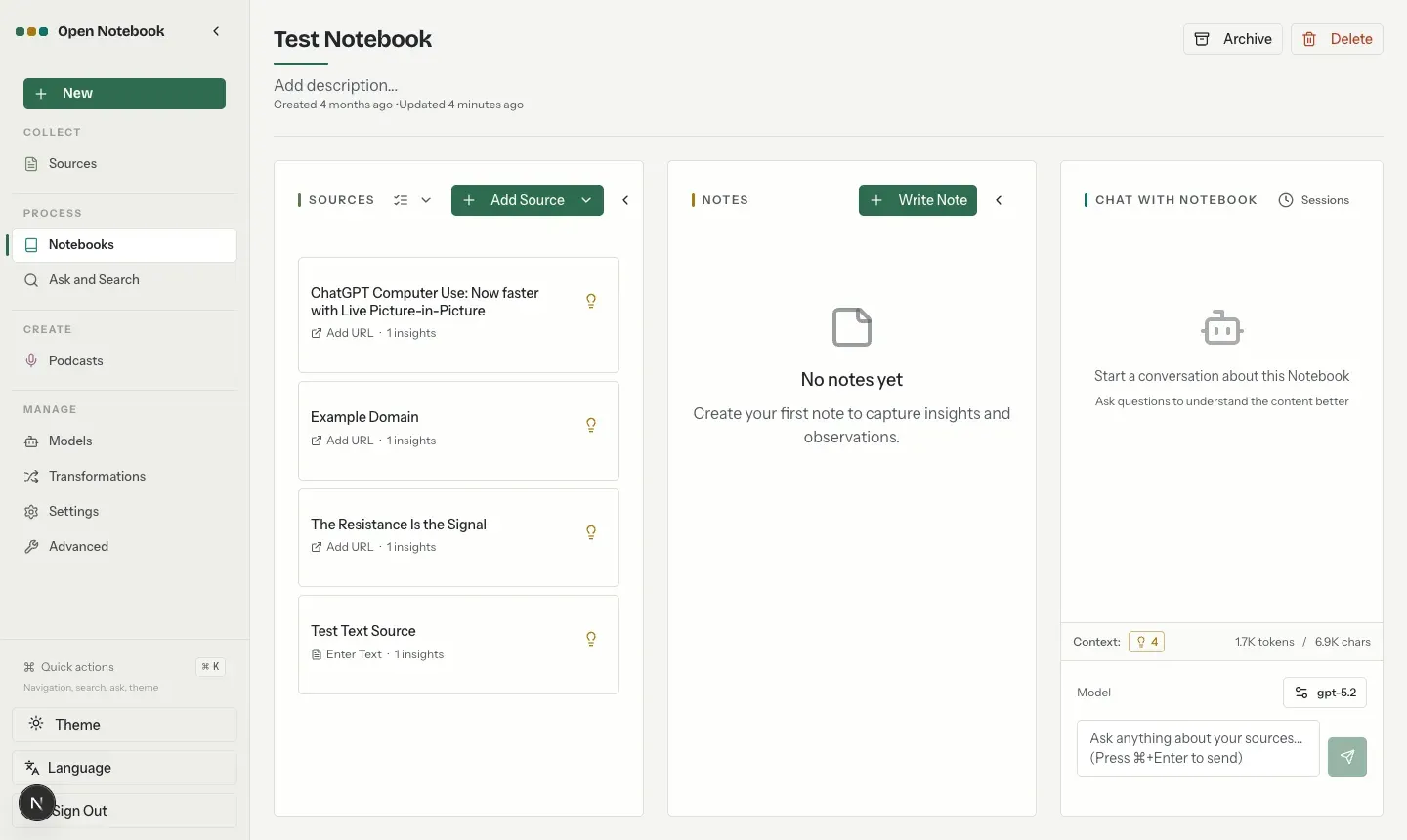
README screenshot of the Quiet Green interface: a notebook with four sources and their insights, an empty notes column and the notebook chat with context token count and model picker.
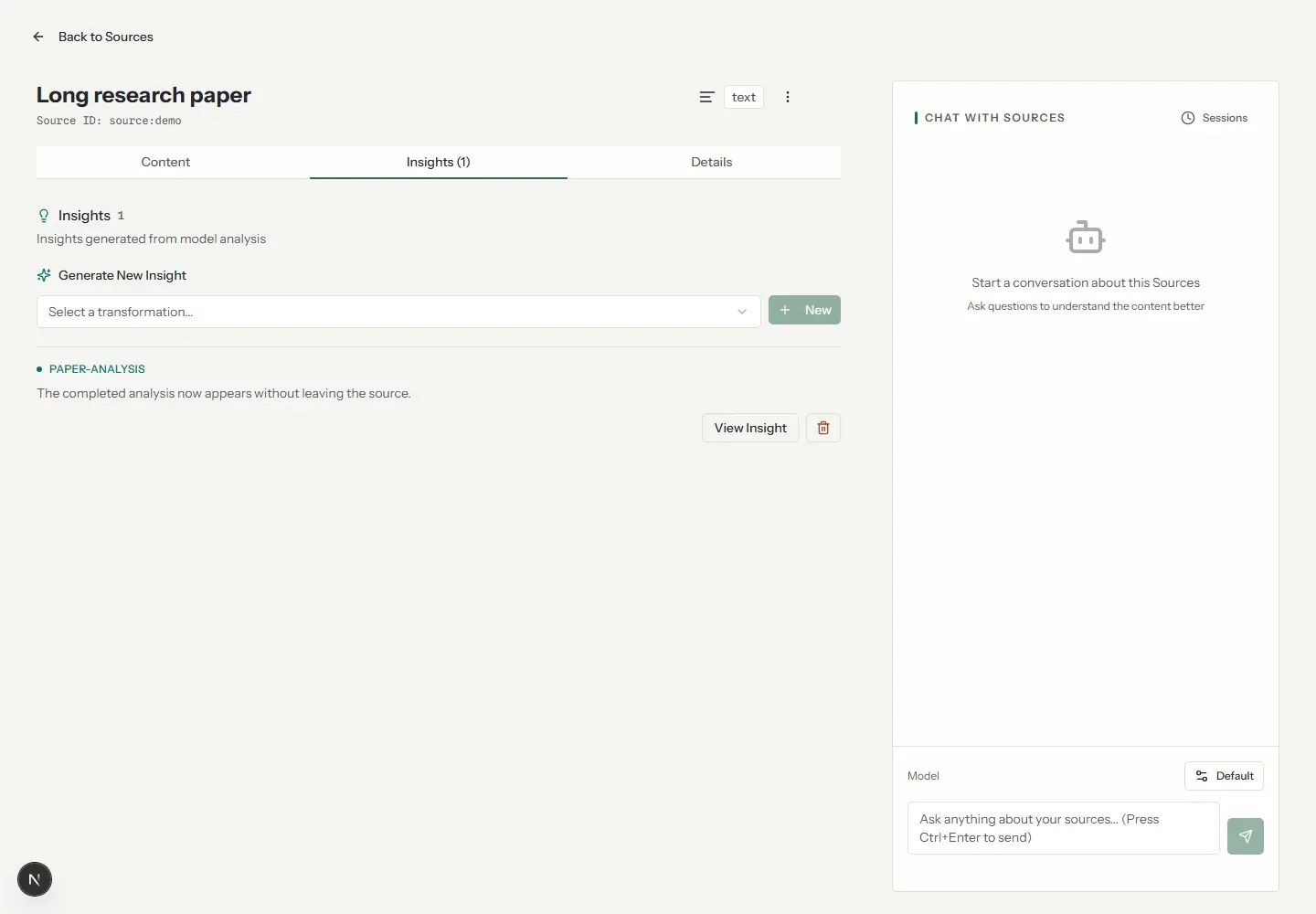
Source detail view: the Insights tab with a transformation picker and a stored Paper Analysis insight, next to the per-source chat panel. Screenshot from merged pull request #1346.
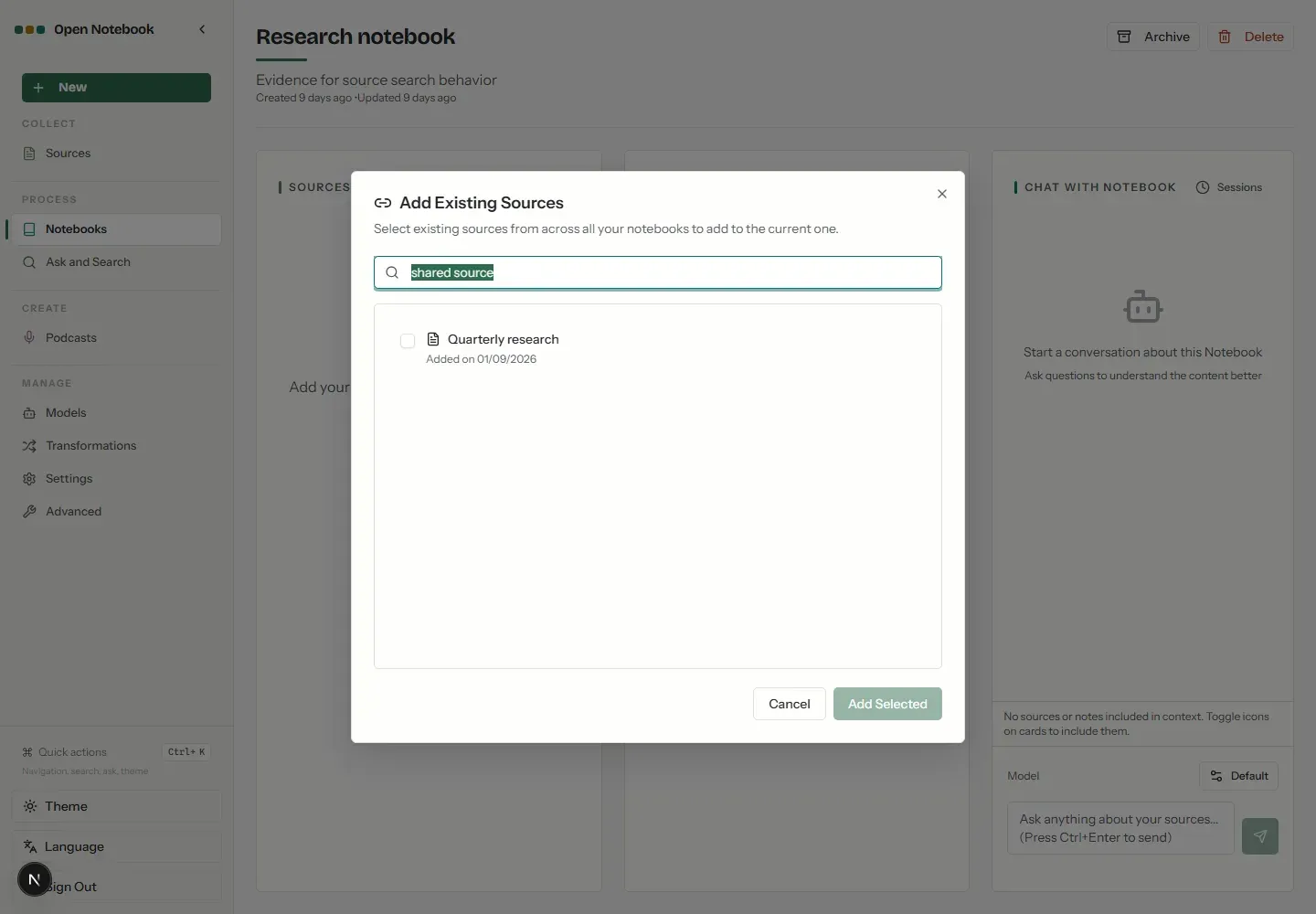
Add Existing Sources dialog in a notebook, searching sources from all notebooks to link them to the current one. Screenshot from merged pull request #1345.
Source: official Open Notebook project page.
Key capabilities
- Docker Compose install The canonical route downloads the repository's
docker-compose.yml, replaces the placeholderOPEN_NOTEBOOK_ENCRYPTION_KEYwith a generated secret and starts both services withdocker compose up -d. The UI is then onhttp://localhost:8502. Requirements are Docker with Compose v2 and at least 4 GB of free RAM, with 8 GB recommended; local models need considerably more. Data lands in./notebook_dataand./surreal_datanext to the compose file, as described in the Docker Compose guide. - Ready-made compose variants The
examples/folder carries compose files for Ollama, for Speaches speech services, for a fully local stack combining Speaches, Ollama and Open Notebook, and for the deprecated single-container image. - From source and native Windows Developers can run the app from source with Python 3.11 or 3.12 managed by uv, Node.js 20.9 or later, ffmpeg and a SurrealDB 2.x database. The Windows native guide covers machines where Docker or WSL is not an option, for example Windows on ARM64, using winget or scoop for the prerequisites. Python 3.13 and later are not supported yet.
- Notebooks, sources and notes A notebook groups sources and notes for one research project. A source can be linked to several notebooks, and the Add Existing Sources dialog searches across all notebooks to reuse material. Notes are written by hand or saved from AI answers and insights, and notebooks can be archived as a filter rather than deleted.
- Source types and limits Uploads accept PDF, DOC, DOCX, PPT, PPTX, XLS, XLSX, ODT, ODS, ODP, EPUB, TXT, MD and HTML, audio (MP3, WAV, M4A, AAC) and video (MP4, AVI, MOV, WMV). Audio and video are transcribed with the configured speech-to-text model, and images are accepted only when Docling is enabled. The default upload limit is 100 MB, adjustable with
OPEN_NOTEBOOK_MAX_UPLOAD_SIZE_MB, and one batch can hold up to 50 URLs or files, according to the adding sources guide. - Web pages and YouTube URLs are fetched with the engine chosen under Settings, Content Processing; JavaScript-heavy pages may need Firecrawl, Jina or Crawl4AI. YouTube sources import the transcript, and since v1.15.0 a residential proxy (
CCORE_YOUTUBE_PROXY) or a cookies file can be set on the worker when YouTube blocks the server. Pages behind logins or paywalls generally cannot be fetched and should be pasted as text. - Optional extraction engines The default image stays lean. Setting
OPEN_NOTEBOOK_ENABLE_DOCLING=trueinstalls Docling on first start for layout-aware extraction, tables, OCR of scanned PDFs and image sources, andOPEN_NOTEBOOK_ENABLE_CRAWL4AI=trueinstalls a local Crawl4AI with a bundled Chromium. A remote Crawl4AI server can be used instead throughCRAWL4AI_API_URLand a bearer token. - Transformations and insights A transformation is a saved prompt that runs on one source and stores its output as an insight. A new install ships six: Paper Analysis, Key Insights, Dense Summary (pre-selected for new sources), Reflection Questions, Table of Contents and Simple Summary, all editable. Transformations run in the background when a source is added or later from its Insights tab; there is no action to run one across many existing sources at once.
- Notebook chat with context levels Each source and note in a notebook has a context level: excluded, Insights only, or Full content. Everything selected is sent with every message, and the chat panel shows the resulting token and character count. Insights only is offered for sources that already have insights and is usually a fraction of the full text, which keeps cost and latency down.
- Source chat Every source has its own chat panel next to its content, insights and details tabs, streamed from the API and saved as sessions. It suits questions about one long paper or transcript.
- Text and vector search The Ask and Search page offers BM25 text search with English stemming over source titles, content, insights and notes, and vector search by similarity over embedded content. Vector search needs an embedding model and only finds sources that were embedded, a choice set per source or globally under Embedding and Search settings. Results can be limited to selected notebooks.
- Ask with citations Ask (beta) answers one question across the knowledge base in three stages: it plans searches, answers each search in parallel and writes a final answer. Chat and Ask answers cite whole items by record ID (a source, note or insight), shown as numbered references that open the item. Citations do not carry page numbers or highlighted passages, as the citations guide states.
- Podcast generation Episode profiles set the outline and transcript models, 3 to 20 segments, a briefing and an optional language; speaker profiles define one to four speakers with names, voice IDs, backstories and personalities, with an optional text-to-speech model per speaker. Generation runs as a background job in three steps: outline, transcript, audio. The seeded profiles ship without models and show Setup required until models are chosen, as explained in Podcasts Explained.
- 24 AI providers The provider matrix covers OpenAI, Anthropic, Google GenAI, Vertex AI, Azure OpenAI, Groq, Mistral, DeepSeek, xAI, OpenRouter, DashScope, MiniMax, Novita, SiliconFlow, Z.ai, PayPerQ, Cohere, Voyage, ElevenLabs, Deepgram, Ollama, oMLX and generic OpenAI- and Anthropic-compatible endpoints. Not every provider offers every model type: Anthropic and Groq have no embedding models, for example. Credentials are added under Manage, Models with a connection test and model discovery, then Auto-assign Defaults fills the default model slots.
- Local models and speech Ollama, oMLX on Apple silicon and LM Studio or any OpenAI-compatible server provide local chat and embeddings. For podcasts and transcription, the docs describe running Speaches, an OpenAI-compatible speech server using faster-whisper for transcription, and connecting it as an OpenAI Compatible provider. Since v1.15.0 model calls time out after 180 seconds unless
ESPERANTO_LLM_TIMEOUTis raised, which matters for slow local models. - REST API Every UI action goes through the FastAPI backend on port 5055 under
/api, with Swagger UI at/docs, ReDoc at/redocand the schema at/openapi.jsonon each instance. Long-running operations return a job ID that can be polled. The API reference maps notebooks, sources, notes, chat, search, transformations, models, credentials and podcasts. - MCP server for AI assistants The docs describe
open-notebook-mcp, an MCP server published on PyPI and in the MCP Registry and maintained by the Epochal team rather than the core project. Run withuvx, it lets Claude Desktop, VS Code extensions and other MCP clients list notebooks, add sources, search, create notes and run chat sessions against an instance, configured throughOPEN_NOTEBOOK_URLand an optional password, as shown in the MCP integration guide. - Password and credential encryption Setting
OPEN_NOTEBOOK_PASSWORDenables one shared password for the UI and a bearer header for the API; both secrets can also be read from Docker secret files. Provider keys are stored encrypted with Fernet, using a key derived fromOPEN_NOTEBOOK_ENCRYPTION_KEYwith PBKDF2-HMAC-SHA256 at 600,000 iterations. There are no user accounts, roles, rate limiting or audit log. - Interface languages and quick actions The UI is available in English, Bengali, Catalan, Simplified and Traditional Chinese, French, German, Italian, Japanese, Polish, Portuguese, Russian, Spanish and Turkish, with light and dark themes. Quick actions on Ctrl+K or Cmd+K jump to navigation, search and Ask from any screen.
Where Open Notebook fits
Running a fully local research stack
Start from the fully local example compose file, which adds Ollama and Speaches next to Open Notebook, then pull a chat model and an embedding model in Ollama and a Whisper model in Speaches. Register them under Manage, Models with Base URLs instead of API keys, assign them as defaults and add a test PDF. Confirm with network monitoring that no traffic leaves the host while a source is processed, chatted with and turned into a short podcast. Raise ESPERANTO_LLM_TIMEOUT and set OPEN_NOTEBOOK_WORKER_MAX_TASKS=1 if a single GPU struggles with parallel jobs.
Building a literature notebook from papers
Create a notebook per topic and upload papers in batches of up to 50, selecting Paper Analysis and Key Insights in the Process step so each paper gets structured insights. Enable embedding so vector search and Ask can reach them. For scanned PDFs or table-heavy papers, enable Docling and compare its extraction against the Simple engine on one difficult file before importing the rest. Then set papers to Insights only in notebook chat to keep each message small.
Answering cross-source questions with Ask
Use Ask when the answer is spread across many sources or notebooks. Limit it to the relevant notebooks, read the answer and open every cited item to verify the claim, since citations point to a whole source, note or insight rather than a page. When an answer looks thin, check whether the relevant sources were embedded; text search still finds non-embedded sources by exact terms. Save useful answers as notes so they become part of the notebook.
Turning research into a podcast episode
Edit a seeded episode profile and its speaker profile first: pick outline and transcript models, a text-to-speech model and voice IDs that exist for that model, because the seeded OpenAI voice names fail on other providers. Choose Summary or Full content per source, generate an episode and wait for the background job. If it fails, the episode card names the cause, such as an unsupported voice or truncated output; lower Max output tokens or the segment count and use Retry. Remember that the outline and transcript models see all selected content.
Automating ingestion through the REST API
Open /docs on the instance, create a notebook with POST /api/notebooks and send files or URLs to POST /api/sources with the bearer password if one is set. Poll GET /api/sources/{id}/status until processing completes, then query /api/search. Scripts that called the removed POST /api/commands/jobs endpoint now get 405 and must use the resource endpoints, as noted in the v1.15.1 release notes.
Putting an instance on a shared server
Before the first start, replace the public placeholder encryption key, set OPEN_NOTEBOOK_PASSWORD, bind ports 8502 and 5055 to 127.0.0.1 and publish them only through a reverse proxy with HTTPS, because the password travels in a header on every request. Set CORS_ORIGINS to the exact UI origin and keep SurrealDB unpublished with non-default credentials. Back up notebook_data and surreal_data before every upgrade, and store the encryption key apart from those backups, following the security guide.
Install
curl -o docker-compose.yml https://raw.githubusercontent.com/lfnovo/open-notebook/main/docker-compose.yml && docker compose up -dReviews of Open Notebook
Be the first to share your experience with Open Notebook.
Write a review
Loading review form…
Alternatives to Open Notebook
 AnythingLLMAnythingLLM from Mintplex Labs is an MIT-licensed AI app for document chat with citations, agents, MCP tools and scheduled jobs, using local or hosted LLMs, as a desktop app, a multi-user Docker server or a hosted cloud.OWOpen WebUIOpen WebUI is a self-hosted AI platform that runs offline and connects to local models through Ollama or to OpenAI-compatible APIs.OOnyxOnyx is an AI platform that indexes connected applications for search, chat and agents, with self-hosting, configurable models and permission-aware retrieval.