
What is Rectangle?
Rectangle is a free, open-source window manager for macOS that moves and resizes windows with keyboard shortcuts, snap areas at the screen edges and a menu bar menu. It is based on Spectacle and covers halves, quarters, thirds, fourths and sixths, maximize, almost maximize, maximize height, make smaller and larger, center, restore, and moves to the next or previous display. The source code, issue tracker and Discussions are on GitHub under the account rxhanson, and the official site is rectangleapp.com, which describes the app as free and open source and lists macOS 14 or later as the requirement.
The LICENSE file is the MIT License, with copyright 2019 to 2026 held by Ryan Hanson and a notice that the app is based on Spectacle, itself copyright 2017 Eric Czarny. GitHub shows no SPDX identifier for the repository, but the file contains the standard MIT text. Rectangle is written in Swift and uses Swift Package Manager for its two dependencies: Sparkle, which handles updates, and a fork of MASShortcut maintained by the same account for recording keyboard shortcuts. The website links GitHub Sponsors and a donation page. The project started in 2019, when the repository was created.
Rectangle is distributed as a DMG from rectangleapp.com and as DMG, PKG and ZIP files on the GitHub releases page, and the README documents the Homebrew cask. Rectangle 2.x supports macOS 14 and later; v1.100 remains the last release for macOS 10.15 to 13, and v0.73 the last for macOS 10.13 and 10.14. The app needs the macOS Accessibility permission to move and resize other apps' windows. Preferences are stored with NSUserDefaults in ~/Library/Preferences/com.knollsoft.Rectangle.plist and can also be exported and imported as a JSON file.
The current release is Rectangle v2.0.4, published on October 20, 2026. It adds mouse button shortcuts for window actions, full-height vertical sixths, an option to snap before reaching the outer screen edges, a repeated-commands option that switches to the opposite side, an alphabetically sorted stacked-window list, Persian and Ukrainian localizations and completed Simplified Chinese and Brazilian Portuguese translations, and fixes drag-snap detection for Emacs 28 and snap previews under Reduce Transparency. Rectangle v2.0, published on September 25, 2026, redesigned the Settings window into Shortcuts, Snap Areas, Behavior and App Settings tabs and added row and column tiling, optional window animations, a blurred snap preview and an opt-in restore on repeated Maximize.
Rectangle Pro is a separate paid app. The README states that it is built entirely on top of Rectangle, and rectangleapp.com/pro offers it free for 10 days before purchase, with features such as window throw, custom sizes and positions, workspaces, stashed windows and iCloud sync; the site also states that the Multitouch app includes all of Rectangle Pro. Rectangle itself cannot move windows between Spaces, because Apple has no public API for it, and the README says there are no plans to add the next and previous Space actions that Pro has. It also cannot override a minimum window size that an app enforces. Similar macOS tools on iThub include Defi, a scrolling-column window manager, and Sol, a launcher with window management.
Rectangle screenshots
Explore the interface. Open a screenshot to view it at full size.
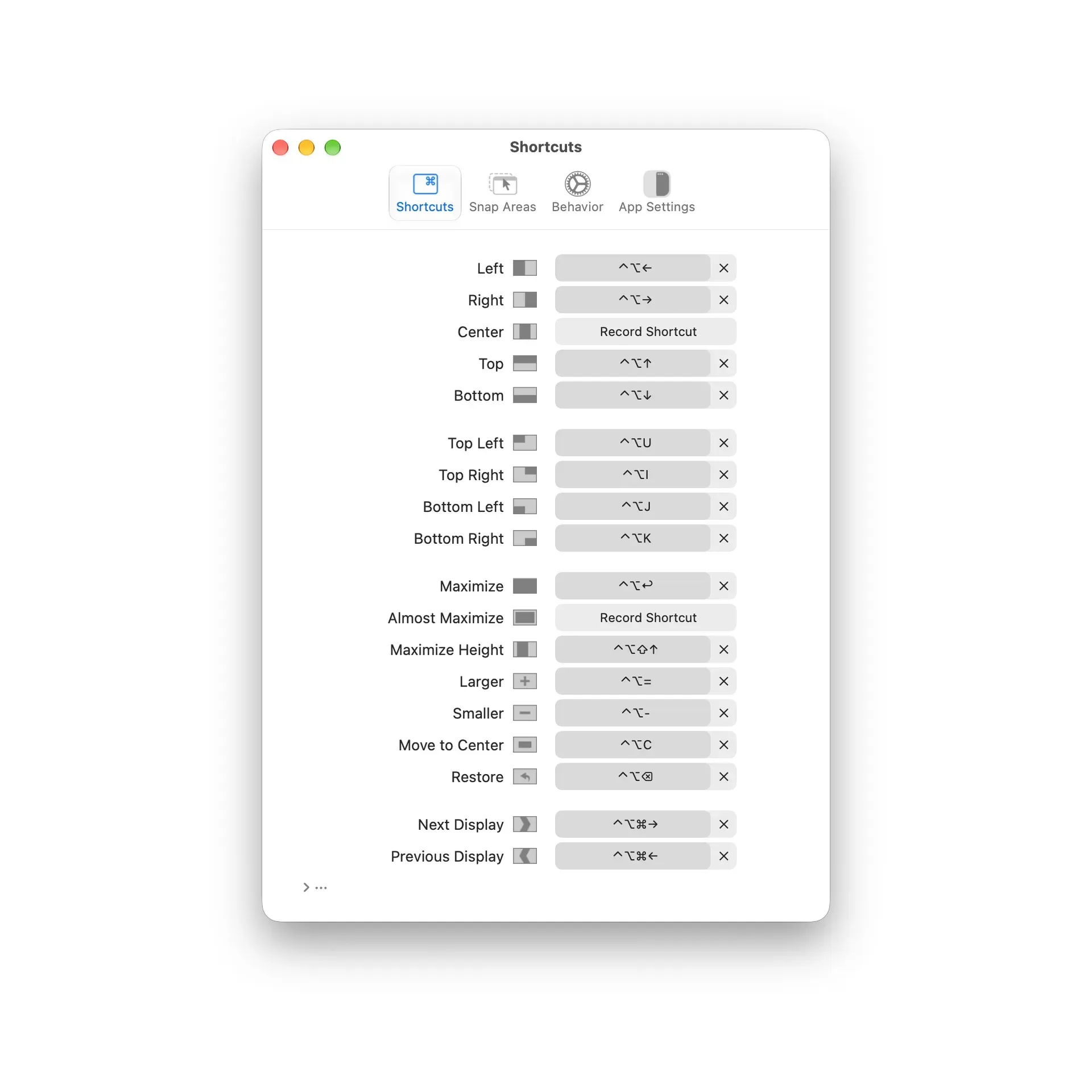
Official website screenshot of the Rectangle 2 Settings window: the Shortcuts tab with the default key combinations and a collapsed section for extra actions.
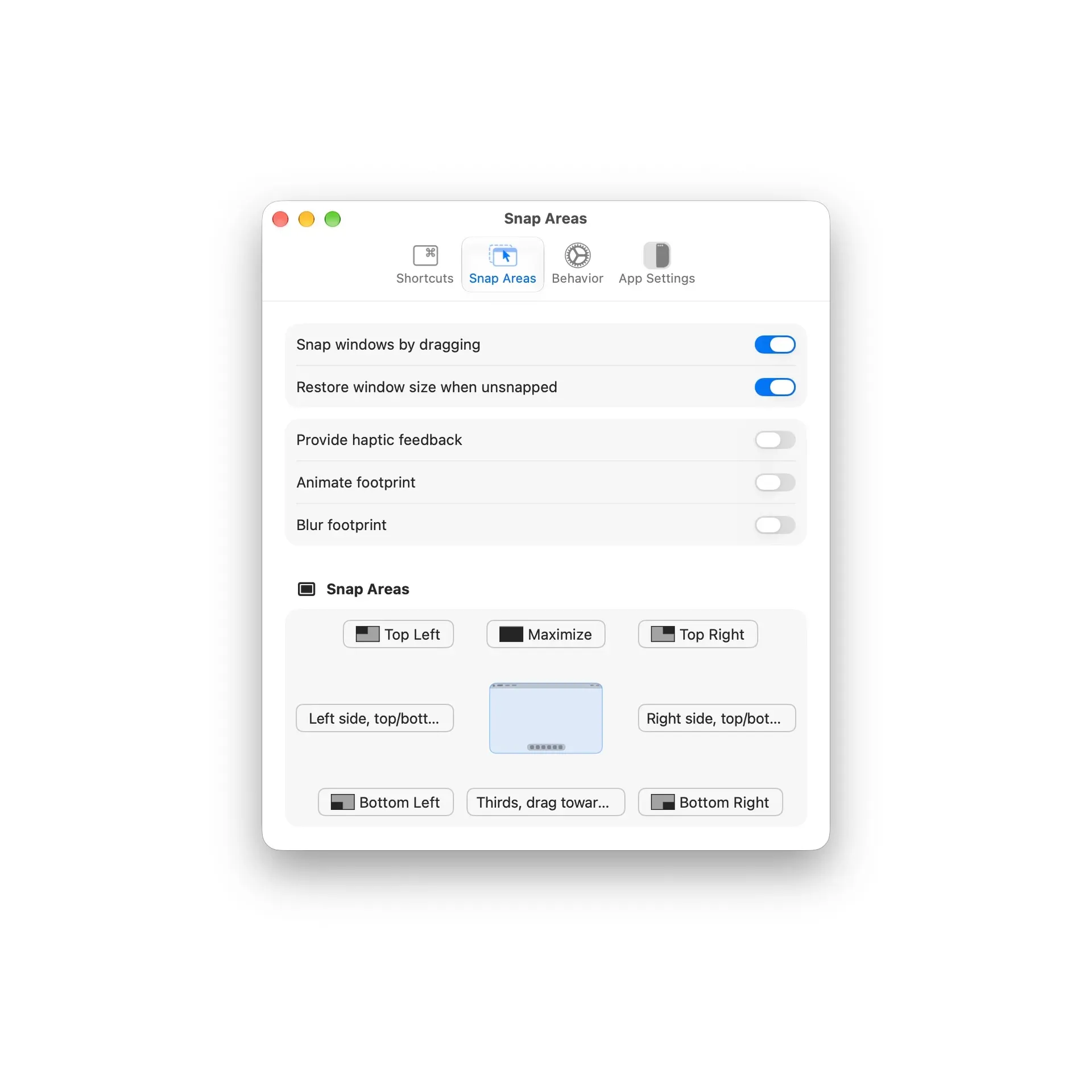
Official website screenshot: the Snap Areas tab assigns Top Left, Maximize, Top Right, side, Bottom Left, thirds and Bottom Right actions to screen regions.
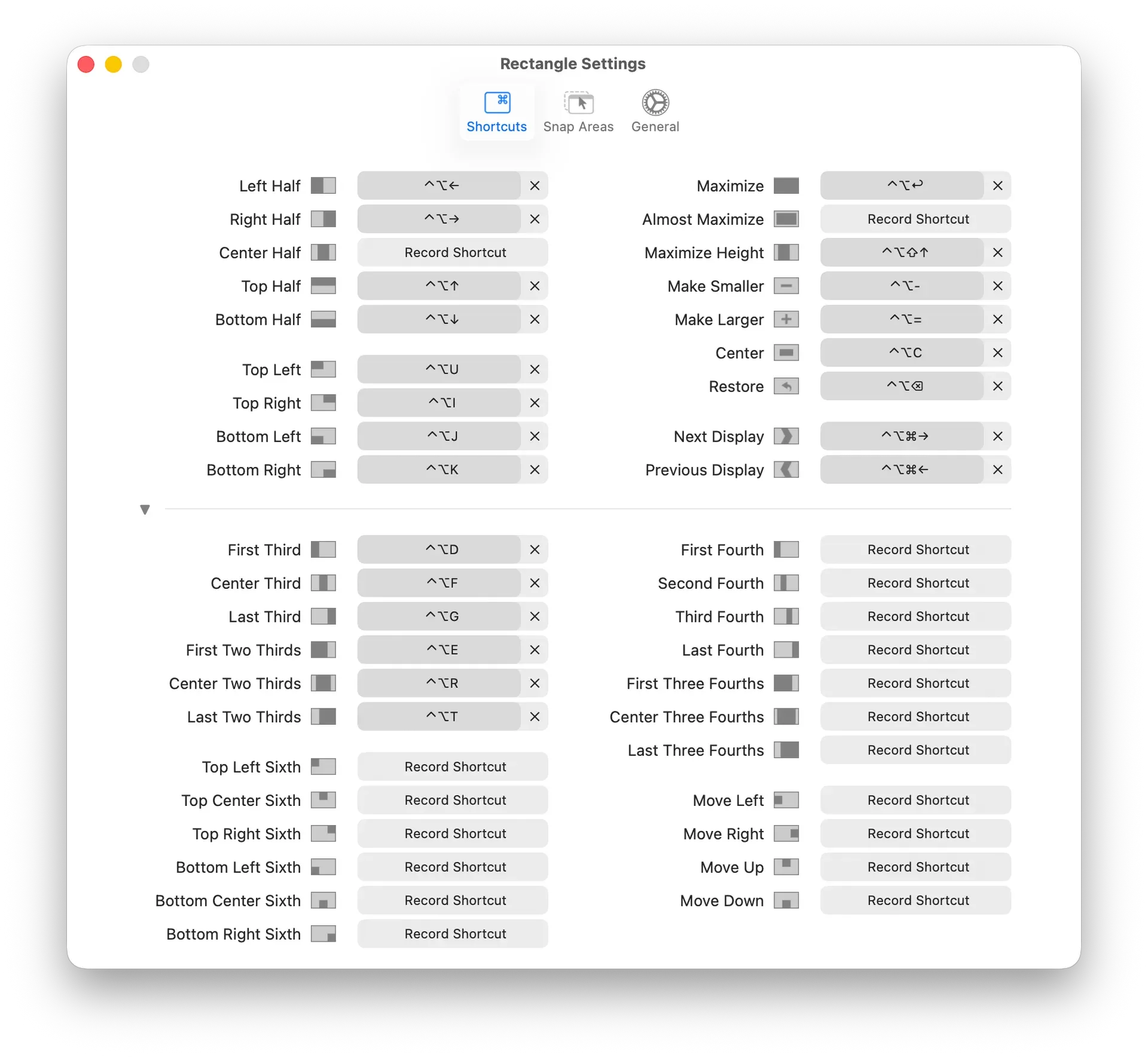
Screenshot from an earlier version of the official README: the Rectangle 1.x Shortcuts tab with its extra section expanded, showing the thirds, fourths, sixths and move actions.
Source: official Rectangle project page.
Key capabilities
- Keyboard shortcuts for window positions Default shortcuts use Control and Option with the arrow keys and letters, for example Control+Option+Left for the left half, Control+Option+U for the top-left quarter and Control+Option+Return to maximize. Every action can be re-recorded or cleared in the Shortcuts tab of Settings, and the Spectacle default shortcuts can be chosen when the app first runs. Shortcuts are recorded with a fork of MASShortcut maintained in the rxhanson account.
- Halves, quarters, thirds, fourths and sixths The main list covers left, right, center, top and bottom halves and the four corners, and the collapsible Extra section adds first, center and last thirds, two-thirds, fourths, three-fourths and sixths, plus move left, right, up and down without resizing. Thirds follow screen orientation, so the first third is the left third in landscape and the top third in portrait. Version 2.0.4 added full-height vertical sixths, and hidden preferences add eighths, ninths and further thirds.
- Snap areas by dragging Dragging a window to a screen edge shows a footprint of the target size: left or right edge for halves, top for maximize, corners for quarters, the bottom edge for thirds and the area just above or below a corner for top or bottom halves. The Snap Areas tab chooses which action each area triggers and can restore the window size when it is unsnapped, provide haptic feedback, animate or blur the footprint. Snapping can be disabled, restricted to drags with chosen modifier keys or ignored for specific areas.
- Repeated commands and display traversal Repeating a shortcut cycles through sizes, for example first third, center third and last third when First Third is pressed again. An option lets repeated left or right half commands move a window across displays in display order, and top or bottom halves move to the nearest display above or below. Version 2.0.4 added an option that switches to the opposite side instead.
- Maximize, center, restore and resizing actions Maximize, Almost Maximize, Maximize Height, Make Larger, Make Smaller, Center and Restore each have their own action and shortcut. Since v2.0 a repeated Maximize can restore the previous size and position as an opt-in setting. Hidden preferences set the size increments and limits for Make Smaller and Make Larger, the Almost Maximize size (90 percent of the screen by default) and the title-bar double-click action.
- Tile windows in rows or columns Tile in Rows and Tile in Columns arrange the ordinary windows of the current Space on the focused display, and repeated presses cycle through balanced grids. The maximum windows per row and per column default to 3 and are set from the gear button next to the action; the grid respects the menu bar, Dock and configured screen-edge gaps. Windows are not rearranged automatically when they move or close, and app minimum sizes take precedence over equal widths.
- Cycle stacked windows When several windows are snapped to the same area, Cycle stacked windows and Cycle stacked windows backward bring each one forward in turn. An option limits the stack to windows of the same size, within 24 points so terminal windows that snap to character cells still count, and v2.0.4 sorts the stacked-window list alphabetically.
- Mouse button shortcuts Version 2.0.4 lets a mouse button, such as a side button, act as the shortcut for any window action, with or without modifier keys. An assigned button press goes only to Rectangle, and an option in Behavior, Extras makes mouse button shortcuts act on the window under the pointer instead of the focused window. Left and right clicks cannot be assigned.
- Optional window animations Animate windows in Behavior, Extras and Blur footprint in Snap Areas add animated resizing and a blurred snap preview; both are off by default. The README describes window animation as experimental, because repeatedly updating size and position during the transition can cause problems in some edge cases.
- Ignore apps with conflicting shortcuts Ignore app in the menu bar menu unregisters Rectangle's keyboard shortcuts while the chosen app is frontmost and registers them again when it is not. Title-bar double-clicks in an ignored app are not handled by Rectangle either, and the same switch is available through a URL with an optional bundle identifier.
- URL scheme for scripts and launchers Opening
rectangle://execute-action?name=left-halfruns a window action without activating Rectangle, for example withopen -gfrom a shell. The README lists 70 action names, from halves and corners to ninths, eighths, tile-rows, tile-columns, cascade-all and the stacked-window cycles, andrectangle://execute-task?name=ignore-appignores or unignores an app. - Hidden preferences through defaults The Terminal Commands document lists settings without a UI, written with
defaults write com.knollsoft.Rectangle: screen-edge gaps, including a separate top gap for screens with a notch, Stage Manager strip size, drag-to-snap modifier keys, an action applied to every new window, cursor movement with the window and title-bar double-click behavior. Todo mode, which keeps one app visible in a side area, is also enabled there. - Configuration import, export and storage The App Settings tab exports and imports the configuration as JSON, and a file placed at
~/Library/Application Support/Rectangle/RectangleConfig.jsonis loaded at launch and then renamed with a date stamp. The plist in ~/Library/Preferences can also be copied between Macs. Shortcuts saved by v0.41 and later use a format that earlier versions cannot read. - Debug logging and troubleshooting Holding Option with the menu open replaces About with View Logging, which shows the calculated and resulting window frames for each command. The README troubleshooting section covers conflicting window managers and shortcuts, resetting the Accessibility permission with
tccutil reset All com.knollsoft.Rectangle, iTerm2 resizing in character increments and a Notification Center freeze linked to drag snapping. - Download and install on macOS Rectangle2.0.4.dmg, Rectangle2.0.4.pkg and Rectangle2.0.4.zip are attached to the GitHub release together with delta update files, and the website links a Rectangle2.0.4.dmg download. The README gives
brew install --cask rectanglefor Homebrew andbrew uninstall --zap rectangleto remove the preferences as well. Macs on macOS 10.15 to 13 use v1.100, and macOS 10.13 or 10.14 use v0.73. - Building from source The Xcode project resolves Sparkle and the MASShortcut fork with Swift Package Manager. Debug builds use the bundle identifier com.knollsoft.Rectangle.debug, so they get their own Accessibility permission and preferences. Because of the Liquid Glass app icon, building on macOS versions earlier than 26 fails unless the Asset Catalog Other Flags setting is removed locally. Contributors of significant merged code or localizations can request a free Multitouch or Rectangle Pro license.
Where Rectangle fits
Arranging windows side by side from the keyboard
With the default shortcuts, Control+Option+Left and Control+Option+Right place two windows in halves, the first, center and last third actions place three, and Control+Option+Return maximizes the front window. Pressing the same shortcut again cycles to the next size or, with display traversal enabled, moves the window to the adjacent display. The README notes that some apps enforce a minimum width larger than a third, in which case Rectangle keeps the window on screen and shows a Minimum window size reached message.
Snapping windows with the mouse
Dragging a window to an edge or corner previews the target area and applies it when the mouse button is released, similar to snapping on Windows. The snap area table in the README maps each edge, corner and bottom third to its action, and the Snap Areas tab of Settings reassigns them. A hidden preference limits drag-to-snap to drags with modifier keys, and another snaps before the pointer reaches the outer screen edge.
Moving a window set across several displays
Next Display and Previous Display move the focused window between monitors, and since v2.0 the window keeps its position when moved. Repeated half commands can traverse displays left to right, or up and down for stacked displays, wrapping at the end of the stack. Hidden preferences reorder displays by x coordinate, keep a maximized window's size when it moves and repeat the last action on the new display.
Tiling and cycling many windows on one screen
Tile in Rows and Tile in Columns spread the visible windows of the focused display into a balanced grid, and repeated presses step through layouts up to the configured limits; Tile All and cascade actions are available as URL actions and through a hidden preference. When several windows share one snapped area, the stacked-window cycle commands bring them forward one by one, and v2.0.4 lets a mouse side button run those commands.
Triggering window actions from other tools
Launchers, shell scripts and automation apps can open rectangle://execute-action URLs, for example open -g "rectangle://execute-action?name=left-half", to run any of the listed actions. The same URL scheme ignores or unignores an app by bundle identifier, which covers apps whose own shortcuts collide with Rectangle's. Rectangle can be installed with the Homebrew cask named in its README.
Moving from Spectacle
The website describes Rectangle as a near drop-in replacement for Spectacle, and the Spectacle shortcuts can be selected at first launch. The README lists the differences: explicit first, center and last thirds instead of next and previous thirds, move actions without resizing, Maximize Height and Almost Maximize, optional display traversal and drag-to-snap. Display settings such as scaling and brightness are outside Rectangle; BetterDisplay is a separate macOS menu bar app for those.
Install
brew install --cask rectangleReviews of Rectangle
Be the first to share your experience with Rectangle.
Write a review
Loading review form…
Alternatives to Rectangle
 DefiDefi is an open-source window manager for Apple Silicon Macs that arranges windows in scrolling columns, with per-display workspaces and app rules.
 SolSol is a free, MIT-licensed launcher and command palette for macOS 14 or later. One global shortcut opens app, file and bookmark search, window snapping, clipboard history, an emoji picker, calendar, translation, a calculator and your own shell or AppleScript commands.
 BetterDisplayBetterDisplay is a freemium macOS display utility from Kodeon Software: flexible HiDPI scaling, XDR and HDR upscaling, virtual screens, picture in picture, DDC and HDMI-CEC control. Free features for non-business use, Pro license US$21.99.