

What is Sol?
Sol is an open-source app launcher and command palette for macOS, written by an independent developer (ospfranco) and published under the MIT license in the ospfranco/sol repository. A single global shortcut, Cmd+Space, Option+Space or Ctrl+Space, opens a search panel that finds applications, files, browser bookmarks and built-in commands, and the same panel hosts a window manager, a clipboard manager, an emoji picker, a scratchpad, a calendar view and a translator. The official site describes it as a free launcher focused on simplicity and speed, with minimal configuration and native performance.
Sol is distributed as a macOS app only. It installs with brew install --cask sol or as a ZIP archive of roughly 15 MB from GitHub releases. Updates arrive through the Sparkle framework, which reads an appcast feed kept in the repository and verifies each archive with an EdDSA signature; the feed sets macOS 14.0 as the minimum system version. Sol runs as a background agent without a Dock icon and can be set to open at login.
The current release is 2.1.364, published October 14, 2026. It adds Emoji 14.0 and 15.0 entries that were missing from the catalog and hides emoji that the installed macOS version cannot display. Earlier autumn releases made app search available immediately after login (2.1.363), showed localized application names in results (2.1.362), fixed detection of the frontmost screen (2.1.359), and added decimal commas in calculator queries and a wider set of Unicode symbols in emoji search (2.1.357). The main branch already contains a preferred emoji skin tone setting and fixes to the Wi-Fi password commands that were merged after 2.1.364 and are not yet in a tagged release.
Technically Sol is a React Native for macOS application: the interface is TypeScript with React 19, MobX stores and NativeWind styling, running on react-native-macos 0.81 with the new architecture. Search indexing, file watching, hotkeys, window movement, calendar access, clipboard monitoring and media key handling are native Swift and Objective-C++ modules exposed to JavaScript through JSI. Building from source needs Xcode, CocoaPods and mise, which installs Bun and Ruby, as described in the README. Release builds initialise the Sentry SDK for error reporting.
Sol is a personal productivity tool for one Mac. It has no Windows or Linux build, no account system, no sync service, no team administration and no extension store; customization is limited to settings, quick links, AppleScript commands and script files in a local folder. The project is free, accepts sponsorship through GitHub Sponsors and runs community support through a Discord server and GitHub issues.
Sol screenshots
Explore the interface. Open a screenshot to view it at full size.
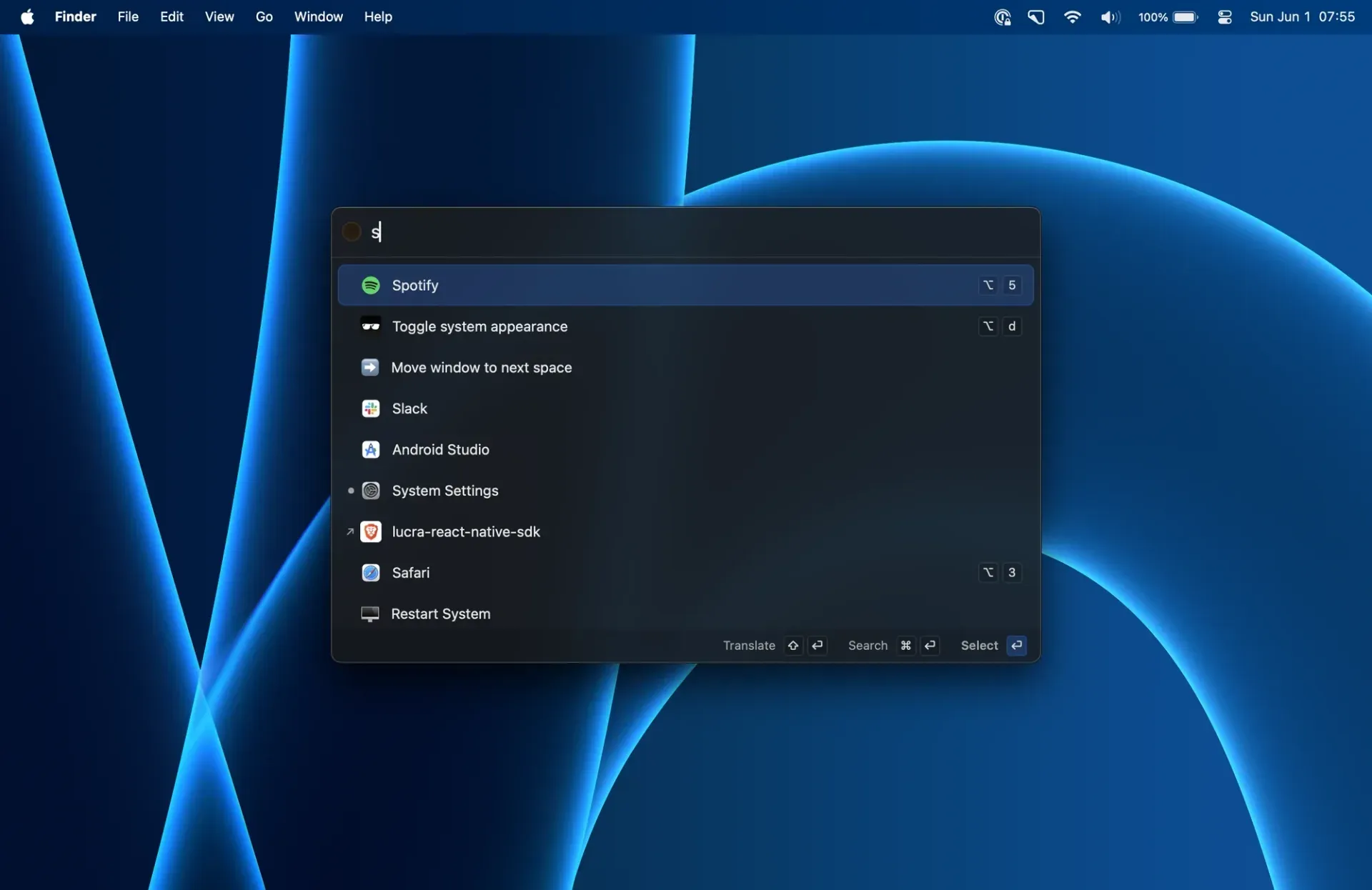
Sol's search panel with mixed app, command and bookmark results and the Translate, Search and Select hints, from the official website.
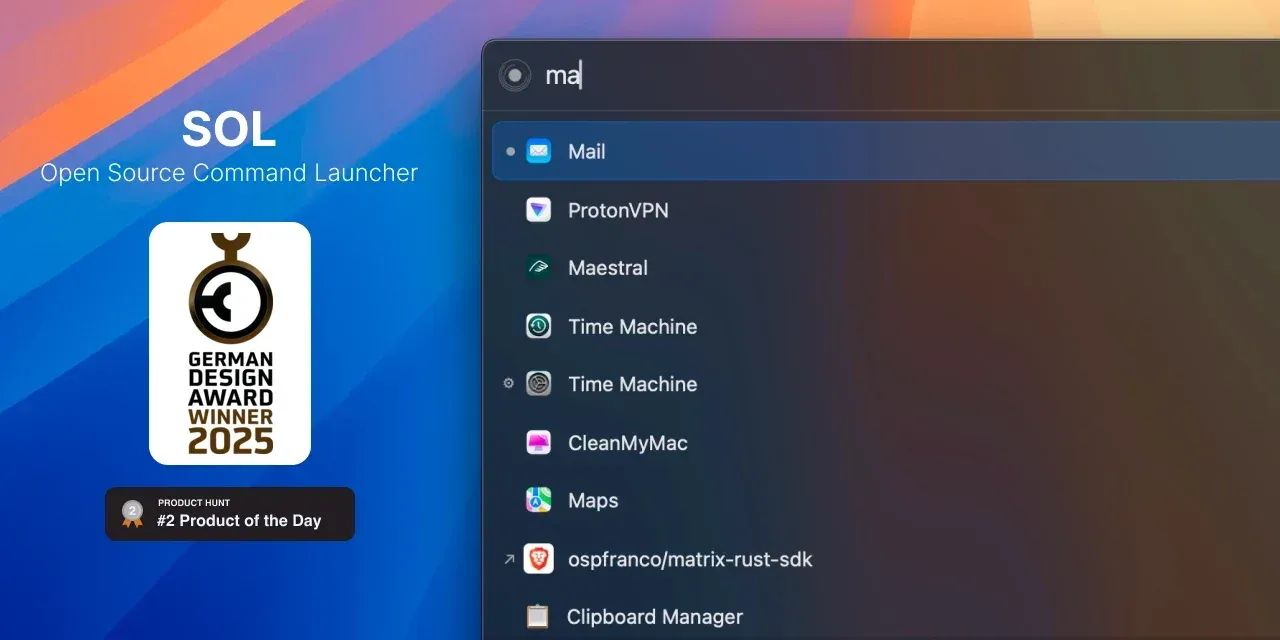
Current README header: the launcher matching apps, a System Settings pane, a bookmark and the Clipboard Manager command for the query ma.
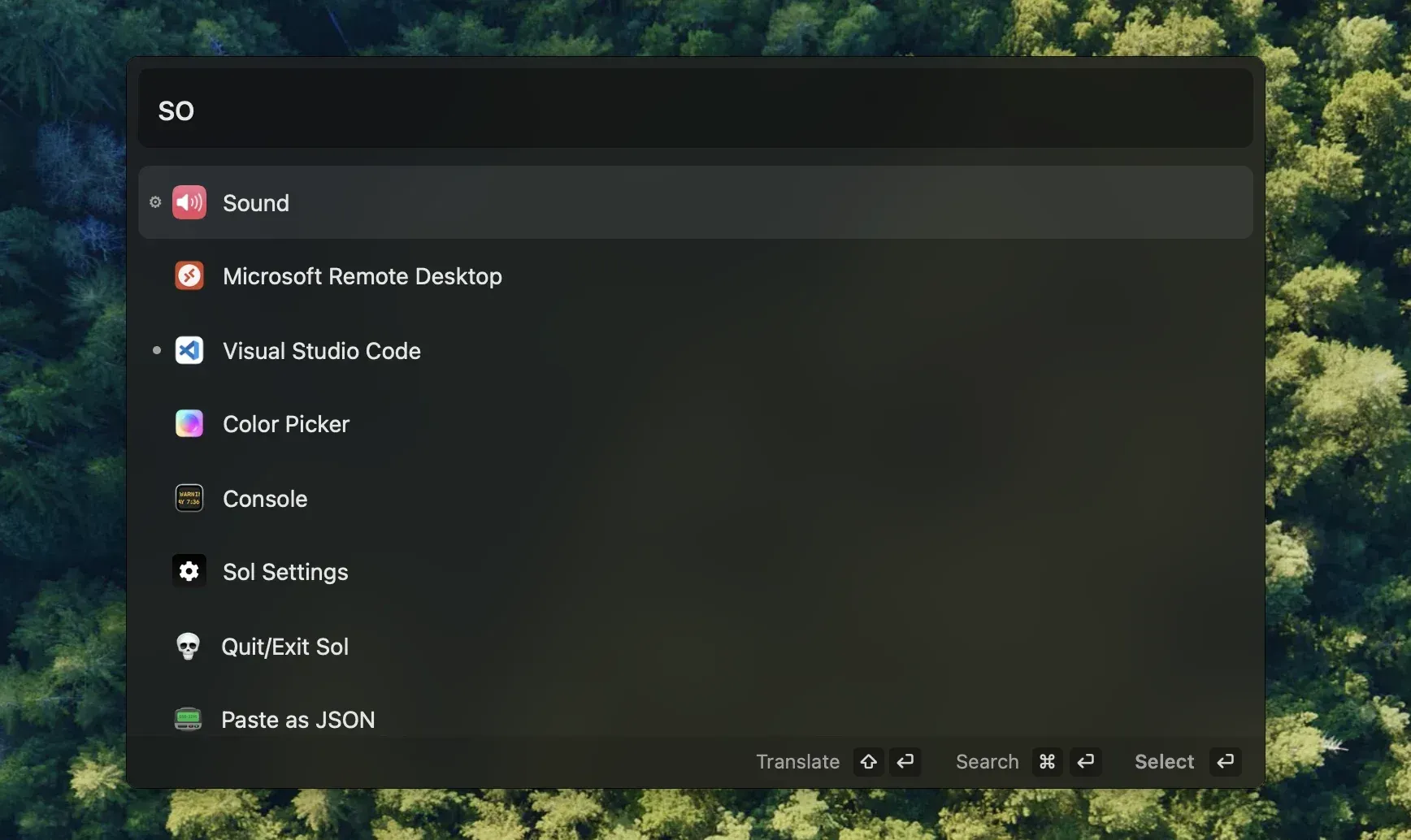
Earlier Sol interface from the README header used in October 2024, showing built-in commands such as Sol Settings, Quit/Exit Sol and Paste as JSON.
Source: official Sol project page.
Key capabilities
- Homebrew cask install
brew install --cask solinstalls the current release into Applications. On first launch an onboarding flow sets the global shortcut, shows the shortcuts for the clipboard manager, emoji picker and scratchpad, and links to System Settings for the permissions Sol needs, such as Accessibility for window management. Sol requires macOS 14.0 or later on Apple Silicon or Intel Macs supported by that release. - Manual download and signed updates Each GitHub release carries a ZIP archive of the app, about 15 MB for 2.1.364. Installed copies update through Sparkle, which reads the appcast file in the repository and checks the EdDSA signature of every archive before installing it. A Check for Sol updates command triggers the check manually.
- App search Typing in the main field matches installed applications, System Settings panes and Sol's own commands with fuzzy search, and frequently used items rise in the ranking. Since 2.1.362 results show localized application names, and since 2.1.363 the app list is restored at launch so search works right after login.
- Indexed file search The File Search command looks up files and folders in an index Sol builds itself. By default it covers Downloads, Documents, Desktop, Pictures, Movies and Music in the home folder; further folders are added under File Search Paths in settings. Hidden files and folders whose names start with a dot are skipped.
- Window manager Built-in commands snap the frontmost window to the left, right, top or bottom half, to each quarter, to thirds and two-thirds, to the center or to full screen, and move it to the next or previous display or Space. Default shortcuts use Ctrl+Option with the arrow keys for halves and Ctrl+Option with U, I, J and K for quarters, and every command can be rebound.
- Clipboard manager Sol keeps a searchable history of copied text and images, capped at 1,000 entries. History lives in memory unless Save clipboard history is enabled in settings, which is off by default; copied images are stored as files under
~/.config/sol/images_pasteboard. The manager opens from the launcher or from its own global shortcut. - Emoji picker A dedicated picker, by default on Cmd+Ctrl+Space, searches a bundled catalog through Emoji 17.0 plus a set of Unicode symbols, with a row of the seven most used emoji. Entries newer than the installed macOS version are hidden: Emoji 15.1 needs macOS 14.4, 16.0 needs 15.4 and 17.0 needs 26.4. A preferred skin tone setting exists on the main branch and is not yet in a tagged release.
- Calendar and meetings With calendar permission Sol shows upcoming events inside the launcher and can display the next appointment in the menu bar. Each calendar can be included or excluded in settings. A Start Google Meet command opens a new Meet link in the browser.
- Browser bookmarks When enabled, Sol imports bookmarks from Safari and from the default profiles of Chrome, Brave, Vivaldi and Microsoft Edge, and lists them in search results with the browser icon. Other browsers and additional profiles are not read.
- Web search and translation Cmd+Return sends the query to Google, DuckDuckGo, Bing, Perplexity or a custom URL template that uses
%sfor the query. Shift+Return translates the text through Google Translate between up to three languages chosen under Settings, Translation. - Calculator Math expressions typed into the main field are evaluated as you type and shown as a result row above the regular search results. Since 2.1.357 decimal commas are accepted as well as decimal points, which suits locales that write numbers that way.
- Script commands Sol watches
~/.config/sol/scriptsand lists every.shand.applescriptfile it finds as a command. A header comment such as# name: My Scriptand# icon:with an emoji sets the display name and icon. Shell scripts run with the user's permissions, and errors appear as a toast. - Quick links, AppleScript commands and custom shortcuts Create Quick Link adds a named URL that opens a website or web app from search. Custom items can also run an AppleScript snippet, and any item, built-in or custom, can be bound to a global keyboard shortcut. Settings live in
~/.config/sol/config.jsonand can be reloaded from the General settings page. - Scratchpad A notes scratchpad, by default on Cmd+Shift+Space, keeps quick text notes that are reachable from anywhere without opening a separate notes app. It is a single local scratch area, not a notes database with folders or sync.
- Developer utilities Commands generate a UUID, a Nano ID or placeholder text, reformat clipboard content as JSON and paste it, clear the Xcode derived data folder and add VS Code style key bindings to Xcode. The process manager lists running processes and terminates the selected one, and Kill all apps closes every running application.
- System commands Sol can toggle light and dark appearance, lock the screen, sleep, restart or shut down the Mac, empty the Trash, open AirDrop and show the current IP address when you type
IP. Reveal Wi-Fi Password and Copy Wi-Fi Password to Clipboard read the current network's password from the keychain and require location permission so macOS reports the network name. - Media keys and menu bar Media key forwarding sends play, pause and skip to Spotify or Apple Music instead of a video playing in the browser. Hide/Restore Notch blackens the menu bar so the camera notch on recent MacBooks blends in, and the panel can open on the screen with the frontmost window or the one under the cursor.
- Source build Contributors install Xcode, CocoaPods and mise, run
mise installto set up Bun, Ruby and dependencies, thenbun macosto start a debug build. The repository includes a Fastlane setup for releases and Jest tests for the emoji compatibility and skin tone logic.
Where Sol fits
Replacing Spotlight as the main launcher
Install with Homebrew, open Sol and pick Cmd+Space during onboarding, then remove or change the Spotlight shortcut in macOS Keyboard settings so the two do not collide. Enable Open at Login. Check that the apps you use daily appear by their localized names, that System Settings panes are found, and that search answers immediately after a reboot, which 2.1.363 addressed.
Keyboard window management on one or more displays
Grant Accessibility permission, then try the halves, quarters and thirds commands on a few apps and the move to next screen and next Space commands on a multi-monitor setup. Rebind any default that conflicts with shortcuts in your editor or IDE. Check how the panel chooses a screen under Show Window on Screen with, either the frontmost window or the cursor screen, since that affects where results appear.
Clipboard history for daily work
Decide first whether history should survive a restart: Save clipboard history is off by default, and when it is on, entries are written under the Sol configuration folder in your home directory. Copy a few text snippets and an image, search for them in the clipboard manager and paste them back. If you copy passwords or tokens often, keep persistence off or clear the history regularly, because the 1,000-entry cap is the only automatic limit.
Personal automation with scripts and AppleScript
Create ~/.config/sol/scripts, add a shell script with # name: and # icon: header lines and confirm it appears in search without restarting Sol, since the folder is watched. Use AppleScript files for app automation that needs Apple Events, and expect macOS to ask for automation permission the first time. Scripts run with your full user rights, so keep them in version control and review anything copied from elsewhere.
Developer helpers around Xcode and JSON
Use the UUID, Nano ID and placeholder text generators instead of separate websites, and Paste as JSON to format clipboard content before pasting into an editor. iOS and macOS developers can clear the derived data folder from the launcher when builds misbehave and add VS Code style bindings to Xcode. Check the result of these commands on a test project first, as clearing derived data forces a full rebuild.
Calendar, meetings and the menu bar
Grant calendar access, select which calendars Sol should read and turn on Show upcoming event in Menu Bar if you want the next meeting visible at all times. Start ad hoc calls with the Google Meet command. Verify that private or shared calendars you do not want on screen are excluded, because the menu bar entry is visible to anyone looking at the display.
Install
brew install --cask solReviews of Sol
Be the first to share your experience with Sol.
Write a review
Loading review form…
Alternatives to Sol
 DefiDefi is an open-source window manager for Apple Silicon Macs that arranges windows in scrolling columns, with per-display workspaces and app rules.