
What is BetterDisplay?
BetterDisplay is a menu bar utility for macOS that controls the built-in screen and connected external displays. It combines flexible HiDPI scaling, brightness and color controls, XDR and HDR brightness upscaling, virtual screens, picture in picture and local streaming, display connection management, configuration and EDID overrides, and hardware control over DDC, HDMI-CEC and the network. The app is developed and licensed by Kodeon Software Limited and published by the GitHub account waydabber; Paddle is the merchant of record and reseller for Pro licenses. The GitHub repository carries the README, downloads, issues and Discussions, and the BetterDisplay Guide holds the interface and CLI references, tutorials and an FAQ.
BetterDisplay is not open source. The repository holds no source code for the current app and no license file, and the license terms state that the app is licensed, not sold, and may not be modified, repackaged or redistributed without permission. The project started in 2021 as BetterDummy, an open-source dummy display app for custom HiDPI resolutions on Apple silicon Macs, and took the BetterDisplay name in 2022. The source of that BetterDummy OpenSource Edition is still kept on the repository's opensource branch under the MIT license, but it is not the code of the current app. The current model is free plus Pro: many features are free for non-business users, a 14-day trial unlocks every Pro feature, and a perpetual Pro license is advertised at US$21.99 or 19.99 euros, with taxes depending on location. Business users must buy a license to keep using any feature, free or Pro, after the trial.
Releases are distributed as DMG disk images on the GitHub releases page and through the Homebrew cask named in the README, and the built-in Sparkle updater downloads updates from GitHub. BetterDisplay 5 runs on Apple silicon and Intel Macs with macOS 26 Tahoe 26.3 or later, including macOS 27 Golden Gate. Earlier lines, from v4.3.7 for Ventura 13.2 through Sequoia down to v1.4.15 for Mojave, stay available for older systems. The README lists 38 language and regional variants, with right-to-left layouts for Arabic, Hebrew and Persian.
The latest stable release is BetterDisplay v5.2.1, published on October 29, 2026. It adds an experimental, driverless Software Audio controller that gives volume and mute to outputs without DDC, network or native volume control, plus audio tuning whose advanced options need Pro. It also adds a global Prevent Sleep action, floating TV remotes and new CLI options, and fixes brightness resynchronization after wake. BetterDisplay 5 first appeared as a pre-release on July 13, 2026 and is a free upgrade for Pro licenses bought on or after January 1, 2025. A v5.3.0 pre-release from November 13, 2026 adds touch-friendly menus, Live Activities and Dynamic Island feedback on macOS 27.3, Apple logo lighting control on supported PROLED MacBooks, Color Profile Retouch and experimental LUT color profiles.
The project documents several limits. Feature availability depends on the Mac, the macOS version, the display and the connection. The terms state that the app relies on undocumented macOS features, so a new macOS version can break individual functions, and that DDC/CI commands and EDID overrides can damage devices with firmware defects. Licensing checks go to Paddle, crash reports to Sentry and update checks to GitHub, and each can be switched off in Application settings. Support is voluntary through GitHub Issues, Discussions and Discord, without a service-level agreement. Other macOS menu bar and desktop tools on iThub are grouped under Desktop Utilities.
BetterDisplay screenshots
Explore the interface. Open a screenshot to view it at full size.
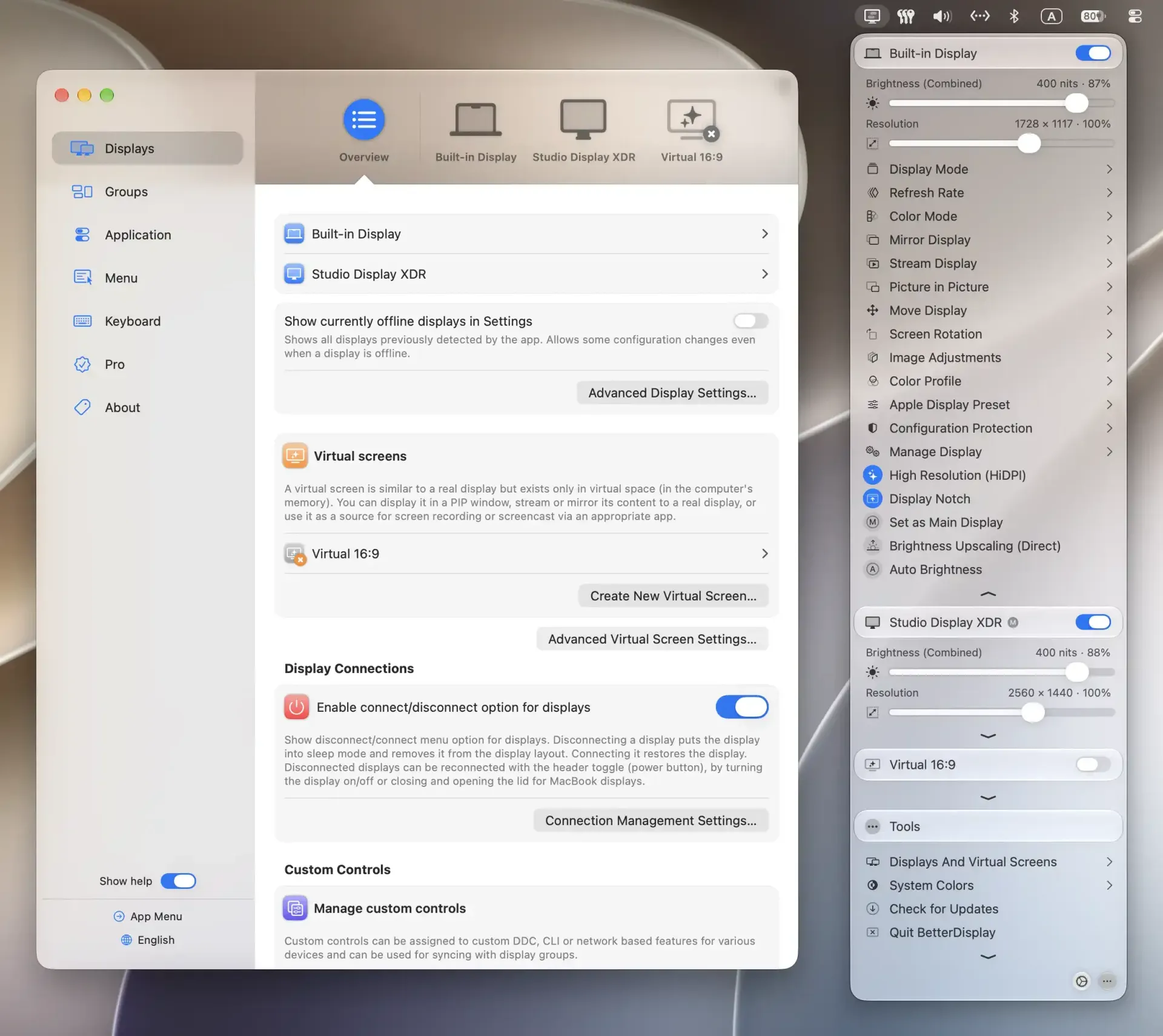
Official website screenshot: the Settings Displays overview lists real displays, a 16:9 virtual screen and connection options, while the app menu shows combined brightness in nits, resolution sliders and display actions.
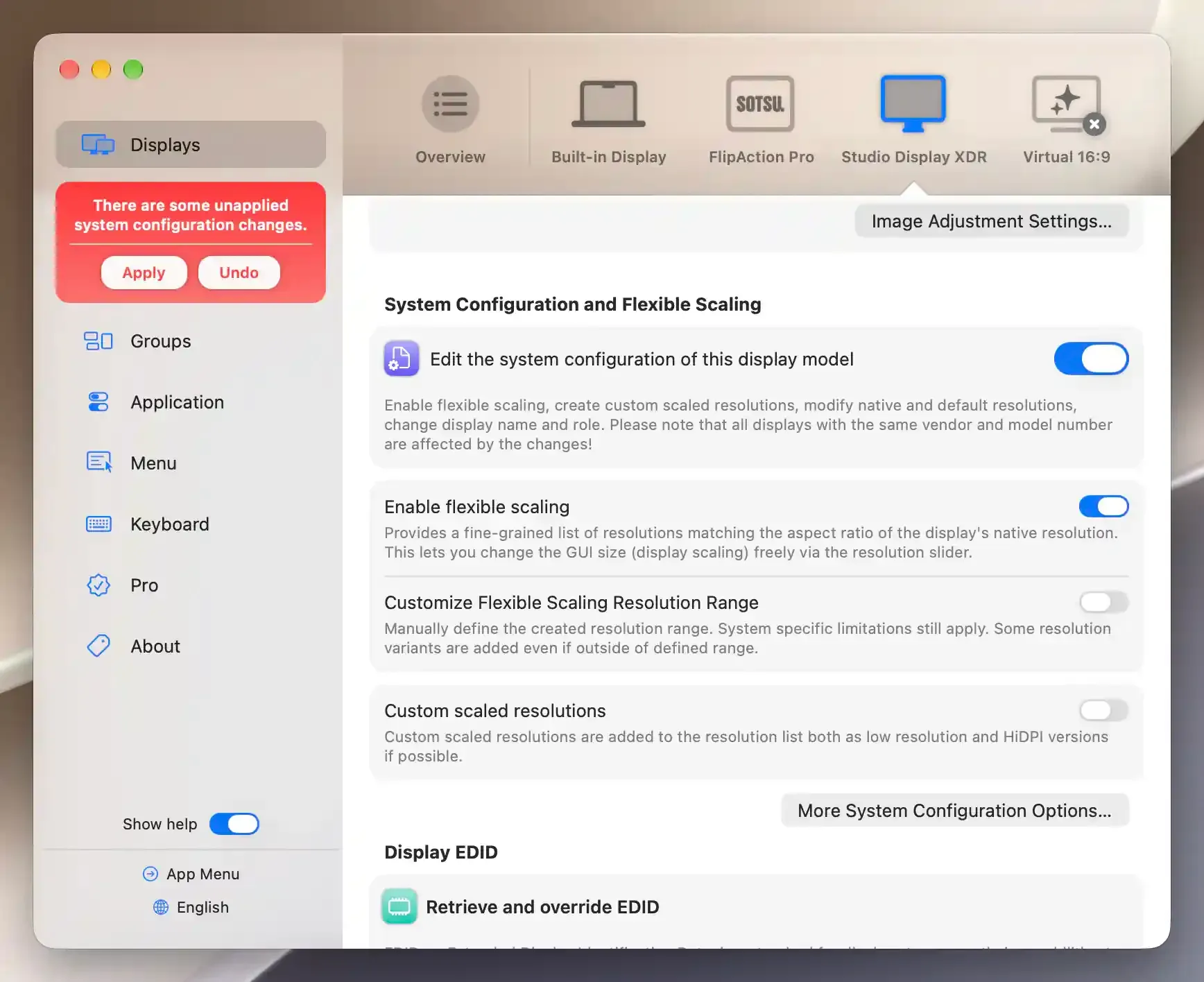
Guide screenshot from the HiDPI tutorial: editing the system configuration of a Studio Display XDR model with flexible scaling enabled, before applying the change.
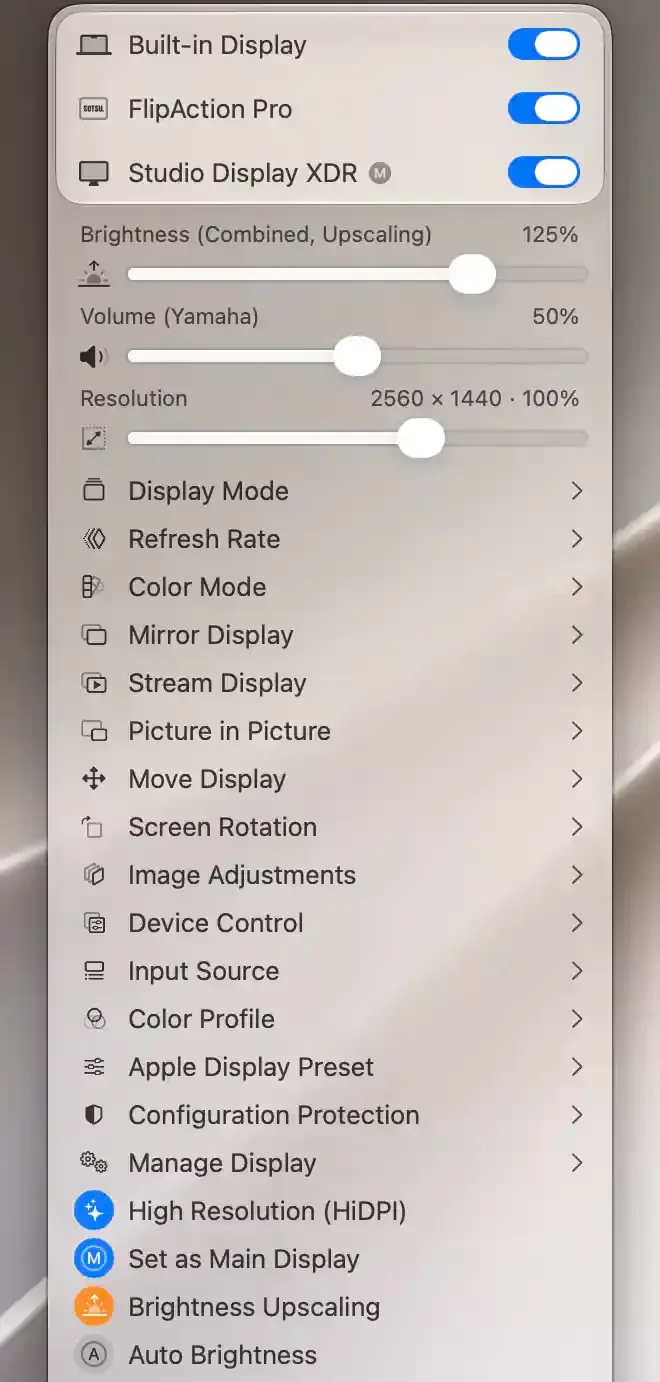
Guide screenshot from the brightness upscaling tutorial: the combined brightness slider above 100 percent with Brightness Upscaling active, next to device actions.
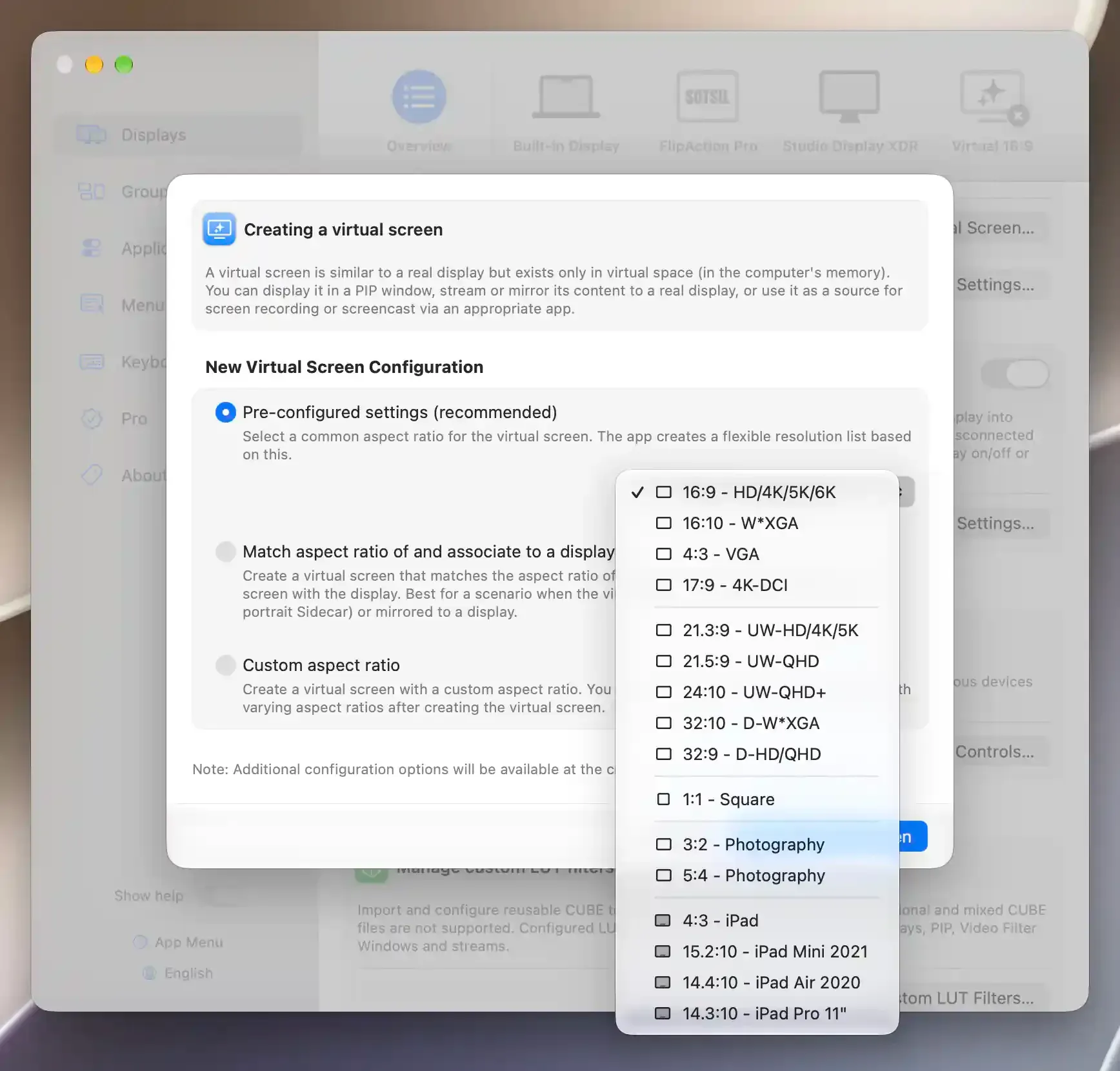
Guide screenshot: creating a virtual screen from pre-configured aspect ratio presets, with matched-display and custom aspect ratio modes below.
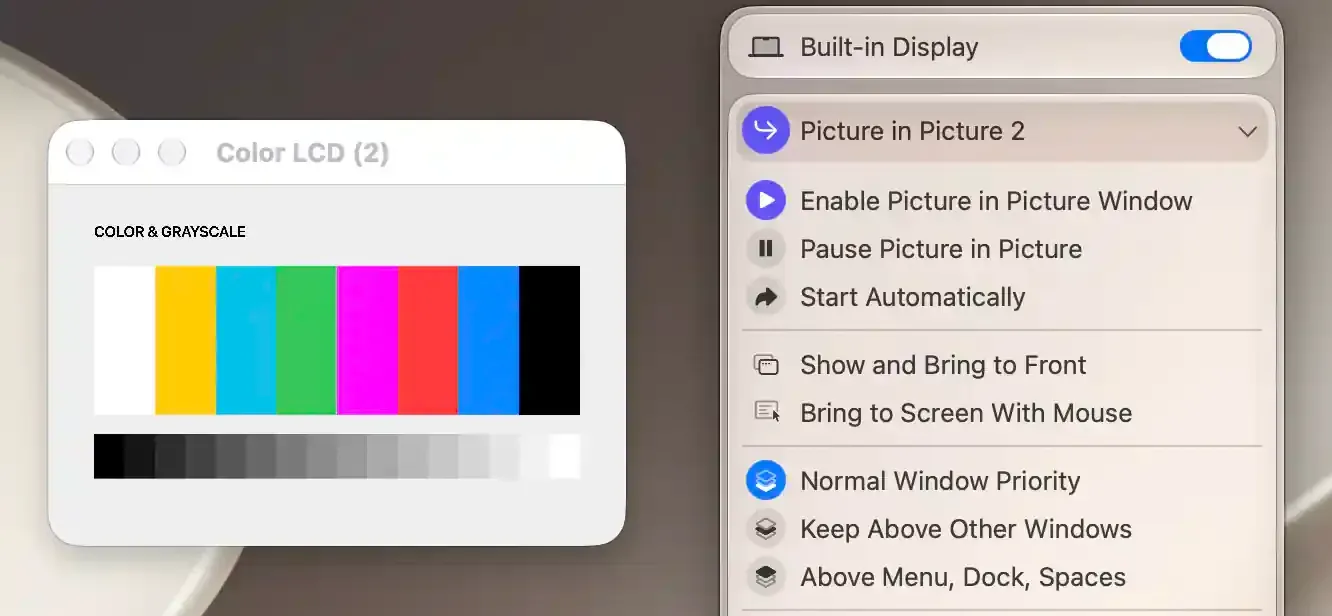
Guide screenshot: a live picture-in-picture window of the built-in display with window priority options in the app menu.
Source: official BetterDisplay project page.
Key capabilities
- Flexible HiDPI scaling Built-in and natively connected external displays can be made fully scalable, so the interface size moves along a fine-grained resolution slider instead of a few fixed steps. Support covers notched displays, HDR, HDCP and high refresh rates, and the change applies to every display with the same vendor and model number. Flexible scaling requires Pro after the trial, while editing custom scaled resolutions, which are added in both low resolution and HiDPI versions where possible, is free; the steps are in the HiDPI tutorial.
- XDR and HDR brightness upscaling On compatible displays BetterDisplay unlocks additional brightness, up to 1600 or 2000 nits on supported Apple XDR displays. The methods are Direct upscaling for built-in XDR displays on macOS 26.3 or later, color-table upscaling on Apple silicon and Metal upscaling on Apple silicon and Intel, plus display-dependent boosts for third-party HDR screens. Upscaling and HDR calibration are Pro features, and the available methods depend on the Mac, the display and the macOS version.
- Brightness, dimming and software color controls Brightness can be changed from the menu bar app menu through software controls, DDC, sliders and native or custom keyboard shortcuts, with output in nits on the on-screen display; advanced shortcuts and favorite resolutions require Pro. Software dimming goes all the way to black through color tables or overlays, and combined hardware and software dimming is available. Software contrast adjustment is free, software color temperature and advanced software color adjustments require Pro, and adjustment overlays can be hidden automatically during screenshots.
- DDC hardware control BetterDisplay detects the DDC capabilities of a monitor and configures them automatically, then controls brightness, volume, input source, power, contrast and color-channel gain where the monitor supports them. DDC works on supported Apple silicon and Intel connections, including the built-in HDMI ports of M1 Macs, the entry-level M2 Mac mini and the 2018 Intel Mac mini. DDC control is free, and the DDC settings reference lists the options.
- HDMI-CEC and networked TV control TV volume, mute, power and input selection can be controlled through HDMI-CEC on compatible HDMI connections, including from the CLI. Network controllers cover LG webOS and Samsung Tizen smart devices, Philips Android TVs and Yamaha AV receivers. Since v5.2.1, TV, receiver and HDMI-CEC remotes can open in separate floating windows, and Night Shift can be enabled for a television.
- Experimental Software Audio The driverless Software Audio controller added in v5.2.1 provides volume and mute for compatible outputs, including display speakers that have no usable DDC, network or native volume control, without installing an audio driver. It needs the macOS audio-recording permission and can show the audio-capture indicator while active. Gain, simple bass and treble, meters and Combined Volume Control are free; the 10-band EQ, filters, compressor, noise gate and other advanced tuning require Pro.
- Virtual screens Virtual displays exist only in memory and can be created with preset aspect ratios such as 16:9, 16:10, 4:3, ultrawide 21:9 and 32:9, square, photography ratios and iPad ratios, with a matched mode tied to a real display, or with a custom ratio. They can be shown in a picture-in-picture window, streamed or mirrored to a real display, or used as a recording source, and they give headless Macs a HiDPI desktop for remote access. Creating a virtual screen from the pre-configured settings is free; association with displays, custom configurations and HDR or high-refresh-rate virtual screens on compatible Macs require Pro.
- Picture in picture and local streaming Any physical display or virtual screen can be shown in a picture-in-picture window or streamed to another display, with video filters, cropping, rotation, stretching and target frame-rate controls. Documented workflows include portrait Sidecar and a teleprompter made by flipping a stream. Picture in picture, full-screen streaming, selected-window capture and the stream transformations are Pro features, and BetterDisplay needs the macOS Screen Recording permission to capture a screen for them.
- Image adjustments and custom 3D LUTs Compositor filters add sharpening, geometry and advanced color adjustments to a display, with syncing across display groups and access from the CLI and macOS Shortcuts. Custom 3D LUTs can be imported and applied to displays and to picture-in-picture or stream filters, and v5.3.0 can create experimental color profiles from imported LUTs. These are Pro features, and LUT color profiles work only in some apps.
- Color profiles, color modes and refresh rates The app menu selects color profiles and Apple XDR presets for free; since v5.2.1, Pro adds five color-profile favorites per display with keyboard shortcuts and CLI commands. On supported Apple silicon configurations it exposes RGB or YCbCr modes, chroma subsampling, HDMI range and additional or NTSC refresh rates that macOS does not show. Automatic profile switching between SDR and HDR and forced HDR switching for supported display modes require Pro.
- Display connection management Displays can be disconnected and reconnected without unplugging the cable; a disconnected display goes to sleep and leaves the layout. On Apple silicon Macs the built-in screen can be disconnected automatically when an external display is connected, and a single action switches between one display and the rest of the setup. Connection management is marked as a Pro feature in the README.
- Layout and configuration protection BetterDisplay can preserve display arrangements, resolution, refresh rate or VRR settings, rotation and color profiles when macOS changes them. Adaptive layout anchors keep pointer movement between screens consistent, and a visual arrangement tool in the app menu provides on-screen guides and grid snapping. Display groups synchronize brightness, image controls and UI scale across monitors, with brightness matching in nits. Visual arrangement and basic brightness syncing are free; configuration protection, custom groups and advanced syncing require Pro.
- EDID overrides and diagnostics EDID overrides are supported on Apple silicon and Intel Macs and require Pro, while EDID retrieval and export are available for inspection. Expanded diagnostics show connection, bandwidth, compression and tiling information, and the CLI returns EDID, DPCD, DSC, HDMI-CEC and Apple brightness reports. Native and default resolution overrides are free.
- CLI, HTTP, URL scheme and macOS Shortcuts The app binary inside the bundle accepts integration commands, and the separate MIT-licensed betterdisplaycli companion installs from a Homebrew tap. The same operations work through a custom
BetterDisplay://URL scheme with x-callback-url, an HTTP server on port 55777 by default, distributed notifications and App Intents for macOS Shortcuts; URL and HTTP access are off by default and can require a token. A built-in console runs commands and shows logs, and per-display actions can run on connect, disconnect, sleep or wake. The interfaces themselves are free, while operations that control Pro features still require Pro, as the CLI reference details. - Download BetterDisplay for macOS The current DMG, BetterDisplay-v5.2.1.dmg, is attached to the GitHub release; the app is dragged to the Applications folder and its controls appear behind the menu bar icon. The README also gives
brew install --cask betterdisplayfor Homebrew. BetterDisplay 5 needs macOS 26.3 or later on Apple silicon or Intel, and older macOS versions use the v4.3.7, v3.5.6, v2.3.9 or v1.4.15 downloads listed in the README. - Pro license, trial and business terms The 14-day trial starts at first launch with licensing enabled and unlocks all features. A Pro license costs US$21.99 or 19.99 euros plus applicable tax, is perpetual for the versions it covers, and for purchases from July 1, 2026 includes at least two years of updates, including major versions released in that period. One personal license covers two personally owned Macs, or two Macs in a family, at a time; businesses license per user or per machine and contact the developer for 25 or more computers. The purchase guide covers payment methods, activation and transfers.
Where BetterDisplay fits
Making an external monitor sharper at a chosen interface size
The fully scalable HiDPI desktop tutorial walks through enabling flexible scaling for a display model in Settings, applying the pending system configuration change and then picking a size on the resolution slider. It also covers a matched virtual screen streamed or mirrored to the real display, native resolution editing and reinitializing external displays after wake.
Raising brightness on XDR and HDR displays
The brightness upscaling tutorial describes turning on Brightness Upscaling from a display's menu and choosing between the Direct method for built-in XDR panels, color-table upscaling and Metal upscaling. The combined brightness slider then extends beyond 100 percent, with snap points at the hardware minimum and maximum; external HDR displays use HDR mode together with upscaling.
Giving a headless Mac a virtual desktop for remote access
The headless Mac tutorial sets up Apple Screen Sharing between a host and a client Mac, then creates a dedicated virtual screen on the host so the shared desktop has readable text and enough room. The guide states that a saved virtual-screen definition is not available before login or at FileVault unlock, because BetterDisplay must run in a user session to create it, and it describes keeping a physical monitor and keyboard at hand during setup.
Controlling monitor inputs, volume and TVs from the Mac
With DDC, HDMI-CEC or a network controller configured, the app menu changes input source, volume, mute and power on supported monitors, TVs and Yamaha receivers. The Mac and PC input switching tutorial builds two macOS Shortcuts with one Input Source action per monitor, so a pair of monitors moves to a PC and back with one shortcut each. It points out that some monitors stop accepting commands from the Mac while they show the other computer, and that the monitor and its cable or dock must support DDC.
Keeping arrangements stable across docking, wake and desk changes
Configuration protection and layout protection restore arrangement, main display, resolution, refresh rate, rotation and color profile when macOS changes them after wake or reconnection. Guide tutorials cover protecting a monitor arrangement, using external monitors with a MacBook open while its built-in screen is disconnected, and work and evening presets triggered by one key.
Scripting displays from the shell and macOS Shortcuts
Scripts call betterdisplaycli set --name=MyDisplay --brightness=80% or the equivalent HTTP request, for example http://localhost:55777/set?name=MyDisplay&brightness=0.8, once the corresponding integration method is enabled. The integration overview describes Control Integration, which sends slider changes and display events to scripts and URLs, and scripted license management for deployments. BetterDisplay can be installed with the Homebrew cask named in its README.
Install
brew install --cask betterdisplayReviews of BetterDisplay
Be the first to share your experience with BetterDisplay.
Write a review
Loading review form…
Related to BetterDisplay
 HomebrewHomebrew installs command-line tools, libraries and desktop apps on macOS, Linux and WSL from reviewed formulae and casks, using prebuilt bottles, a Brewfile workflow, tap repositories and a built-in vulnerability scanner. BSD-2-Clause.
 RectangleRectangle is a free, open-source window manager for macOS 14 and later, based on Spectacle. It snaps windows to halves, thirds, quarters and more with keyboard shortcuts, drag-to-snap areas, mouse buttons or rectangle:// URLs.