

What is Petal?
Petal is a low-latency, multi-window screensharing application for macOS and Windows that its makers describe as open source pair programming for small engineering syncs. When a participant shares a window, it appears on every other participant's desktop as a separate, movable, borderless native window rather than a tile in a meeting grid. Several people can share windows at the same time, and everyone's cursor is shown live over the window they point at. The official website states that Petal comes from the makers of CoScreen, and the repository's privacy document names Kiruna Labs, Inc. as the operator of the official hosted service.
The project describes itself as young and pre-1.0. According to the README, the macOS app is signed, notarized and in daily use, while interfaces still change and remote control should be treated as early. Windows support is described as early: basic sharing with Windows.Graphics.Capture, a D3D11 compositor, Media Foundation camera, WASAPI audio and rooms works, but the platform is still incomplete. The repository has no GitHub releases; development is tracked through version tags, with v0.9.37 the most recent tag in November 2026.
Downloads are served from app.petal.live. macOS receives a signed and notarized universal DMG for Apple Silicon and Intel that requires macOS 13 Ventura or later. Windows receives an x86-64 NSIS installer that is not Authenticode-signed and may trigger SmartScreen, while its automatic updates are still verified with Tauri's updater signature, as the install guide explains. People without the app can join from a browser at meet.petal.live. The website lists Petal as free and names Linux support as coming next.
The desktop app is built with Tauri 2, with a Rust core and a Svelte 5 and TypeScript interface, WKWebView on macOS and WebView2 on Windows. Capture uses ScreenCaptureKit on macOS and Windows.Graphics.Capture on Windows, encoding uses VideoToolbox H.264 on macOS, and media travels as WebRTC through a LiveKit SFU. The repository also contains the browser client, a stateless token and rooms backend for Vercel, shared UI code, wire-contract fixtures, a CycloneDX SBOM and the documentation site.
Petal runs in three ways described on the website: Petal Cloud, where the desktop app joins meetings on the project's LiveKit infrastructure; self-hosting, where the same app points at a LiveKit server and backend that the user operates, following the self-hosting guide; and fork and build. The source code is licensed under Apache-2.0, while the Petal name, logo, domains, bundle identifier and petal:// scheme are reserved by Kiruna Labs under the trademark policy, so modified builds distributed to others must change the branding. Other tools in this directory include Jitsi Meet for conferencing and LiveKit, the media server Petal uses.
Petal screenshots
Explore the interface. Open a screenshot to view it at full size.
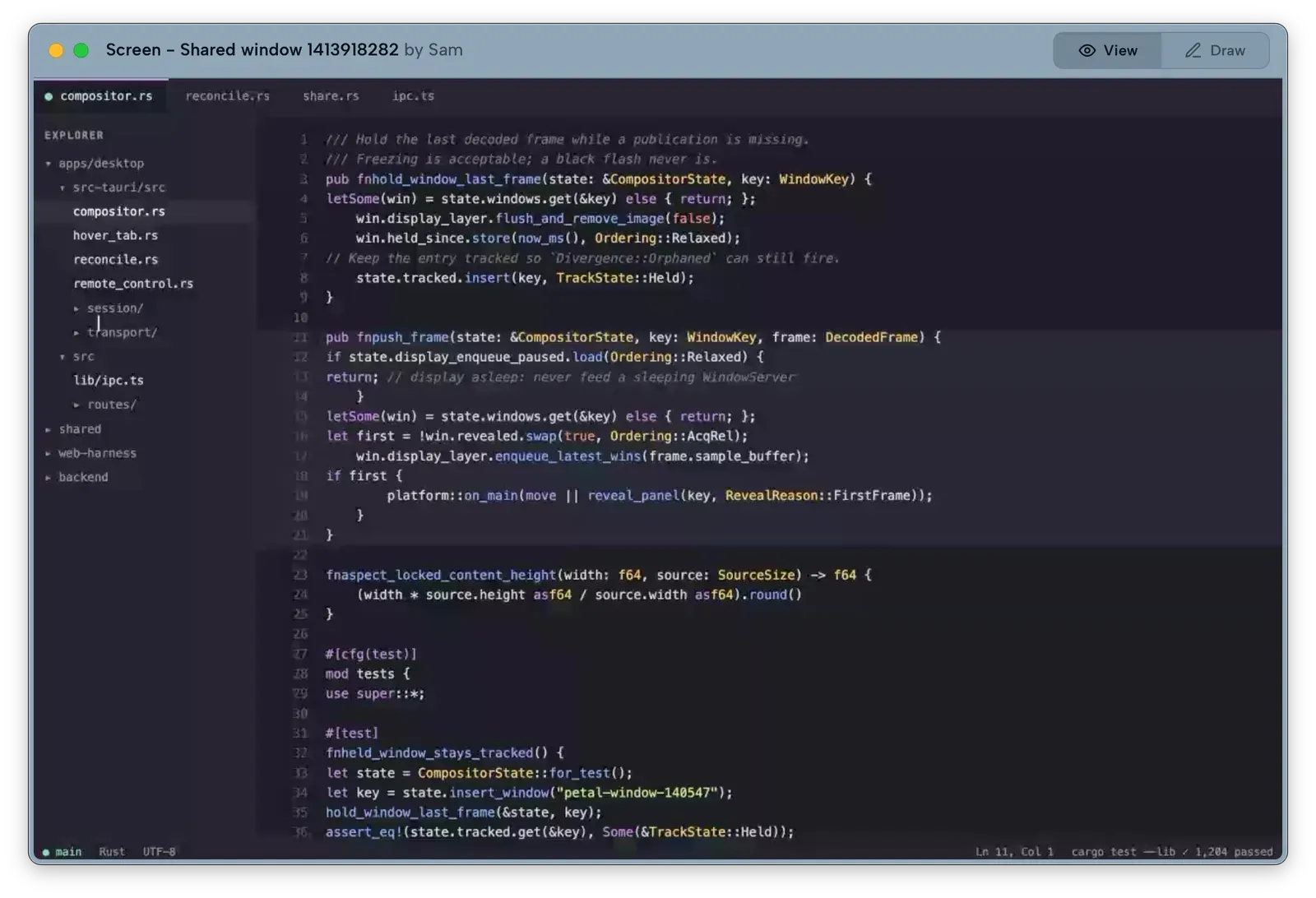
A shared code editor window rendered as a native window on a viewer's desktop, with the sharer's name and the View and Draw mode switch.
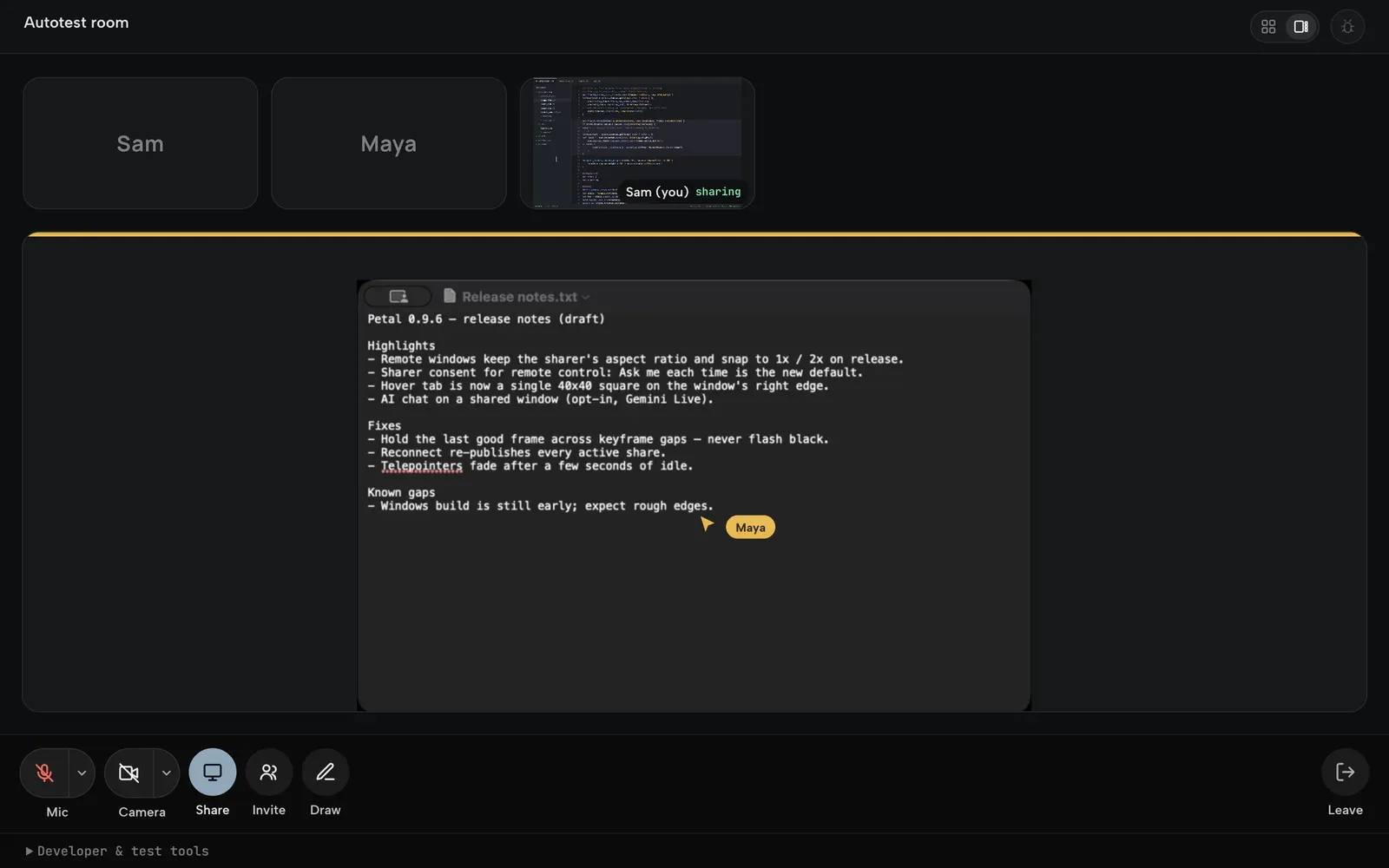
The browser client in a meeting, with a desktop participant's shared window spotlighted and a named telepointer over it.
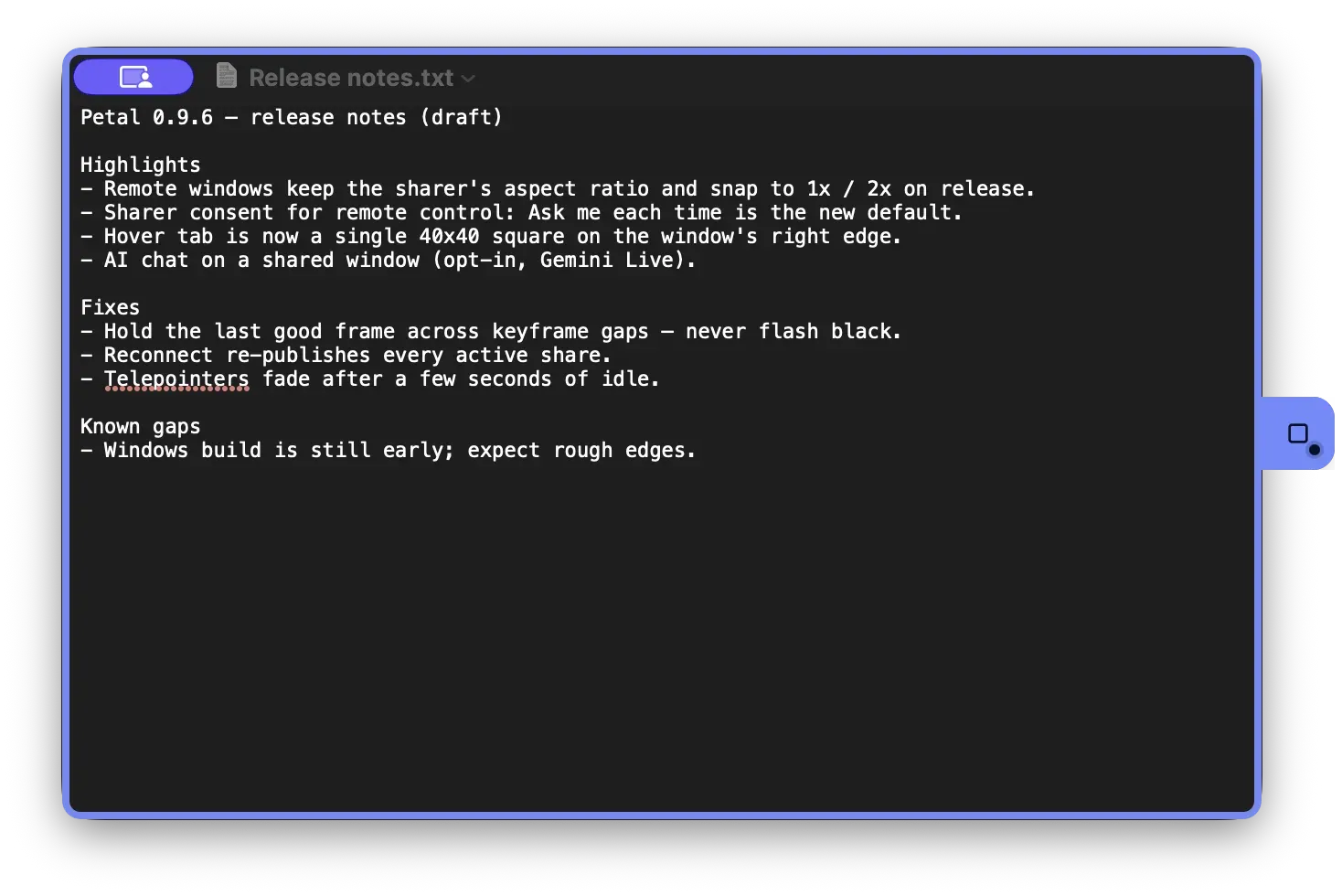
A window being shared, seen on the sharer's own Mac: the identity-colored border and the hover tab on the right edge.
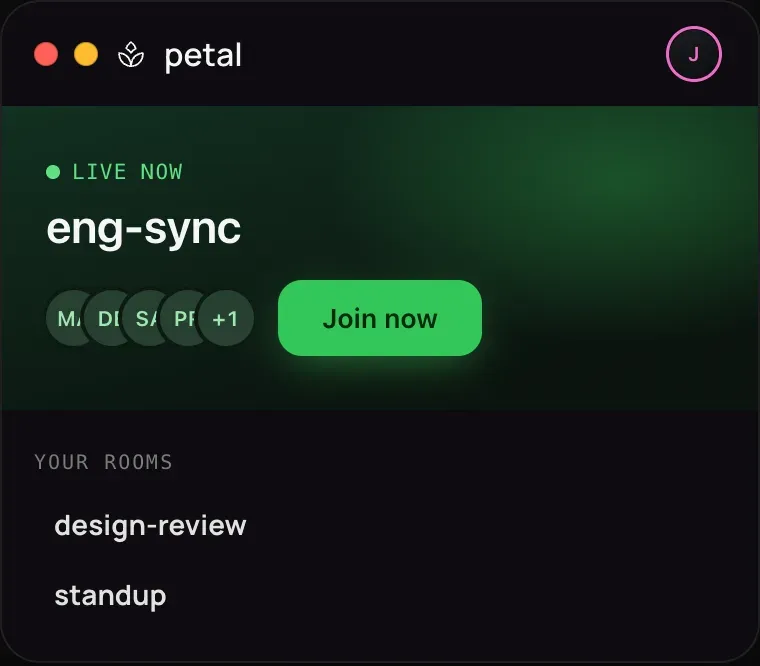
The main menu with a live room, participant initials, a Join now button and saved rooms.
Source: official Petal project page.
Key capabilities
- Shared windows as native windows Each shared window is an independent native window on the viewer's desktop that can be moved, resized and arranged next to other applications. The website describes them as movable, resizable and sharp rather than tiles in a grid. A gallery view of participants is also available.
- Several windows at once One participant can share up to four windows at a time, according to the sharing guide. Each share is its own hardware-encoded H.264 stream, and several participants can share simultaneously.
- Hover tab and shortcuts During a meeting, a 40 by 40 pixel hover tab appears on eligible windows; clicking it starts or stops sharing, and it can be dragged along any window edge. A picker and the global shortcut Command-Control-Shift-S also start a share. A right-click menu on the tab holds per-window options.
- Sharer indicator A window being shared gets a rounded border in the sharer's identity color on the sharer's own screen. On Windows, the native gold capture border also remains, and Petal does not request administrator rights.
- Telepointers Every participant's cursor appears with name and color over the shared window it points at. Positions are normalized to the window and sent as data rather than baked into the video, idle pointers fade after a few seconds, and on macOS the pointer is only sent when the shared window is actually topmost under the cursor.
- Drawing and text annotations In Draw mode anyone can sketch on a shared window. Strokes stay visible for 10 seconds after their last point and then fade, and text annotations of up to 256 characters follow the same schedule. Nothing is stored.
- Remote control with consent A viewer can switch a shared window to Control, and their clicks, scrolling and keystrokes are injected into that window without stealing the sharer's focus. The default policy is Ask me each time, with a consent panel that denies after 30 seconds; Allow automatically and Off are the alternatives, plus a per-call switch and a per-window lock. On macOS it requires the Accessibility permission.
- AI chat on a shared window An opt-in feature, off by default, opens a Gemini Live session about a shared window. The model sees the window and hears the room only while someone holds push-to-talk, and it can act on the window only after the sharer approves with Allow once or Allow for this session. Petal's hosted service supplies credentials with limits, or a user can add their own Gemini API key; the AI chat guide states that window content and room voice go to Google during a session.
- Persistent rooms and invites Named rooms such as eng-sync persist and can be rejoined with one click, without scheduling. Invites use petal://join links or meet.petal.live links that combine a readable label with an access code, and the main menu shows live presence.
- Browser client At meet.petal.live a participant can join by invite link or code with screen sharing from a desktop browser, camera and microphone, as described in the browser guide. Windows shared from a browser cannot be remotely controlled. On phones and tablets, joining in the browser is the only option offered.
- Audio and camera The microphone uses echo cancellation and noise suppression, with mute available from the gallery, the floating pill or the menu bar, and devices can be swapped during a call. The camera is optional.
- Floating pill and menu bar The meeting gallery collapses into a floating pill, brought back with Command-Control-Shift-P. A menu bar pill shows the microphone state, the participant count and a one-click leave action.
- Reconnection Petal reconnects across network changes and republishes active shares automatically. Remote windows hold the last good frame across keyframe gaps instead of flashing black.
- macOS app The universal DMG supports Apple Silicon and Intel on macOS 13 or later. On first launch the app walks through Screen Recording and Microphone permissions, which are required, and Camera and Accessibility, which are optional.
- Windows app The x86-64 NSIS installer may install WebView2 if it is missing. Windows has no equivalent permission flow, so setup goes straight to name and color. The project labels the Windows build as early.
- Automatic updates The app checks for updates at launch and when returning to the main menu, at most once every 30 minutes. An update is only installed when the user clicks Restart now, and updates are verified against a signing key.
- Self-hosting on LiveKit The supported self-hosted setup is a LiveKit server plus the stateless backend from the repository, deployed as serverless functions on Vercel or a compatible platform. The backend mints short-lived room-scoped tokens, keeps the LiveKit secret server-side and uses LiveKit as its only room store, without a database or Redis.
- Documented network behavior PRIVACY.md lists every outbound connection: the token backend, the LiveKit SFU, and build-configured auto-update, Sentry crash reporting and PostHog usage events. Media is encrypted in transit with DTLS-SRTP but is not end-to-end encrypted, Petal does not record meetings, and crash reporting can be turned off in Settings.
Where Petal fits
Small engineering syncs and pair programming
The website's example is a persistent room such as eng-sync that teammates join with one click. Each participant shares the windows relevant to the discussion, such as an editor and a browser, and the others arrange those windows on their own desktops next to their own tools while the call continues.
Pointing and annotating during code review
Telepointers show where each participant is pointing on a shared window, without any setting to enable. Draw mode adds strokes and short text labels that everyone viewing the window sees in the author's color, and that fade after about ten seconds.
Handing over control of one window
A viewer requests Control on a shared window, and under the default Ask me each time policy the sharer sees a consent panel with Allow and Deny. Control is limited to that window, several people can control it at once, and turning control off at any level drops all controllers and releases held keys and mouse buttons, as the remote control guide describes.
Including participants without the desktop app
Participants on Linux or without an installation open an invite link and choose Join in browser at meet.petal.live. They take part with camera, microphone and screen sharing from a desktop browser, and see the shared windows of desktop participants with their telepointers.
Running meetings on your own infrastructure
The self-hosting guide describes configuring a LiveKit server with an API key and secret, deploying the backend directory to Vercel with LIVEKIT_URL, LIVEKIT_API_KEY and LIVEKIT_API_SECRET, and pointing the desktop app at that backend through PETAL_BACKEND_URL at build time or Settings, Server. The website summarizes this mode as keeping media traffic on servers the user runs.
Asking an AI model about a shared window
With AI chat turned on in Settings, any participant can start a session on a shared window. The session runs on the sharer's machine, shows an AI chat live badge to everyone viewing the window, and ends when someone stops it, the share ends or the time limit is reached.
Reviews of Petal
Be the first to share your experience with Petal.
Write a review
Loading review form…
Alternatives to Petal
 Jitsi MeetJitsi Meet is an Apache 2.0 video conferencing application for browsers, Android, iOS and desktop. It adds chat, screen sharing, polls, recording and SIP dial-in, can be embedded with SDKs and can be self-hosted with Docker or Debian packages.
 PiikPiik lets a host share a screen, window, tab or camera with invited browser viewers. It combines voice, chat and approved remote control, with optional self-hosting and server media forwarding.