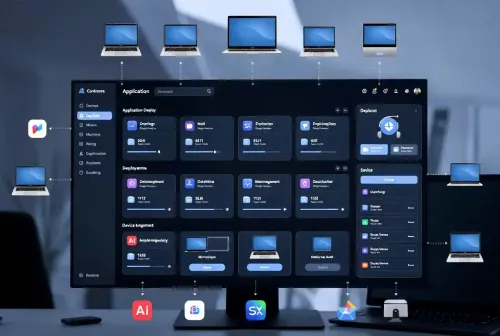
Deploying a Winget app to Microsoft Intune means turning a package from the Windows Package Manager repository into a Win32 app: an encrypted .intunewin file plus install and uninstall commands, requirements and detection rules. Microsoft provides the packaging step through the [Microsoft Win32 Content Prep Tool](https://learn.microsoft.com/en-us/intune/app-management/deployment/create-win32-package) (IntuneWinAppUtil.exe), and the Intune admin center provides the rest. Three community projects listed on iThub automate parts of that chain for Winget packages: [IntuneGet](https://www.ithub.directory/endpoint-patch-management/intuneget), [WinTuner](https://www.ithub.directory/endpoint-patch-management/wintuner) and [IntunePrepTool](https://www.ithub.directory/endpoint-patch-management/intunepreptool).
They take different forms. IntuneGet is a web application, available hosted at intuneget.com or self-hosted. WinTuner is a PowerShell module. IntunePrepTool is a Windows desktop application installed from an MSI. This article explains how Win32 app packaging works according to Microsoft Learn, how Winget manifests relate to it, and what each tool's own documentation says about installation, permissions, licensing and release activity. All release dates were read from the projects' GitHub releases on 10 November 2026.
## At a glance
| | |
|---|---|
| Topic | Packaging and deploying Winget packages as Intune Win32 apps |
| Microsoft packaging tool | Microsoft Win32 Content Prep Tool (IntuneWinAppUtil.exe), v1.8.7 released 13 August 2025 |
| Package format | .intunewin (compressed and encrypted setup files plus encryption information) |
| Win32 app size limit | 30 GB per app, according to Microsoft Learn |
| IntuneGet | Web app, hosted or self-hosted; AGPL-3.0; Microsoft Entra app registration with admin consent |
| WinTuner | PowerShell module for PowerShell 7.4; GPL-3.0; authenticates to Microsoft Graph |
| IntunePrepTool | Windows desktop app (MSI); MIT; tenant app registration created with a Global Admin sign-in |
## What a Win32 app (.intunewin) is in Intune
Intune can deploy several Windows app types. A Win32 app is the type used for classic desktop installers such as .exe and .msi files. Microsoft's article on [adding and assigning Win32 apps](https://learn.microsoft.com/en-us/intune/app-management/deployment/add-win32) lists the prerequisites: a supported Windows version (Enterprise, Pro or Education), devices that are registered or joined to Microsoft Entra ID and auto-enrolled, and a size cap of 30 GB per app. Win32 apps rely on the Intune Management Extension, which Intune installs on the device automatically when a Win32 app is assigned to the user or device.
The upload format is the .intunewin file. According to the [Content Prep Tool README](https://github.com/microsoft/Microsoft-Win32-Content-Prep-Tool), the generated file "contains all compressed and encrypted source setup files and the encryption information to decrypt it", and Microsoft advises keeping it in a safe place, as you would the source setup files.
Uploading the file is only the first step. When you create the app in the admin center, the Learn article walks through these settings:
- **Program:** an install command and an uninstall command, or a PowerShell script installer (maximum 50 KB). Intune does not support interactive installations, so the installer must run silently.
- **Install behavior:** System or User context. Microsoft notes that System must be selected when a device is enrolled as Microsoft Entra registered.
- **Return codes:** codes that mean success, failure, retry, soft reboot or hard reboot.
- **Requirements:** OS architecture, minimum OS, and optional rules based on files, registry values or scripts.
- **Detection rules:** at least one rule of type MSI (product code and optional version check), file, registry or custom PowerShell script. All rules must match for the app to be detected.
- **Dependencies and supersedence:** up to 100 dependencies in an app graph and up to 10 nodes in a supersedence relationship.
- **Assignments:** Required, Available for enrolled devices, or Uninstall.
The detection rule is the part that tells Intune whether the installation worked. For a custom script, Learn states that the app is detected when the script exits with code 0 and writes a string to STDOUT; any output on STDERR makes the result "not installed".
## How the Microsoft Win32 Content Prep Tool works
The Content Prep Tool is a Windows command-line program. Microsoft's [preparation guide](https://learn.microsoft.com/en-us/intune/app-management/deployment/create-win32-package) says it converts installation files into the .intunewin format and detects some of the attributes Intune needs to determine the installation state. Its [GitHub README](https://github.com/microsoft/Microsoft-Win32-Content-Prep-Tool) lists .NET Framework 4.7.2 as the prerequisite and requires you to review the Microsoft License Terms for the tool before use.
Run without parameters, IntuneWinAppUtil.exe prompts for each value. The documented parameters are:
| Parameter | Purpose |
|---|---|
| `-c ` | Folder with all setup files; everything in it is compressed into the .intunewin file |
| `-s ` | Setup file, such as setup.exe or setup.msi |
| `-o ` | Output folder for the generated file |
| `-a ` | Catalog files for Windows 10 S mode |
| `-q` / `-qq` | Quiet mode; -qq also suppresses console output |
| `-v` / `-h` | Version (from 1.8.2) and help |
The example on Learn is `IntuneWinAppUtil -c c:\testapp\v1.0 -s c:\testapp\v1.0\setup.exe -o c:\testappoutput\v1.0 -q`. For an MSI, the README says the tool retrieves the information Intune requires. Two operational details from the documentation matter: the tool zips every file and subfolder in the setup folder, so the tool itself must sit outside that folder, and the admin center shows a warning when a package was built with an older version of the tool. The latest release on GitHub is [v1.8.7](https://github.com/microsoft/Microsoft-Win32-Content-Prep-Tool/releases), published on 13 August 2025.
The Content Prep Tool only builds the package. It does not download installers, write install commands or create detection rules. The three community tools below fill in those steps for Winget packages.
## How Winget manifests relate to Intune packaging
Winget is the command-line client of the Windows Package Manager. Each package in the community repository is described by a manifest. Microsoft's [manifest documentation](https://learn.microsoft.com/en-us/windows/package-manager/package/manifest) defines manifests as YAML files containing metadata used by the Windows Package Manager to install and upgrade software, stored in the [winget-pkgs repository](https://github.com/microsoft/winget-pkgs) on GitHub.
The minimal schema includes a PackageIdentifier in Publisher.Package form, a PackageVersion, and for each installer the Architecture, InstallerType (such as exe, msi, msix, inno, wix or nullsoft), InstallerUrl and InstallerSha256. Optional fields include install modes, installer switches and, for MSI installers, the product code. Microsoft also states that all tools in the repository must support a silent install.
These fields line up with the inputs a Win32 app needs: the installer file comes from InstallerUrl and can be checked against InstallerSha256, the silent install command comes from the installer type and switches, and an MSI product code can feed an MSI detection rule. The documented approaches differ in what reaches the device. Some packages built by these tools contain the downloaded installer itself. Others contain a script that calls winget.exe on the device, which then requires the Windows Package Manager client on the endpoint. Each tool's section below states which approach its documentation describes.
## IntuneGet
### What it does
[IntuneGet](https://github.com/ugurkocde/IntuneGet) by Ugur Koc describes itself as a way to deploy Winget applications to Microsoft Intune "with a single click". The README lists a catalog of "10,000+ Winget apps", one-click deployment, real-time deployment status, pre-configured detection rules and support for PowerShell App Deployment Toolkit (PSADT) v4 UI elements. For managed service providers it documents a multi-tenant MSP mode, batch deployment of one app across several tenants, team roles (Owner, Admin, Operator, Viewer), webhooks for Slack, Teams or Discord, audit logging and CSV, JSON or PDF reports. The README describes the project as free and open source, and [intuneget.com](https://www.intuneget.com) states that there are no per-device fees.
### How packaging works
According to the [GitHub Actions setup guide](https://github.com/ugurkocde/IntuneGet/blob/main/docs/GITHUB_ACTIONS_SETUP.md), the default pipeline downloads the application from Winget and packages it as an .intunewin file using IntuneWinAppUtil.exe. The workflow runs on a Windows runner because IntuneWinAppUtil.exe is a Windows-only tool. The [local packager README](https://github.com/ugurkocde/IntuneGet/blob/main/packager/README.md) describes the same job: the packager downloads the installer, creates a PSADT package and converts it to .intunewin. It also checks IntuneWinAppUtil and the PSAppDeployToolkit cache against pinned hashes before use. The finished package is uploaded to the tenant through the Intune Graph API.
On data handling, the README states that IntuneGet does not store application binaries or tenant credentials, that callbacks are signed with HMAC-SHA256, and that access tokens are not persisted. The intuneget.com site adds that installers are "streamed, not stored", that hosted metadata is stored in Frankfurt, EU, and that installer hashes are checked against VirusTotal.
### Installation options
There are two routes:
1. **Hosted:** sign in at intuneget.com with a work account. A Global Administrator of the tenant grants admin consent once.
2. **Self-hosted:** the [self-hosting guide](https://github.com/ugurkocde/IntuneGet/blob/main/docs/SELF_HOSTING.md) covers Docker Compose (`git clone`, copy `.env.example` to `.env.local`, then `docker-compose up -d`), Vercel, or a manual Node.js install, which requires Node.js 22 or later.
A self-hosted instance needs a database and a packaging mode. The database can be Supabase Cloud, self-hosted Supabase or SQLite; the guide notes that notifications, webhooks and MSP features still require Supabase. Packaging runs either through GitHub Actions, which needs a GitHub personal access token and a private repository holding the workflow, or through the local packager. The local packager is an npm package (`npm install -g @ugurkocde/intuneget-packager`) that runs on Windows 10, Windows 11 or Windows Server 2019 and later with Node.js 22. The README states that this mode, combined with self-hosted Supabase or SQLite, supports air-gapped environments.
### Permissions
IntuneGet uses a multi-tenant Microsoft Entra app registration. The [Azure AD setup guide](https://github.com/ugurkocde/IntuneGet/blob/main/docs/AZURE_AD_SETUP.md) lists one delegated Microsoft Graph permission for sign-in and five application permissions that require admin consent:
| Permission | Type |
|---|---|
| User.Read | Delegated |
| DeviceManagementApps.ReadWrite.All | Application |
| DeviceManagementManagedDevices.Read.All | Application |
| DeviceManagementServiceConfig.ReadWrite.All | Application |
| DeviceManagementConfiguration.Read.All | Application |
| GroupMember.Read.All | Application |
The project's [authentication architecture](https://github.com/ugurkocde/IntuneGet/blob/main/docs/authentication-architecture.md) document explains the purpose of the first four application permissions: creating and updating Win32 apps, unmanaged app data, Enrollment Status Page support and assignment filters. That document does not list GroupMember.Read.All, so the two files differ by one permission. Admin consent is granted through the standard `login.microsoftonline.com/{tenant-id}/adminconsent` URL, and IntuneGet checks consent status before accepting packaging jobs. A self-hosted instance also needs a client secret; the guide suggests rotating it regularly.
Microsoft's [Graph permissions reference](https://learn.microsoft.com/en-us/graph/permissions-reference) describes DeviceManagementApps.ReadWrite.All as allowing an app to "read and write the properties, group assignments and status of apps" managed by Intune without a signed-in user, with admin consent required.
### License and maintenance
The [LICENSE file](https://github.com/ugurkocde/IntuneGet/blob/main/LICENSE) is the GNU Affero General Public License v3.0. The README summarizes it as allowing self-hosting for internal business use and requiring that modifications to a network service be open-sourced. The repository was created in May 2025. On 10 November 2026 its [releases page](https://github.com/ugurkocde/IntuneGet/releases) showed web release v0.8.5 (29 October 2026) and packager-v1.4.3 (3 November 2026), with commits pushed the same day. iThub also has a separate [article on IntuneGet's hosted and self-hosted options](https://www.ithub.directory/blog/intuneget-deploy-winget-apps-microsoft-intune).
## WinTuner
### What it does
[WinTuner](https://github.com/svrooij/WinTuner) by Stephan van Rooij, whose repository was previously named WingetIntune, takes an app from Winget and uploads it to Intune. The README lists four steps it automates: downloading the installer and the logo, creating the .intunewin file, generating the script information, and publishing the app to Intune. The [documentation](https://wintuner.app/docs/intro) describes WinTuner as a binary PowerShell module written in C#. The standalone CLI is no longer supported after version 1.1.0, and users are directed to the PowerShell module.
### How packaging works
WinTuner does not call the Microsoft Content Prep Tool. Its [Content Prep page](https://wintuner.app/docs/related/content-prep-tool) explains that the author re-implemented .intunewin creation in C# from publicly available information, so it runs without the closed-source, Windows-only tool. The same page states that the re-implementation is "not a replacement for the Microsoft tool", is not feature complete and comes without warranty or support. The commands are included in WinTuner from version 0.8.4 and are also published as the separate SvRooij.ContentPrep.Cmdlet module.
To find package versions, WinTuner uses a pre-generated [Winget package index](https://wintuner.app/docs/related/winget-package-index) rather than starting winget.exe. The index files are published on GitHub and refreshed by a scheduled GitHub Action every four hours.
The packaging command is [New-WtWingetPackage](https://wintuner.app/docs/wintuner-powershell/New-WtWingetPackage). It downloads the installer for a Winget package and creates the .intunewin file. Required parameters are -PackageId and -PackageFolder. Optional parameters include -Version, -Architecture, -InstallerContext, -Locale, -InstallerArguments, -PreferedInstaller, MSI product code and version overrides, and -PackageScript, which packages a WinGet script instead of the installer for installers that do not work well with WinTuner. Release [v1.4.1](https://github.com/svrooij/WinTuner/releases) (3 July 2026) added native handling of zip installers without calling winget on target machines and a -PrepareOnly switch for customizing a package before it is built.
### Installation and usage
The module is published in the [PowerShell Gallery](https://www.powershellgallery.com/packages/WinTuner/) and requires PowerShell 7.4 (net8.0). Installation is one command, as documented on the [installation page](https://wintuner.app/docs/wintuner-powershell/installation):
```powershell
Install-Module -Name WinTuner
```
The documented flow connects first, then packages and deploys. The [Deploy-WtWin32App](https://wintuner.app/docs/wintuner-powershell/Deploy-WtWin32App) page shows a pipeline that packages Oh My Posh and makes it available to all users:
```powershell
New-WtWingetPackage -PackageId JanDeDobbeleer.OhMyPosh -PackageFolder C:\Tools\Packages | Deploy-WtWin32App -Available AllUsers
```
Deploy-WtWin32App can assign the app with -AvailableFor, -RequiredFor or -UninstallFor (group object IDs, AllUsers or AllDevices), set categories and role scope tags, and supersede an existing app through -GraphId, optionally keeping its assignments. Other documented commands include Search-WtWinGetPackage, Get-WtWin32Apps (apps in Intune packaged by WinTuner), Update-WtIntuneApp (assignments, categories and an -EnableAutoUpdate switch), Deploy-WtMsStoreApp, Test-WtSetupFile for checking silent install switches, and Test-WtIntuneWin.
### Permissions and authentication
WinTuner talks to Microsoft Graph and needs a valid token for commands such as Deploy-WtWin32App, Update-WtIntuneApp and Remove-WtWin32App, according to the [authentication page](https://wintuner.app/docs/wintuner-powershell/authentication). [Connect-WtWinTuner](https://wintuner.app/docs/wintuner-powershell/Connect-WtWinTuner) supports several methods:
- **Interactive:** `Connect-WtWinTuner -Username` with the Windows authentication broker or the default browser. The default scopes are DeviceManagementConfiguration.ReadWrite.All and DeviceManagementApps.ReadWrite.All, and an alternative client ID can be supplied with -ClientId.
- **Managed identity:** described as the recommended way when WinTuner runs in Azure.
- **Default credentials:** DefaultAzureCredential from Azure.Identity, which tries environment variables, managed identity, Azure CLI and other sources.
- **Client certificate:** a certificate in the user or computer store, with the advice to mark it as not exportable.
- **Client secret:** documented as a "last resort".
- **Token:** a token from another source, described as the least preferred option.
The non-interactive methods request `https://graph.microsoft.com/.default`, so the Graph permissions are whatever has been granted to that app registration or managed identity. Microsoft's permissions reference marks both default scopes as requiring admin consent.
### Telemetry, license and maintenance
From version 1.2.0, WinTuner collects anonymous telemetry, according to its [telemetry page](https://wintuner.app/docs/telemetry): the WinTuner version, the command executed and the package ID passed to it. The data goes to an Azure Function that forwards it to Plausible. The repository is licensed under GPL-3.0. Its README still carries a beta notice stating that the application is not yet ready for production use. The latest release on 10 November 2026 was v1.4.1 (3 July 2026), preceded by v1.4.0 (17 June 2026) and v1.3.2 (23 September 2025); the last push to the repository was on 13 July 2026.
## IntunePrepTool
### What it does
[IntunePrepTool](https://github.com/rink-turksma/IntunePrepTool) by Rink Turksma is a Windows desktop application created with SAPIEN PowerShell Studio. The README describes it as packaging EXE, MSI, MSIX, Winget, Chocolatey, PowerShell script and scheduled task sources into .intunewin files using the Microsoft Win32 Content Prep Tool, with detection methods and an upload function. Its documented features include:
- Auto-generated install.ps1 and uninstall.ps1 scripts that can be tested or edited in PowerShell ISE.
- Downloading installers directly from Winget (MSI, MSIX or EXE sources).
- Building Blocks for registry keys (HKCU and HKLM), shortcuts and file or folder actions.
- An optional Azure OpenAI GPT-4 integration that suggests install parameters for EXE packaging, with README steps for adding an Azure OpenAI gpt-4o model.
- Transcript logging for every script, also visible in Event Viewer.
- Upload to Intune through the [IntuneWin32App PowerShell module](https://github.com/MSEndpointMgr/IntuneWin32App) by Nickolaj Andersen.
### How Winget packages work in IntunePrepTool
IntunePrepTool offers two Winget paths. It can download an installer from the Winget repository and package that installer like any other MSI, MSIX or EXE source. It can also create a Winget package type, for which the README states that Winget is needed on the target machine (Windows 10 and 11). For Required assignments, the README describes deploying the winget-cli MSIX from Microsoft's releases as a Win32 app and using Intune's dependency option for the Winget apps. Release 1.7.0.0 revised the Winget install and uninstall scripts to handle the 200+ return codes documented in the Winget repository, and its notes state that the revised function was tested on a machine with the CIS Level 1 baseline applied.
### Installation and setup
The [Basic Setup guide](https://intunepreptool.com/how-to/basic-setup/) on intunepreptool.com, dated April 2025, documents these steps:
1. Download the latest MSI from the [GitHub releases](https://github.com/rink-turksma/IntunePrepTool/releases), unblock it in the file properties if Windows shows the option, and run it.
2. Always start IntunePrepTool as Administrator.
3. Use the install buttons to add the prerequisites the tool reports as missing: required PowerShell modules, Winget, Chocolatey and Orca. Each button opens PowerShell ISE.
4. In the Tenant (App Registrations) tab, choose Add Tenant, enter a tenant name and an app registration name, select "Add Tenant (With App Registration)" and sign in with an account that has Global Admin rights.
### Permissions
According to the Basic Setup guide, the Global Admin sign-in is needed to grant consent automatically for the required API permissions in Entra ID, and "Only the required permissions will be applied". The guide does not name the individual Graph permissions or say whether they are delegated or application permissions. The app registration for the upload function was added in [release 1.3.0.0](https://github.com/rink-turksma/IntunePrepTool/releases/tag/IntunePrepTool-1.3.0.0) (May 2024), which also moved customer information to a config_customerinfo.csv file in the user's .IntunePrepTool folder. Administrators who need the exact permission list can review the created app registration in the Entra admin center after setup.
### License and maintenance
IntunePrepTool is MIT licensed. The latest release on 10 November 2026 was 1.7.3.0, published on 1 November 2025 with fixes for uploading Building Blocks. Releases 1.7.0.0 to 1.7.2.0 were published in September 2025, and the last push to the repository was on 29 January 2026. The README asks users to report problems through GitHub Issues and notes that part of its own instructions are outdated, pointing to intunepreptool.com for current guidance.
## Comparison table
Every row below comes from the sources cited in the sections above.
| | IntuneGet | WinTuner | IntunePrepTool |
|---|---|---|---|
| Form | Web app (hosted or self-hosted) | PowerShell module | Windows desktop app (MSI) |
| Runs on | Browser; self-hosting via Docker, Vercel or Node.js 22 | PowerShell 7.4 | Windows, run as Administrator |
| .intunewin creation | IntuneWinAppUtil.exe on a Windows runner or local packager | Own C# re-implementation | Microsoft Win32 Content Prep Tool |
| Package sources | Winget catalog | Winget | EXE, MSI, MSIX, Winget, Chocolatey, PS1, scheduled tasks |
| Upload to Intune | Intune Graph API | Microsoft Graph (Deploy-WtWin32App) | IntuneWin32App PowerShell module |
| Identity setup | Multi-tenant app registration; Global Administrator admin consent | Interactive, managed identity, certificate, secret or token | App registration created during "Add Tenant" with Global Admin sign-in |
| Graph permissions documented | User.Read plus five application permissions | Default scopes DeviceManagementApps.ReadWrite.All and DeviceManagementConfiguration.ReadWrite.All | Not listed by name |
| Multi-tenant features | MSP mode, batch deployment across tenants | Not documented | Customer and tenant profiles in the Tenant tab |
| License | AGPL-3.0 | GPL-3.0 | MIT |
| Latest release (as of 10 Nov 2026) | v0.8.5 (29 Oct 2026); packager-v1.4.3 (3 Nov 2026) | v1.4.1 (3 Jul 2026) | 1.7.3.0 (1 Nov 2025) |
| Project status notes | README describes it as free and open source | README beta notice; anonymous telemetry since v1.2.0 | README marks part of its instructions as outdated |
## Microsoft's own options for catalog apps
Two Intune app types cover part of the same need without a third-party tool. The [Microsoft Store app (new)](https://learn.microsoft.com/en-us/intune/app-management/deployment/add-microsoft-store) type lets administrators search the Microsoft Store from the admin center, including Win32 apps packaged as .exe or .msi, which Microsoft marks as in preview. Intune keeps these apps updated, paid apps are not supported, and apps with an ARM64 installer are not supported.
The [Enterprise App Catalog](https://learn.microsoft.com/en-us/intune/app-management/deployment/add-enterprise-catalog-app) is a collection of Win32 apps prepared by Microsoft, with install commands, requirements and detection rules prefilled. It is part of Enterprise App Management in the Microsoft Intune Suite, which Microsoft describes as available for trial and purchase. Microsoft states that most catalog app updates are available within 24 hours and that updates requiring manual testing typically complete within seven days.
## Related iThub listings
All three tools are listed in the [Endpoint and Patch Management category](https://www.ithub.directory/category/endpoint-patch-management). For scripting other Intune tasks through Microsoft Graph, iThub also lists [IntuneAutomation](https://www.ithub.directory/automation-scripting/intuneautomation), an MIT-licensed collection of PowerShell scripts by the author of IntuneGet, described in a separate [IntuneAutomation article](https://www.ithub.directory/blog/intuneautomation-free-powershell-scripts-microsoft-intune).
## Sources
- Microsoft Learn: [Prepare a Win32 app to be uploaded to Microsoft Intune](https://learn.microsoft.com/en-us/intune/app-management/deployment/create-win32-package)
- Microsoft Learn: [Add and assign Win32 apps to Microsoft Intune](https://learn.microsoft.com/en-us/intune/app-management/deployment/add-win32)
- Microsoft Learn: [Create your package manifest](https://learn.microsoft.com/en-us/windows/package-manager/package/manifest)
- Microsoft Learn: [Microsoft Graph permissions reference](https://learn.microsoft.com/en-us/graph/permissions-reference)
- Microsoft Learn: [Add Microsoft Store apps to Microsoft Intune](https://learn.microsoft.com/en-us/intune/app-management/deployment/add-microsoft-store)
- Microsoft Learn: [Add an Enterprise App Catalog app to Microsoft Intune](https://learn.microsoft.com/en-us/intune/app-management/deployment/add-enterprise-catalog-app)
- GitHub: [Microsoft Win32 Content Prep Tool](https://github.com/microsoft/Microsoft-Win32-Content-Prep-Tool) and its [releases](https://github.com/microsoft/Microsoft-Win32-Content-Prep-Tool/releases)
- IntuneGet: [README](https://github.com/ugurkocde/IntuneGet), [Azure AD setup](https://github.com/ugurkocde/IntuneGet/blob/main/docs/AZURE_AD_SETUP.md), [self-hosting guide](https://github.com/ugurkocde/IntuneGet/blob/main/docs/SELF_HOSTING.md), [releases](https://github.com/ugurkocde/IntuneGet/releases), [intuneget.com](https://www.intuneget.com)
- WinTuner: [README](https://github.com/svrooij/WinTuner), [documentation](https://wintuner.app/docs/intro), [releases](https://github.com/svrooij/WinTuner/releases), [PowerShell Gallery](https://www.powershellgallery.com/packages/WinTuner/)
- IntunePrepTool: [README](https://github.com/rink-turksma/IntunePrepTool), [Basic Setup guide](https://intunepreptool.com/how-to/basic-setup/), [releases](https://github.com/rink-turksma/IntunePrepTool/releases)
Frequently asked questions
What is IntuneWinAppUtil.exe?
IntuneWinAppUtil.exe is the Microsoft Win32 Content Prep Tool. Microsoft Learn describes it as the tool that converts application installation files into the .intunewin format and detects some of the attributes Intune needs to determine the installation state. It is a Windows command-line tool that requires .NET Framework 4.7.2. The latest release on GitHub is v1.8.7, published on 13 August 2025.
Do all three tools use the Microsoft Win32 Content Prep Tool?
No. IntuneGet's documentation says its packaging pipeline uses IntuneWinAppUtil.exe on a Windows runner or on the local Windows packager, and IntunePrepTool's README says it creates packages with the Microsoft Win32 Content Prep Tool. WinTuner uses its own C# re-implementation of .intunewin creation, which its documentation describes as not feature complete and not a replacement for the Microsoft tool.
Which Microsoft Graph permissions does IntuneGet need?
IntuneGet's Azure AD setup guide lists the delegated permission User.Read for sign-in and five application permissions that need admin consent from a Global Administrator: DeviceManagementApps.ReadWrite.All, DeviceManagementManagedDevices.Read.All, DeviceManagementServiceConfig.ReadWrite.All, DeviceManagementConfiguration.Read.All and GroupMember.Read.All. The project's authentication architecture document lists the first four application permissions.
Does Winget have to be installed on the target devices?
It depends on the package type. IntuneGet and WinTuner document downloading the installer and packaging it into the .intunewin file, and WinTuner 1.4.1 added zip installer support without calling winget on target machines. WinTuner's -PackageScript option packages a WinGet script instead. IntunePrepTool's Winget package type requires Winget on the target machine, while its download option packages the installer itself.
How is WinTuner installed and authenticated?
WinTuner is a PowerShell module for PowerShell 7.4, installed with Install-Module -Name WinTuner from the PowerShell Gallery. Connect-WtWinTuner supports interactive sign-in, managed identity, DefaultAzureCredential, a client certificate, a client secret or an existing token. Interactive sign-in requests DeviceManagementConfiguration.ReadWrite.All and DeviceManagementApps.ReadWrite.All by default.
What licenses do IntuneGet, WinTuner and IntunePrepTool use?
IntuneGet is licensed under the GNU Affero General Public License v3.0, WinTuner under the GNU General Public License v3.0, and IntunePrepTool under the MIT License, according to the license files in their GitHub repositories. The Microsoft Win32 Content Prep Tool itself is distributed under separate Microsoft License Terms that must be accepted before use.