

What is Browser Operator?
Browser Operator is an AI browser for research, analysis and web automation. It adds an AI Chat panel to a Chromium-based desktop browser, where agents read pages, search, run multi-step tasks and report back, using a language model that you choose. The README describes it as open-source and privacy-focused, with processing on your own machine when you use local models, and the official site says it is in alpha or beta development.
The project is published by the BrowserOperator organization on GitHub. The core repository is built on the Chrome DevTools frontend: the AI features live in a DevTools-style panel, a setting can hide the standard DevTools panels so that only AI Chat shows, and the macOS installer is named with a Chromium-style version number. The website says the browser is built on Chromium. No company address, size or founding history is published on the pages reviewed, so iThub lists none.
Distribution is through GitHub releases, which for v0.6.0 include a macOS disk image and a Windows installer. The getting started guide lists macOS 10.15 or later and 64-bit Windows 10 or later, 8 GB of RAM (16 GB recommended) and 2 GB of free disk space. The website home page mentions macOS only, while the README and the release assets cover both macOS and Windows. An agent server in the repository exposes an HTTP API for sending tasks to a connected browser.
The latest release is v0.6.0, published December 11, 2025. Its notes add persistent agent memory with a management screen, support for more than seven model providers including custom OpenAI-compatible endpoints, saved conversation history and a guided onboarding wizard. Earlier releases added a virtual file system and sandboxed web rendering (v0.4.0) and visual progress overlays with a file browser (v0.5.0). The code is licensed BSD-3-Clause. The most recent release is several months old, so check the repository for current activity before adopting it.
Browser Operator screenshots
Explore the interface. Open a screenshot to view it at full size.
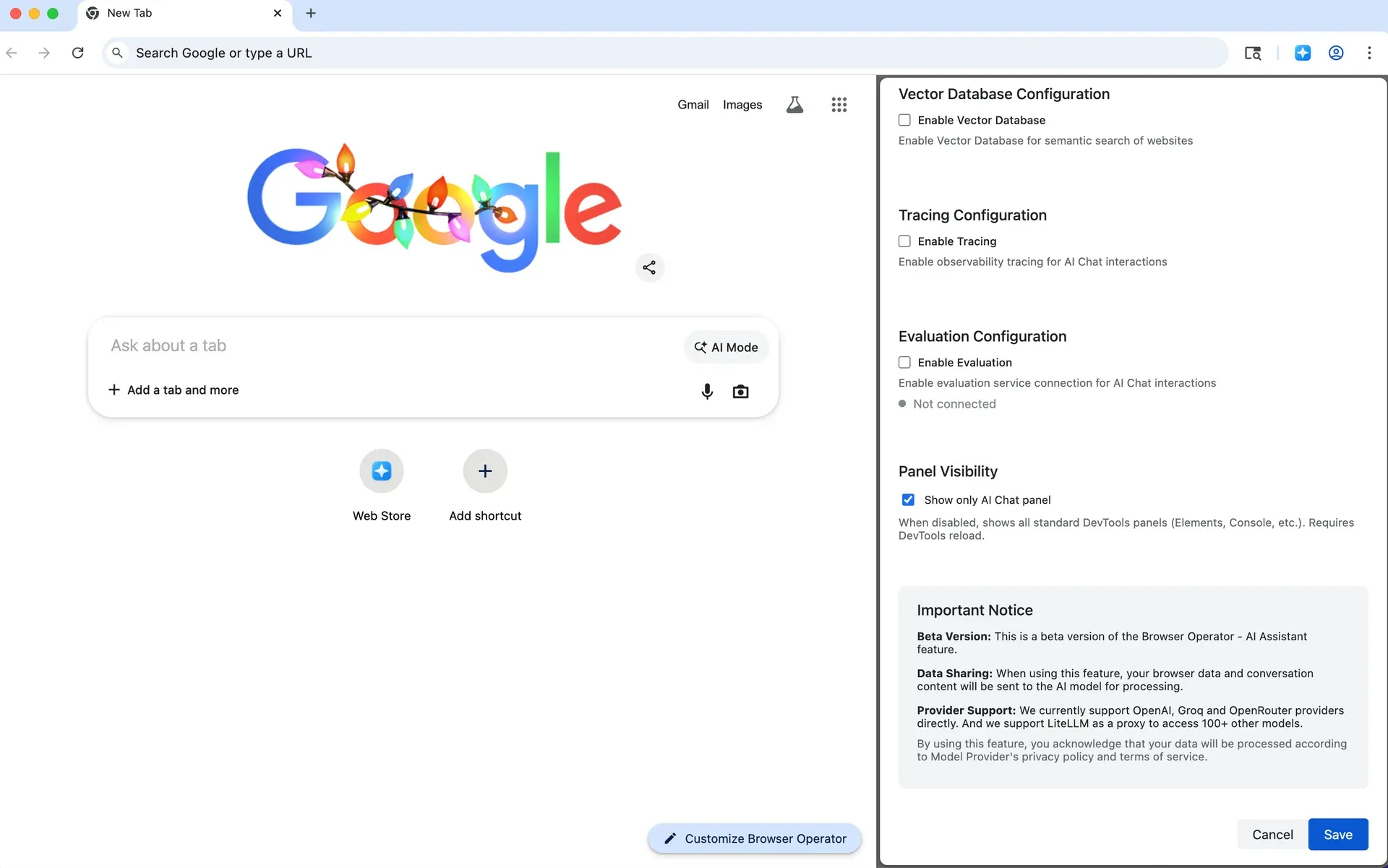
Official release screenshot showing the browser and its settings panel with provider and privacy notices.
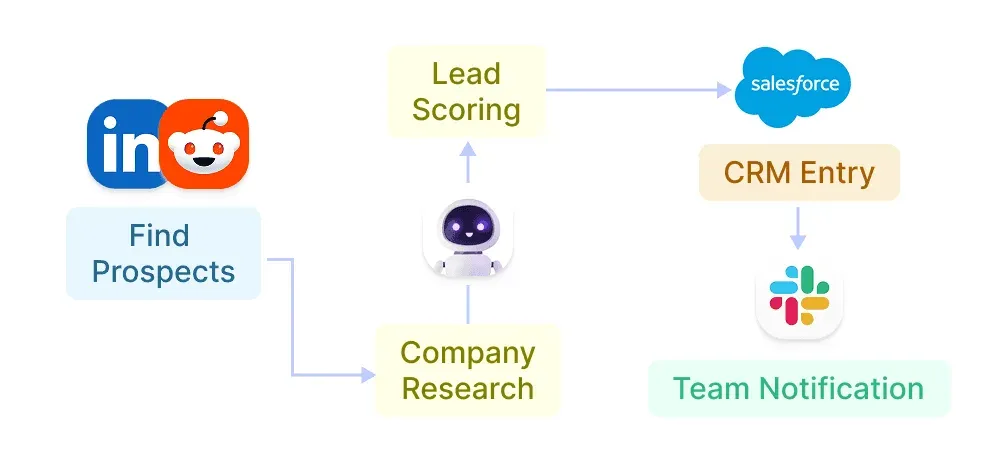
Official figure from the project website illustrating a multi-step agent workflow; it is a diagram, not a product screenshot.
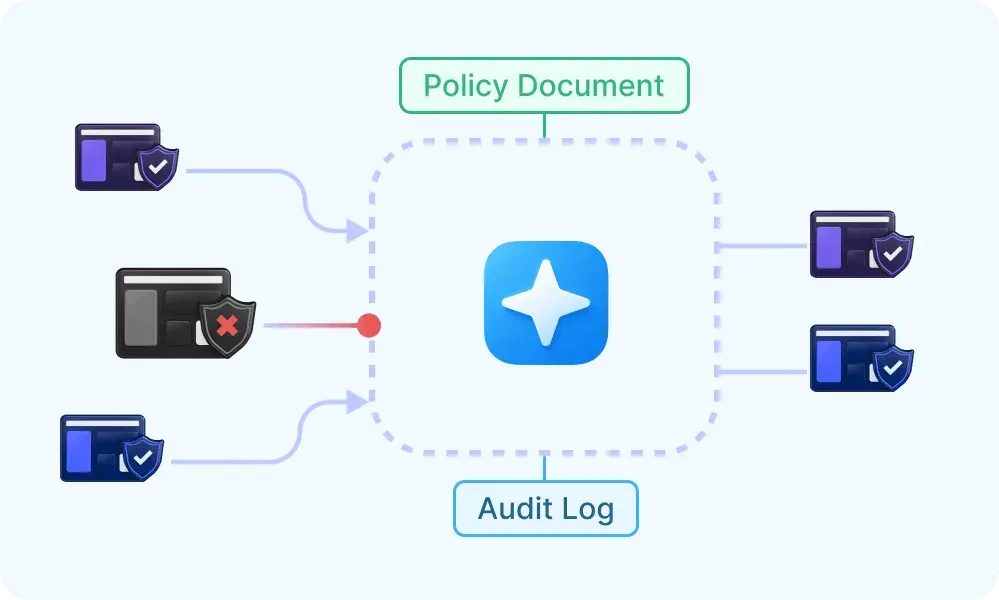
Official figure from the project website illustrating guardrails; it is a diagram, not a product screenshot.
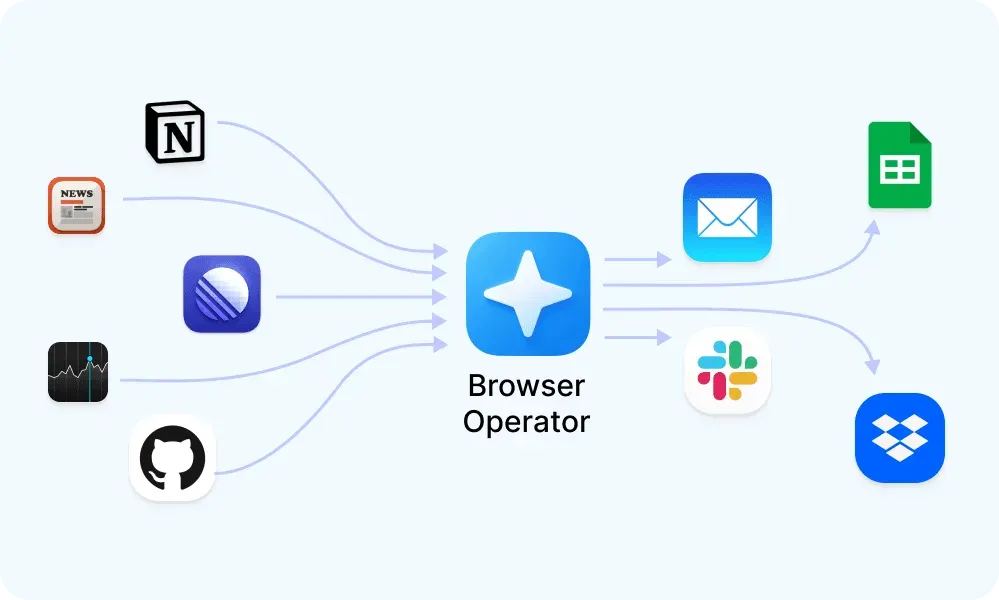
Official figure from the project website illustrating shared context; it is a diagram, not a product screenshot.
Key capabilities
- AI Chat panel in the browser An AI Chat button at the top right of the browser window opens the assistant. You type a task, and the agent works with the pages you have open and the web. The panel is the main interface; the guide describes it as the first step after installing.
- Search Agent A search agent handles lookups from regular chat, for example finding current product prices. Release v0.3.4 introduced a specialized search agent for deep discovery work such as building lists of niche professionals from several sources.
- Research Agent The guide describes a research agent that you select with a button in the chat window for longer tasks, such as researching a topic and drafting a result. Quality and cost depend on the model you connect, so check the output against its sources.
- Multi-agent automation The README says specialized agents work together on complex web tasks. The website adds a custom agent builder called AI Agent Studio and a workflow agent for repetitive tasks, with examples such as posting Slack updates from Jira. These are described in product material, so test the workflows you need.
- Bring your own model provider Settings let you pick OpenRouter (sign in through the browser), OpenAI or Groq (API key), or LiteLLM as a proxy to local or other models. The guide gives an Ollama example with a proxy at localhost port 4000, and v0.6.0 adds custom OpenAI-compatible endpoints and dynamic model discovery.
- Local and private operation With LiteLLM and a local model, the guide calls the setup fully private and local. The in-app notice says that with cloud providers, browser data and conversation content are sent to the model for processing under that provider's terms. Choose the provider with that in mind.
- Persistent memory Since v0.6.0, agents can remember key information across sessions, with automatic extraction, natural-language search of stored memories and a management screen to control what is kept. Review what is stored before using the browser for sensitive work.
- Conversation history Conversations are saved with an IndexedDB backend and can be resumed with their context. This keeps history inside the browser profile on your machine.
- Virtual file system and rendering Agents can create, read, update and delete files in an in-browser store scoped to a session, and render HTML, CSS and JavaScript applications in sandboxed iframes. This lets an agent produce interactive reports or slide decks, according to the v0.4.0 notes.
- Progress overlays, to-dos and file browser Release v0.5.0 added live progress tracking for multi-step workflows, built-in hierarchical to-do lists, a file browser for generated documents and a syntax-highlighted viewer, with an export path for artifacts.
- MCP integrations The website lists MCP integrations with Jira, Confluence, GitHub, Slack and Google Workspace, plus other apps. Availability and setup of each connector are not detailed on the pages reviewed, so verify the connector you need.
- Guardrails and audit logging Site material describes a guardrails engine with a policy language, explain-before-act transparency and line-level audit logs, and a context graph that carries history across tools. Treat these as vendor descriptions and check what the current release implements.
- Agent server HTTP API The agent-server folder provides a WebSocket server and an HTTP API using the Chrome DevTools Protocol. A
POST /v1/responsesendpoint sends a task to a connected browser agent, and other endpoints capture screenshots, read page content and manage tabs. It is configured with an auth key and ports in an environment file. - Optional vector database and tracing Settings include switches for a vector database for semantic search of websites, tracing for AI Chat interactions and an evaluation service connection, all off by default in the reviewed screenshot. The v0.6.0 notes also mention a refactored settings screen.
- Installation on macOS Download the disk image from GitHub releases and drag the app to Applications. If a security warning appears, the guide says to allow the app under Security and Privacy in System Preferences. Verify the download source and checksum before installing.
- Installation on Windows Download the .exe installer from the releases page and run the setup wizard, which installs to Program Files according to the guide. If SmartScreen warns, the guide says to choose More info and Run anyway, so confirm you downloaded it from the official repository.
Where Browser Operator fits
Research with cited sources
Open AI Chat, choose a provider and give the research agent a topic and a deadline. Check that claims in the result link to real pages and that quotes match them. Save the output to the file browser and compare two models on the same question before relying on one, and note the cost of each run.
Price and product comparisons
Ask the search agent to compare products and track prices across stores. Verify prices on the store pages, since pages change and agents can misread listings. Do not give an agent payment details or let it complete purchases without review. Record the date of each comparison so stale results are easy to spot.
Lead and talent sourcing
Use the specialized search agent to build lists from public professional directories. Confirm that your use complies with each site's terms and with privacy law, and sample the results for accuracy before sending any outreach. Keep a record of the sources the agent used for each entry.
Run private browsing assistance with local models
Install LiteLLM and a local model through Ollama, point Browser Operator at the proxy and use it for pages you do not want sent to a cloud provider. Check the network activity of your setup to confirm nothing else leaves the machine, and expect slower, less capable answers than hosted models, and test with your actual hardware first.
Automate a repeatable web workflow
Describe the steps in AI Chat or build an agent, run it on a test account and review each action. Use the progress overlay to watch what the agent does, and keep destructive actions such as deleting or sending behind your own approval. Start with a throwaway account so mistakes are cheap.
Drive the browser from your own code
Start the agent server, connect a browser and send tasks with the /v1/responses endpoint, passing the model settings in the request. Protect the auth key, keep the ports on localhost and treat returned page content as untrusted input.
Reviews of Browser Operator
Be the first to share your experience with Browser Operator.
Write a review
Loading review form…
Alternatives to Browser Operator
 Browser UseMIT-licensed Python agent that drives Chromium over CDP with your choice of model: click, type, extract, custom tools and structured output. Includes a CLI and MCP server; Browser Use Cloud adds paid stealth browsers and a hosted agent API.
 WebBrainWebBrain is a GPL-3.0 browser extension that adds an AI agent side panel to Chrome, Firefox and Edge and runs on local, cloud or managed language models.
 ego liteFree Chromium-based desktop browser for macOS and Windows that gives AI coding agents isolated Spaces, compact page Snapshots and a JavaScript control runtime, while you keep using your own tabs and local login state.