

What is Papra?
Papra is an open-source document management and archiving platform. Its own description is a minimalistic digital archive for long-term storage: receipts, warranties, contracts and similar files that you want to be able to find later but rarely touch. The project is developed in the papra-hq/papra monorepo, which contains a SolidJS web client, a server, a documentation site, a command-line tool, an API SDK and a React Native mobile app. The project presents itself as bootstrapped and independent, with no venture funding.
There are two ways to run it. The self-hosted edition is AGPL-3.0 licensed and ships as a Docker image on GitHub Container Registry, ghcr.io/papra-hq/papra, for arm64, arm/v7 and x86_64. The default tag is a rootless image, a rootful variant exists, and the Docker guide requires an AUTH_SECRET and serves the interface on port 1221. A hosted service at papra.app has a free plan with 512 MB of storage and paid Plus and Pro plans. A demo runs entirely in the browser with client-side storage and no backend.
The application uses year-based versions in the form YY.MINOR.PATCH. The release reviewed here is @papra/app 26.7.1, published on October 22, 2026: it updates Node.js for security fixes, trims the response of the current-user API endpoint and adds Ctrl+F search across all pages of the advanced PDF viewer. Version 26.7.0 added an API endpoint to reprocess documents, configurable Docling options, bundled fonts for offline use and a fix that stops custom OAuth providers from creating accounts when registration is disabled. Papra publishes fixes only on the latest release line, so older versions are not patched. The newest GitHub release overall is the CLI 0.2.6 package.
Papra keeps the original file untouched, which the documentation calls the no-mutation principle: no format conversion, no metadata injection and no OCR overlay on scanned PDFs. It is not a scanner driver, an office suite or a records-management system with retention policies.
Papra screenshots
Explore the interface. Open a screenshot to view it at full size.
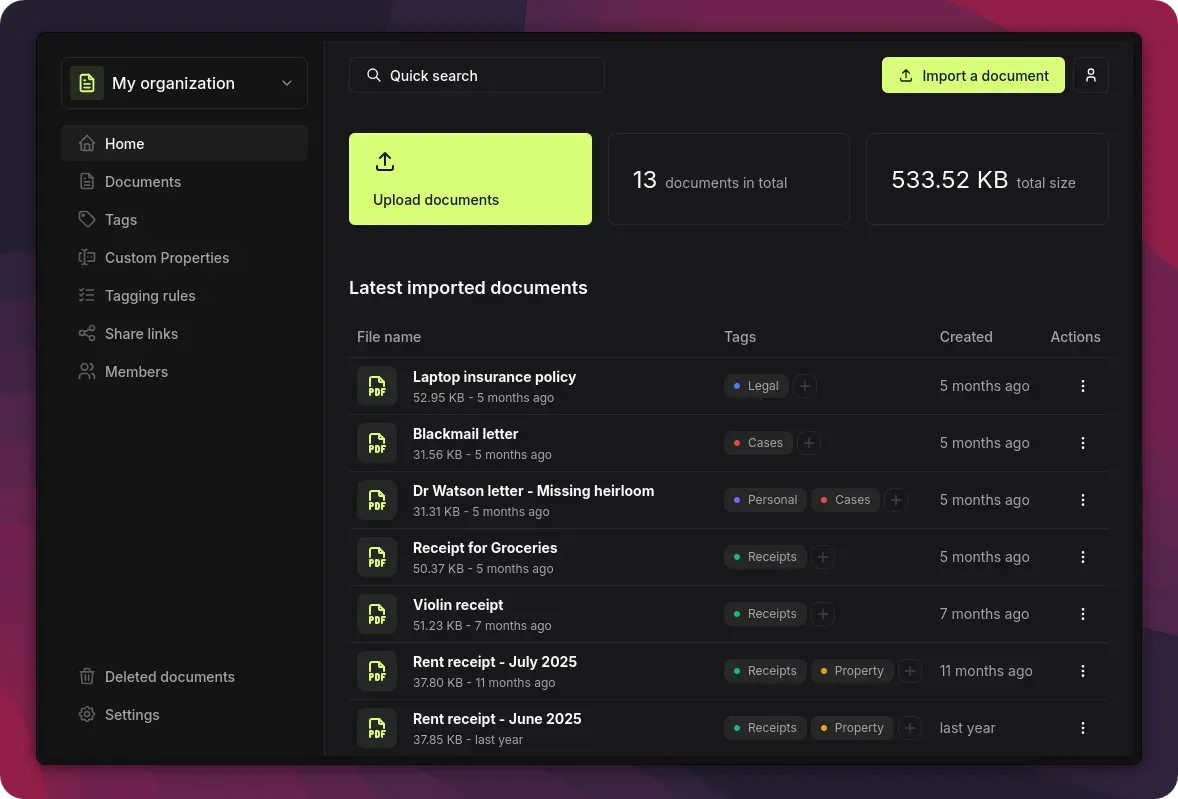
Official README screenshot of an organization home in dark mode.
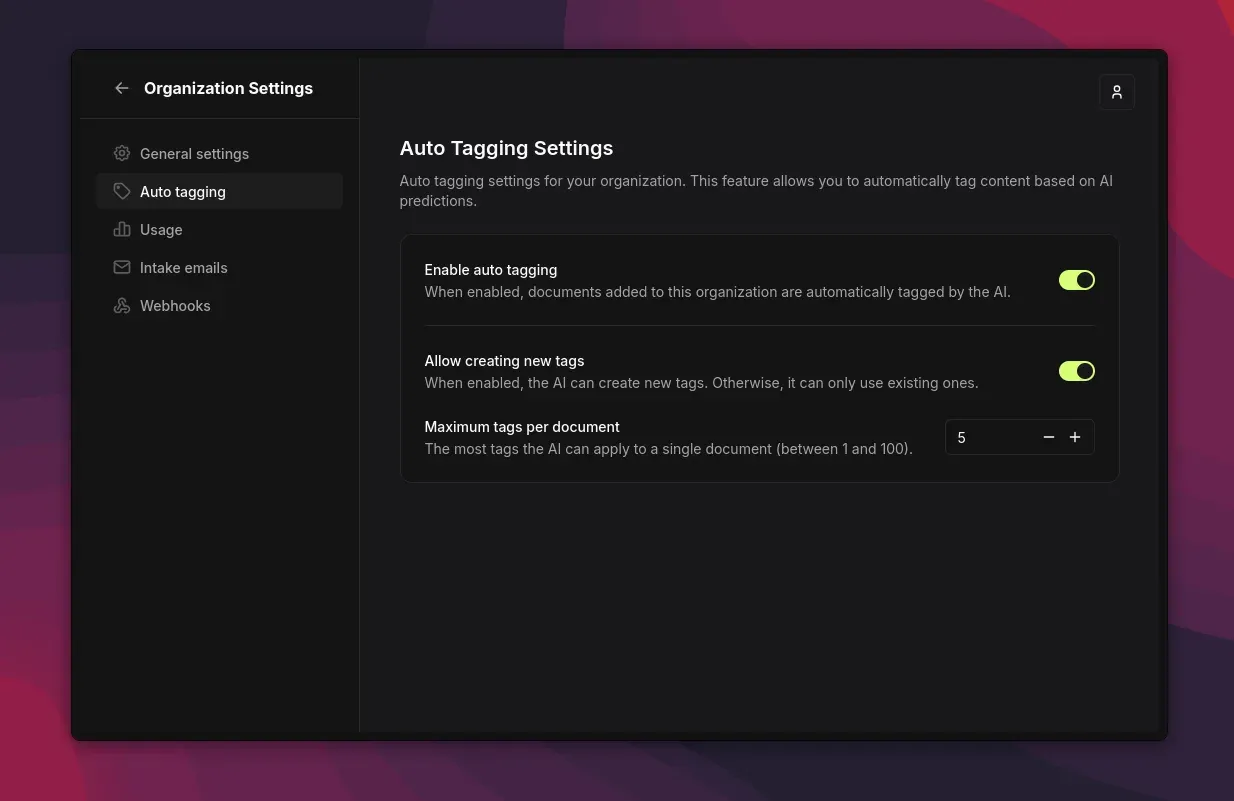
Official documentation screenshot: auto tagging toggle, new tag creation and a maximum tags setting.
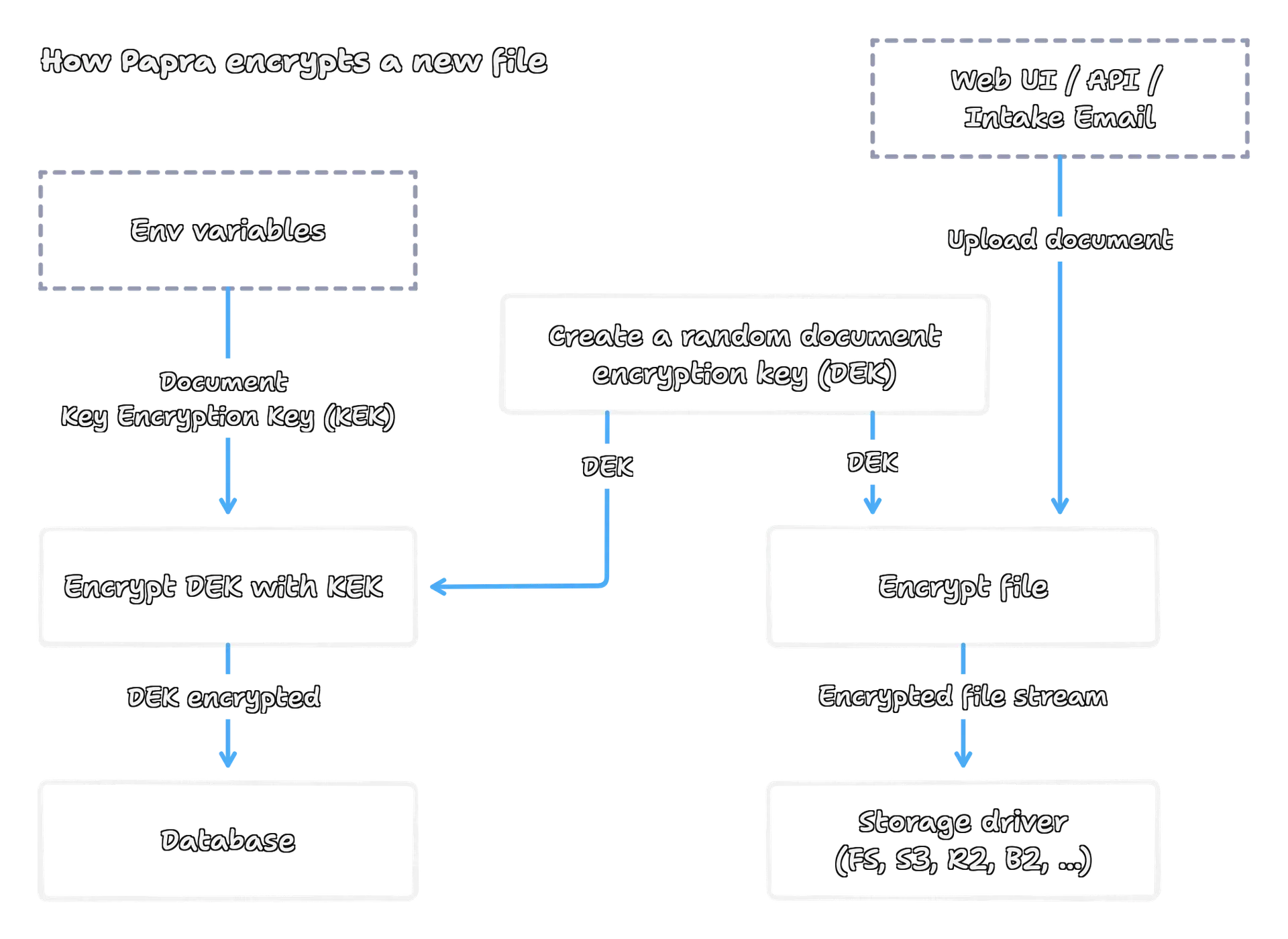
Official figure from the encryption guide: document key, master key, database and storage driver.
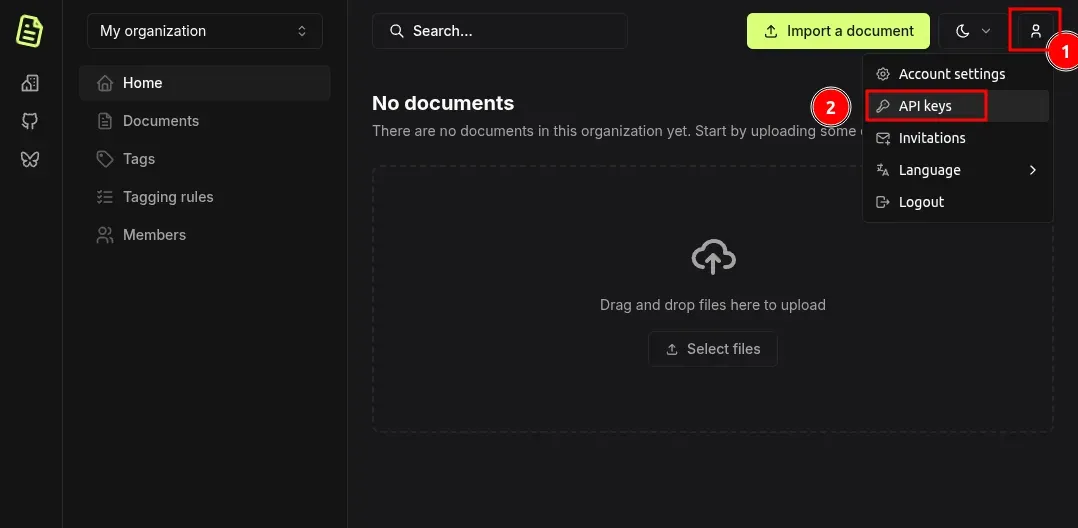
Official documentation screenshot showing where to create an API key, with an empty organization.
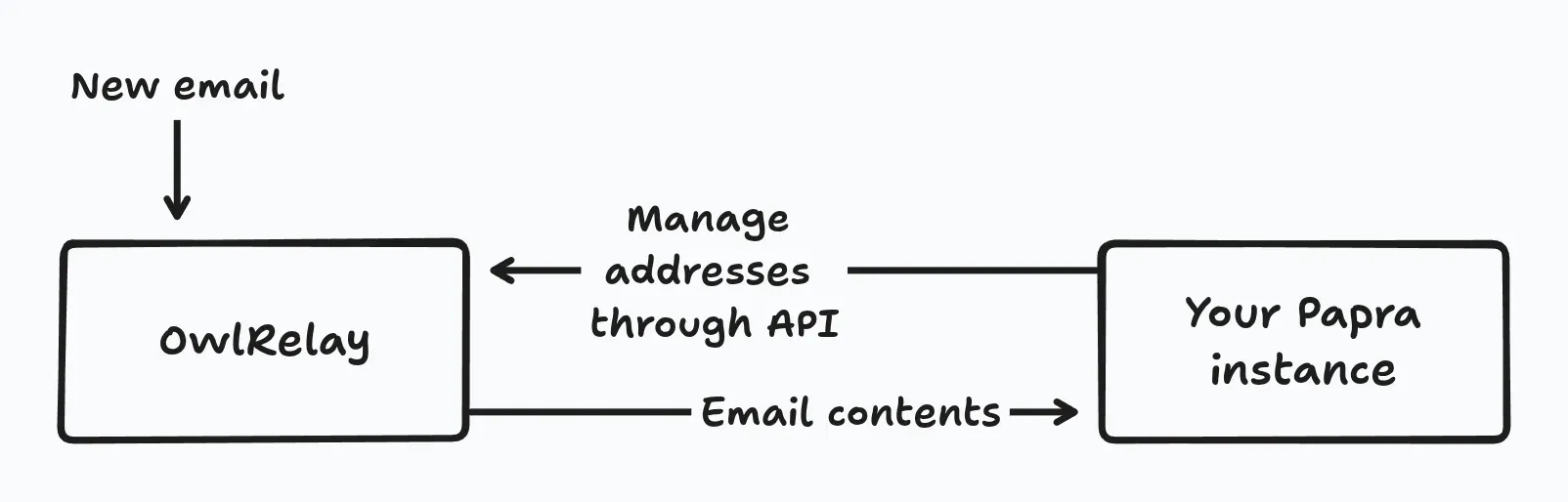
Official figure from the intake email guide: a relay passes email contents to the Papra instance.
Source: official Papra project page.
Key capabilities
- Document upload and archive Files are uploaded through the web interface, the API, email ingestion or a watched folder, then stored with name, size, creation date and optional document date. A trash keeps deleted documents. Papra supports many file types, including PDFs, text, spreadsheets and images, and extracts text only from formats its extraction engine understands.
- Organizations and members An organization is a workspace for a family, a team or a company, and an instance can host several. Members are invited with an organization role such as owner or member, separate from platform roles. The hosted plans cap members per organization at 3, 10 or 50.
- Tags and tagging rules Tags classify documents and carry optional descriptions. Tagging rules apply tags automatically when a document matches conditions you define, so recurring items such as receipts or invoices need no manual work. Rules run on new documents, and a reprocess call can apply them to existing ones.
- Full-text and advanced search Plain queries search names and extracted content together. The advanced search syntax adds filters such as name, content, tag, created and date, has:tags and has:date, plus logical operators and grouping. Name and content filters use contains matching, not equality.
- Content extraction and OCR Extraction runs on every added document so that content becomes searchable. The default internal strategy uses the lecture library with Tesseract for OCR, and strategies can be chained with a fallback, for example Mistral OCR then internal. Docling, Azure Document Intelligence and a custom HTTP endpoint are also supported, as described in the content extraction guide.
- AI auto tagging Disabled by default. When AI_IS_ENABLED is true and a model is configured, an LLM reads the extracted text and applies existing tags, optionally creating new ones, up to a per-organization maximum between 1 and 100. Models are named as adapter and model, for example ollama://qwen3:8b, and OpenAI-compatible endpoints work. See the auto tagging guide.
- Email ingestion Each organization gets dedicated intake addresses; sending or forwarding an email imports its attachments. Self-hosters can wire this up with OwlRelay or with a Cloudflare email worker, following the OwlRelay guide. Hosted plans include 1, 10 or 100 intake addresses.
- Ingestion folder A folder watched by the server imports new files automatically. Each organization needs a subfolder named with its organization id, and files outside such folders are ignored. A post-processing strategy decides what happens to a file after import. Setup is in the ingestion folder guide.
- Document encryption Optional AES-256-GCM encryption gives each document its own random key, wrapped by a master key encryption key that you provide through configuration. The wrapped key lives in the database and the encrypted file in storage. Keep the master key safe: without it the stored files cannot be decrypted. See the encryption guide.
- Storage drivers and key patterns Documents can be stored on the local filesystem, S3-compatible storage such as R2 or Backblaze B2, or Azure Blob storage. Pattern-based storage keys can include organization name, document date and creation date, and release 26.7.0 added optional sync so that renames reach the stored key.
- Deduplication The server computes a SHA-256 hash of each file and rejects a second copy with identical content in the same organization. If the same content sits in the trash, it is restored with updated metadata. Only content counts, so a different filename does not avoid the check.
- Sharing and custom properties Documents can be shared with external people through links with optional expiration and password protection. Custom properties add per-organization fields, including select and multi-select types, to store information such as amounts or supplier names.
- API, SDK, webhooks and CLI The REST API uses personal API keys created in account settings, and there is a TypeScript SDK and a webhooks package. The CLI, installed with npm i -g @papra/cli, configures an instance URL and key and imports documents with papra documents import. The API has had breaking changes between releases, so pin SDK versions.
- Roles and admin panel Platform roles are separate from organization roles. The first registered user can automatically become an admin, and admins reach a read-only panel at /admin with user and usage statistics. See roles and administration.
- Authentication Accounts use email and password, with optional two-factor authentication, and custom OAuth2 providers can be configured. Registration can be disabled on a private instance. Release 26.7.0 closed a gap where custom OAuth providers could still create accounts when registration was off.
- Mobile app The repository includes a React Native app built with Expo, and release 1.1.0 attached an Android APK. It adds tag management, locale-aware dates and four interface languages: English, French, German and Spanish. Check where it is distributed for your platform before planning around it.
- Languages, dark mode and responsive layout The web client is translated into multiple languages, with recent additions such as Hungarian and Slovak, and has a dark theme and a responsive layout. Fonts are bundled so that the interface works offline from the server.
Where Papra fits
Building a household paper archive
Create one organization, upload scans and PDFs, and let OCR make them searchable. Define a handful of tags such as receipts, legal and property, then add tagging rules for recurring senders. Search for a known receipt a week later to confirm the extracted text is good enough for your scans before importing everything.
Forwarding invoices by email
Set up an intake address, forward a supplier invoice and check that the attachment appears in the right organization with the tags you expect. Duplicates are rejected, so forwarding the same invoice twice is harmless. Review the intake guide for the relay you choose.
Importing from a scanner folder
Point the scanner to a network share mounted as the ingestion folder, create the organization subfolder and enable the folder feature. Choose a post-processing strategy deliberately, since it decides whether source files are kept, moved or removed after import.
Tagging documents with a local model
Enable AI, set a model such as an Ollama model on your own host and turn on auto tagging for the organization. Write short tag descriptions, because the model chooses from them. Limit the maximum tags per document and sample the results before enabling creation of new tags.
Automating uploads from scripts
Create an API key, install the CLI or SDK and import files from a build or backup job. Test the failure path as well: duplicate content, an oversized file and an expired key. Treat the API as versioned by release and read release notes for breaking changes.
Running a hardened self-hosted instance
Use the rootless image, a generated AUTH_SECRET, HTTPS through a reverse proxy, disabled registration after the first user, document encryption and a backed-up data directory. Upgrade to each new release, because older lines receive no fixes. The configuration reference lists every variable.
Install
docker run -d --name papra --restart unless-stopped -e APP_BASE_URL=http://localhost:1221 -e AUTH_SECRET=<your-auth-secret> -p 1221:1221 ghcr.io/papra-hq/papra:latestReviews of Papra
Be the first to share your experience with Papra.
Write a review
Loading review form…
Alternatives to Papra
 Paperless-ngxPaperless-ngx is a GPL-3.0 document management system you run with Docker. It OCRs scans with Tesseract, stores PDF/A copies beside originals, auto-tags documents, imports email attachments and offers opt-in AI features.
 NextcloudAGPL-licensed collaboration server for files, sharing, Talk calls, Calendar, Contacts, Mail and browser office editing. Run it with the official All-in-One Docker setup or on your own PHP stack, with clients for desktop and mobile.KKarakeepKarakeep collects links, notes, images and PDFs in a searchable library, with shared lists, automatic tagging and content archiving. It supports self-hosting and a managed cloud service.