

What is OpenNotas?
OpenNotas is a personal note-taking application distributed as a Progressive Web App, or PWA. It is maintained by GitHub user tonghoai, a full-time programmer who writes the 2coffee.dev programming blog and built the first version, then called Notas, in just over a month because he needed one note app across his phones and computers. The project describes its scope plainly: quick, reliable text notes in Markdown, organized in folders, with optional synchronization between devices. It is not a team wiki, a knowledge graph or a document collaboration tool.
There are no native installers. The hosted build at opennotas.io/install is installed from the browser on Windows, macOS, Linux, Android and iOS, and the same build runs as a web page. The alternative is to build from source with Node.js 18 or later: clone the repository, run npm install and npm run dev, then open port 3000. The repository also contains a multi-stage Dockerfile on node:20-alpine that serves the Nuxt output on port 3000, but no prebuilt image is published.
The project uses Git tags and a version number in package.json rather than GitHub release pages; the last tag is v1.1.0 from February 2025, while the main branch is at 1.5.1 (August 4, 2026). Version 1.2.0 added the Milkdown Crepe editor, 1.3.0 added image sync to S3-compatible storage through a proxy worker, and 1.5.0 added per-note history with a diff view, colored tags, encrypted export of connection settings, a note status bar, Russian translation and a virtualized note list. Version 1.5.1 added Google Analytics event tracking to the hosted build and widened its Content Security Policy for Google Tag Manager and Cloudflare Web Analytics.
Technically the app is Vue 3 on Nuxt 3 with Tailwind and daisyUI. Notes are stored in IndexedDB through localforage, full-text search runs locally with FlexSearch, and encryption uses the browser Web Crypto API with AES-GCM. The documented architecture follows a mediator pattern: a main logic layer coordinates GUI components, a service layer for the local database and pluggable sync adapters. Adapters currently exist for LocalForage (offline only), Turso (libSQL) for notes, and S3-compatible buckets for images.
OpenNotas is licensed AGPL-3.0-or-later, with the note that subdirectories carrying their own LICENSE file use that license instead. The maintainer asks contributors not to send pull requests for new features for now, because review time is limited; bug reports go to GitHub Issues and community help is on Telegram. The application is free, with optional GitHub Sponsors and PayPal donations.
OpenNotas screenshots
Explore the interface. Open a screenshot to view it at full size.
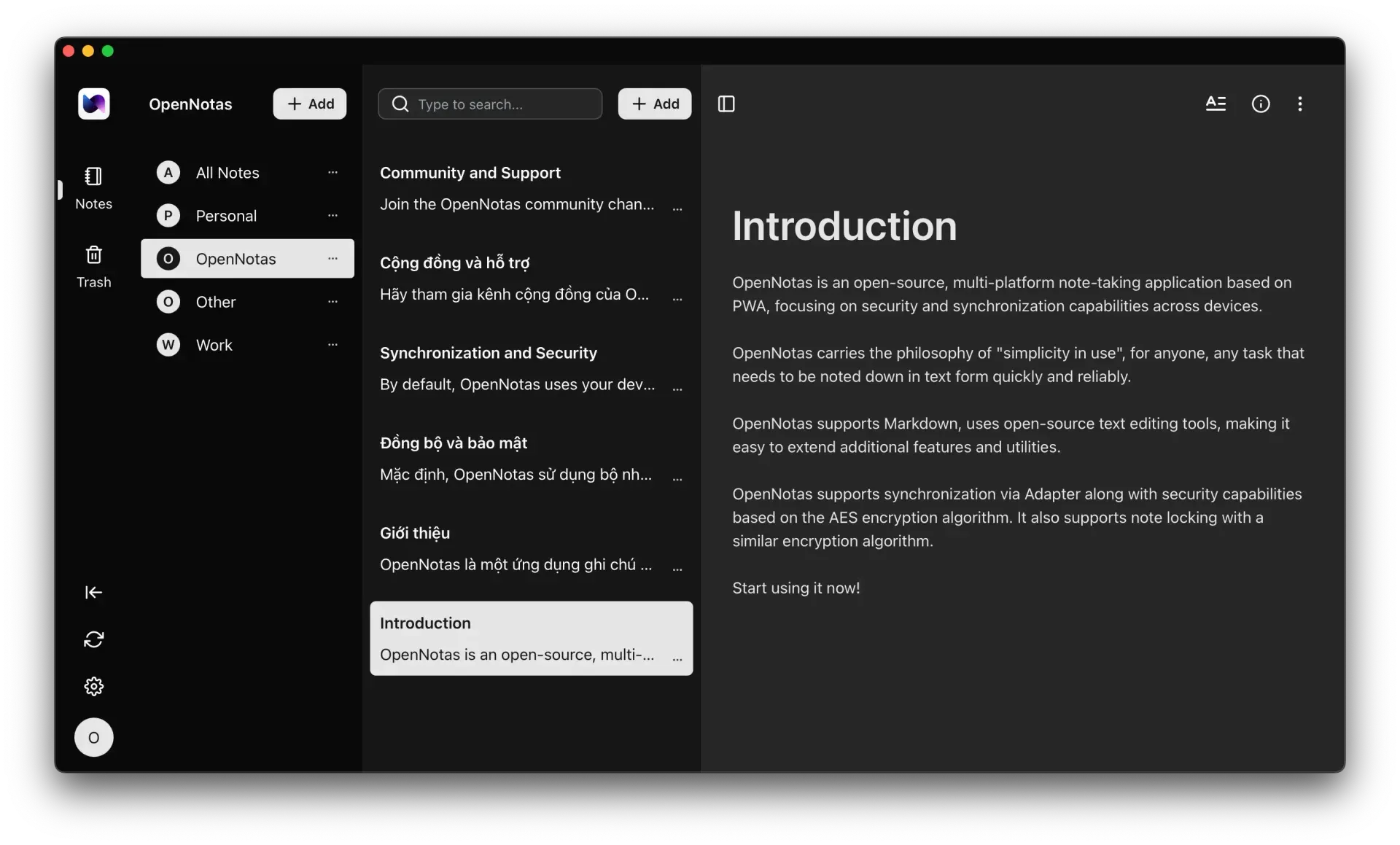
Official OpenNotas screenshot from the README: folders, the note list with search and the editor in dark mode.
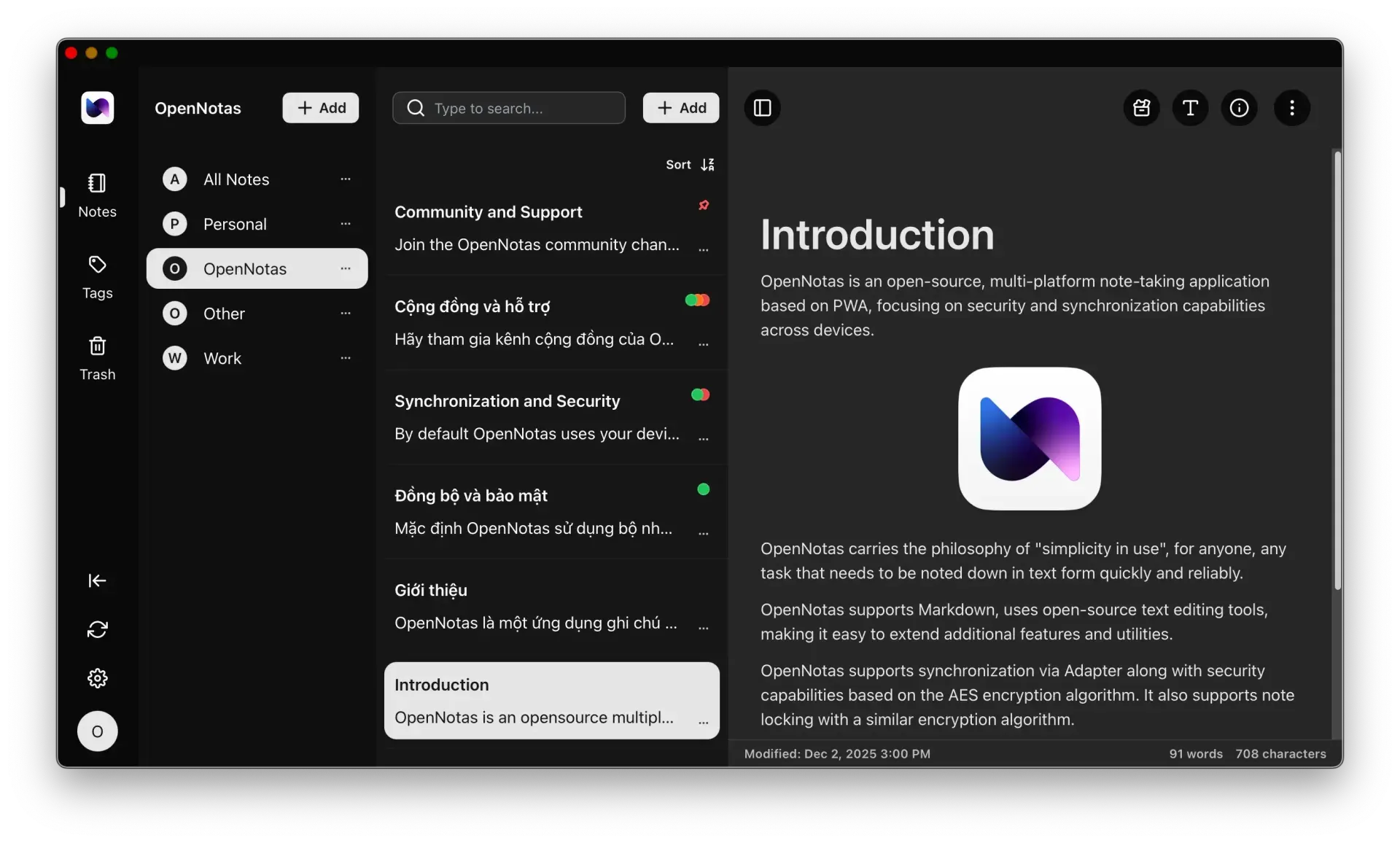
Newer interface with a Tags section, colored tag dots in the note list, sort control and the status bar showing modification time, words and characters.
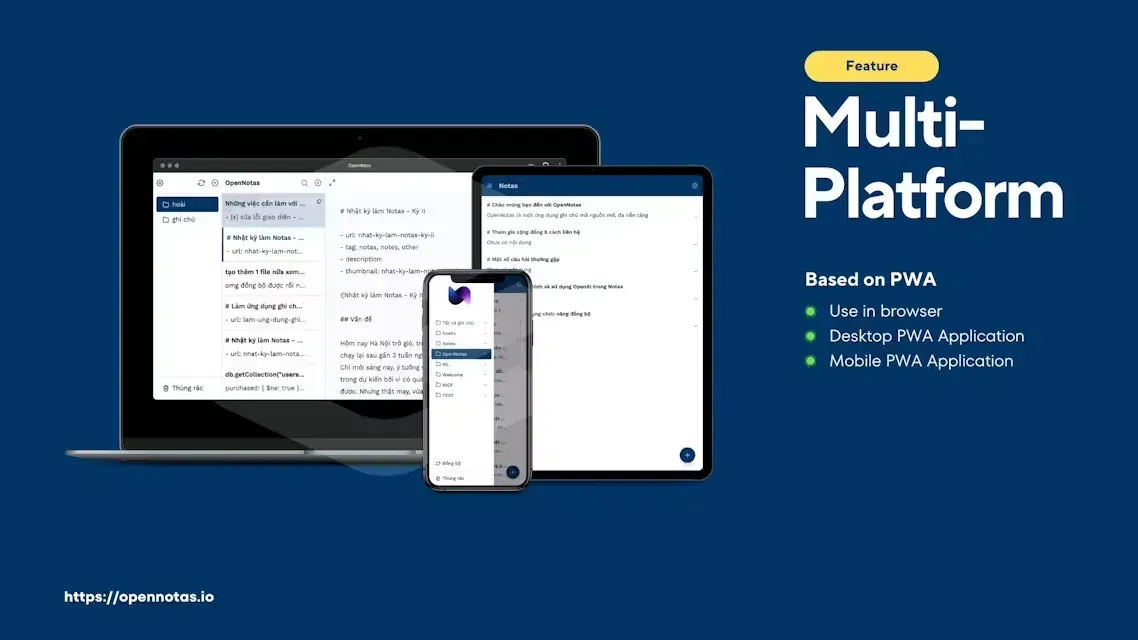
Official promotional image of the earlier light interface running as a PWA in a browser, on desktop and on mobile devices.
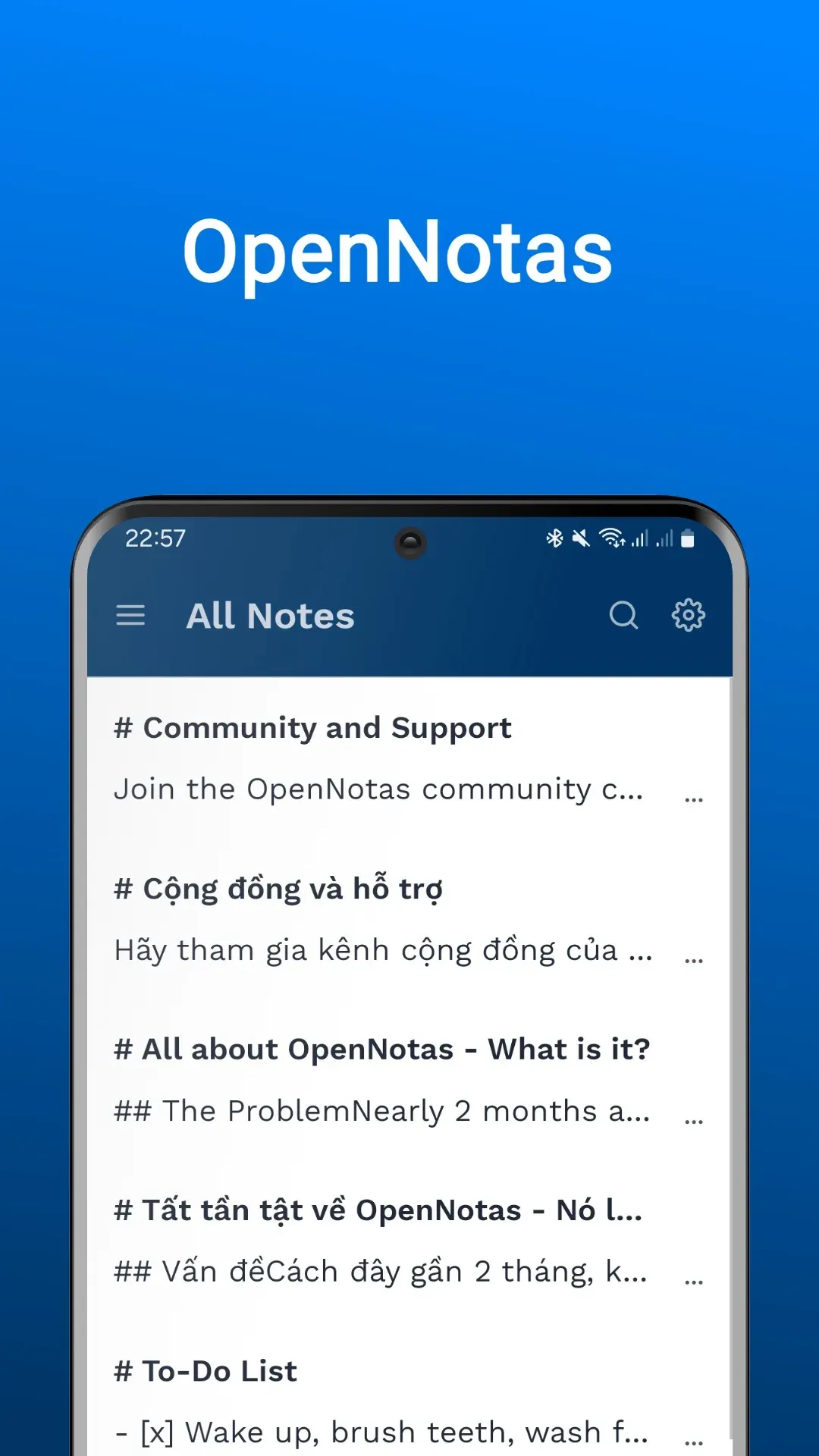
Earlier mobile layout on Android: the All Notes list with search and settings, from the PWA manifest screenshots.
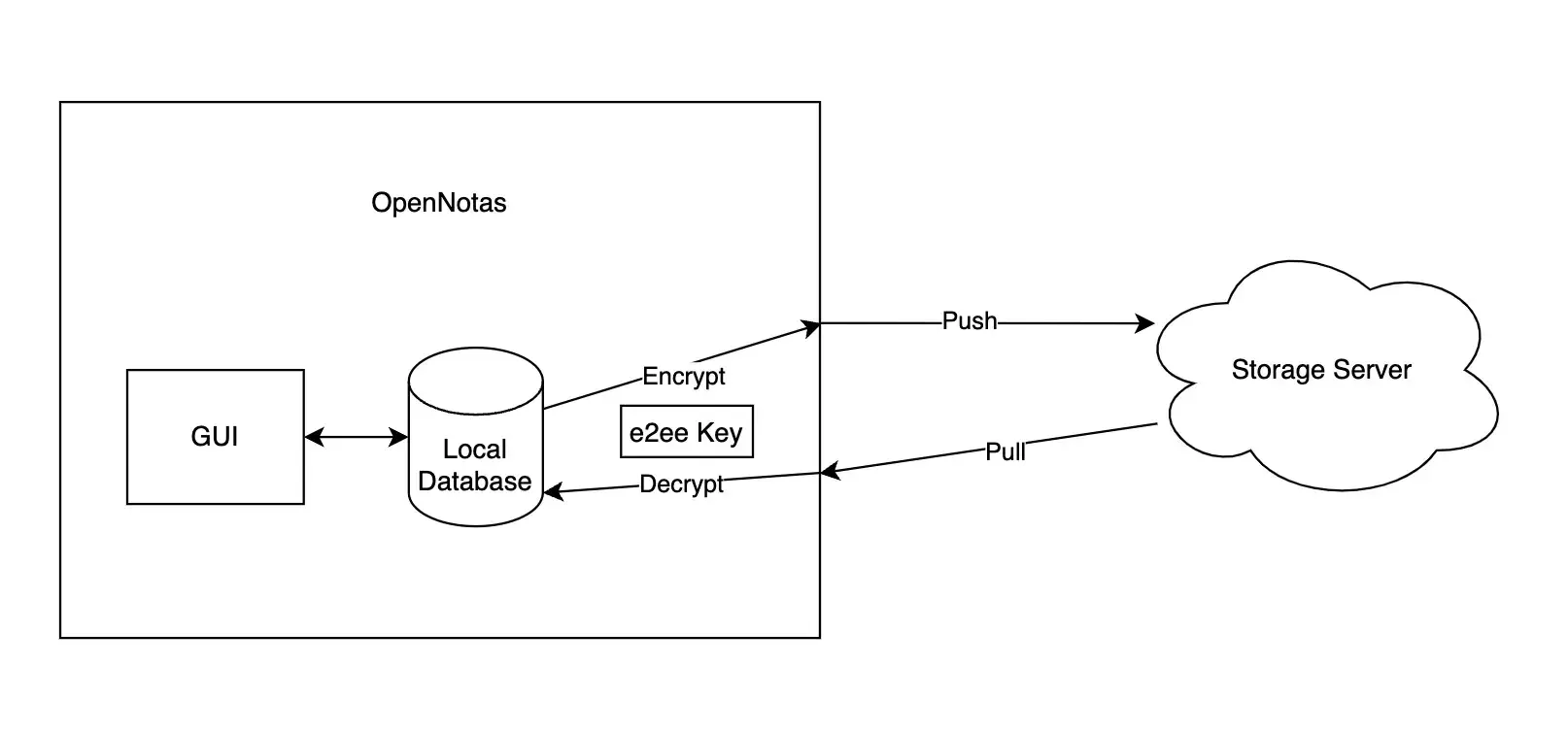
Official diagram of end-to-end encrypted sync: data is encrypted with the e2ee key before push and decrypted after pull, while the local database holds plain text.
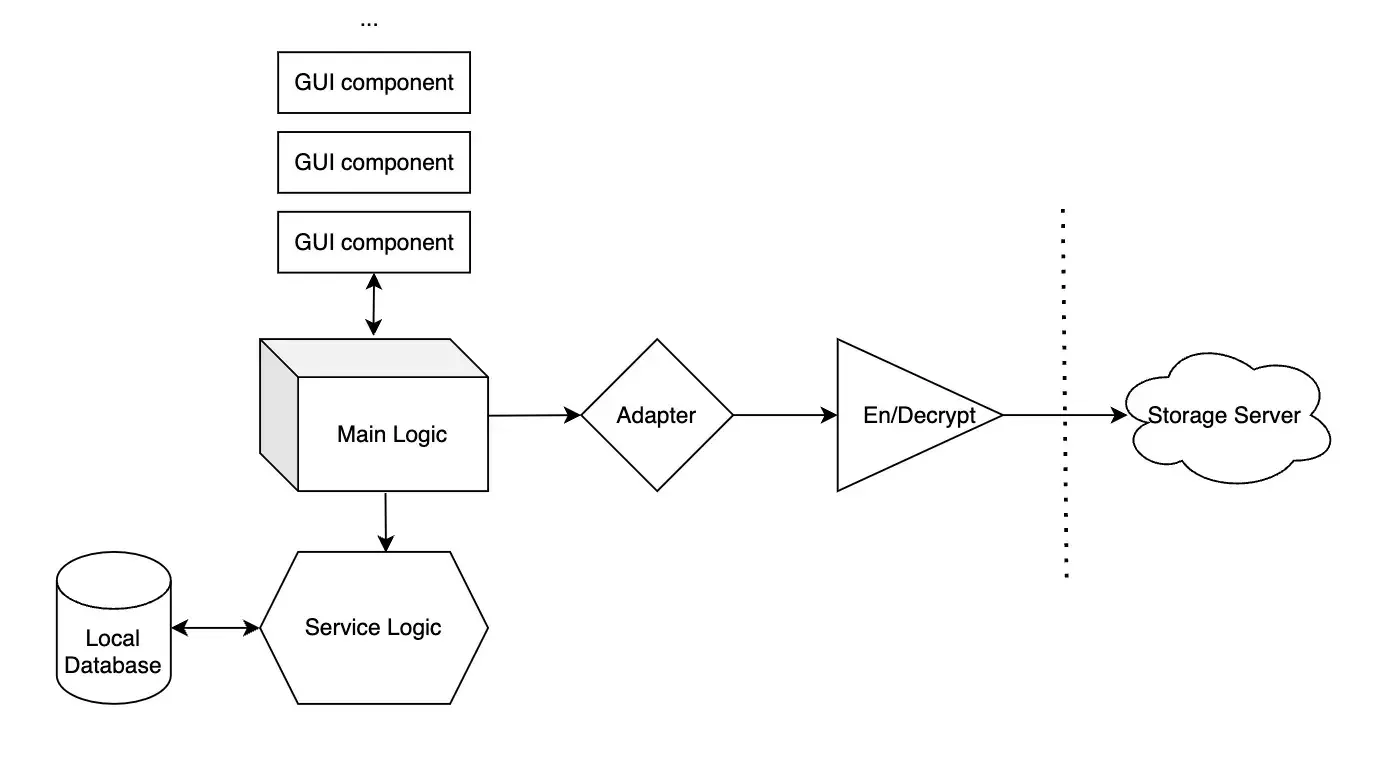
Official architecture diagram: main logic coordinates GUI components and the local database service, and sync goes through an adapter and an encryption step to the storage server.
Source: official OpenNotas project page.
Key capabilities
- Install as a PWA on desktop On Windows, macOS and Linux, open opennotas.io/install in a browser that supports PWA installation and choose Install. The result is a browser-managed app window, not a native package, so updates arrive when the service worker fetches a new build. A Force Update setting clears cached assets and reloads the latest version when an update does not appear.
- Install on Android and iOS The mobile guide uses the browser menu on Android (three dots, Install App) and Safari on iPhone and iPad (Share, Add to Home Screen). There is no Google Play or App Store listing. The mobile layout adds swipe navigation between columns, pull-to-refresh on the note list and handling for the hardware back button since version 1.5.0.
- Build and run from source Requirements are Git and Node.js 18 or later. After
npm installandnpm run dev, the app serves on port 3000 and opens at/app. According to the project privacy policy, a self-built copy contains no analytics, because the Google Analytics ID is only set in the hosted build. A Dockerfile is included for production builds, but its use is not covered in the documentation. - Three-column layout The interface is split into folders, the note list and the editor. Folders group notes, the list supports sorting, pinning, moving and copying, and deleted notes go to a Trash from which they can be restored or deleted permanently. Content saves automatically after a few seconds without typing.
- Three Markdown editors CodeMirror edits Markdown source, Milkdown Crepe is a WYSIWYG Markdown editor and is where current development is focused, and TipTap is kept but marked deprecated. The editor can be switched per note from the toolbar. The caution page warns that switching between CodeMirror and TipTap can change how existing content is rendered and stored.
- Local storage in IndexedDB All notes are stored in the browser's IndexedDB through localforage. No account or server is required to use the app offline. Clearing site data, using cleanup tools or uninstalling the browser deletes unsynchronized notes, so the documentation recommends sync or regular exports.
- Local full-text search Search runs in the browser with the FlexSearch library loaded from cdnjs with a Subresource Integrity hash. Queries never leave the device. Locked notes are encrypted at rest, so their content is shown as Locked Title and Locked Content until they are unlocked.
- Password-locked notes A note password set under Settings, General encrypts selected notes on the device with AES through the Web Crypto API. Changing the password unlocks and re-encrypts every locked note, and the app should stay open during that process. Locked notes are skipped in exports unless the password is entered.
- End-to-end encrypted note sync When an adapter other than LocalForage is selected, notes are encrypted with an AES-GCM key before they are pushed and decrypted after they are pulled. The app can generate the key or accept an existing one, and the same key is needed on every device. Per the security documentation, data is encrypted only on the sync server; on the device it remains plain text unless the note is locked.
- Turso adapter The Turso adapter stores folders, notes, tags and settings in a libSQL database owned by the user. A helper script installs the Turso CLI, creates a database from the published schema and prints a
{"url","authToken"}configuration; the manual route importsschema.sqlin the Turso dashboard. Sync frequency is set in seconds. - Image sync to S3-compatible storage Since version 1.3.0, images inserted in the Milkdown editor can be uploaded to AWS S3, Cloudflare R2, Backblaze B2, MinIO or another S3-compatible bucket. Image sync works only with Milkdown. Uploads go through a stateless Cloudflare Worker proxy that the project asks users to deploy themselves; a shared default proxy exists but is limited to 100,000 requests per day.
- Sync status indicators Note titles change color with their sync state: the normal color for synced or local notes, yellow for local changes not yet pushed, green for changes just pulled from the server. After offline edits, the app must stay open and online until yellow notes return to normal.
- Note history with diff Version 1.5.0 added per-note snapshots that can be compared against the current content and restored; the current text is saved to history before a restore. By default the code keeps up to five snapshots per day for three days. History is held in local storage and is not part of the Turso sync model.
- Tags with colors Notes can carry multiple tags with preset or custom hex colors, browsed from a Tags column. Tags are included in note exports since 1.5.0 and synced through the Turso adapter.
- Backup, restore and emergency export Settings, Tools exports all notes, including Trash, to a JSON file and imports such files back. Import does not detect duplicates. If the app fails to load, opening
/sosin the same browser downloads the local data, with apwparameter to include locked notes, as described in troubleshooting. - Settings export with encrypted credentials Settings can be exported and imported as a file. Turso tokens and S3 keys in that file are encrypted with a password, and an import can skip connection settings when the password is not available. Importing a different sync configuration exports current notes as a backup first, then replaces local data.
- Interface options Light, dark and system themes, full or compact editor view, a selectable Google Font and an interface in English, Vietnamese, Russian or Traditional Chinese. A status bar shows word and character counts, modification time and sync state for the open note.
- Extension points for developers The documentation describes how to add a sync adapter by implementing pull and push methods for folders, notes and settings, and how to add an editor component with focus, readonly, undo and redo functions. These are source-level changes, not a plugin system.
Where OpenNotas fits
Quick personal notes on one device
Install the PWA from opennotas.io, keep the LocalForage (Offline) adapter and start writing. Nothing is sent to a sync server in this mode, but notes depend entirely on the browser profile. Before relying on it, confirm that the browser does not clear site data on exit and schedule JSON exports from Settings, Tools to a folder that is backed up.
Encrypted sync between a laptop and a phone
Create a Turso database with the helper script or manually from schema.sql, paste the connection string into Settings, Sync on the first device and generate an encryption key. On the second device, enter the same configuration and the same key. Store the key in a password manager: without it the synced data cannot be decrypted. Check that edits made offline turn from yellow to normal after reconnecting, as explained in the Turso guide.
Notes with images kept in your own bucket
Use the Milkdown editor, create an S3-compatible bucket and access key, then enable Image Sync and test the connection. For anything beyond light personal use, deploy the Worker proxy from worker/worker-proxy to your own Cloudflare account, since the shared proxy receives your S3 credentials with each request and has a daily request cap. The S3 storage guide lists providers and steps.
A tracker-free self-built copy
Teams or individuals who do not want analytics in the client can build from source and serve the output themselves, for example with the included Dockerfile behind a reverse proxy with HTTPS (required for PWA installation). Verify in the browser developer tools that no requests go to Google Tag Manager, and pin a commit, because there are no signed releases or published images to track.
Protecting a few sensitive notes
Set a note password, then lock individual notes from the note menu. Locked content is encrypted on the device and hidden from the list and search until unlocked. Test the full cycle before storing anything important: lock, export with and without the password, change the password, and confirm that every locked note still opens on each synced device.
Recovering when the app will not open
If the PWA freezes on the loading screen or shows a blank page, do not uninstall it first. Open /sos on the same origin and browser to export local data, adding the note password as a parameter if locked notes exist, and check the file before reinstalling or clearing site data.
Reviews of OpenNotas
Be the first to share your experience with OpenNotas.
Write a review
Loading review form…
Alternatives to OpenNotas
 JoplinJoplin is a free, open-source note and to-do app for Windows, macOS, Linux, Android and iOS, with offline-first storage and encrypted sync.
 NotesnookNotesnook is a free, open-source note-taking app with end-to-end encryption, web, desktop and mobile clients, positioned as an alternative to Evernote.
 Beaver NotesOpen-source desktop notes app that stores notes on your own device, with no account and no analytics. It offers a Markdown-aware editor, labels, folders, note links, locked notes, Mermaid and math blocks, and optional sync through a folder you choose.