

What is linkding?
linkding is a self-hosted bookmark manager designed to be minimal, fast and easy to set up with Docker. The name combines link with the German word Ding, meaning thing. It is a Django application, released under the MIT license, that stores bookmarks with tags, notes and optional archived copies, and it is maintained as an open-source project with documentation at linkding.link.
The Docker image is available from Docker Hub and the GitHub Container Registry and is compatible with ARM platforms, so it runs on a Raspberry Pi. The default variant provides the basic functionality, a plus variant adds HTML snapshot archiving with a bundled Chromium, and Alpine-based variants are marked experimental. SQLite is the default database and PostgreSQL is supported. The installation guide covers Docker, Docker Compose, creating the first user and reverse proxy setup.
The latest release is v1.47.0, published on September 13, 2026. According to its notes, it adds SSRF protection for server-side requests, CORS support for the REST API, scheduling of snapshot tasks only when snapshots are pending, a fix for custom CSS in the sandboxed reader view and a switch to esbuild for bundling JavaScript and CSS. Releases appear regularly, so check the changelog before upgrading.
Authentication can use the built-in user accounts, OIDC single sign-on or an authentication proxy, and the admin panel provides user self-service and raw data access. A REST API exists for third-party applications, and the documentation lists community projects such as mobile apps, browser extensions and libraries, which are separate and not maintained by the linkding project itself.
linkding focuses on bookmarks. It is not a note-taking system, a feed reader or a team knowledge base, and it has no official hosted service: the documentation lists third-party managed hosting options instead.
linkding screenshots
Explore the interface. Open a screenshot to view it at full size.
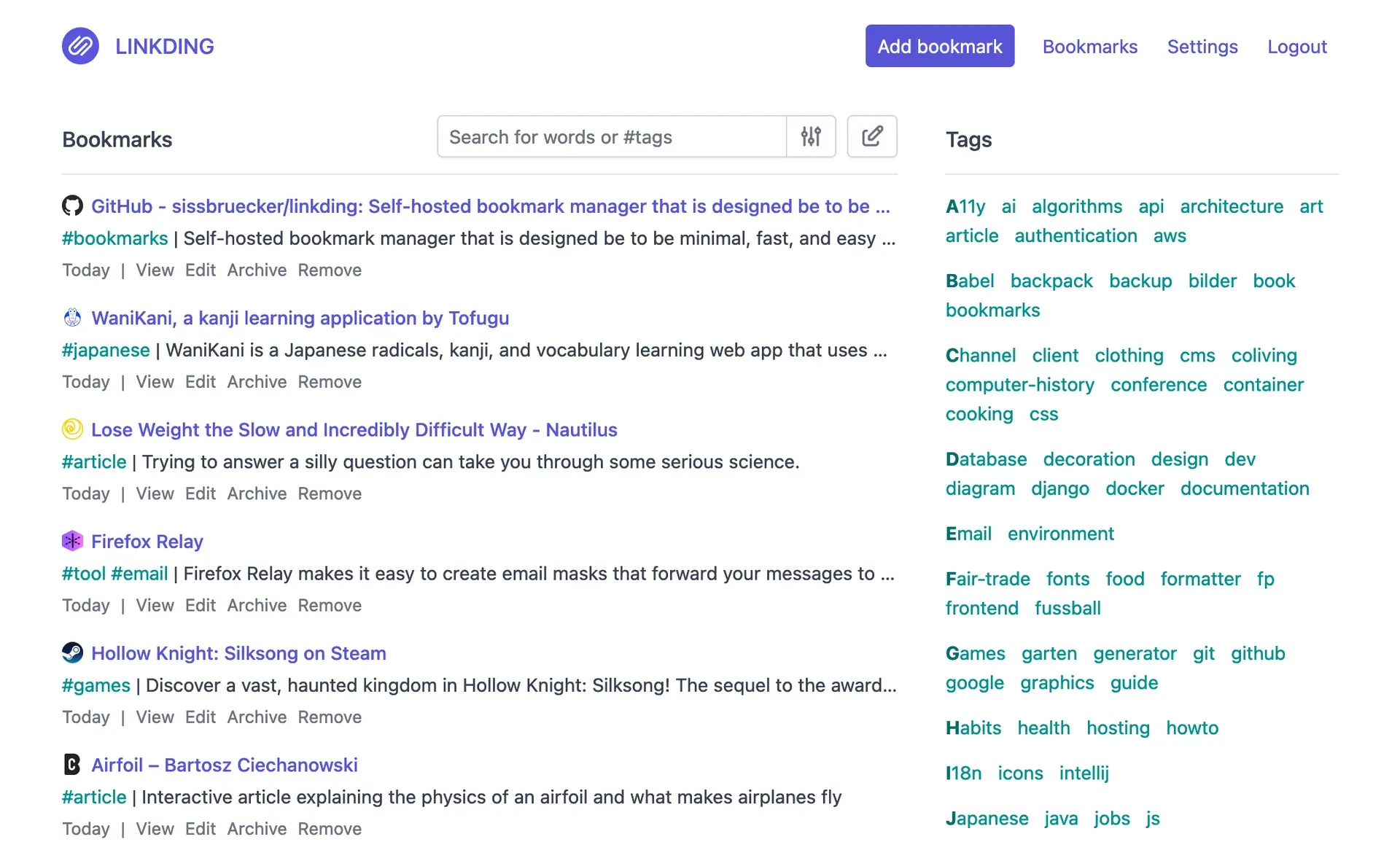
Official light-theme screenshot: bookmarks with tags on the left and the tag cloud on the right.
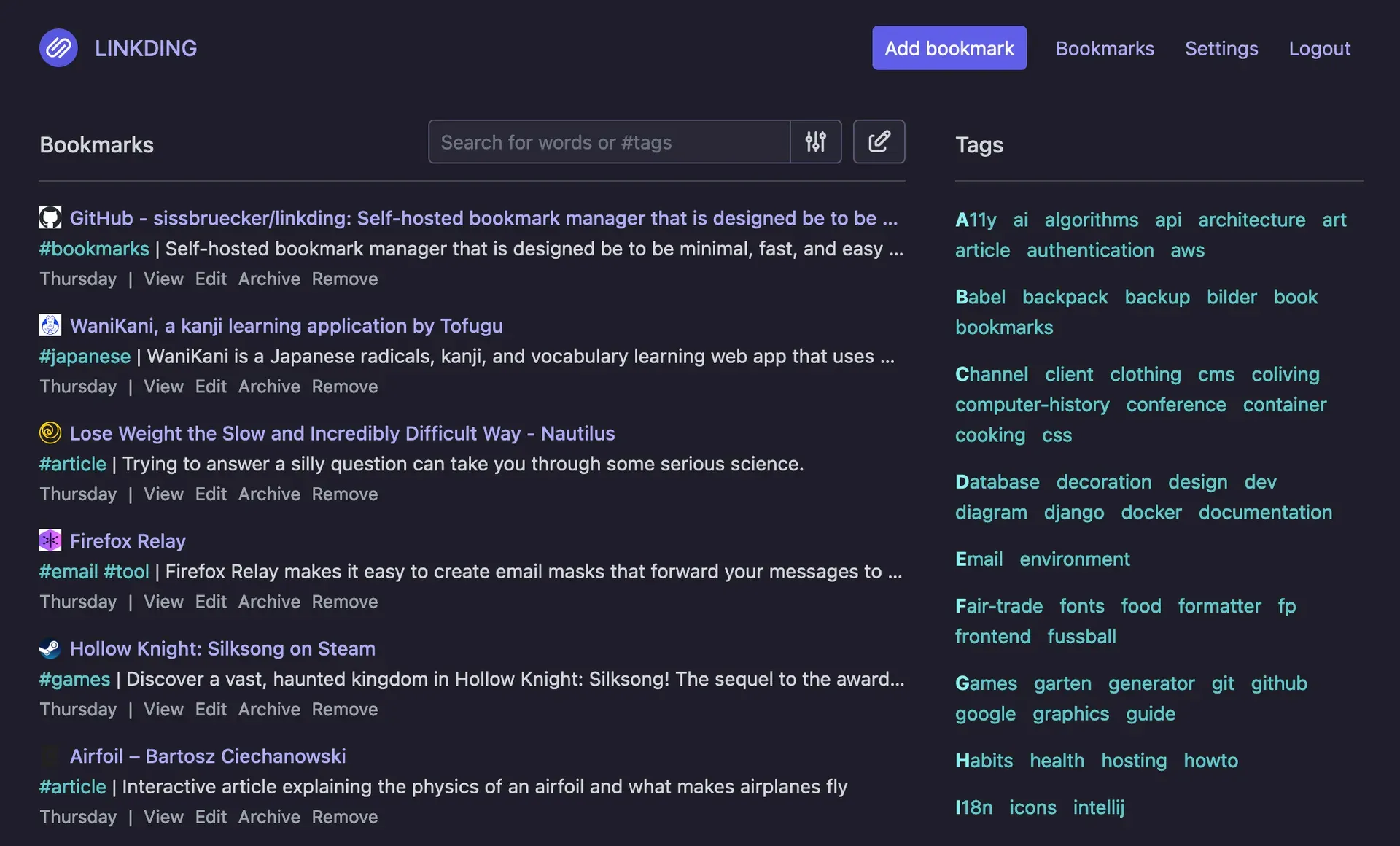
Official dark-theme screenshot of the same bookmark view.
Source: official linkding project page.
Key capabilities
- Clean bookmark list The interface is designed for readability, with a list of bookmarks, a tag cloud sidebar and a search box that accepts words and tags. It is a server-rendered Django application, so it stays light on small servers.
- Tags and search Bookmarks are organized with flat tags and found with a search syntax that mixes words and tag names. The search documentation explains the query options. There are no nested tag hierarchies, so plan tag names accordingly.
- Bulk editing Several bookmarks can be selected and edited together. This is useful after importing a large export from another service.
- Markdown notes and read later Each bookmark can carry Markdown notes, and a read-later flag marks links to return to. These are lightweight features rather than a full annotation system.
- Sharing with users or guests Bookmarks can be shared with other users of the same instance or with guests, according to the README. Review which bookmarks are visible before enabling sharing on a public instance.
- Automatic titles, descriptions and icons When you add a URL, linkding fetches the title, description and favicon of the page. Server-side requests are validated, and release 1.47.0 added SSRF protection, so access to internal hosts needs explicit configuration.
- Website archiving Pages can be archived as local HTML snapshots, which require the plus image with Chromium and more memory and disk, or on the Internet Archive. Archiving uses storage, so check available space before turning it on for every bookmark.
- Import and export Bookmarks are imported and exported in the Netscape HTML format used by browsers and many services. Export regularly as an independent backup alongside the database.
- Progressive Web App Linkding can be installed as a PWA from the browser. It is not a native mobile application.
- Browser extensions and bookmarklet Official extensions exist for Firefox and Chrome, plus a bookmarklet. They need the URL and an API token of your instance, as described in the extension guide.
- Single sign-on OIDC and authentication proxy support are documented, with options such as LD_ENABLE_OIDC and LD_ENABLE_AUTH_PROXY. Check the options page for the variables required by your identity provider.
- REST API The REST API lets third-party apps and scripts read and create bookmarks. Since 1.47.0 it also supports CORS, which matters for browser-based clients.
- Admin panel The admin panel allows user self-service and raw data access, useful for support tasks and recovery. Restrict access to administrators only.
- Configuration by environment variables Options cover database engine and credentials, base path, trusted origins, CSRF and CORS settings, request limits and background task behavior. See the options reference for the full list.
- Docker deployment and upgrades A single container with a mounted data folder runs the application. Upgrading means pulling the new image and recreating the container with the same command, and a helper script can automate those steps. No initial user exists, so create one with the documented command.
Where linkding fits
Running a personal bookmark server
Start the container with a mounted data folder, create the first user and put the instance behind a reverse proxy with HTTPS. Verify that the data folder is backed up and that login works from your devices. The installation page has the exact commands and tag variants.
Saving links from every browser
Install the Firefox or Chrome extension, or use the bookmarklet on other browsers, and enter your instance URL and API token. Test saving a page, adding tags in the extension and finding it again from the web interface. The PWA covers phone usage when you add it to the home screen.
Keeping copies of pages that may disappear
Use the plus image for local HTML snapshots, or choose the Internet Archive option for lighter installs. Archive a few pages, open the saved copy and check disk and memory use before enabling it widely. Remember that snapshots may contain content you do not want to keep, and that archiving runs as a background task whose behavior is controlled by the options reference.
Sharing a reading list
Mark selected bookmarks as shared, test what a guest sees when not logged in and review who has accounts. For teams, plan permission and account management carefully because linkding is built around simple sharing rather than detailed access control.
Integrating with scripts and apps
Create an API token, call the REST API from a script to add or list bookmarks and enable CORS origins if a browser app needs access. Pin the API behaviors you depend on to a release number. The community page lists mobile apps and libraries built on it.
Migrating from another bookmark service
Export bookmarks as Netscape HTML from the old service, import into a test instance, review tags and duplicates, then run bulk edits to clean up. Keep the original file until you have verified counts and the search results. Because import and export use the standard browser format, moving away from linkding later is equally straightforward.
Install
docker run --name linkding -p 9090:9090 -v {host-data-folder}:/etc/linkding/data -d sissbruecker/linkding:latestReviews of linkding
Be the first to share your experience with linkding.
Write a review
Loading review form…
Alternatives to linkding
 LinkwardenOpen-source collaborative bookmark manager under AGPL-3.0. It preserves every saved page in several formats, adds highlights, shared collections, RSS, full-text search and mobile apps, and runs self-hosted with Docker or as a paid Cloud plan.
 FavedFaved is an MIT-licensed bookmark manager with nested tags, metadata fetching, duplicate detection and bulk actions. Self-host with Docker and SQLite, or use the paid Faved Cloud with typed records and AI extraction.