

What is ResourceSpace?
ResourceSpace is an open source digital asset management (DAM) platform for organising, controlling and sharing photos, videos, illustrations, audio and documents. It is developed by Montala Limited, which describes itself as an employee-owned B Corporation, and the company history traces the system back to 2006. The product is aimed at museums, charities, universities, public sector bodies and brand teams that need a central, searchable library with permissions.
The application is written in PHP and JavaScript and stores metadata in MySQL or MariaDB. It runs on a standard web stack: the installation guide names Apache, PHP, the GD library and a writable filestore folder, with ImageMagick and FFmpeg as optional tools for more image and video previews. You can run it yourself from a source checkout or Docker, or buy managed cloud hosting from Montala; the download page describes both routes.
Release 11.0 was published on June 29, 2026 according to the versions page. It refreshed the interface and added a colour theme option, offline jobs that can be started from the front end, a Typesense search plugin for larger systems, Ollama support in the OpenAI GPT plugin, new API calls for comments and reports, and support for PHP 8.5 and MySQL 9.0. The minimum PHP version is now 8.2. Earlier 10.x releases added CLIP natural-language search, face recognition, Whisper transcription, Tesseract OCR and TOTP two-factor authentication as plugins.
Stable releases are distributed through the project's Subversion server, and the GitHub repository holds the latest development code, which the project's repository page describes as untested and unstable. The repository has no tagged GitHub releases, so use the versions page to identify the current stable version.
The source tree includes a BSD-style license text in documentation/licenses/resourcespace.txt that also restricts use of the "ResourceSpace" trademark in derived products. The project website does not name a standard SPDX license, so read that file before redistributing a modified build.
ResourceSpace screenshots
Explore the interface. Open a screenshot to view it at full size.
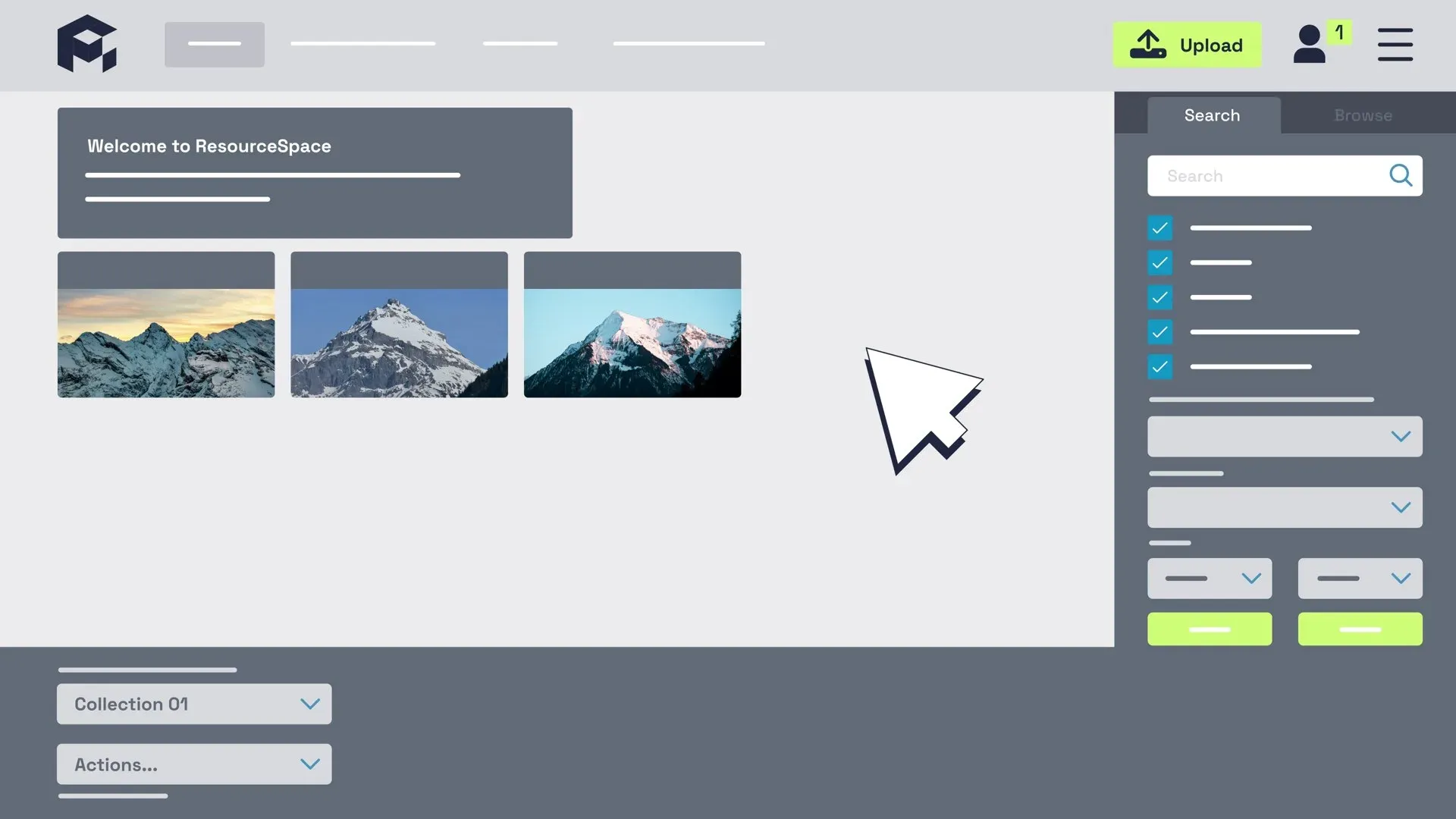
Official tutorial figure of the ResourceSpace home page: welcome panel, resource thumbnails, search filters and the collection bar.
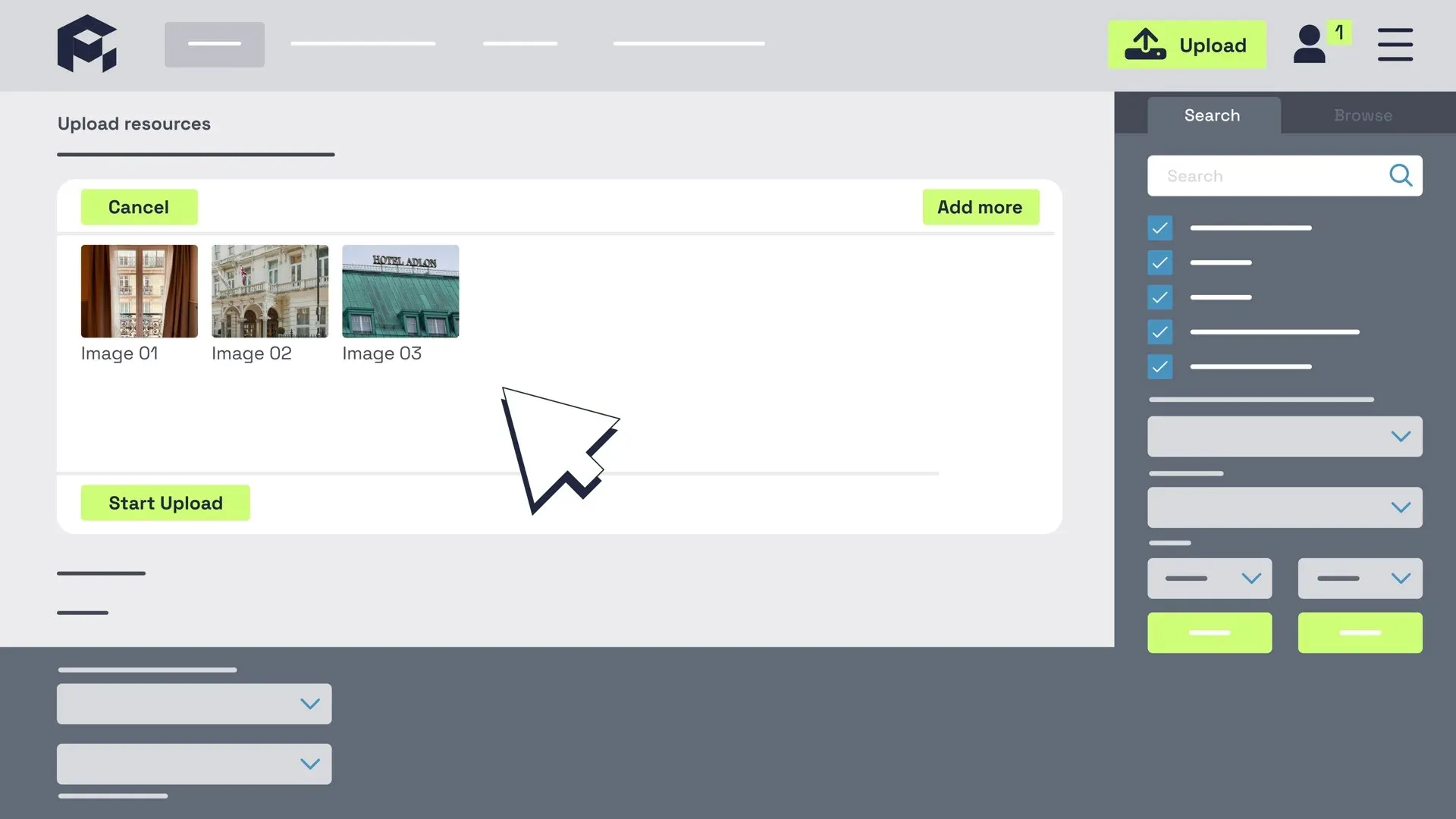
Official tutorial figure of the upload page, showing queued files with Add more, Cancel and Start Upload controls.
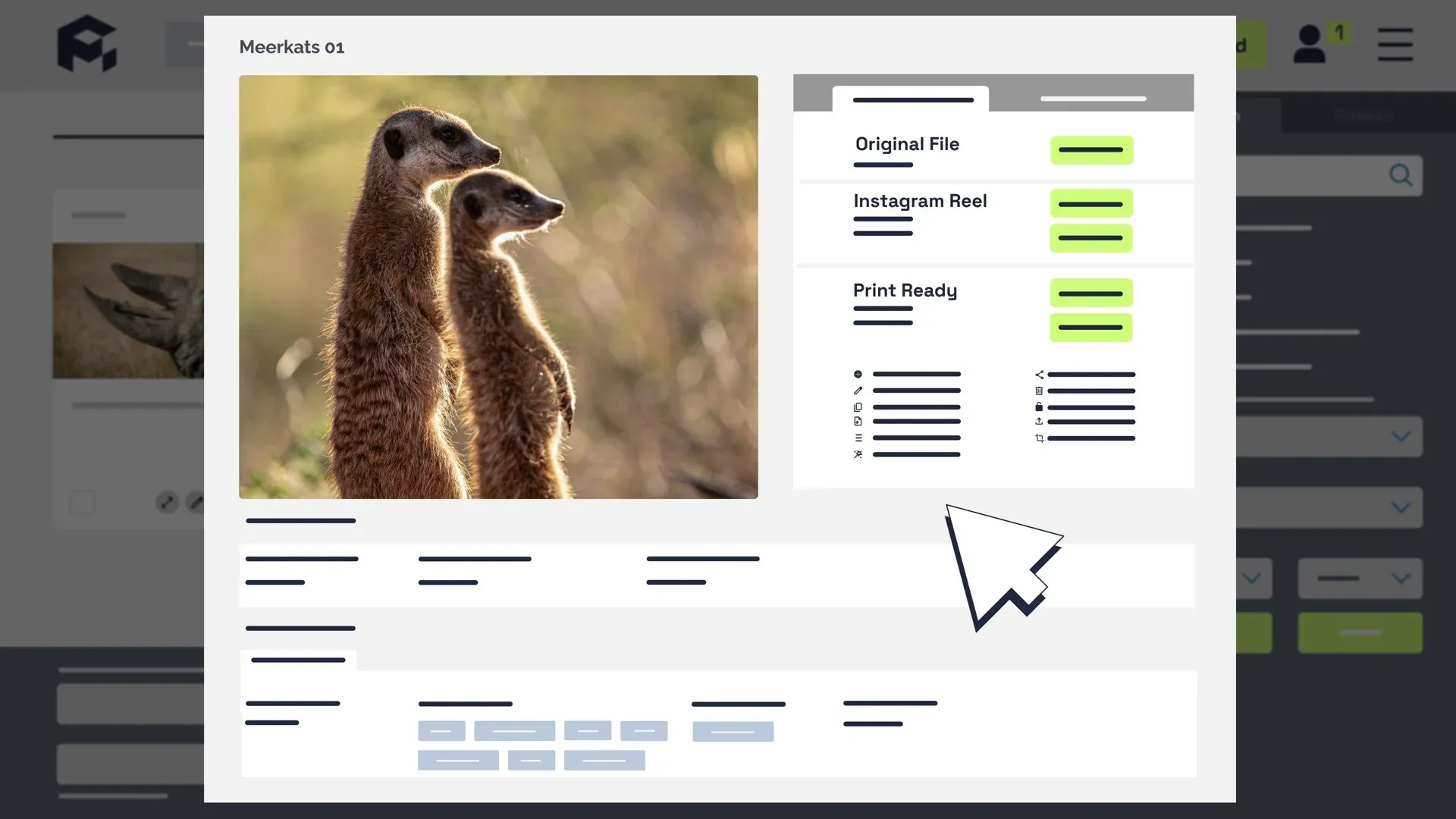
Official tutorial figure of a resource page with an image preview and alternative file download options.
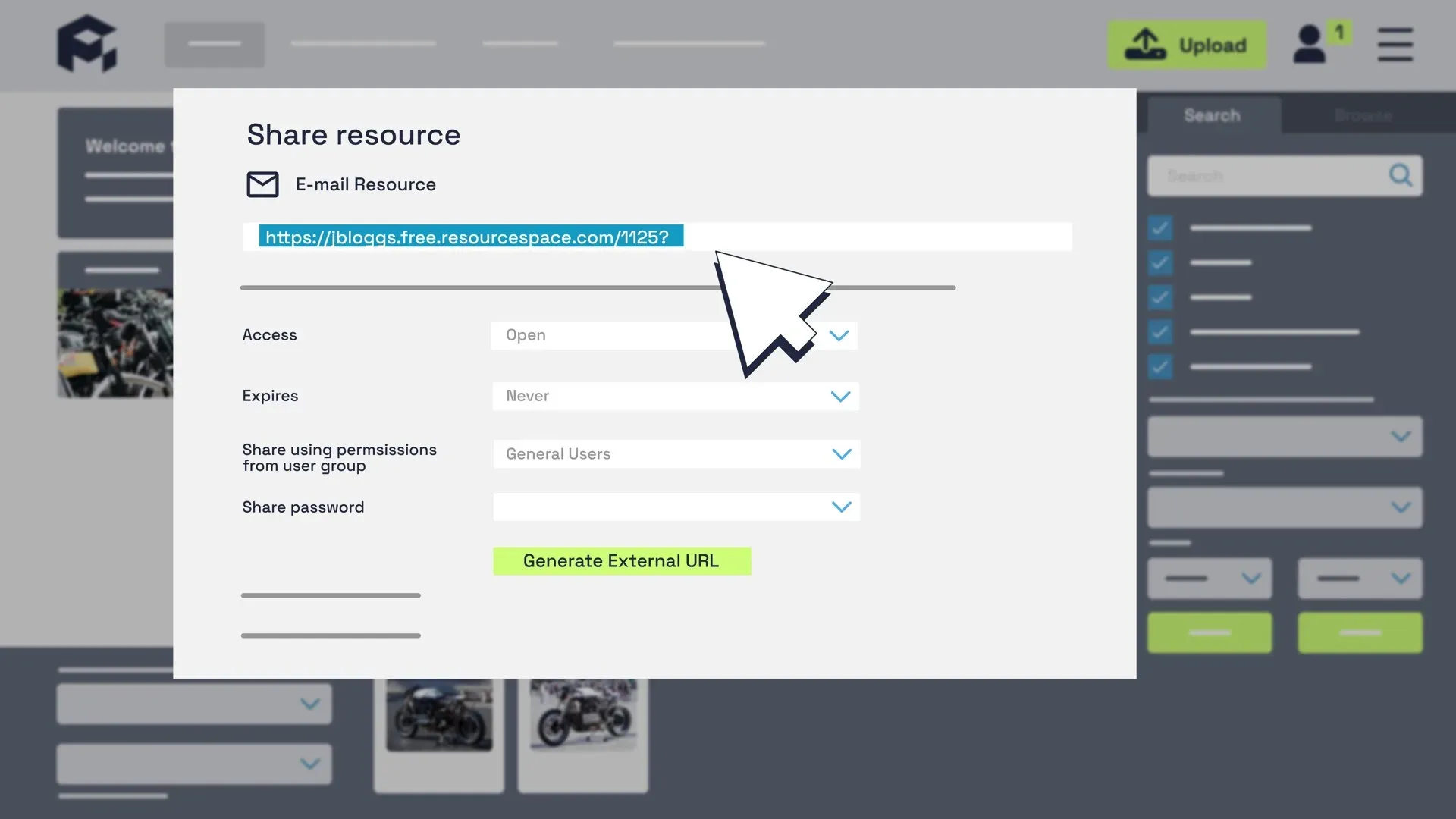
Official tutorial figure of the share dialog for generating an external URL with access level, expiry and password.
Source: official ResourceSpace project page.
Key capabilities
- Central asset library Resources are stored with a type, metadata fields and one or more files, organised through collections and a browse tree. File handling covers images, video, audio, documents and archives, with previews generated by GD, and by ImageMagick or FFmpeg when you install them. See file sizes and formats.
- Configurable metadata Administrators define metadata fields, resource types and fixed-list options, and can map embedded metadata on upload. The knowledge base documents fixed lists, field types and how fields affect search and display.
- Search and browsing Keyword search, field filters, date ranges and browse panels help locate assets. Release 11.0 added an optional Typesense plugin intended to speed up search on larger systems, and 10.6 added a CLIP-based plugin for natural-language search.
- AI plugins Optional plugins cover automatic tagging, face detection and recognition, speech-to-text with Whisper, OCR with Tesseract and an OpenAI GPT plugin that can also talk to Ollama in 11.0. Each plugin has its own prerequisites, so check what data leaves your server before enabling one.
- Collections and sharing Users group assets into collections, share them internally, and create external links with an access level, expiry date and optional password. The share dialog also lets you choose which user-group permissions apply to the link. See sharing and collections.
- Uploads and bulk editing A browser uploader handles multiple files, with batch metadata edits and a CSV Upload plugin that, as of 11.0, can also upload alternative files. Large uploads can use an SFTP drop folder in the managed cloud service.
- User groups and permissions Access is controlled by user groups and permission codes covering who can view, download, edit or approve resources and which fields or types are visible. The managed service adds SAML single sign-on; the 10.x line added login by email address.
- Workflow states Resources move through states such as pending review, active and archived, and requests can be approved by administrators. Use these to keep unreviewed material out of the shared library.
- Alternative files and previews Each resource can carry alternative files, for example a print-ready version and a web version, and the system creates sized previews automatically. The tutorial figures on the website show a resource page with several download options.
- Branding and themes Dash tiles, logos, colours and per-group configuration overrides allow a branded front end, and 10.6 added a dark mode option. A Brand Guidelines plugin arrived in 10.5.
- Reporting and analytics Built-in reports track downloads, searches and user activity, and 11.0 added API calls for reports. The reporting guide explains available reports and scheduled delivery.
- API and integrations A documented API exposes searching, resource data, collections and uploads, and IIIF endpoints support image viewers. The API documentation and the integrations page list partners and connectors, such as WordPress and Microsoft Active Directory.
- Offline jobs and maintenance Long tasks such as recreating previews or updating checksums run as offline jobs. In 11.0 they can be started from the front end with real-time progress, and scheduled tasks use cron scripts such as the nightly hit-count copy.
- Multilingual interface The interface ships with many language files, and 11.0 added Bulgarian, Kurdish and Traditional Chinese. Languages are set per installation or per user.
- Self-hosting by source or Docker The installation guide covers a LAMP stack from a Subversion or Git checkout, and the download page points to Docker instructions for Linux, Windows, macOS and cloud hosts. Plan for php.ini changes to memory, upload size and time-out values.
- Managed cloud and a free tier Montala offers Team, Business, Enterprise and Platinum cloud plans on dedicated servers hosted in London, plus a free instance with 10 GB of storage and up to 10 users. Prices are quoted on request. See the pricing page.
Where ResourceSpace fits
Building a central brand or marketing library
Define resource types, metadata fields and user groups before uploading. Import a representative sample, check that previews, alternative files and download sizes match what designers need, and restrict original files to the groups that should hold them. Use workflow states so unapproved material is hidden.
Cataloguing museum, archive or research collections
Map your catalogue fields to ResourceSpace metadata and decide which are searchable. Check how embedded metadata is read on upload and how IIIF endpoints expose images to viewers. Test geographic metadata fields, introduced in 11.0, if location matters to your collection.
Sharing assets with external partners
Create a collection, generate an external link with an expiry date and a password, and choose the user-group permissions that apply to recipients. Review access reports afterwards. For large deliveries, test the SFTP drop folder or the upload limits in your php.ini.
Adding AI tagging and transcription carefully
Enable one plugin at a time, such as tagging, face recognition, Whisper or Tesseract, on a test instance first. Confirm where processing runs, how results are stored and whether people in the images consented. Compare plugin output with your controlled vocabulary before allowing it to write metadata.
Running and upgrading a self-hosted instance
Install from a stable release checkout rather than a zip file, as the installation guide recommends, so upgrades are a repository update. Check the PHP and database requirements on the versions page before each upgrade, back up the database and filestore, and run the Installation Check in the admin area afterwards.
Connecting other systems
Use the API for scripts and publishing workflows, and the integration plugins for tools such as WordPress. Authenticate with per-user keys, test rate and permission behavior, and keep API users in groups with only the access they need.
Reviews of ResourceSpace
Be the first to share your experience with ResourceSpace.
Write a review
Loading review form…
Alternatives to ResourceSpace
 ImmichImmich organizes photos and videos on a self-hosted server, with web and mobile access, automatic mobile backup, facial recognition, metadata search and album sharing.
 Paperless-ngxPaperless-ngx is a GPL-3.0 document management system you run with Docker. It OCRs scans with Tesseract, stores PDF/A copies beside originals, auto-tags documents, imports email attachments and offers opt-in AI features.