

What is Automa?
Automa is a low-code browser extension for automating work in the browser. You build a workflow by connecting blocks on a canvas: open a tab, click an element, fill a form, read text, loop over a list, call an HTTP endpoint and write the result to a table, a file or a Google Sheet. Workflows can be recorded from your own clicks and typing, then edited, or built block by block. The official extension page lists typical uses such as auto-filling forms, scraping data, taking screenshots and running a repeated task on a schedule.
The extension is distributed through the Chrome Web Store and Firefox Add-ons, as the README and the documentation describe, and the repository also lists steps to load an unpacked build in developer mode. The current GitHub release is v1.29.12, published on August 11, 2025. It added support for images, audio, video and file inputs to the Automa AI Power workflow block, improved the quick-access dropdown and fixed trigger parameters that did not appear when running hosted workflows. The repository has continued to receive commits after that release.
The code is a Vue application built with webpack as a Manifest-based extension, with a content-script layer for web interaction and a workflow engine that executes the blocks. Source in the repository is variously licensed: most files are under the GNU Affero General Public License, while the top-level business directory is under the Automa Commercial License, according to the license file. The same team runs a commercial automation platform at goautoma.com with Free, Pro and Enterprise plans and RPA products. That is a separate product from the free extension described here.
The extension runs inside your own browser profile, so most workflows execute and store data locally. Some features reach external services: the Google Sheets and Google Drive blocks use Google APIs, marketplace sharing uses Automa's servers, and the AI Power block needs a separate account.
Automa screenshots
Explore the interface. Open a screenshot to view it at full size.
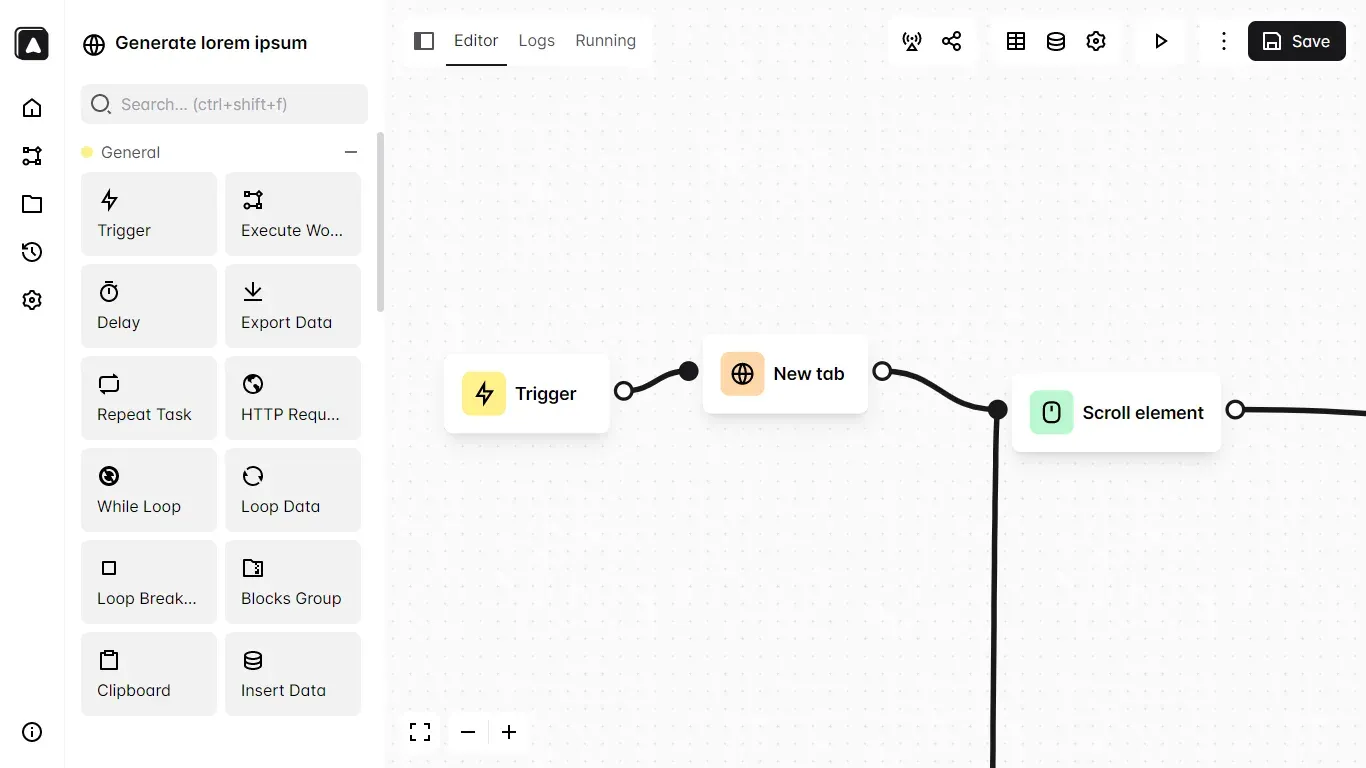
Official screenshot of the workflow editor with the General blocks sidebar and a workflow that starts with a Trigger, opens a new tab and scrolls an element.
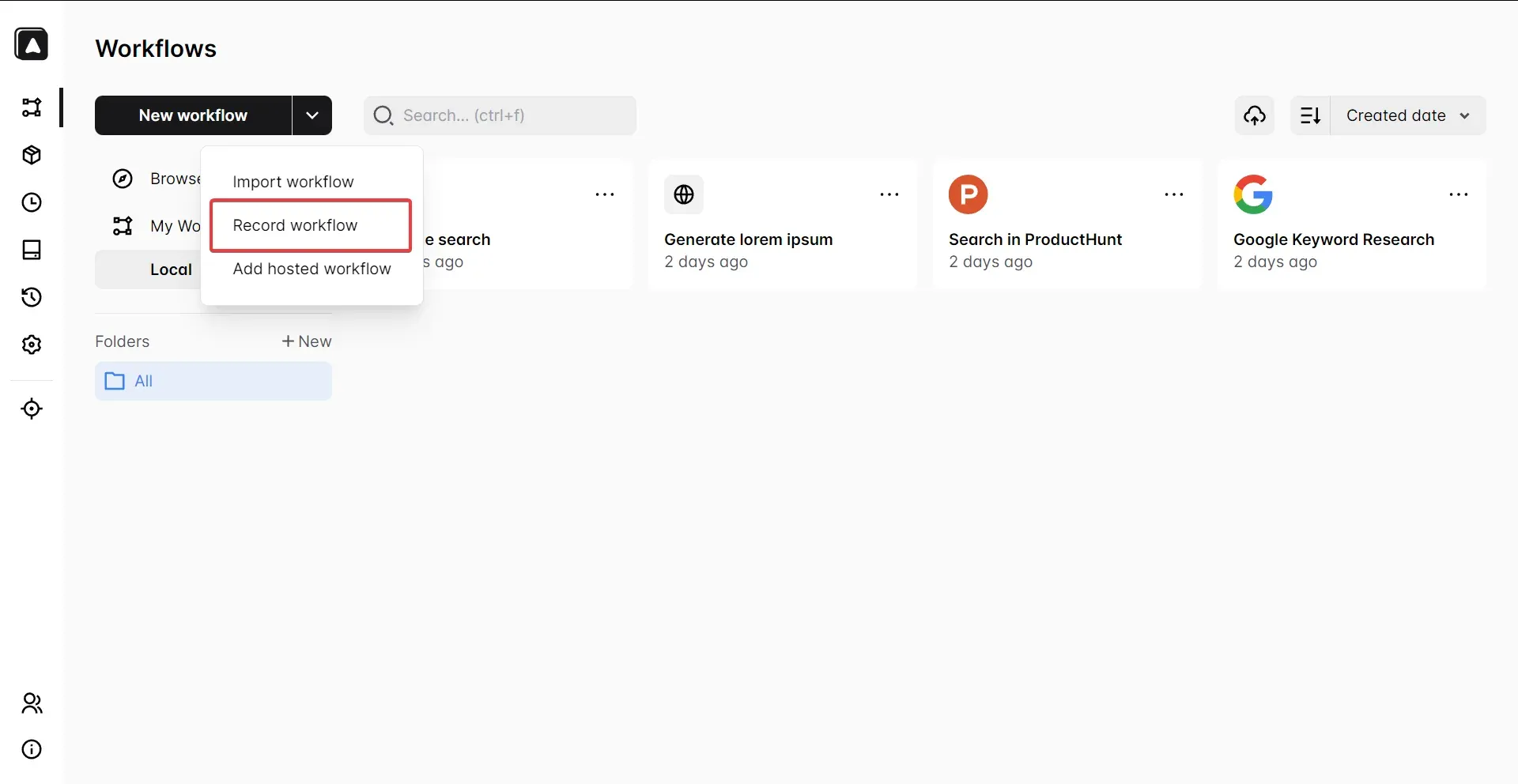
Official documentation screenshot of the Workflows page with the New workflow menu and the Record workflow option highlighted.
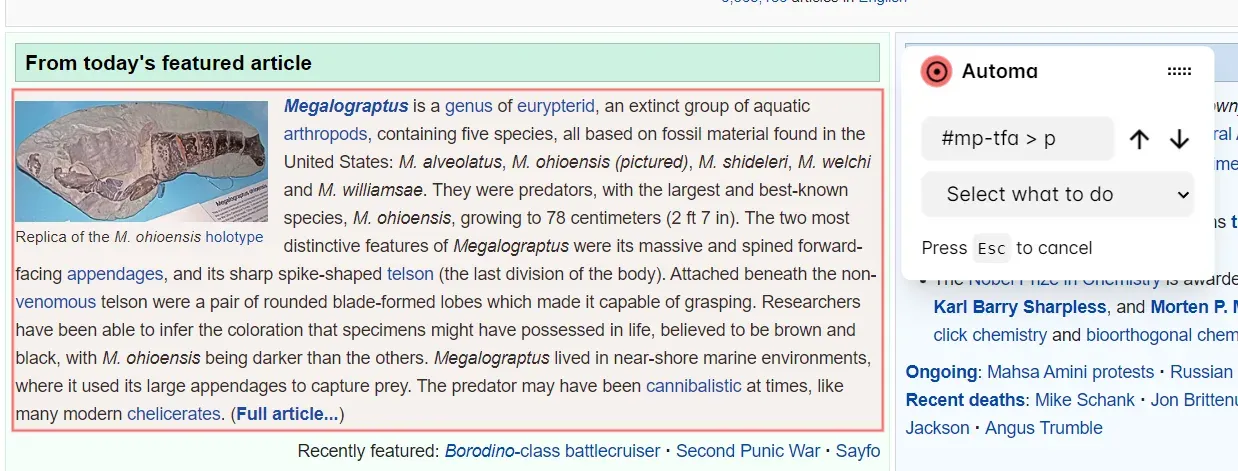
Official documentation screenshot of the element selector while recording on a web page, with the selector field and the action menu.
Source: official Automa project page.
Key capabilities
- Visual workflow editor Blocks are dragged from a searchable sidebar onto a canvas and connected with lines, with Editor, Logs and Running tabs. The workflow starts from a Trigger block. Zoom and fullscreen controls help with larger flows, and a workflow can be saved, shared or run from the toolbar.
- Workflow recorder The recorder captures actions such as opening tabs, scrolling, clicking and typing, and lets you pick an element to read text or an attribute while recording. The quick start describes it as the easiest way to create a first workflow. Recorded steps usually need cleanup, for example replacing fragile selectors.
- Many trigger types A workflow can start manually, on an interval, on a specific date or day, on browser startup, from a cron expression, from the context menu, when you visit a matching URL or regular expression, or from a keyboard shortcut. The context-menu trigger needs the contextMenu permission, as the trigger documentation explains.
- Browser blocks Blocks control tabs and windows: active tab, new tab, switch tab, new window, close tab, go back and forward, reload, get tab URL, handle dialogs and downloads, set cookies, take screenshots and set a proxy. The proxy block supports http, https and socks schemes with a bypass list.
- Web interaction blocks Click element, get text, attribute value, scroll, hover, press key, upload file, switch frame, trigger event, create element and forms blocks interact with a page. Elements are located with CSS selectors or XPath, and options such as selecting multiple elements and marking elements already handled are described in the element selector guide.
- Control flow Repeat task, conditions, element exists, while loop, loop data, loop elements and loop breakpoint blocks add branching and iteration. A condition builder and expressions let you use variables in fields, and an execute-workflow block calls one workflow from another.
- Tables, variables and global data A workflow table stores extracted data with typed columns (text, number, boolean, array or any), variables hold values between blocks, and global data defines shared values such as a base URL that you reference with an expression. Persistent storage tables and variables are also available across workflows.
- Data export The Export Data block writes tables, Google Sheets data or variables as JSON, CSV or plain text. Combined with a scraping workflow, it gives a way to collect a list of items and save it without writing code.
- Google Sheets and Google Drive The Google Sheets block reads or writes cell ranges using A1 or R1C1 notation, and the documentation says you must share the spreadsheet publicly (read only) or with the Automa service account to write. A Google Drive integration is documented separately. Review those permissions before using sensitive sheets.
- HTTP request block A block can call an HTTP endpoint with a method, headers, body and form data and map fields from the JSON response into variables or table columns. This connects a workflow to a web API without leaving the extension.
- JavaScript code block A block can execute your own JavaScript on a page with a default timeout of 20 seconds, using built-in functions such as
automaNextBlockto pass data back. It covers cases that no block handles, with the risk of running code in the page context. - Credential storage Credentials saved in storage are encrypted, cannot be viewed or edited after they are added, and are referenced in workflows through a secrets expression. This keeps passwords out of the workflow definition. Check how the workflow is shared before including such references.
- Hosted and marketplace workflows A workflow can be published to the Automa Marketplace, where other users can install it, or shared as a hosted workflow that others add by an identifier. Updating a shared workflow means editing the local version, then fetching and updating the shared one. Review any marketplace workflow before running it.
- Debug mode and logs Workflow settings can use the Chrome DevTools Protocol for debugging, save execution logs, show the executing block on the page and reuse the last state. The Logs tab shows the history of runs and lets you export collected data.
- Run options Workflows run from the dashboard play button or from the Automa shortcut, Ctrl or Cmd plus Shift plus E. The documentation warns that closing the popup can stop a run unless the workflow is set to run in the background, and a notification can be shown when it ends.
- Automa AI Power block The AI Workflow block runs published workflows from a separate Automa AI Power account, which can use language models and knowledge bases, and passes data in and out as inputs and outputs. The documentation says AI Power accounts and extension accounts are not linked, and agent building is not yet integrated.
- Extension Builder Automa Chrome Extension Builder generates a standalone Chrome extension from Automa workflows, as the README and the Extension Builder documentation describe. It suits a packaged tool for colleagues who do not need the editor.
- Translations and documentation The documentation is available in English and Simplified Chinese and covers every block, the workflow concepts and a reference section on packages, storage and common errors. Docs for versions 1.21.x and below are separate.
Where Automa fits
Filling repetitive web forms
Record the form once, then replace typed values with variables or table columns and loop over a list of records. Run it first on a test site or with one row, and check that selectors still match after the site changes. Do not store real passwords in the workflow; use the credential storage and secrets expression.
Scraping a list into a table or file
Use the loop elements and get text blocks with a table column for each field, then export to CSV or JSON or send the rows to Google Sheets. Check the target site's terms and robots rules before collecting data, and add delays to avoid heavy request rates. Keep the selectors in global data where possible so that a layout change needs one edit instead of many.
Running scheduled browser tasks
Pick an interval, cron or day-and-time trigger for tasks such as a daily check of a dashboard or a report download. The browser profile must be open for the schedule to run, so test whether the workflow runs in the background as you expect and check the logs after a day.
Connecting a web page to an API or spreadsheet
Combine the HTTP request block with the Google Sheets block to move data between a site and a sheet. Map the response fields explicitly, handle the fallback branch and share the sheet only with the account that needs write access.
Adding one-click helpers to the context menu
Use the context-menu trigger to run a workflow on selected text, a link or an image, using the injected variables for the element selector, selection, media URL and link. Grant only the permission you need and name the entries clearly for colleagues.
Packaging a workflow for a team
Publish a reviewed workflow to a private host identifier or the marketplace, or use Extension Builder to create a standalone extension. Keep a changelog of workflow versions and test the update path before telling the team to upgrade. Agree who owns each shared workflow so that fixes have a named maintainer.
Reviews of Automa
Be the first to share your experience with Automa.
Write a review
Loading review form…
Alternatives to Automa
 WebBrainWebBrain is a GPL-3.0 browser extension that adds an AI agent side panel to Chrome, Firefox and Edge and runs on local, cloud or managed language models.
 n8nn8n is a fair-code workflow automation platform from n8n GmbH in Berlin. It combines a node-based visual editor with JavaScript and Python code, AI agent nodes, 1500+ integrations, a REST API and an MCP server, self-hosted or on n8n Cloud.
 ActivepiecesActivepieces is an MIT-licensed automation platform for building trigger-based flows and AI agents across business apps. Self-host it with Docker or Kubernetes or use the cloud; integrations are TypeScript packages that also power its MCP server.