

What is Kdenlive?
Kdenlive is a free, open-source non-linear video editor developed inside the KDE Community; the name is short for KDE Non-Linear Video Editor. Jason Wood started the project with version 0.2.3 in October 2003, Jean-Baptiste Mardelle joined in 2005 and remains the maintainer, and Kdenlive became an official KDE application in 2015. The project history page describes a small, mostly volunteer team, with KDE e.V., a German non-profit, as the legal entity. There are no license fees, accounts, subscriptions or paid feature tiers; the project is funded by donations.
Releases are numbered by year and month. The latest stable version on the official site is Kdenlive 26.08.2, published October 13, 2026. It fixes proxy detection and a proxy parameter that broke NVIDIA encoding, master audio levels with recent MLT versions, audio recordings that captured nothing, and title editor selection handling, and it adds a Dynamic Text keyword for frame counts that start at 1. The repository already carries a v26.08.3 tag dated November 5, 2026, which had no announcement on kdenlive.org when this profile was checked. The 26.08.0 feature release added automatic audio track creation on drop, track reordering, gap markers, Alt+drag playhead snapping, rounded rectangles and object snapping in the title editor, an adjustable rotation anchor for Transform and math expressions in effect fields, and raised the minimum MLT version to 7.38.0.
The download page offers a Windows installer and a standalone build that needs no administrator rights (Windows 10 or newer), DMG packages for Apple Silicon and Intel Macs (macOS 13 Ventura or newer), and a Linux AppImage; the stable Flatpak is published on Flathub. Ubuntu PPA packages ended with release 24.02. Daily builds are available for testing, with an explicit warning that they can be unstable and damage projects. Older versions stay in the KDE attic: 23.08.5 for Windows 7 and macOS 10.13, 24.08.1 for macOS 11.
The application is written in C++ with Qt and KDE Frameworks 6. Editing and rendering run through MLT, the multimedia framework written by Dan Dennedy, which uses FFmpeg for decoding and encoding and hosts effect libraries such as frei0r, LADSPA, SoX and Movit. Project files with the .kdenlive extension are XML based on MLT's own format and store references to media rather than the media itself, so MLT can render them directly. The development branch currently requires Qt 6.10, KDE Frameworks 6.21 and MLT 7.42.
Source code is developed on KDE Invent, KDE's GitLab instance; the GitHub repository is a read-only mirror, and bugs go to the KDE bug tracker. The main license is GPL-3.0 (files are marked GPL-3.0-only or a later KDE-accepted GPL version), with some components under LGPL, MIT, BSD and CC licenses. Kdenlive is a desktop application only: there is no web editor, mobile app, hosted rendering service or collaborative multi-user editing.
Kdenlive screenshots
Explore the interface. Open a screenshot to view it at full size.
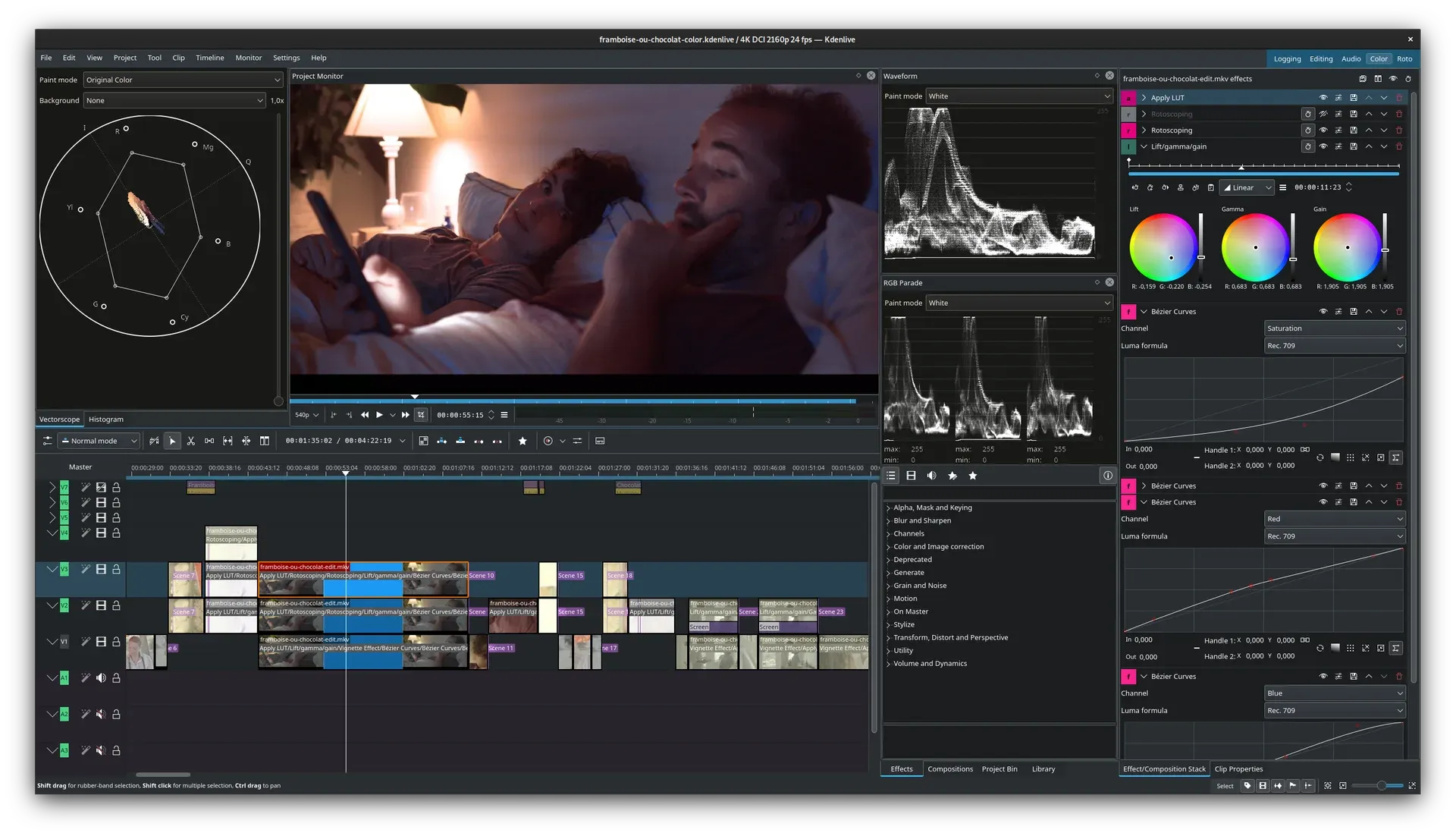
Kdenlive editing a 4K DCI 24 fps project in the Color workspace, with scopes, an effect stack and the timeline. Official screenshot from kdenlive.org.
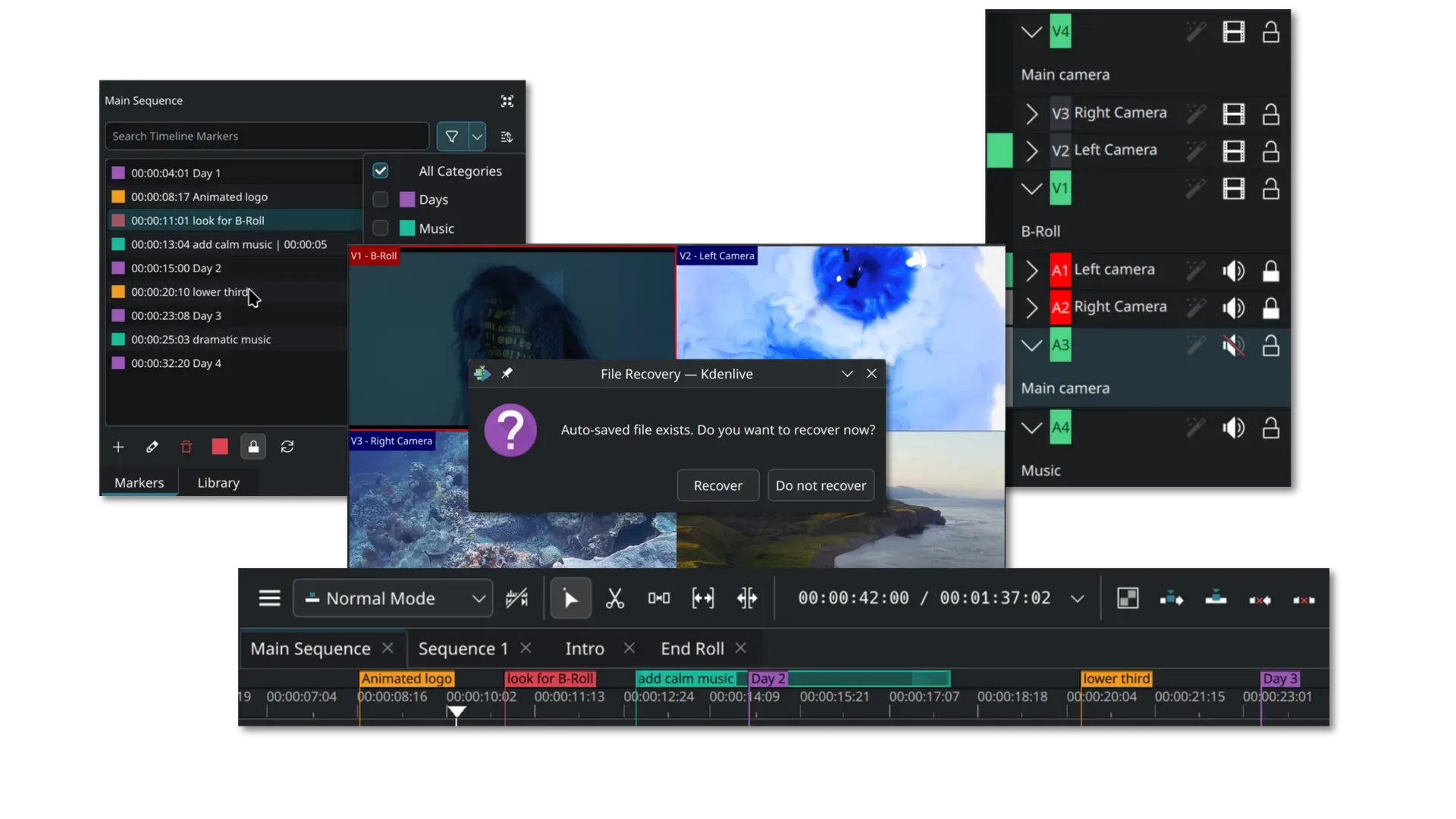
Editing features: categorized timeline markers, a multicam monitor with three camera angles, sequence tabs and the autosave file recovery prompt.
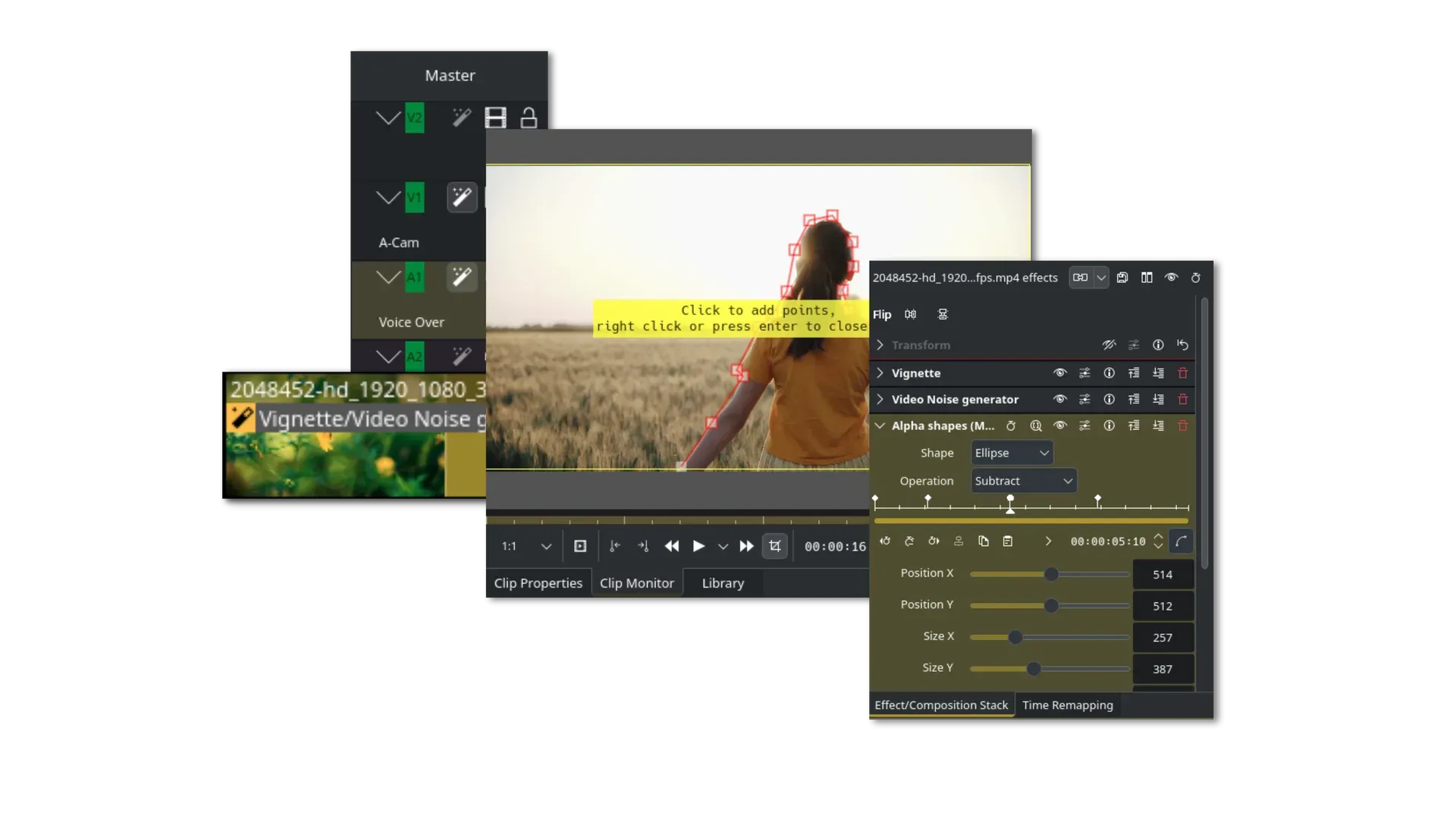
Effect stack with Vignette, Video Noise generator and a keyframed Alpha shapes mask, while a rotoscoping spline is drawn on the clip monitor.
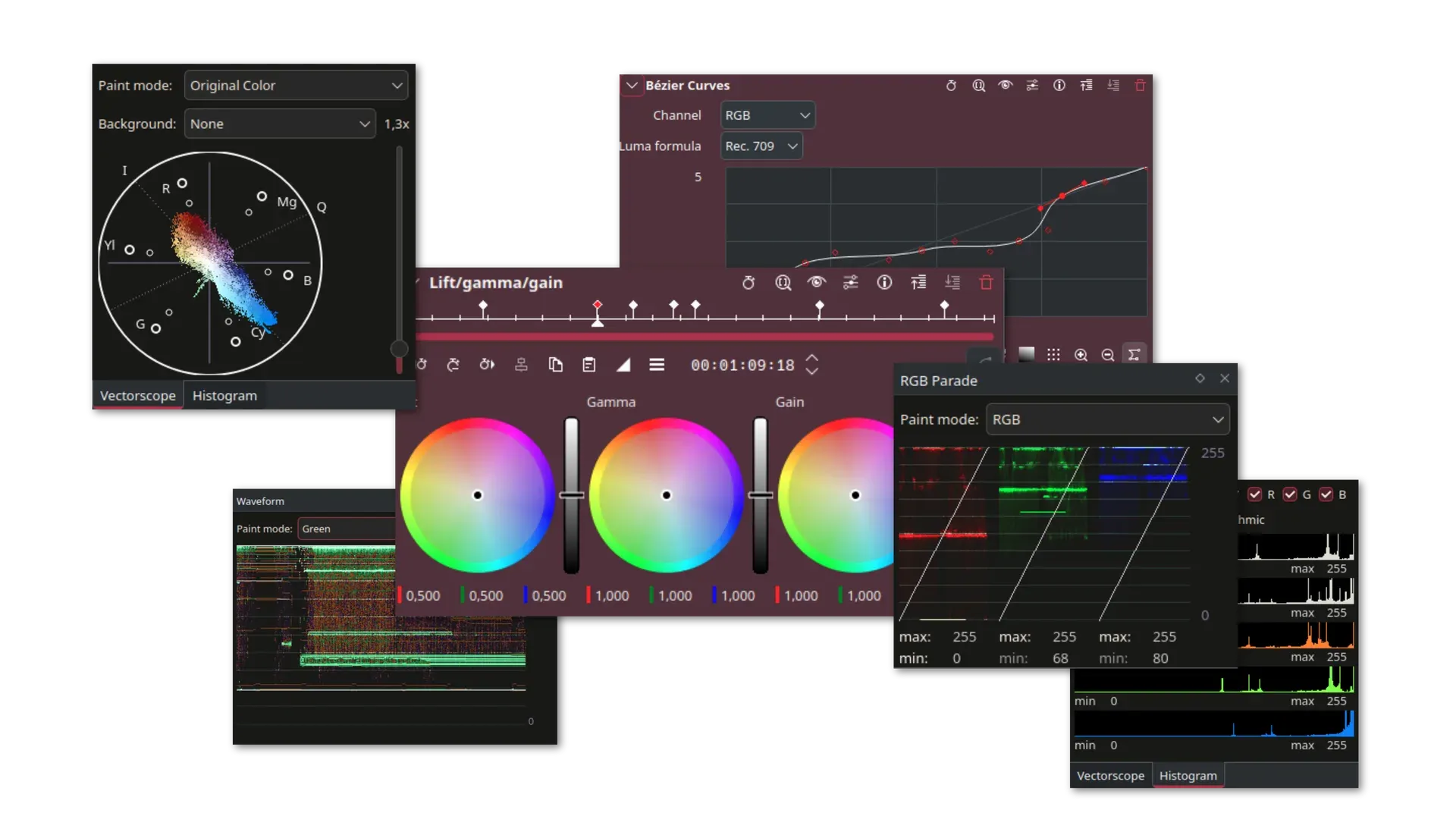
Color tools: vectorscope, waveform, RGB parade and histogram scopes next to the Bezier Curves and Lift/gamma/gain effects.
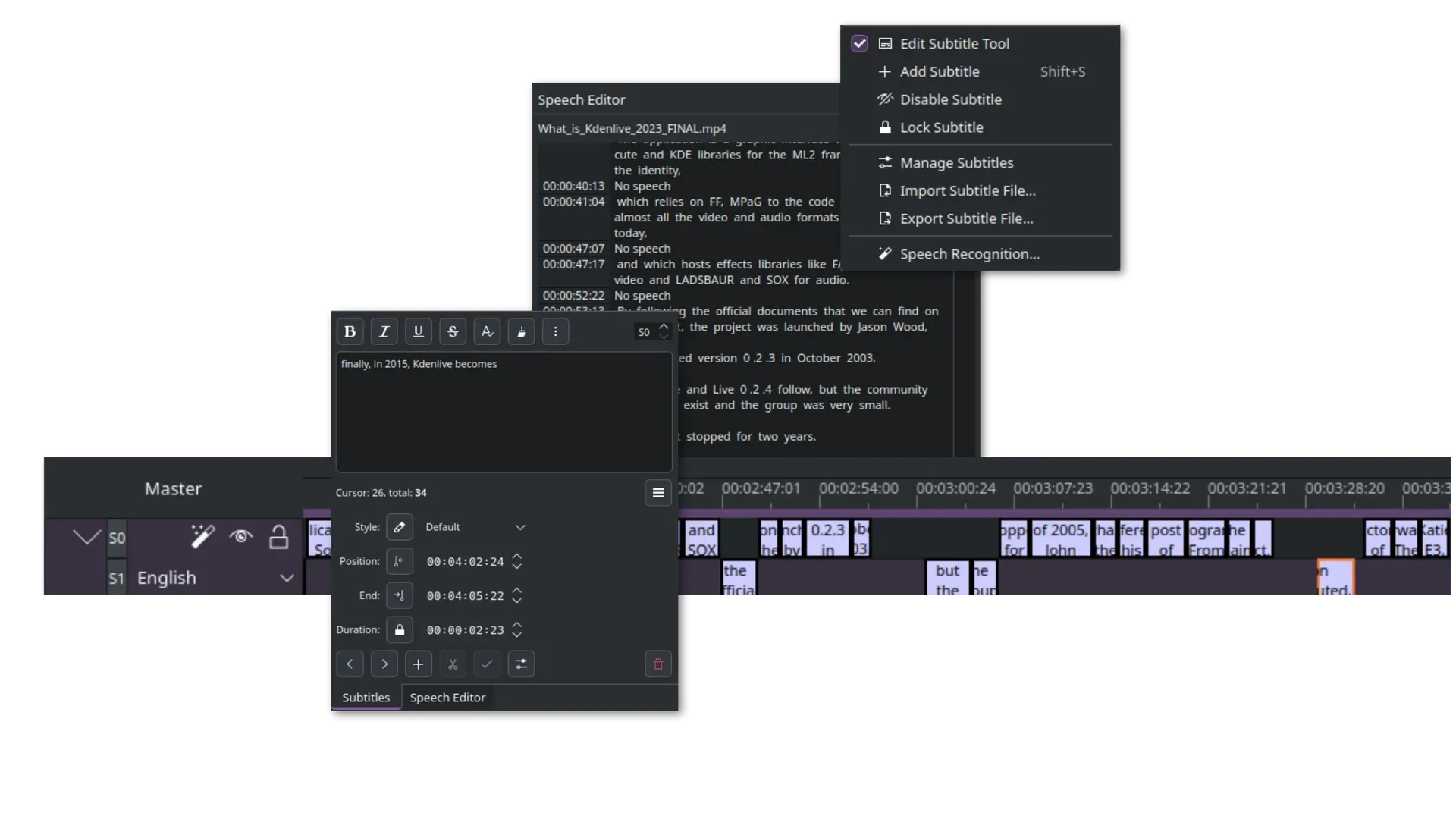
Subtitle track with two layers, the subtitle style editor, a generated transcript in the Speech Editor and the subtitle menu with Speech Recognition.
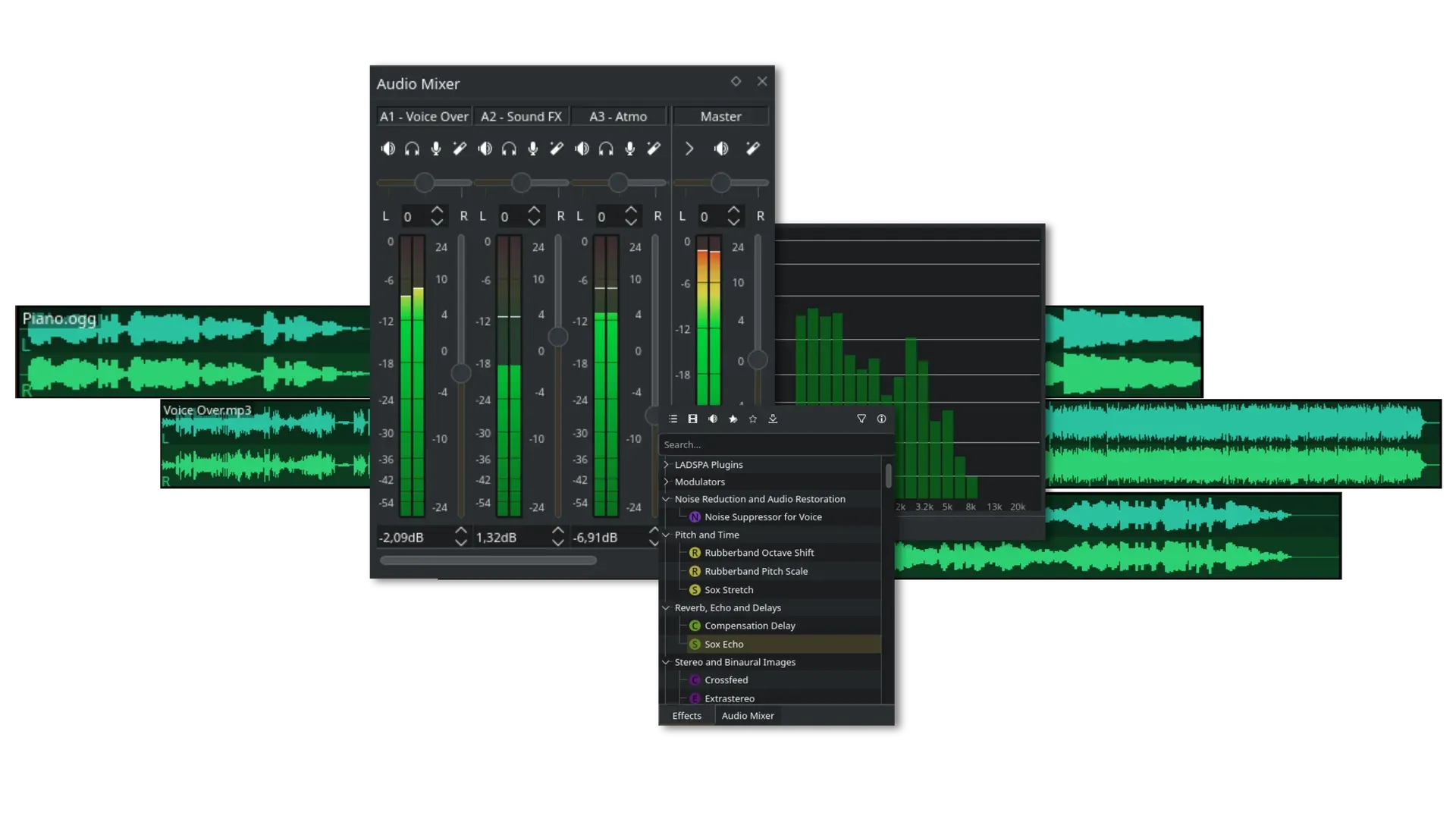
Audio mixer with voiceover, sound effects and ambience tracks, an audio spectrum display and the audio effects list including noise suppression.
Source: official Kdenlive project page.
Key capabilities
- Multitrack non-linear timeline Multiple video and audio tracks, with insert and overwrite modes, three-point editing, a razor tool, clip grouping and track locking. Version 26.08 added track reordering from the track header and automatic creation of missing audio tracks when a clip is dropped. Timeline playback is decoded on the CPU, so preview smoothness depends mostly on processor cores rather than the graphics card.
- Nested sequences A project can hold several timelines as sequences, and a sequence can be placed inside another one like a clip. Sequences open in tabs above the timeline. Version 26.08 added Copy Selection To New Sequence, which leaves the original clips in place, alongside the older create-sequence-from-selection action.
- Project bin and asset management The bin imports nearly any format FFmpeg can decode, shows clip metadata such as codec, frame rate, color space and bitrates, and organizes media with folders, color tags, star ratings, descriptions and filters by usage or type. Multiple bins can be opened at once. Image sequences, including WebP since 26.08, are imported as single clips.
- Proxy clips and preview rendering Proxy clips replace heavy camera files with lighter copies during editing, and the original media is used again for the final render. Preview resolution and Timeline Preview Rendering reduce lag on lower-end hardware. Version 26.08 checks proxy parameters against an allowlist when a project opens and can search for missing proxies.
- Markers, guides and gap detection Timeline and clip markers carry categories with colors and comments, and the marker list can be searched and filtered. Version 26.08 added Identify Gaps for one track or all tracks and ranged gap markers. Guides and markers can also drive rendering, as described in the export item below.
- Multicam editing Footage from several cameras sits on stacked tracks, and the editor switches angles while the project monitor shows all of them. Since 26.08, clips can be inserted at the timecode stored in their metadata, which helps align recordings from separate devices without manual syncing.
- Effects, transitions and keyframes Hundreds of audio and video effects come from MLT, frei0r, FFmpeg filters, LADSPA and SoX, and most parameters can be keyframed with a selectable interpolation type. Effects stack on clips, tracks or the master. The 26.04 release added animated transition previews and a luma files tab, and 26.08 added math expressions in effect values and an adjustable rotation anchor for Transform.
- Masking, rotoscoping and time remapping Rotoscoping draws a spline mask on the monitor, and alpha shape effects add rectangle or ellipse masks with add, subtract or intersect operations. The rectangular alpha mask supports keyframes since 26.08. A separate Time Remapping panel varies clip speed with keyframes for speed ramps.
- Color correction and scopes Lift/gamma/gain wheels, Bezier and per-channel curves, LUT application and basic correction effects cover grading. The vectorscope, waveform, RGB parade and histogram are dockable widgets that update during playback. Full color range output for 10-bit renders is documented as not yet working with effects.
- Audio mixer and voiceover The mixer shows per-track levels, pan, mute, solo and record controls, and 26.08 added additive soloing with Shift+click. Voiceover can be recorded straight to a track, with channel, sample rate and sample format options that follow the selected hardware since 26.04. An audio spectrum widget and LADSPA and SoX effects handle cleanup such as noise suppression and pitch shifting.
- Titles and Glaxnimate animations The title editor creates text, rectangles, ellipses and images with alignment, outlines and simple animation. Version 26.08 added snapping to object centers and safe zones, rounded rectangle corners, copy and paste, and automatic replacement of the edited title in the timeline. For vector motion graphics, Kdenlive integrates with Glaxnimate, a separate animation application in which those clips are edited.
- Subtitles and speech-to-text A dedicated subtitle track supports styling, several subtitle layers, and import or export of subtitle files. Automatic subtitling uses local VOSK or Whisper models chosen per language; Whisper can translate to English, and an optional SeamlessM4T translation step downloads a 9 GB model on first use. Silence detection works only with VOSK. See the speech-to-text documentation for engine setup.
- Render presets and hardware encoding The render dialog groups presets into audio only, 10-bit (ProRes, DNxHR, AV1, x265), video with alpha, image sequences, lossless, web and 4K formats, and custom presets can be saved or downloaded from the KDE Store. Experimental hardware encoders cover NVIDIA NVENC, VAAPI on AMD and Intel, and Apple VideoToolbox. The render documentation lists every option, including two-pass encoding and embedded subtitle streams.
- Render zones, scripts and job queue Output can cover the full project, a selected zone, the span between two markers, or one file per marker category segment. Render jobs run in a queue while editing continues, and Generate Script saves a
.mltfile that can be rerun later or from a terminal withmelt. Parallel rendering is available but marked experimental, with possible artifacts or crashes. - OpenTimelineIO interchange Since 25.04, the File menu imports and exports OpenTimelineIO files through the C++ library, carrying tracks, clips, markers and guides. OTIO stores no render settings, so on import the resolution is taken from the first video clip. Clip markers are shared across instances in Kdenlive but stored per instance in OTIO, so round trips to other editors need checking.
- Online resources The project bin can search and import footage and sounds from online libraries such as Pixabay, Pexels, Freesound and the Internet Archive, and can add the license attribution as a project note. Freesound requires an account and an explicit authorization of Kdenlive. These downloads are the main place where the editor contacts third-party services during normal editing.
- Autosave, backups and recovery Kdenlive autosaves open projects and offers recovery when it finds a newer autosave file at startup, and it keeps automatic project backups that can be restored. Since 26.08, projects that reference remote resources show a warning, and missing clip detection on open is more accurate.
- Windows installation Two packages: an installer that requires administrator rights and a standalone build that runs without installation. Windows 10 version 1809 or later is required, server and embedded editions are not guaranteed to work, and domain users need write access to the Kdenlive folders under AppData. The automatic update check can be switched off under Settings, Configure Kdenlive, Environment.
- macOS and Linux installation MacOS builds are DMG installers for Apple Silicon and Intel, with no standalone option. On Linux the official packages are the AppImage from download.kde.org and the Flatpak
org.kde.kdenliveon Flathub; distribution packages are maintained by the distributions themselves. The installation guide lists hardware guidance of 4, 8 and 16 GB of RAM for SD, HD and 4K editing.
Where Kdenlive fits
Editing a YouTube or training video with voiceover
Import screen recordings and camera clips into the bin, cut them on the timeline, and record narration directly to an audio track from the mixer. Add title clips for chapter cards and lower thirds, then render with the MP4 H.264/AAC web preset. Check that the project profile frame rate matches the recordings before editing, because a mismatch shows up as stutter only in the rendered file.
Cutting 4K footage on a modest laptop
Enable proxy clips in the project settings so Kdenlive generates lighter editing copies, lower the preview resolution in the project monitor, and use Timeline Preview Rendering for effect-heavy sections. The final render switches back to the original media unless the proxy option is ticked in the render dialog. Compare the hardware guidance in the installation guide (8 cores and 16 GB of RAM for 4K) with the machine before committing to a schedule.
Producing subtitles for an interview
Install a VOSK or Whisper model for the spoken language in the Speech to Text settings, set a zone if only part of the clip needs transcribing, and run Speech Recognition from the subtitle menu. Correct the generated lines in the subtitle editor, then either burn them in or embed them as a separate stream in an MKV render. Review names, numbers and technical terms by hand, since recognition models still make errors there.
Multicam event or podcast recording
Place each camera on its own track, align them using the timecode metadata where the cameras recorded it, and switch angles in multicam mode while watching the project monitor. Keep the best audio source on one locked track. Check clock drift on long recordings: devices without shared timecode can slip out of sync over an hour and may need manual adjustment.
Basic color grading with scopes
Apply a LUT for log footage, then balance shots with lift/gamma/gain and curves while watching the waveform, vectorscope and RGB parade. Save effect stacks as presets and reuse them across clips from the same camera. Keep in mind that scopes measure the preview image, so verify final levels on a rendered file, especially when exporting 10-bit with full color range.
Handing a cut to another editor or finishing tool
Export the timeline as OpenTimelineIO from the File menu so tracks, clips and markers reach another application, or render intermediate files with the ProRes or DNxHR presets. After importing elsewhere, compare track order, marker positions and clip lengths against the Kdenlive timeline, because OTIO carries no render settings and some editors interpret tracks and markers differently.
Install
flatpak install flathub org.kde.kdenliveReviews of Kdenlive
Be the first to share your experience with Kdenlive.
Write a review
Loading review form…
Alternatives to Kdenlive
 OpenCutOpenCut is a free, open-source CapCut alternative. The public website runs OpenCut Classic; the main repository is being rebuilt around Rust, with plugins, an Editor API and automation on its roadmap.
 LosslessCutLosslessCut is a free GPL-2.0 desktop GUI for FFmpeg on Windows, macOS and Linux. It trims, splits, merges and remuxes media by copying streams, edits tracks and metadata, and adds a CLI and local HTTP API.