

What is Zen?
Zen is an open-source, system-wide ad blocker and privacy guard for Windows, macOS and Linux, developed by Irbis, which its website describes as a small independent organisation. It is a desktop application, not a browser and not a browser extension: it starts a proxy server on the local computer, sets it as the system proxy and checks the HTTP and HTTPS requests sent through it against filter lists. Requests to ad, tracking and malware servers are blocked, and on web pages Zen also hides empty ad slots and runs small scripts that disable ads and tracking built into the page. The project page is irbis.sh/zen and the source code lives in the irbis-sh/zen-desktop repository. Zen is unrelated to the Firefox-based Zen Browser and to the Zen Markdown notes application, which are separate projects with their own listings.
Because the proxy is configured at the operating system level, the README states that Zen can act on traffic that browser extensions cannot reach, such as trackers embedded in desktop applications and operating system components. The website lists Chrome, Firefox, Safari, Edge, Opera and Brave as supported browsers, together with desktop apps that use the system proxy settings. It also states that apps with their own networking stack or with certificate pinning bypass Zen or need to be excluded in its settings, and that a filter rule can sometimes block something a site needs.
The latest release is v0.29.0, published on November 2, 2026 and marked immutable on GitHub. It keeps each page's original character encoding instead of converting every modified page to UTF-8, which had garbled text on some Chinese and Japanese forums, adds a Hungarian translation, matches filter rules to request types the same way uBlock Origin and AdGuard do, and reports about 12 MB lower memory use with the default lists. The preceding v0.28.0 (October 22, 2026) translated the block and error pages, corrected how site-specific exception rules apply, reported about 60 MB lower memory use, and moved the build to Go 1.27.3, which rejects certificates issued through compromised intermediate CAs (CVE-2026-111943).
Zen is written in Go with a web-based interface on the Wails framework. Releases include installers for Windows and macOS, portable archives for all three systems on x64 and ARM64, and variants of each portable archive without self-update. The security architecture page states that Windows builds are signed with a certificate provided by SignPath Foundation, macOS builds are signed with the project's Apple developer certificate and notarised by Apple, and Linux builds are not signed but can be checked with GitHub artifact attestations.
The code is released under the MIT License; the README adds that some code and assets included with Zen are licensed under different terms, listed in the COPYING file. The website states that Zen makes its filtering decisions on the computer, does not collect browsing data or send it anywhere, and will never have a price tag, ads of its own or any interest in user data. Development is funded through donations on Open Collective. Irbis also lists a separate product named Zen VPN on its site.
Zen screenshots
Explore the interface. Open a screenshot to view it at full size.
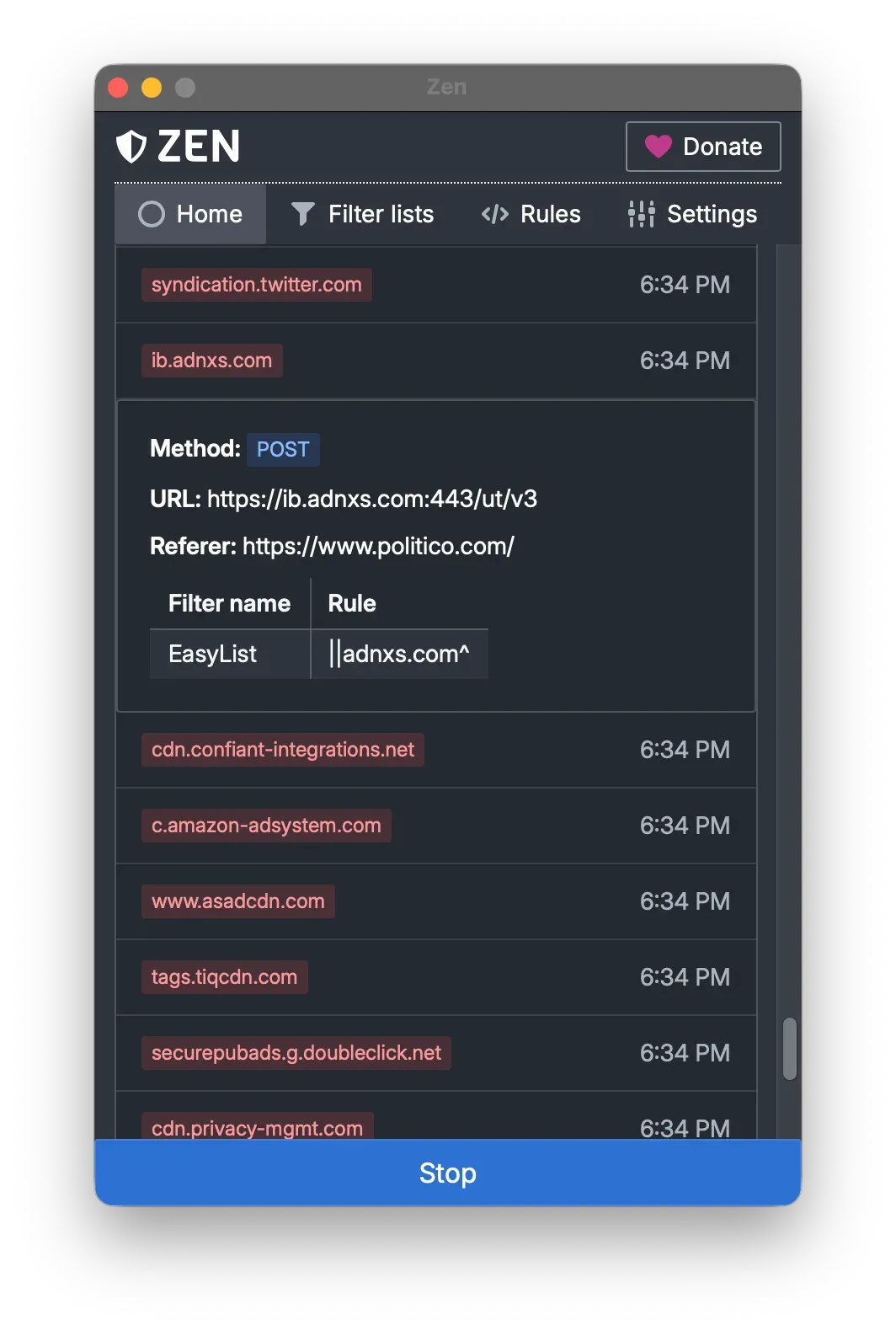
Official README screenshot of request history, with one blocked request expanded to show the filter and rule that blocked it.
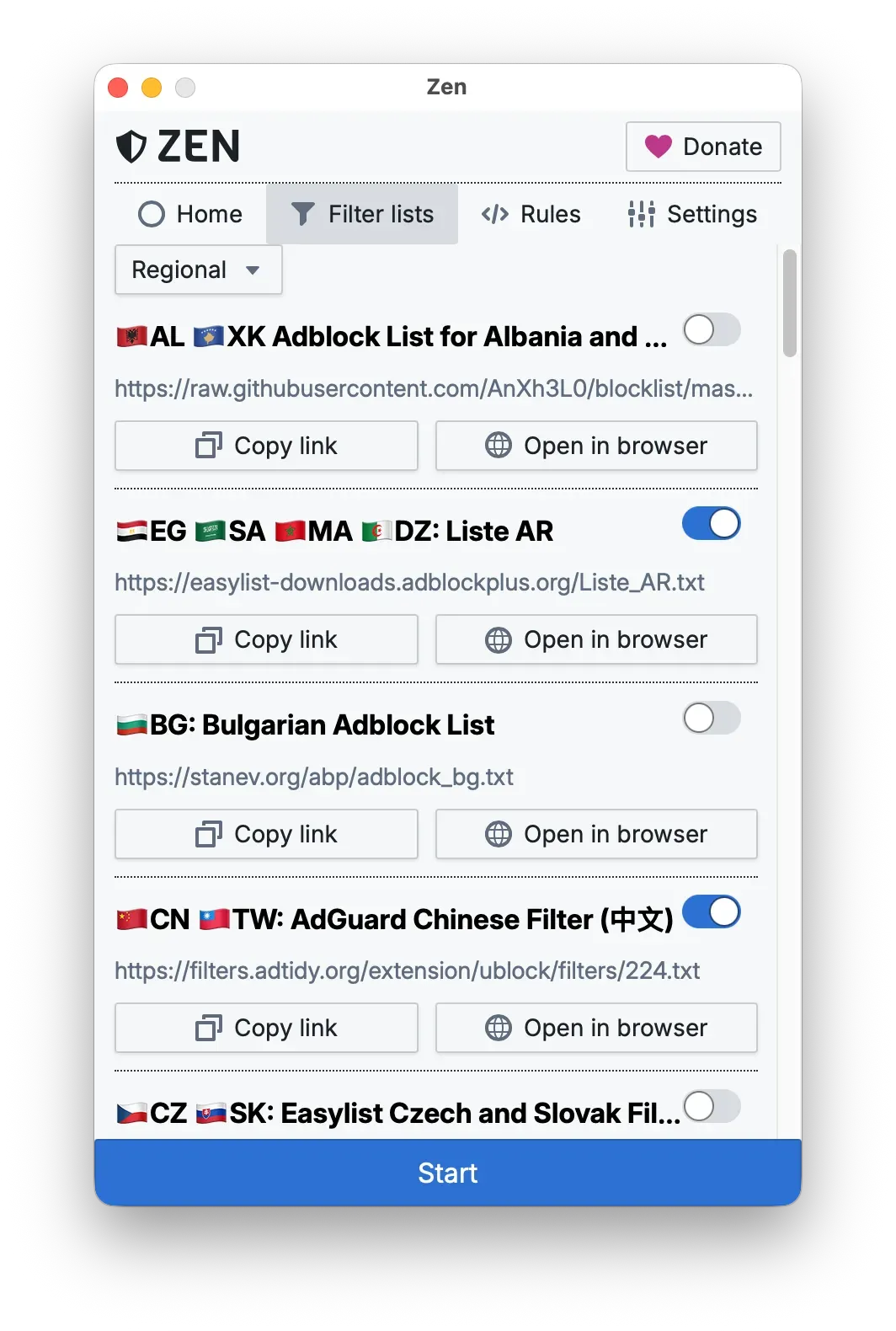
Official README screenshot of the filter list manager with regional lists and a Start button.
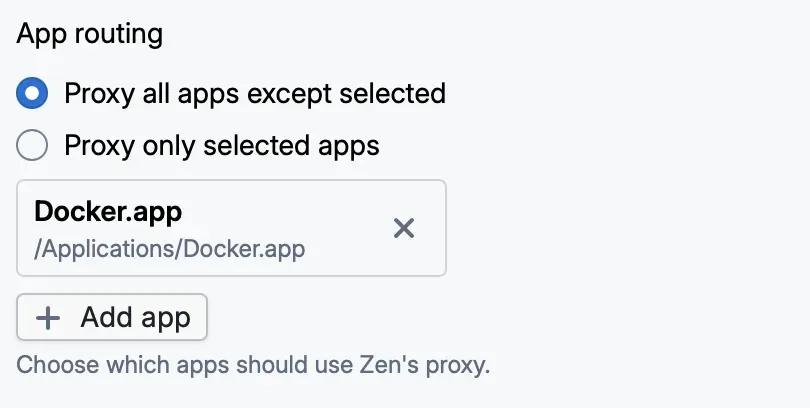
App routing setting from the Zen troubleshooting guide, excluding Docker.app from the proxy on macOS.
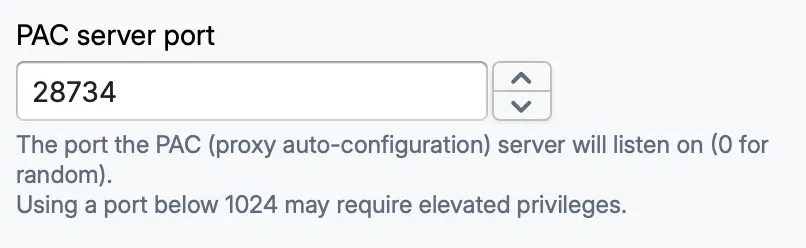
PAC server port setting from the manual Linux proxy guide, set to a fixed port.
Source: official Zen project page.
Key capabilities
- Local system proxy Zen starts a proxy server on the computer and registers it as the system proxy, so browsers and most apps send their traffic through it. The system proxy is configured with a PAC script, which lets Zen name hosts that should not be proxied. Settings expose a fixed Proxy port and a PAC server port; the PAC port uses a random value when set to 0.
- HTTPS filtering with a local root CA On first run Zen asks to install a root certificate so it can intercept and modify HTTPS requests. The README states that the certificate is generated locally and never leaves the device, and the website adds that it can be removed from Zen's settings at any time. By default the private key is stored in a file with 0600 permissions, according to the security architecture page.
- Hardware-backed CA key An experimental setting creates the CA private key inside the Secure Enclave on a Mac or the TPM on a Windows PC instead of a file on disk; it is not available on Linux. The chip signs a 24-hour intermediate certificate each time the proxy starts and every 24 hours after that. The documentation states that switching creates a new CA and that the key is lost when moving to a new machine or clearing the TPM.
- Hosts that are never proxied A built-in exclusion list covers login gateways, government and eGov sites, password managers, banks and financial institutions, payment processors, messaging services and infrastructure providers such as AWS, Azure and Google Cloud. Platform lists add hosts named by Microsoft and Apple. Users can add their own entries through the Ignored hosts setting.
- Pre-installed filter lists Lists for ads, trackers and malware are enabled by default. The request history and website show entries from EasyList, EasyPrivacy, the AdGuard Spyware filter and Dan Pollock's hosts file. The website states there are 35 regional lists for sites in other languages, each with its own toggle in the Filter lists tab.
- Custom filter lists Any list in ad-block (EasyList-style) or hosts format can be added by URL. For hosts rules, an address of 0.0.0.0 or 127.0.0.1 blocks the host and all its subdomains, which the documentation notes differs from DNS resolver behaviour.
- Custom rules The Rules tab accepts user-written filters, such as
||scorecardresearch.com^$third-partyto block a tracker orexample.com##.sponsored-bannerto hide an element. The filter list syntax reference states partial compatibility with EasyList, uBlock Origin and AdGuard formats, with near-complete compatibility targeted for v1.0. - Network rule modifiers The network rules reference documents pattern and regular-expression matching (Go regexp syntax, without backreferences) and condition modifiers for content type, domain, header, method and third-party. Action modifiers include removeparam, removeheader, jsonprune, scramblejs and remove-js-constant.
- Request history The Home tab lists blocked requests with a timestamp. Expanding an entry shows the HTTP method, URL, referer and a table with the filter list name and the rule that matched.
- Cosmetic filtering and scriptlets Besides blocking whole requests, Zen hides empty ad slots and runs small scripts that disable ads and tracking built into pages. The FAQ compares this with browser extensions, which work inside one browser, and DNS blockers, which refuse whole domains and cannot remove page elements.
- App routing and exclusions The App routing setting offers "Proxy all apps except selected" and "Proxy only selected apps", with an Add app button. The troubleshooting guide uses it on macOS to exclude Docker, whose containers do not trust Zen's CA. Sites can also be excluded, and the block page has an Allow button.
- Tracking parameter removal Since v0.29.0 rules are matched to request types the way uBlock Origin and AdGuard do, so tracking parameters are also removed from links that are clicked. A
@@...$documentexception now unblocks only the page itself; the release notes give@@||example.com^for unblocking a whole site. - Windows packages Installers and portable ZIP files for x64 and ARM64 are published on GitHub, and Windows builds are signed through SignPath Foundation. The README documents
winget install ZenPrivacy.ZenDesktop; the website labels the WinGet package as community maintained. - macOS packages DMG installers and portable tar.gz archives exist for Intel and Apple Silicon. The README documents
brew install --cask irbis-zenfor both architectures. macOS builds are signed and notarised by Apple, according to the project. - Linux packages An install script covers most distributions and accepts
--uninstall. Other methods are an AUR package (zen-adblocker-bin), a Nix flake described in the Nix guide, and portable x64 and ARM64 archives. Automatic proxy setup works only on GNOME and KDE, and Linux builds are not code-signed. - Release verification Releases are immutable, so a published release and its tag cannot be modified. Artifacts are built by GitHub CI with artifact attestations, which can be checked with
gh attestation verifyagainst the irbis-sh/zen-desktop repository. - Self-update Zen downloads a small manifest from a Cloudflare R2 bucket with the latest version, the GitHub asset URL and its SHA-256 hash, then checks the hash and installs the update. The project describes this as work in progress and plans signed update binaries verified at runtime. Every portable archive also has a noselfupdate variant.
- Interface languages The interface and, since v0.28.0, the block and error pages use the language chosen in the app. The repository ships English, German, French, Hungarian, Italian, Japanese, Kazakh, Russian, Turkish, Vietnamese and Simplified and Traditional Chinese locale files.
- VPN coexistence The website FAQ states that Zen works with any VPN on Windows and Linux and with most VPNs on macOS.
Where Zen fits
Filtering ads and trackers across browsers and desktop apps
The website describes Zen filtering traffic from desktop applications the same way it filters a browser, with Chrome, Slack, VS Code and Spotify as examples covering web page ads, messaging trackers, extension telemetry and audio ads. After the root certificate is installed, pressing Start enables the proxy and Stop disables it. Apps that use their own networking stack or certificate pinning are not filtered and may need an exclusion.
Managing filter lists and custom rules
The Filter lists tab groups lists by category, including a Regional view where each list shows its source URL, Copy link and Open in browser buttons and an on/off toggle. Additional lists are added by URL in ad-block or hosts format. The Rules tab holds user rules written in the syntax described in the network rules reference, from simple domain blocks to removeparam and jsonprune actions.
Tracing why a request was blocked
The Home tab keeps a history of blocked requests. Each entry expands to the method, full URL, referer, filter list name and matching rule, which the README presents as the way to see which filter and rule blocked a request. The website FAQ names three responses when a site breaks: exclude the site, exclude the app, or turn off the list that caused the block.
Handling certificate trust on Linux and in Firefox
Where Zen cannot add its CA to the system trust store, such as on NixOS, the CA certificate guide describes adding rootCA.pem (never rootCA-key.pem) to the system configuration and checking it with curl through the proxy port, where the issuer reads Zen Personal CA. Apps with their own trusted certificate lists, such as Python programs using certifi, Java apps and some Flatpak apps, may still reject it. The troubleshooting guide covers Firefox key-pinning and MITM-detected errors.
Configuring the proxy on other Linux desktops
Automatic proxy configuration is limited to GNOME and KDE. On other desktop environments, the manual proxy guide sets a fixed PAC server port in Zen, then points Firefox to http://127.0.0.1:<port>/proxy.pac or starts Chrome with --proxy-pac-url. Apps that only accept a plain HTTP/HTTPS proxy use the Proxy port setting instead.
Excluding developer tools from the proxy
When Zen is enabled, Docker picks up the system proxy and routes container HTTP and HTTPS traffic through Zen, which causes certificate errors because containers do not trust Zen's CA. The documented fix on macOS is App routing set to "Proxy all apps except selected" with Docker.app added. The same setting can instead limit Zen to selected apps only.
Similar listings on iThub work at other layers: the browser extension uBlock Origin, browsers with built-in blocking such as Brave Browser and Helium, and the per-application proxy client ProxyBridge.
Install
curl -fsSL https://raw.githubusercontent.com/irbis-sh/zen-desktop/master/install.sh | shReviews of Zen
Be the first to share your experience with Zen.
Write a review
Loading review form…
Alternatives to Zen
 uBlock OriginuBlock Origin is a free, open-source content blocker for Firefox and Chromium browsers with filter lists, custom filters and per-site controls.BBBrave BrowserBrave is a web browser from Brave Software that blocks ads and trackers by default and ships a built-in VPN, with an independent search engine.
 HeliumGPL-3.0 Chromium browser from imput for macOS, Windows and Linux. It removes Google service dependencies, bundles a uBlock Origin fork, adds local !bangs and four layouts, and routes services through a self-hostable backend. Still in beta.