

What is Darkwrite?
Darkwrite is a desktop notes application for Windows, macOS and Linux that stores everything on the local device and works without an account or an internet connection. It uses a block editor in the style of Notion, with a sidebar of nested pages, favorites, a trash and separate workspaces, but leaves out sync, collaboration and AI features. The project is free software under the GNU Affero General Public License, version 3 or later, and is developed by a single maintainer, Burak, who publishes as astudentinearth on GitHub. The theme documentation notes that Darkwrite was first created in 2022; the current codebase is a later rebuild whose first public alpha, 0.1.0-alpha.1, appeared in November 2024.
Darkwrite is still labeled beta. The latest release is 1.3.1-beta.1, published October 1, 2026. It reworks the move-note dialog to match the search dialog, makes drag-and-drop between notes and properties consistent and remembers whether the properties panel was collapsed; the notes also list a known ghost-click bug when editing a property value. Version 1.3.0-beta.1, from September 10, 2026, added custom text, checkbox and date properties that export to Markdown frontmatter, moved to Electron 44, made Linux window controls follow the GTK theme and launched a searchable documentation site. Earlier 2026 releases added fuzzy search, Markdown export, reader mode, image resizing, a Simplified Chinese translation and, in 1.2.0-beta.1, links to local files and other notes, right-to-left text and workspace deletion. The full history is kept in CHANGES.md.
Builds are attached to each GitHub release and linked from the downloads page: an unsigned Windows installer, a notarized macOS DMG, and a Linux AppImage and .deb package built on Ubuntu 22.04. An Arch Linux package, darkwrite-bin, is maintained by a community member in the AUR. There is no Flatpak, Snap, mobile app or web version, and updates are installed manually; the app can query the GitHub API to announce new releases, a check that can be disabled.
The application is an Electron app written in TypeScript and organized as a pnpm monorepo with desktop, frontend, shared library, translation and website packages. The editor is built on Tiptap and the interface on React. Workspace metadata such as names, note titles, ordering and properties lives in a SQLite database accessed through drizzle-orm and libsql, which replaced TypeORM and better-sqlite3 in 1.2.0. Note bodies are saved as JSON documents and embedded images as separate files, all in a Darkwrite folder under the operating system's application data directory. The interface is available in English, Turkish and Simplified Chinese through gettext translation files.
Several things are deliberately out of scope. Darkwrite has no built-in sync, no shared workspaces, no encryption of stored notes and no AI features; the maintainer has said AI functions would only be considered if the community asks for them. The public roadmap lists databases and a storage rework as in development, and self-hosted sync, Flatpak support, a graph view and a plugin API as planned. None of these are part of the current release.
Darkwrite screenshots
Explore the interface. Open a screenshot to view it at full size.
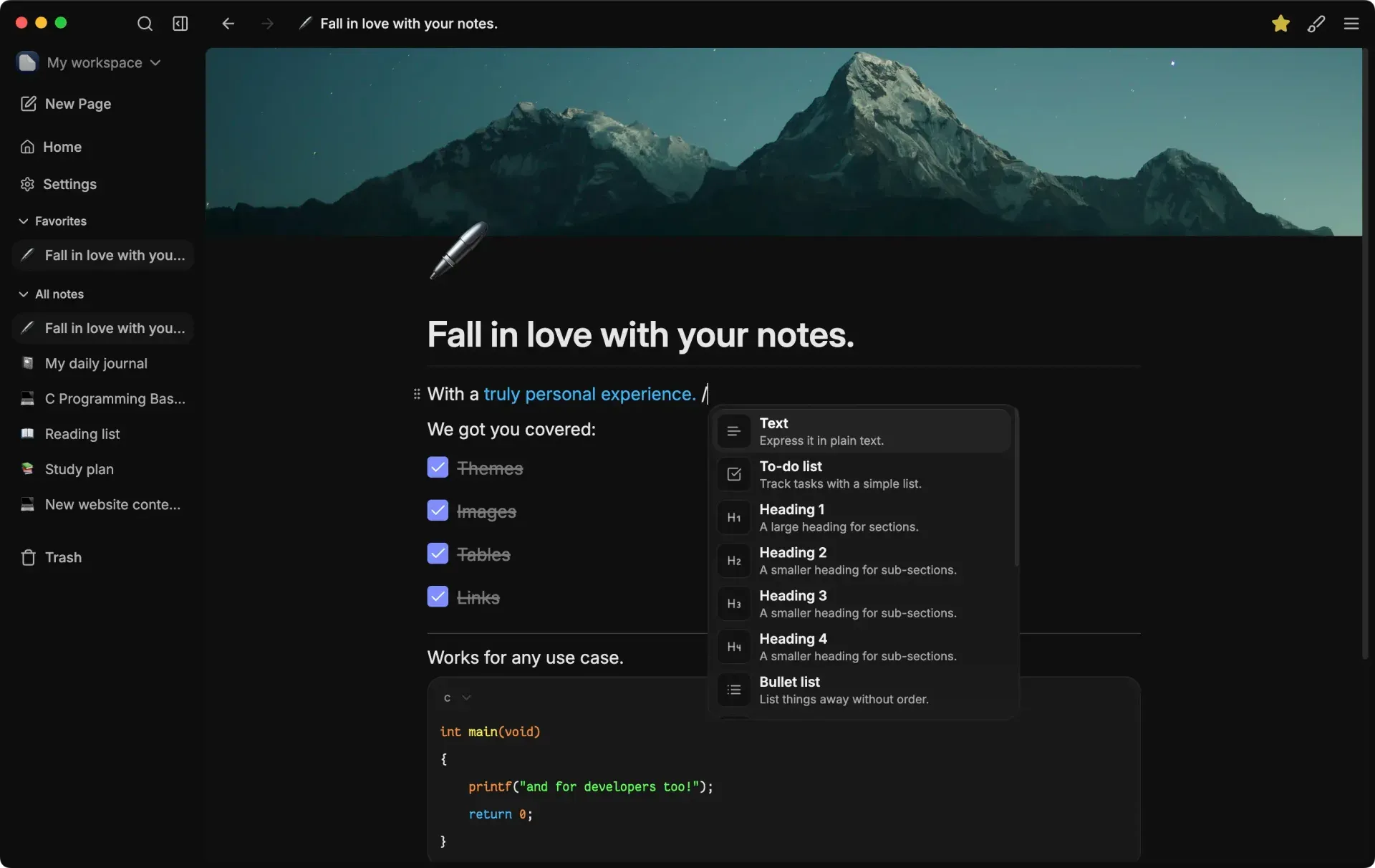
The Darkwrite editor with nested notes in the sidebar, a cover image, a to-do list and the slash command menu. Official screenshot from the Darkwrite website.
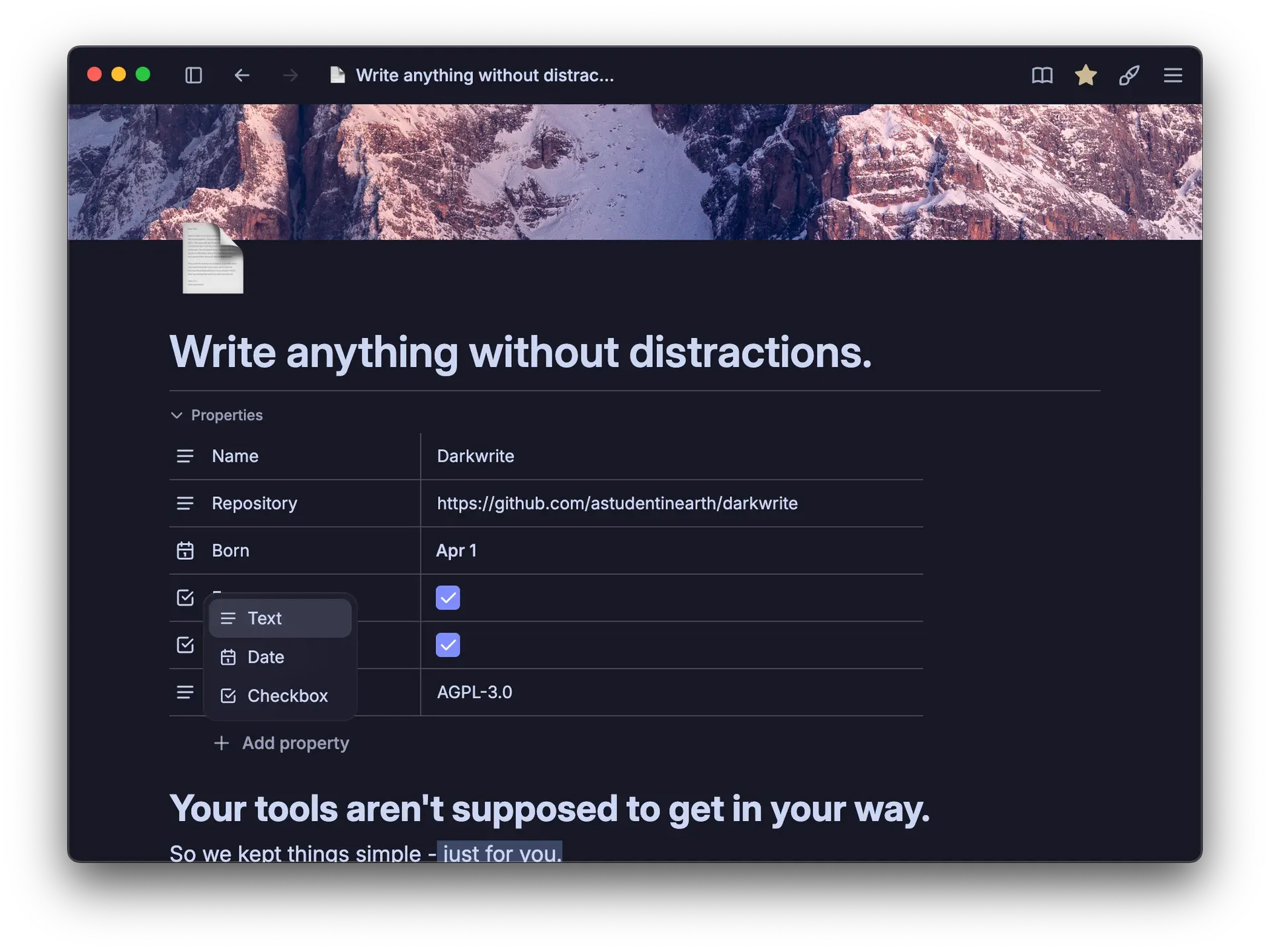
Custom properties added in 1.3.0: text, date and checkbox values with the type picker for a new property.
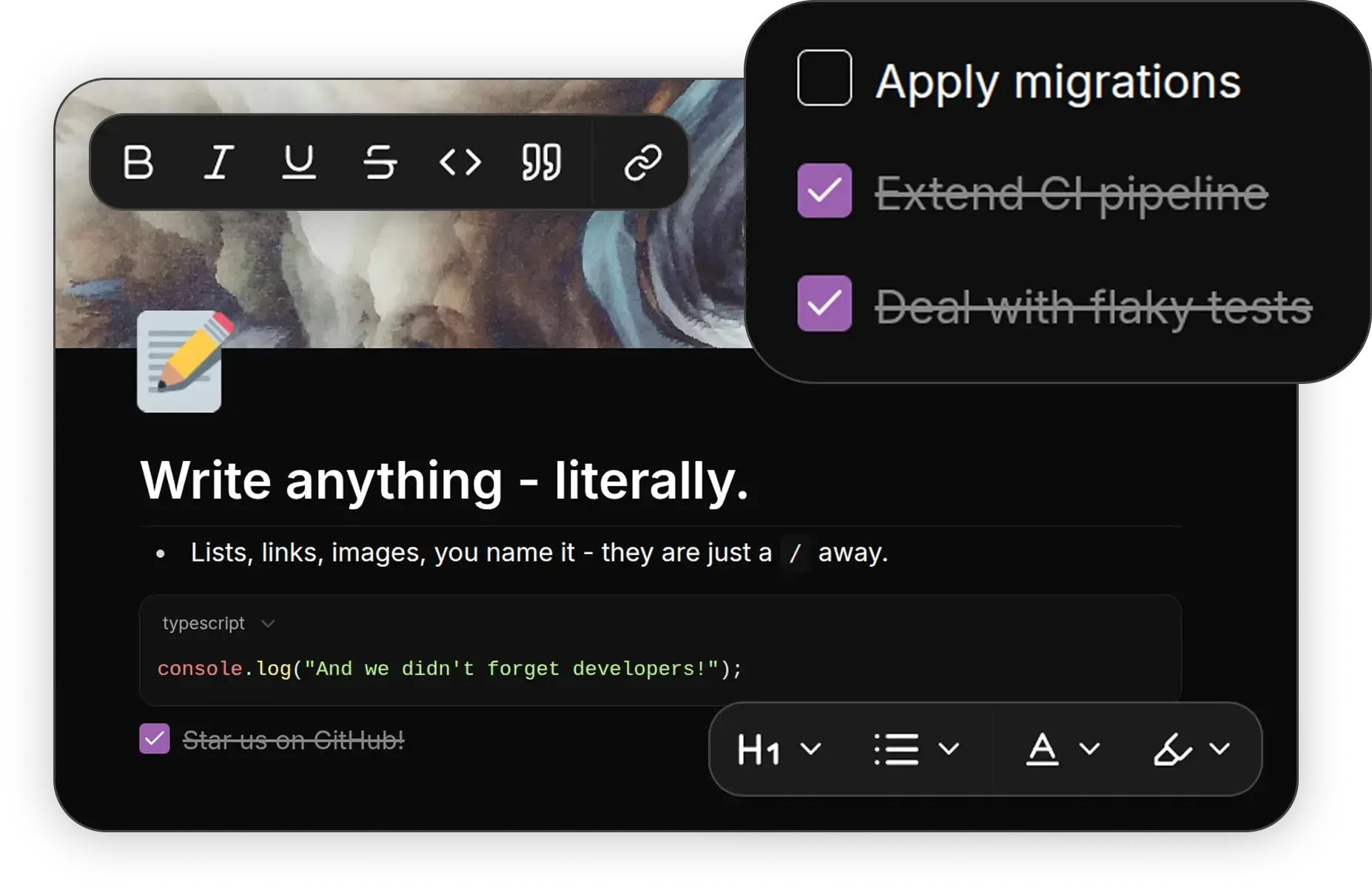
Editor detail showing the formatting toolbar, to-do items, a syntax-highlighted code block and heading, list and color menus.
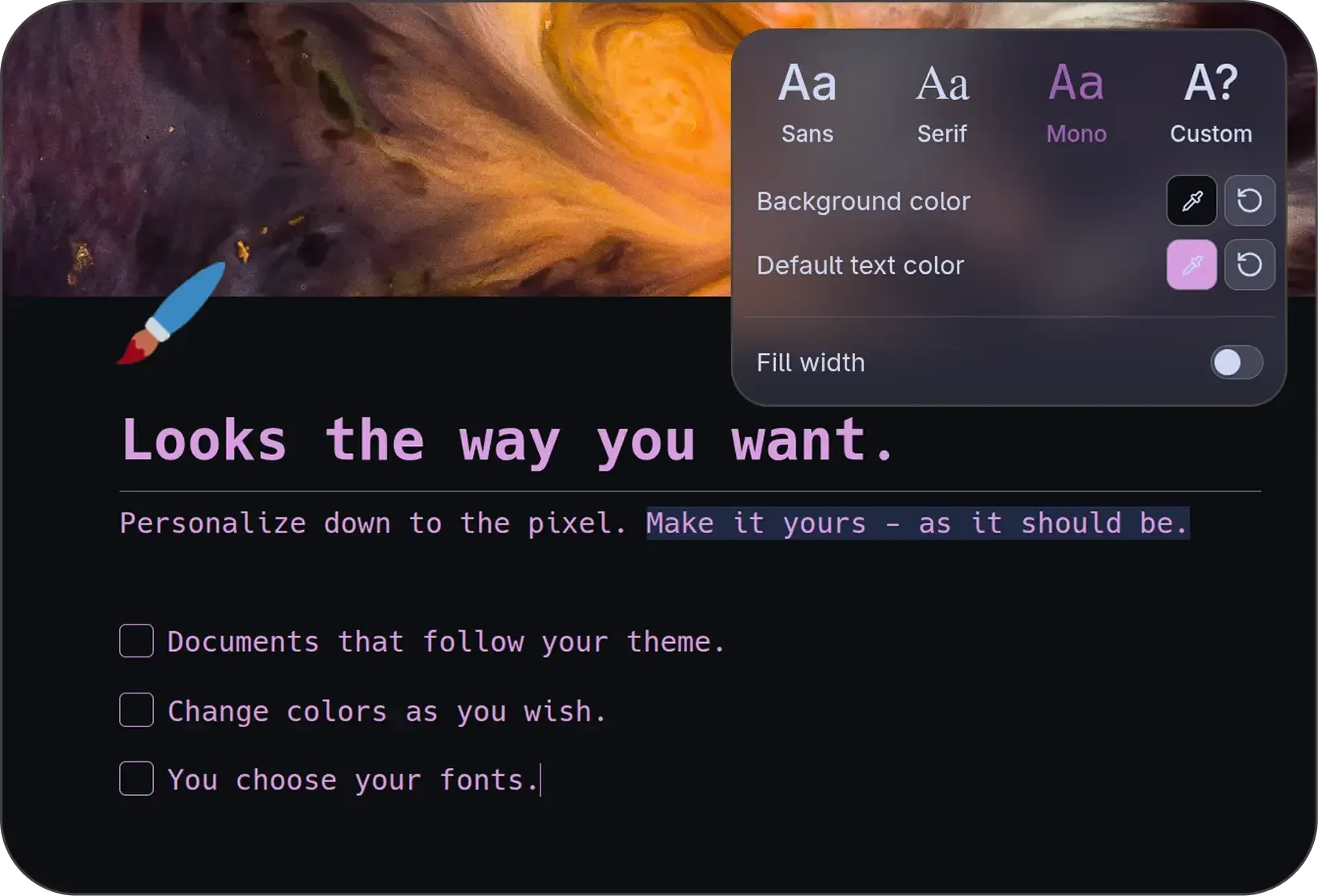
Per-note styling: font choice between sans, serif, mono and custom, background and text colors, and full-width layout.
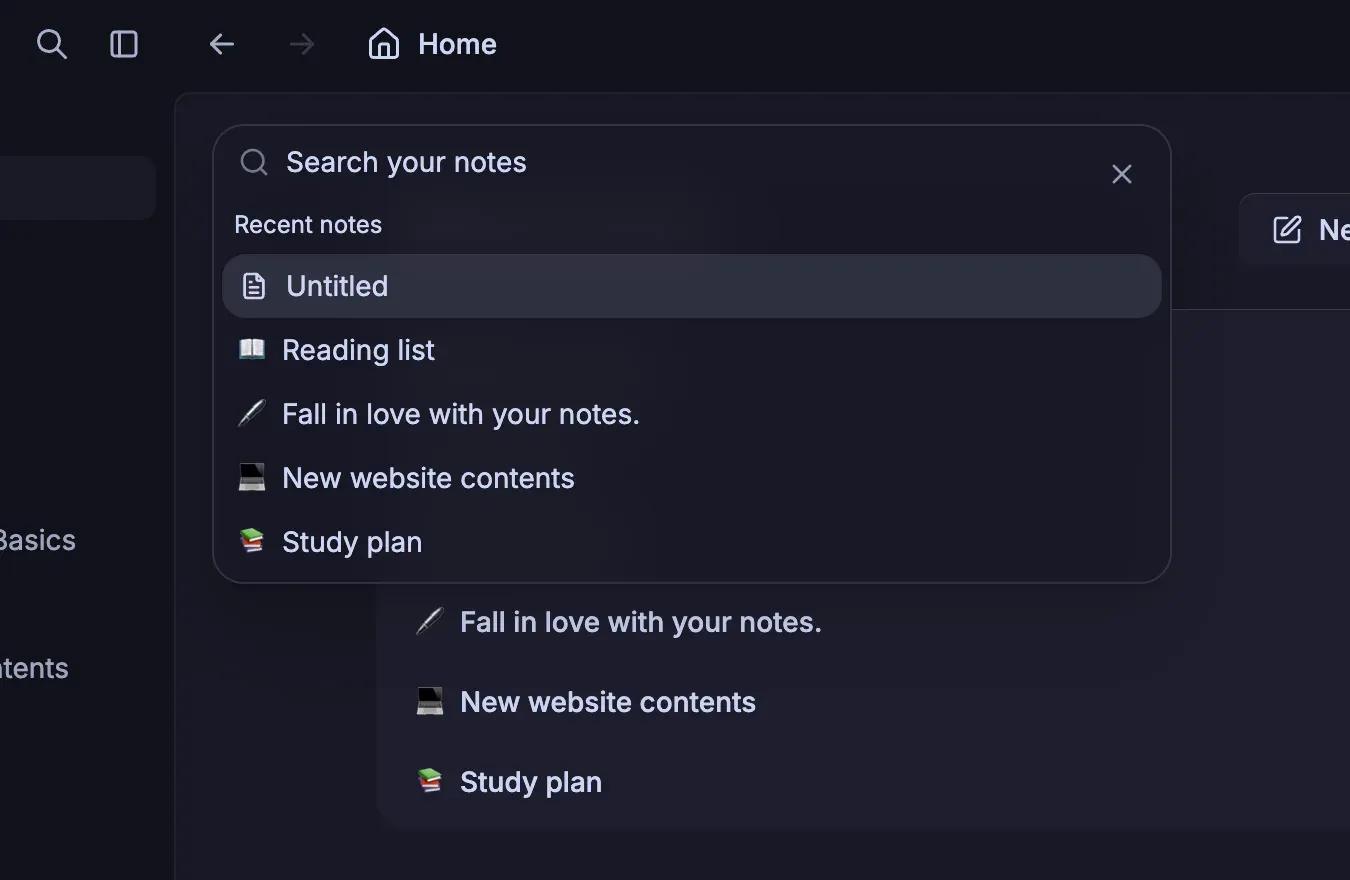
The search dialog rebuilt in 1.2.6, which shows recent notes before a query is typed.
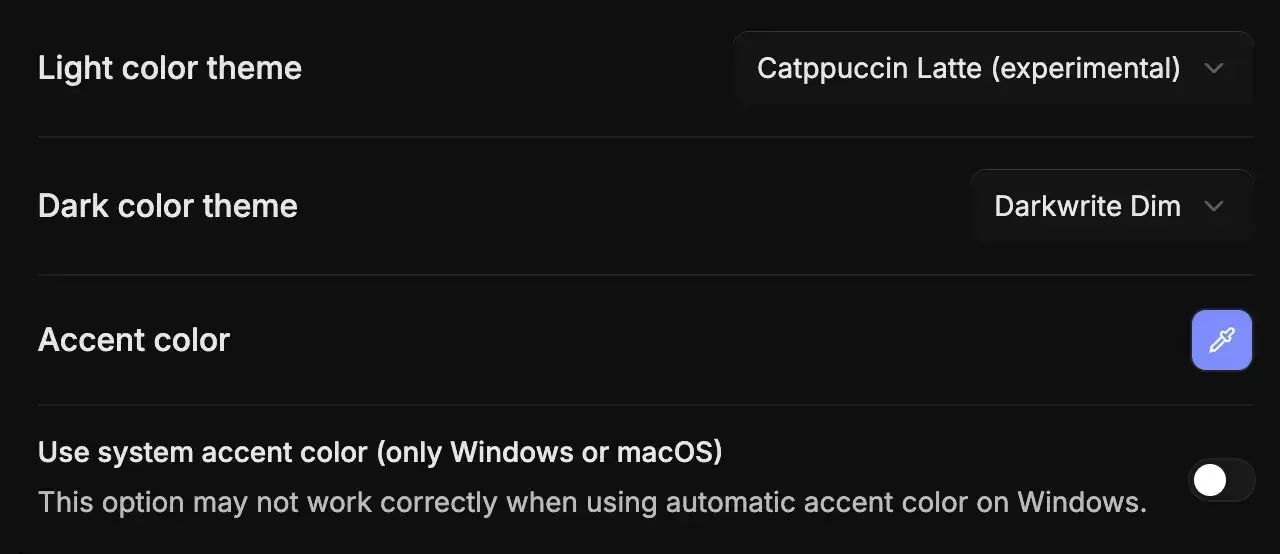
Appearance settings: Catppuccin Latte as light theme, Darkwrite Dim as dark theme, and accent color options.
Source: official Darkwrite project page.
Key capabilities
- Download for Windows Each release ships
Darkwrite-Installer.exe. The build is not code-signed, so SmartScreen shows a warning; the installation guide says to choose More info, then Run anyway. The first launch can take a while because Windows Defender scans the app, and the 1.2.0 notes advise waiting a few minutes if an error box appears on the first start. - Download for macOS A single
Darkwrite-Installer.dmgis published per release; drag the app into Applications. Builds from 1.1.0-beta.1 onward are notarized, so no quarantine workaround is needed. Older builds require removing the quarantine attribute manually, which the guide documents but does not recommend. - Download for Linux Releases include
Darkwrite.AppImageandDarkwrite.deb, installed withsudo dpkg -i Darkwrite.deb. Electron AppImages can conflict with AppArmor on Ubuntu, so the guide recommends the .deb there. Packages are built on Ubuntu 22.04, and the project plans to drop 22.04 compatibility around the end of 2026. On Arch-based systems the unofficialdarkwrite-binAUR package installs withyay -S darkwrite-bin. Flatpak and Snap are not supported because features such as linked files need full filesystem access. - Block editor with slash commands Typing a slash opens a menu of text, to-do lists, four heading levels, bullet and numbered lists, quotes, code blocks and other block types. A floating bubble menu applies bold, italic, underline, strikethrough, inline code, links, text colors and highlights. Code blocks offer a language selector and syntax highlighting that follows the theme colors, and a global context menu provides spellcheck suggestions.
- Tables and images Tables support header rows, custom cell background colors and column resizing. Images can be pasted or inserted, resized by percentage since 1.2.1 and downloaded again from the context menu. Each note can also carry an icon and a cover image, shown above the title.
- Nested pages, favorites and trash Notes form a tree in the sidebar, with subpages, a Favorites section and an All notes section. Notes are reordered by drag and drop, moved through a context menu or the move dialog revised in 1.3.1, and can be dropped straight into the trash. Trashed pages remain viewable and editable before they are restored, and the trash can be emptied in one step.
- Links to notes and local files Inline links can point to other notes, and Link to page blocks can be converted into inline links. Since 1.2.0 a note can also link to a file on disk, opened with a single click or, optionally, a double click. The link stores the file's absolute path, so moving the file or opening the notes on another computer breaks it.
- Custom properties Version 1.3.0 added text, checkbox and date properties, including date ranges, shown in a collapsible table under the title. Names must be unique, a property's type cannot be changed after creation, and properties are reordered by dragging their icons. Duplicating a note copies its properties, which the properties guide suggests as a way to build templates. Only Markdown export includes properties, as frontmatter.
- Workspaces Workspaces separate notes by project or area of life; every note belongs to one, and the first is created during onboarding. A switcher at the bottom of the sidebar changes workspace instantly, and each workspace can have its own name and icon image. Deleting a workspace requires typing its name and removes all its notes permanently, without passing through the trash, as the workspace guide warns.
- Themes and accent colors Darkwrite bundles Default and Dim dark themes plus ports of Catppuccin Mocha, Macchiato, Frappe and Latte. Separate themes can be assigned to light and dark mode, with a System mode that follows the operating system, and the accent color can be picked manually or taken from the system on Windows and macOS. Custom themes are JSON files that map the 36 CSS variables of the documented template to explicit CSS color values, imported from settings.
- Fonts and per-note styling The interface font and the default note fonts can be chosen from the installed system fonts. Each note can override its font with sans, serif, mono or a custom choice, and set its own background color, default text color and full-width layout. Exported PDF and HTML files keep these fonts and colors.
- Search and navigation A search dialog, rebuilt with fuzzy matching in 1.2.6, lists recent notes when it opens and supports vi-style navigation with Ctrl+K. Back and forward history follows platform shortcuts, and the 1.2.x releases added a reader mode and a centered view for long-form writing. The menu bar includes a Help section with links to the documentation and issue tracker.
- Export formats Notes export as styled HTML with images embedded as data URLs, as PDF through the print-to-PDF engine with selectable page sizes, as Markdown and as Darkwrite JSON. The FAQ lists the losses: Markdown drops images, linked files and page links, and JSON drops images. A bundled export format is planned but not scheduled.
- Import HTML, Markdown and Darkwrite JSON files can be imported, several at a time. The FAQ recommends migrating from other applications by exporting their notes as Markdown or HTML first; dedicated import guides for specific apps have not been written yet.
- Backups and restore Settings include a one-click backup that packs notes and settings into an archive, which can be restored on the same or another computer. The project recommends taking a backup before each update, and the app keeps a snapshot copy of its database while migrations run so a failed upgrade can be rolled back.
- Languages and text direction The interface and menu bar are translated into English, Turkish and Simplified Chinese, the last contributed by a community translator. Version 1.2.0 added right-to-left support and an optional button for setting text direction manually, which can be shown or hidden in settings.
- Build from source The full source is on GitHub under the AGPL. Building needs Node 22 and pnpm;
pnpm installfollowed bypnpm buildruns the project's builder script and places installers underpackages/app-desktop/release/. Windows builds also need Python and Visual C++ Build Tools, and macOS builds need macOS Sequoia with Xcode 26, according to BUILDING.md.
Where Darkwrite fits
Keeping a private journal or study notebook
Install the release for your platform, create the first workspace during onboarding and start writing; no account or network connection is involved. Use nested pages for subjects or months, Favorites for pages opened daily, and covers or icons to tell notebooks apart. Because notes are stored unencrypted in the application data folder, the FAQ recommends full-disk encryption on laptops, and it advises against keeping passwords in any notes app.
Writing technical notes and runbooks
Developers and administrators can combine headings, checklists, tables and syntax-highlighted code blocks in one page, and link log files, scripts or PDFs stored on disk directly from the note. Export a finished runbook as PDF or HTML to share it, since Darkwrite has no publishing or shared workspace. Check that linked files still resolve after reorganizing folders, because links keep absolute paths.
Tracking simple metadata with properties
Add date, checkbox and text properties to record due dates, review status or sources, then duplicate a prepared note to reuse it as a template. Properties export to Markdown frontmatter in the order shown, with dates as ISO values and ranges as from and to dates, which makes them readable by static-site generators and other Markdown tools. Other export formats do not include properties yet.
Separating work and personal material
Create one workspace per client, course or area of life and switch between them from the sidebar. Each workspace has its own page tree, and history navigation switches workspace automatically when needed. Before deleting a workspace, export any notes you want to keep as JSON and import them into another workspace, because deletion is permanent and bypasses the trash.
Moving notes between computers without sync
Darkwrite has no sync, and the FAQ warns that placing its data folder in Google Drive or similar services may corrupt the database. Use the backup archive from settings to move a complete library to a new machine, or export individual notes and import them on the other device. Treat one computer as the primary copy to avoid diverging edits until the planned self-hosted sync arrives.
Updating safely between beta releases
Create a backup from settings before installing a new build, and read the release notes for breaking changes; 1.2.0 required alpha users to pass through 1.1.0 first. If a Migration failed message appears, the troubleshooting guide explains how to collect migration.log, restore the snapshot database copy as darkwrite.db and reinstall the previous release until a fix ships.
Reviews of Darkwrite
Be the first to share your experience with Darkwrite.
Write a review
Loading review form…
Alternatives to Darkwrite
 NotionNotion is a hosted workspace from Notion Labs, Inc. for documents, wikis, databases and projects, with Notion Agent, Custom Agents, an MCP server, a REST API, desktop apps for macOS and Windows, and mobile apps for iOS and Android.
 AppFlowyAppFlowy is an AGPL-3.0 open-source AI workspace for projects and wikis, with desktop and mobile apps and a self-hosting option.
 AnytypeAnytype is a local-first knowledge and collaboration app from the Swiss Any Association. Data lives in an encrypted vault on each device and syncs peer-to-peer, through the Anytype Network or through a self-hosted any-sync network.