What is Filee?
Filee is an open-source desktop file converter that processes files on your own computer. Its distinctive interaction is a radial menu at the pointer: hold the configured modifier, drag files and drop them on an available conversion preset. A normal drop zone, file-manager integration and a command line provide other entry points.
Read the full overview
The reviewed release advertises a catalog of 255 formats across documents, images, PDFs, audio, video, archives and several technical formats. That is a format catalog, not a promise that every input can become every output. A route planner selects supported conversion steps, and some routes depend on optional engines such as FFmpeg, LibreOffice or Pandoc.
Filee is built with .NET and Avalonia. The app queues conversion work, applies the selected preset and writes the result under its output naming rules. Keeping a conversion local avoids uploading the document to an online converter. It does not mean the program can never access the network: update checks, engine installation and selected browser-file downloads are separate paths.
The reviewed version is Filee 2.0.0, published October 21, 2026, under MIT. Windows and Linux packages are documented; macOS remains a preview with different installation requirements. The official screenshots retained in the documentation can show an earlier interface version. ITHub has not independently converted a corpus with this release.
 FileeBusiness Software
Convert documents, images and media locally through a desktop drop menu, presets and a command line
Filee screenshots
Explore the interface. Open a screenshot to view it at full size.
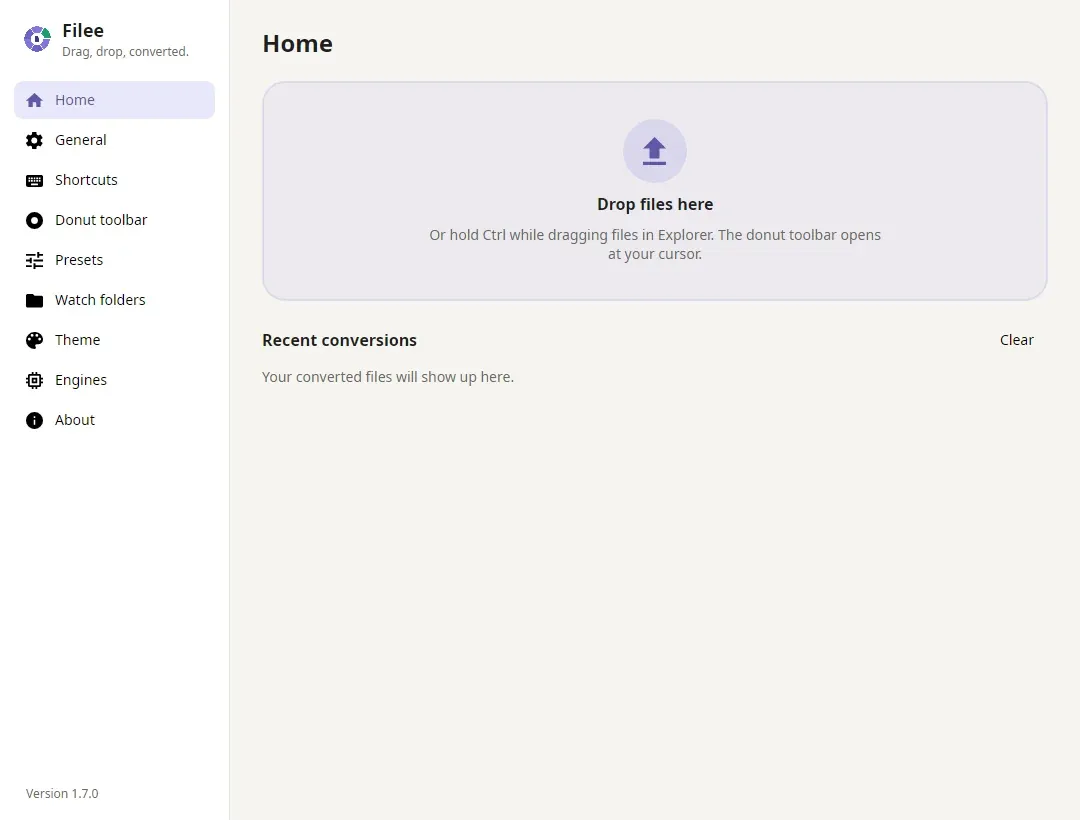
Official documentation screenshot. The image shows version 1.7.0 and illustrates the interface, rather than an ITHub capture of 2.0.0.
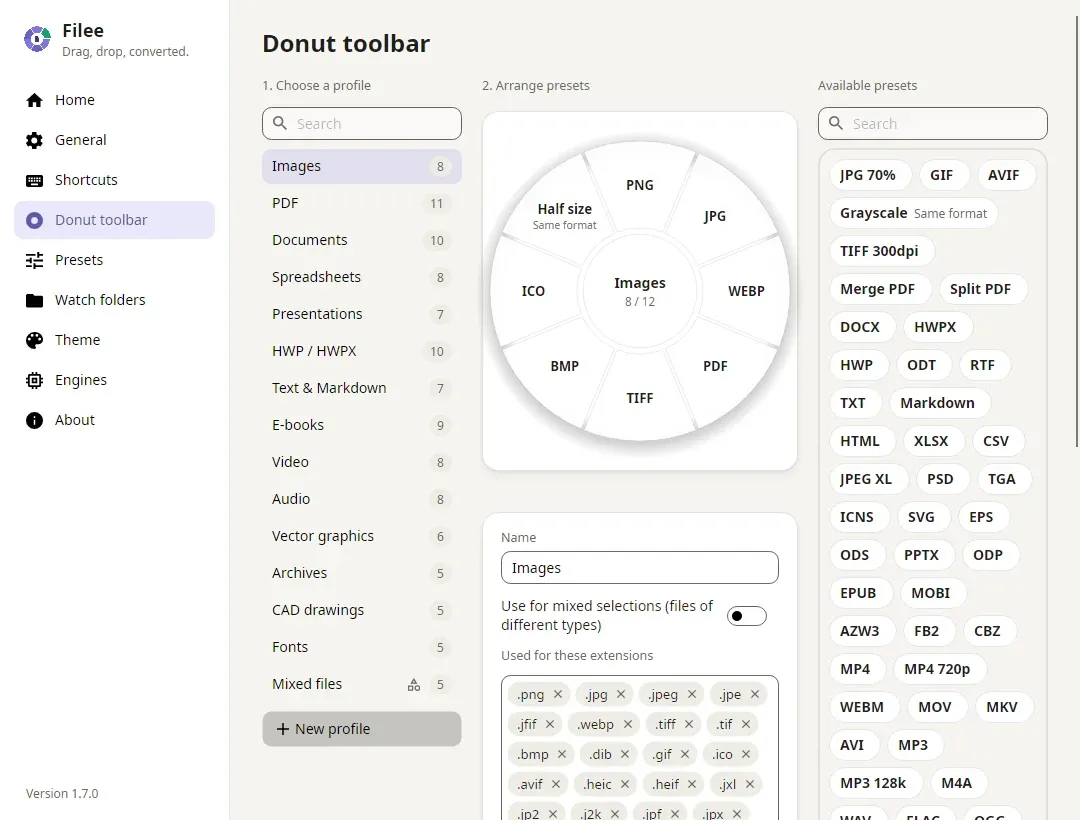
Official project screenshot from the reviewed documentation; interface examples may show an earlier release.
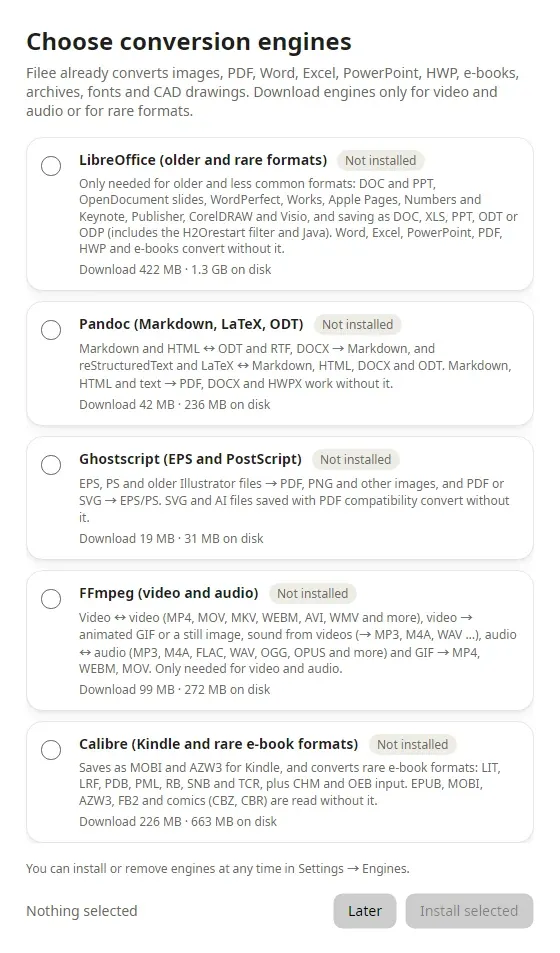
Official setup illustration showing the engine workflow. Availability depends on operating system and installed components.
Source: official Filee project page.
Key capabilities
- A radial conversion menu The menu presents presets that make sense for the current file selection. Its toolbar can be arranged by file type and includes a second face for less-used formats or tools. This reduces repeated navigation when the same few conversions are part of a daily document workflow.
- A conversion route planner The core models supported converters as edges between formats and chooses a chain when direct conversion is unavailable. The architecture guide documents a maximum of three steps. An indirect route can change layout or editability, so inspect the resulting artifact rather than judging success only by its extension.
- Built-in and optional engines Image and document processing use a mixture of libraries, bundled tools and optional downloads. The engine matrix identifies which route requires which component. Older Office formats, some document scripts and media operations can need additional software even when related formats work out of the box.
- Presets and batch jobs Presets control options such as image quality, dimensions, DPI, PDF pages, compression and output naming. Multiple files can be queued with per-engine concurrency limits. A batch shares a workflow, but each result still needs an appropriate check when the sources have different layouts, encodings or embedded objects.
- Watch folders and command-line conversion A watched folder can start a chosen conversion when a file arrives. The filee command reuses engines and presets from the desktop application. That is useful for repeatable local tasks. It does not establish a hosted conversion API, a multi-tenant service or a server deployment with an availability contract.
- Images, documents and technical formats The documented catalog includes Office and PDF workflows, image formats, archives, fonts, CAD files, 3D models and geospatial vectors. Coverage is directional and engine-dependent. For example, PDF-to-PPTX can produce page images rather than editable slide objects; that distinction changes whether the result meets a presentation-editing requirement.
- Browser-file intake Version 2 adds dragging supported pictures and file links from browsers into the workflow. The source is downloaded before conversion, without inheriting browser sign-in credentials. A protected download may therefore need to be saved through the browser first. This is separate from converting an already local document.
- Platform-specific entry points Linux drag gestures require X11; the README points Wayland users to the drop zone and file-manager menu. macOS packages are a preview and have their own permissions and packaging limitations. Choose an interaction that is supported on the actual workstation instead of assuming the Windows gesture works identically everywhere.
Where Filee fits
Preparing files for a shared workflow
Create a small preset set for the formats colleagues or customers actually need. Test an ordinary document, one with tables and one with unusual fonts before converting a large batch. Check the visible pages, selectable text and output naming. A consistent file extension is only one part of a usable handoff.
Processing documents without a web upload
Use local inputs and install the required engines before working offline. The project states that conversion content is not uploaded and that it does not send usage telemetry. Review update settings and browser-download behavior separately. An offline conversion path is easier to reason about when its inputs and dependencies are already on the device.
Automating repeated conversion
Use the CLI or a watch folder for a stable, well-understood route. Decide where outputs go, what happens to originals and how failures are noticed. Start with copies and verify naming collisions on a small set. Application automation does not replace the surrounding backup and retention policy for important files.
Selecting between conversion and PDF editing
Filee is useful when the main job is moving a file between supported representations or applying a conversion preset. SuniPDF and PdfCraft have different PDF-editing workflows. Review the operation you need, such as editing pages versus exporting a document, before treating the tools as substitutes.
Positioning and limitations
Filee fits desktop users and technical teams that regularly convert mixed file types and want local processing. It combines a quick pointer interaction with a visible settings application and CLI. Its breadth can reduce the number of separate utilities needed, but conversion quality still depends on the source format, selected route and engine.
The MIT license covers Filee itself. Bundled and downloaded converters keep their own licenses, notices and packaging conditions. The third-party notices matter when redistributing an installation or building a managed workstation package. Free availability does not make every embedded component MIT-licensed.
Document fidelity is a workload question. A PDF export can preserve a useful visual page while losing editable structure, and a document conversion can change a font or table. Keep native sources when future editing matters. The engine matrix also records language-dependent routes, so include representative writing systems in the evaluation.
Windows, Linux and the macOS preview have different integration details. Verify the package and engine availability for the exact operating system and architecture. Browse business software for adjacent document workflows, and use the ITHub evaluation method to separate supported routes from untested assumptions.
File conversion is a delivery problem with a visible output. The useful result is a document, image or media file that the next person can open and use. Filee makes the conversion path and preset reusable, while keeping the processing on the workstation for local inputs. That is a concrete benefit for recurring handoffs.
Its route and engine model also exposes an important limit of broad format claims. Knowing that a format is recognized is different from knowing how a particular output is produced. The engine documentation helps identify optional dependencies and transformations that can affect layout, quality, text structure or editability.
Before adopting it, build a small sample set covering the files that cause real work: a table-heavy document, a scanned PDF, a large image and the media formats you actually receive. Compare outputs, failure messages, time and retained originals. Save the chosen presets once the results meet that workflow's requirements.
“Convert documents, images and media locally through a desktop drop menu, presets and a command line”
Technical details
- Access
- Windows / macOS / Linux app
- Source model
- Open source
- License
- MIT
- Founded
- Not specified
- Data location
- File conversion on the local computer; optional update and engine downloads, and explicitly selected browser-file downloads, use network services
- Pricing model
- Open source
- API
- Not specified
- Version reference
- 2.0.0 ↗
- Source checked
- October 21, 2026
- Website
- filee.sh ↗
- GitHub
- Source repository ↗
What to verify
Profile audiences: IT Teams, Developers, System Administrators.
- Confirm current features, licensing and support terms.
- Validate deployment, data location and access control.
- Test integrations, exports and recovery workflows.
Reviews of Filee
No published reviews yet.
Loading review form…